> For the complete documentation index, see [llms.txt](https://library.zoom.com/llms.txt). Markdown versions of documentation pages are available by appending `.md` to page URLs; this page is available as [Markdown](https://library.zoom.com/business-services/zoom-contact-center/zoom-customer-experience/analytics-and-reporting/zoom-workforce-management-reports.md).
# Zoom Workforce Management Reports
### **Historical Adherence Report**
The Historical Adherence Report provides a summary of agent adherence performance for a specific timeframe, with up to 30 days per report.
If the report has multiple days, it will initially display the user’s average adherence for the specified timeframe. Supervisors can extend the user’s average report and review their adherence for each day.
### **Schedule Activity Report**
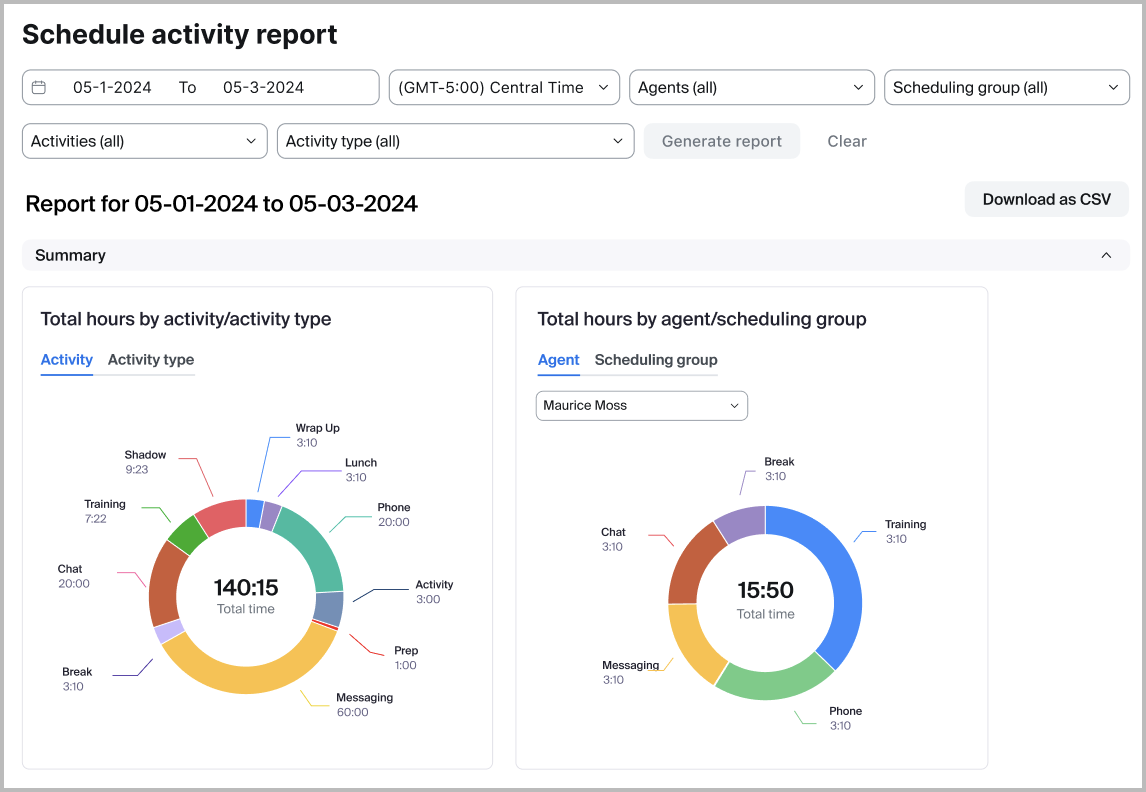
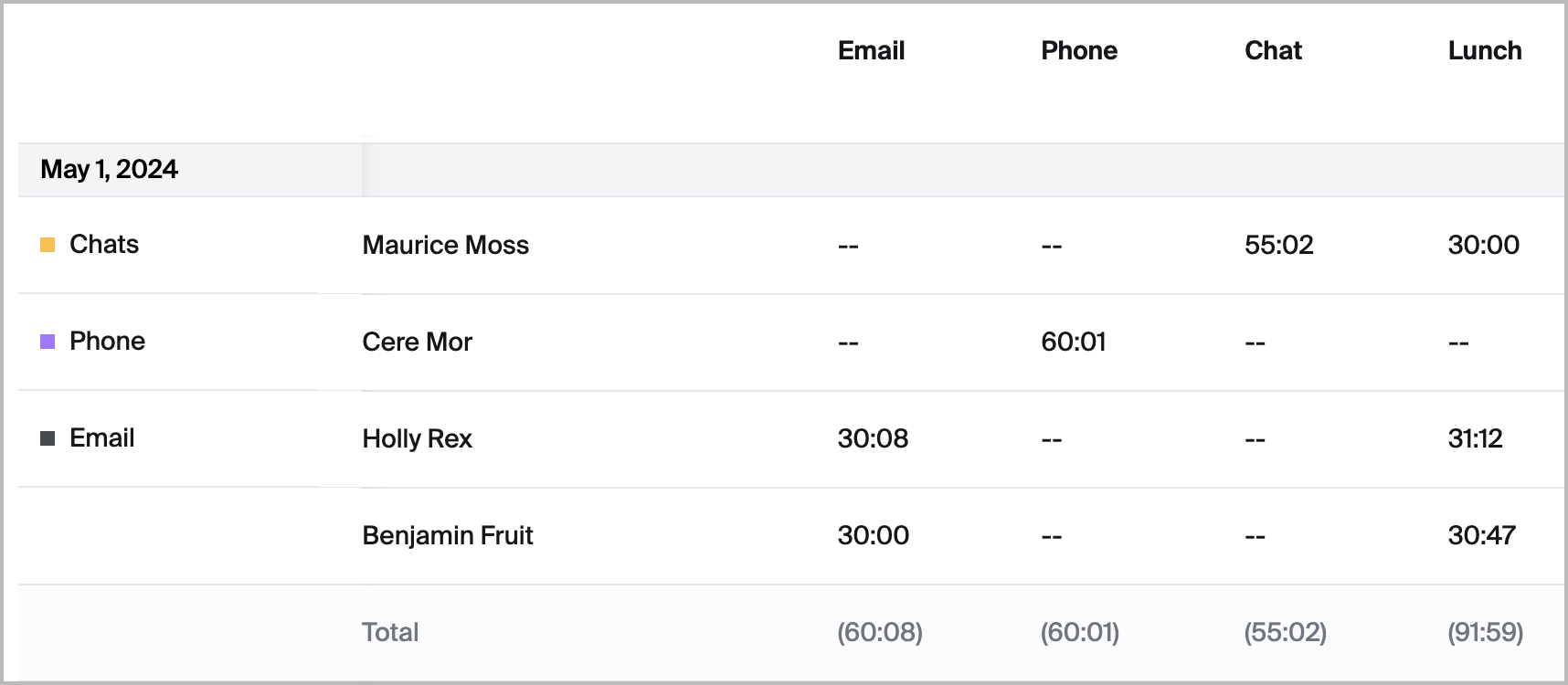
The Schedule Activity Report provides a detailed summary of scheduled agent Activities for both past and future dates, showing how much time each Activity is allotted each day. Supervisors can filter the report by individual(s), specific Activities, and Scheduling Groups to help ensure proper staffing and maintain service levels. This report can also be exported into a CSV, facilitating collaboration and thorough examination of work schedules, and enabling better resource management and planning.
### **Forecast vs. Actuals Report**
Supervisors can easily compare forecasted and actual volumes, average handle duration (AHD), and staffing for a selected period in the Forecast vs. Actuals Report. This report helps teams spot variations and improve future planning. Data can be viewed daily, weekly, or monthly, with percentage variances included. For more accurate staffing comparisons, supervisors can set shift durations for short-term forecasts to calculate unique staff per day.
### **Intraday Report**
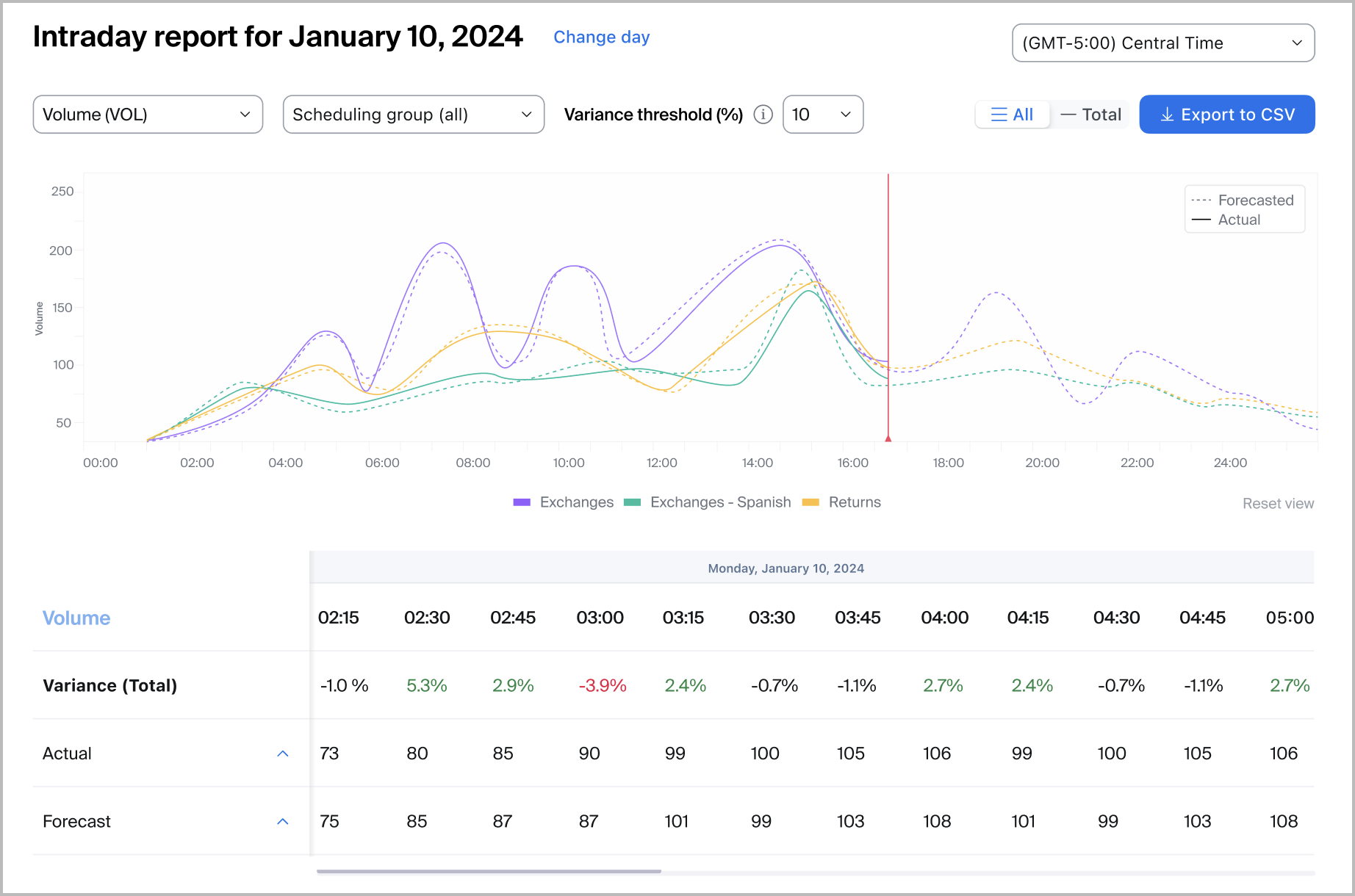
Administrators and supervisors can view an intraday report to compare a Schedule’s Forecast accuracy against a previous or current day’s engagement volume. This empowers supervisors to identify Forecast variances and make dynamic staffing decisions if a day’s engagement volume notably deviates from the Forecast.
### **Audit Logs**
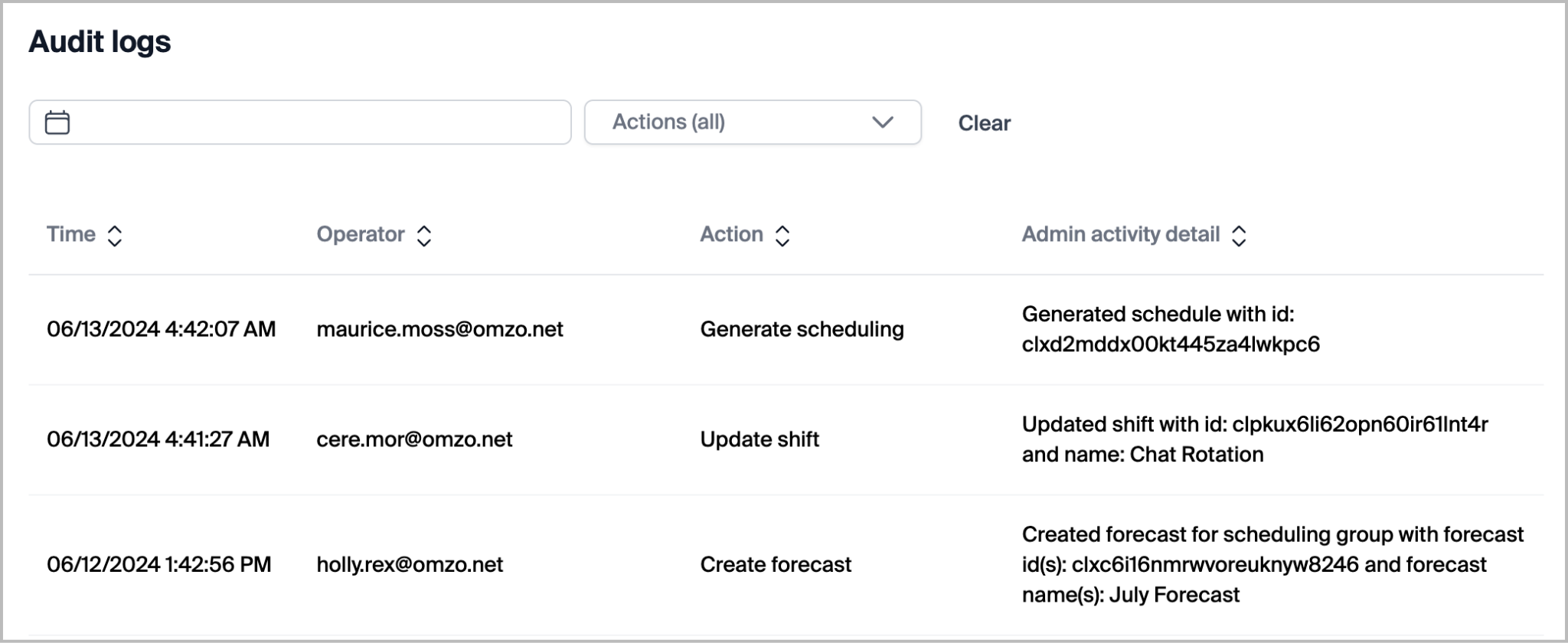
Workforce Management administrators and supervisors with sufficient permissions can access the Audit Log Report. This report contains a robust list of actions taken by administrators, supervisors, and users within the product. Users with access to the audit logs can filter by date or by specific actions taken. Logs included within the report include:
| - Cancel Agent Schedule Change Request
- Cancel Time Off Request
- Create Activity
- Create Agent Schedule Change Request
- Create Forecast
- Create Queue
- Create Scheduling Group
- Create Shift
- Create Time Off Request
- Delete Activity
- Delete Forecast
- Delete Queue
- Delete Scheduling Group
- Delete Shift
- Delete Unpublished Schedule
- Duplicate Schedule
| - Change First Day of Week
- Generate Scheduling
- Inactive Schedule
- Publish Schedule
- Republish Schedule
- Update Activity
- Update Agent Schedule Change Request Status
- Update Queue
- Update Scheduling Group
- Update Scheduling Group Agents
- Update Scheduling Group Queues
- Update Shift
- Update Shift Agents
- Update Status Mapping
- Update Time Off Request Status
|
| -------------------------------------------------------------------------------------------------------------------------------------------------------------------------------------------------------------------------------------------------------------------------------------------------------------------------------------------------------------------------------------------------------------------------------------------------------------------------------------- | ----------------------------------------------------------------------------------------------------------------------------------------------------------------------------------------------------------------------------------------------------------------------------------------------------------------------------------------------------------------------------------------------------------------------------------------------------------------------------------------- |
---
# Agent Instructions
This documentation is published with GitBook. GitBook is the documentation platform designed so that both humans and AI agents can read, navigate, and reason over technical content effectively. Learn more at gitbook.com.
## Querying This Documentation
If you need additional information that is not directly available in this page, you can query the documentation dynamically by asking a question.
Perform an HTTP GET request on the current page URL with the `ask` query parameter, and the optional `goal` query parameter:
```
GET https://library.zoom.com/business-services/zoom-contact-center/zoom-customer-experience/analytics-and-reporting/zoom-workforce-management-reports.md?ask=&goal=
```
`ask` is the immediate question: it should be specific, self-contained, and written in natural language.
`goal` is optional and describes the broader end goal you are ultimately trying to accomplish on behalf of the user. GitBook uses it to tailor the answer towards what is most useful for that goal.
The response will contain a direct answer to the question and relevant excerpts and sources from the documentation.
Use this mechanism when the answer is not explicitly present in the current page, you need clarification or additional context, or you want to retrieve related documentation sections.