> For the complete documentation index, see [llms.txt](https://library.zoom.com/llms.txt). Markdown versions of documentation pages are available by appending `.md` to page URLs; this page is available as [Markdown](https://library.zoom.com/admin-corner/third-party-integrations/microsoft-365-calendaring-field-guide/troubleshooting.md).
# Troubleshooting
Common issues and how to resolve them.
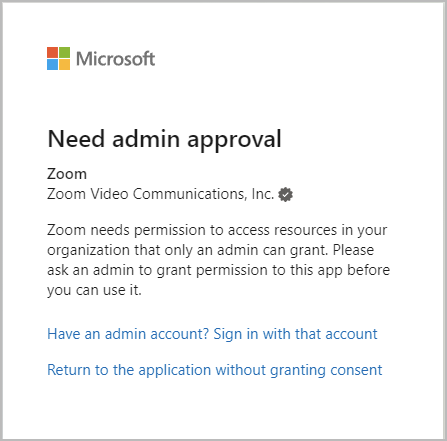
### Need admin approval
When testing calendar integration configurations, users may encounter a Microsoft 365 approval error, stating that the integration requires admin approval. This can occur if user consent permissions between Azure and Zoom Workplace do not align, or if a user has a session cookie from an earlier authentication prior to application approval.
Test the integration by starting a new **private browsing** **session**, and repeat the personal Calendar and Contacts integration process. If successful, the failure was due to a previous Microsoft 365 session cookie and there is no configuration error. If unsuccessful, confirm the permission settings between Azure and Zoom Workplace match. If the permission settings match and the error persists, the configuration process must be restarted.
### Restart the configuration process
Restarting the API request and approval process requires removing the Zoom app from the Azure Enterprise Applications.
1. Use a Microsoft 365 Administrator account to navigate to the [Enterprise Applications](https://portal.azure.com/#blade/Microsoft_AAD_IAM/StartboardApplicationsMenuBlade/AllApps/menuId/) section within the Azure portal.
2. Locate the following application IDs depending on your MGAPI setup method:
1. *f46ceaed-fb2d-4694-803b-6341837f0ed2* (Application Permissions, Personal Calendars)
2. *f56e91e5-5a82-452f-b435-d4d78aeaf064* (Application Permissions, Zoom Rooms)
3. *fc108d3f-543d-4374-bbff-c7c51f651fe5* (OAuth Delegated Access, Personal Calendars)
4. *a651cfda-cbdd-4a39-bd03-fa829c3c1b29* (Full Delegate Access, Zoom Rooms)
3. Open the application and select **Properties**.
4. **Delete** the application(s).
5. Begin a new private browsing session and reconfigure the integration starting with the beginning of this document.
If errors persist after reconfiguring the application, contact Zoom Support for additional assistance.
---
# Agent Instructions
This documentation is published with GitBook. GitBook is the documentation platform designed so that both humans and AI agents can read, navigate, and reason over technical content effectively. Learn more at gitbook.com.
## Querying This Documentation
If you need additional information that is not directly available in this page, you can query the documentation by asking a question.
Perform an HTTP GET request on the following URL with the `ask` and `goal` query parameters:
```
GET https://library.zoom.com/admin-corner/third-party-integrations/microsoft-365-calendaring-field-guide/troubleshooting.md?ask=&goal=
```
`ask` is the immediate question: it should be specific, self-contained, and written in natural language.
`goal` is what the user is ultimately trying to achieve, the reason they need the answer. Sharing it helps GitBook give you a better, more relevant answer. A goal is most helpful when it describes the outcome the user wants rather than restating the question. For example, with `ask=how do I create an API token`, a goal like `automate deployments from our CI pipeline` lets GitBook tailor the answer to that use case.
The response will contain a direct answer to the question and relevant excerpts and sources from the documentation.
Use this mechanism when the answer is not explicitly present in the current page, you need clarification or additional context, or you want to retrieve related documentation sections.