> For the complete documentation index, see [llms.txt](https://library.zoom.com/llms.txt). Markdown versions of documentation pages are available by appending `.md` to page URLs; this page is available as [Markdown](https://library.zoom.com/business-services/zoom-contact-center/expert-insights/integrate-engagement-data.md).
# Integrate Engagement Data
Written by Justin Steinberg
### Overview
Zoom Contact Center generates valuable engagement data during every customer interaction, including call recordings, transcripts, agent notes, and dispositions. Keep reading to learn how to store engagement data in external systems (for example, CRM and other systems of record) to create a unified customer view, enable effective agent coaching, or meet compliance requirements when using Zoom Contact Center.
We'll break down the different integration methods to help you choose the best approach based on how your agents can work with increased efficiency.
The best method depends primarily on one key factor: **the application where the agents are handling their interactions**. The two options we'll discuss are:
1. Agents using the out-of-the-box ZCC CRM CTI Connector within the CRM.
2. Agents working in the Zoom Workplace app, which requires a custom solution with ZCC APIs and Webhooks.
***
### Out-of-the-Box CRM CTI Connector Integration
This is the most straightforward method. If your agents are using a ZCC CRM CTI Connector, most engagement data can be synced between the Zoom platform and appropriate CRM automatically.
#### How It Works
The CTI Connector embeds the ZCC agent interface directly into the CRM. When an engagement ends, data such as recordings, transcripts, notes, and dispositions are automatically saved within Zoom and linked to the relevant record (for example, a ticket or contact) in your CRM.
#### Setup Requirements
Functionality that allows synchronization of data between Zoom and the CRM comes "out of the box", but requires activation within the ZCC admin portal.
Complete the following steps:
{% stepper %}
{% step %}
**Enable in ZCC Admin Portal**
Log in to the Zoom admin portal as an Administrator and navigate to Contact Center Management > Integrations > Applications.
Find the relevant CRM integration and enable the appropriate settings to allow data storage in your CRM.
{% endstep %}
{% step %}
**CRM Permissions**
Review and follow the [CRM integration setup guides](https://support.zoom.com/) to verify that your CRM integration user has the necessary write permissions for all relevant objects.
{% endstep %}
{% endstepper %}
#### Supported CRM Platforms
This functionality is accessible through the ZCC CRM CTI Connector when agents use the following CRMs:
* Salesforce
* Zendesk
* ServiceNow
* Microsoft Dynamics
* HubSpot
With the CRM CTI connectors, no special configuration is required, and the integration will save the engagement data into the CRM by default.
***
### Custom Integration via APIs
If your agents use the native Zoom Workplace app or ZCC Smart Embed, you'll need a custom solution to transfer engagement data. The primary way to do this is with the Zoom Contact Center APIs.
There are two main approaches to access engagement data via the API:
* **Polling:** Periodically query the Zoom API to see if new engagement data is available.
* **Webhooks:** Receive a real-time notification from Zoom as soon as a transcript is ready.
There's also a third approach, **Flow Events integration**, which works for certain data types.
#### Polling the Zoom Contact Center APIs
To download engagement data, you must query the appropriate ZCC API endpoints. It's important to note that different types of data come from different APIs, so you'll likely need to build polling logic for each relevant endpoint.
Many engagement-related APIs within the Reports V2 (CX Analytics) now support end-time filtering with `end_time_from` and `end_time_to`. Prefer these parameters when available so your polling jobs retrieve engagements based on when they have actually ended. This helps reduce missed records because full engagement data (including report V2 data) is finalized at engagement end.
| To Get This Data... | Poll This API... | Using This Field... | Notes: |
| ----------------------------------------------------------- | ---------------------------------------------------------------------------------------------------------------------------------------------------------------------------------------------------------------------------------------------------------------------------------------------------------------------------------------------------------- | ------------------- | -------------------------------------------------------- |
|
| `transcript_url` | Requires transcription to be enabled for the inbox. |
{% hint style="danger" %}
**Warning**
The download URLs (`download_url`, `transcript_url`, `playback_url`, and so on) provided by these Zoom APIs are **not** public links. They are designed for programmatic access and require API authentication (for example, access token in the Authorization header) to download the associated file.
This means:
* You can't save these URLs directly in a CRM for a user to click. A user clicking the link in their browser will not be authenticated, and the download will fail.
* The correct method is for your backend service to use the URL to fetch the file. Your service can then store the file in your own system (like Amazon S3, Azure Blob Storage, or your CRM's file storage) and provide a secure link to your users from there.
{% endhint %}
{% hint style="warning" %}
**Heads Up**
**Processing Delays - Voice & Video Recordings:**
This data isn't available the instant a call ends. The audio must be processed and uploaded first, which can take several minutes for long calls. To ensure you don't miss recordings, set the `query_date_type` parameter to `recording_end_time` when polling the List recordings API. This fetches data based on when processing finished, not when the call ended.
For Reports V2 (CX Analytics) engagement-centric reconciliation jobs, use overlapping time windows with `end_time_from` and `end_time_to` to provide a safety buffer for delayed processing and transient delivery issues.
{% endhint %}
For more info on Zoom Contact Center APIs, see [Contact Center APIs](https://developers.zoom.us/docs/api/contact-center/) documentation.
#### Use Webhooks for Real-Time Events
For a more immediate, event-driven approach, you can subscribe to ZCC webhooks. This is the most efficient method for near real-time integration.
**How It Works**
1. Subscribe to the appropriate events in the Zoom App Marketplace.
2. When an event occurs, Zoom sends a notification to your webhook URL (or to your Websocket connection).
3. The event payload contains the data you need, either directly or as a URL/ID for a follow-up API call.
**Common Webhook Events for Engagement Data**
* **Engagement End Data Ready:** contact\_center.cx\_engagement\_end\_data\_ready (signals that engagement-end report V2 data is ready to retrieve)
* **Voice/Video Recording:** contact\_center.recording\_completed (provides a `download_url`)
* **Voice/Video Transcript:** contact\_center.recording\_transcript\_completed (provides a `transcript_url`)
* **Messaging Transcript:** contact\_center.engagement\_messaging\_transcript\_completed (provides a `transcript_url`)
* **Notes:** contact\_center.engagement\_note\_added (provides a `note` field with the note data)
* **Disposition:** contact\_center.engagement\_disposition\_added (provides a `disposition_name` field with the disposition data)
**Recommended Pattern: Trigger Retrieval When Engagement Data Is Ready**
When you receive `contact_center.cx_engagement_end_data_ready`, treat it as your signal that engagement-end report V2 data is complete for that engagement. At that point, call the Historical Engagement log data API and any other relevant APIs to collect the final data set. In this event, use `engagement_id` as your lookup key and then fetch the complete engagement artifacts from your required endpoints.
{% hint style="warning" %}
**Heads Up**
* **Be Aware of Multiple Events:** The `note_added` and `disposition_added` events can fire multiple times for a single engagement (for example, if an agent saves several notes or a call is transferred). Your application logic must be able to handle this.
* **Build in Redundancy:** Event delivery isn't always 100% guaranteed (for example, your endpoint or websocket connection might be temporarily down).
* **Backup Strategy:** We recommend running a reconciliation script using polling APIs with `end_time_from` and `end_time_to` windows to catch missed events and close data gaps.
{% endhint %}
For more info on Zoom Contact Center Webhook/Websocket events, see [Contact Center Webhooks](https://developers.zoom.us/docs/api/contact-center/events/) documentation.
#### Flow Events Integration
For certain data types, you can push data directly to an external system from the ZCC Flow editor using a JavaScript Event Script.
**Supported Data & Limitations:**
* **Disposition:** Can be accessed on all inbound engagement channel types using the `global_system.Engagement.disposition` variable.
* **Transcript:** Only accessible for inbound messaging engagements (for example, Web Chat) using the `global_system.Engagement.transcript` variable.
* **Multiple Flows:** When working with multiple Flows in your configuration, particularly when one Flow uses the `RouteTo` widget to connect to another Flow, it is essential to ensure that identical Event Scripts and triggers are properly configured across all Flows.
This method is most powerful in a messaging Flow, where you can combine both the transcript and disposition in a single event.
**Configuration Steps**
Follow these steps to configure your flow:
{% stepper %}
{% step %}
**Add an Event Script**
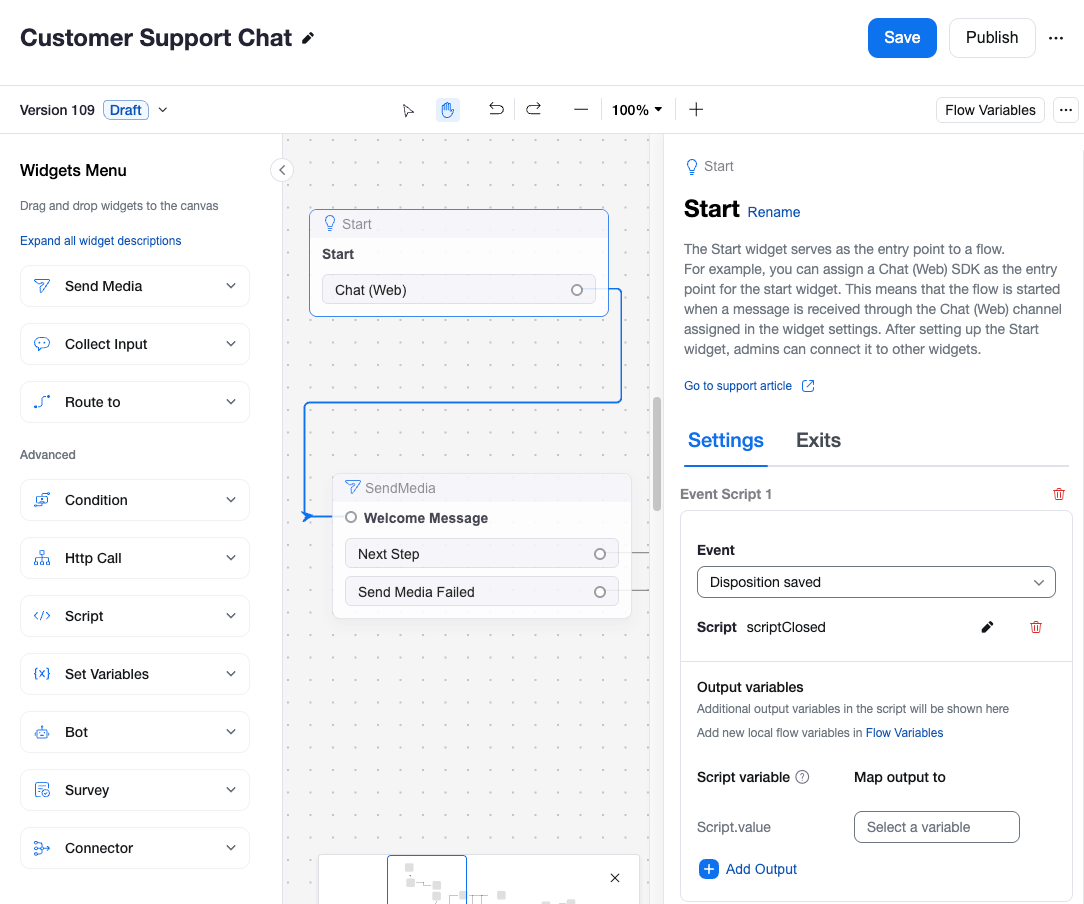
In your ZCC Flow (for example, a Web Chat flow), click the Start widget.
Locate Event Scripts and add an Event Script for events, such as Engagement Closed and/or Disposition Saved.
{% endstep %}
{% step %}
**Add Your Custom JavaScript**
The example below retrieves both the disposition and transcript, then sends them together to an external API.
```javascript
async function main () {
try {
// Get the disposition object from its variable
const disposition_data = var_get()['global_system.Engagement.disposition'];
// Get the full transcript object
const transcript_data = await req.get(var_get()['global_system.Engagement.transcript']);
// Prepare a payload with all the data you want to send
const payload_to_send = {
disposition: disposition_data.data.result,
transcript: transcript_data.data.result.transcript
};
// Define the destination for your data
const external_api_url = '';
// Send the combined data to your external system
const response = await req.post(external_api_url, payload_to_send);
// Log the response from the external system for troubleshooting
log.debug("External API response: " + JSON.stringify(response.data));
} catch (error) {
log.debug("An error occurred in the transcript event script: " + error);
}
}
```
{% endstep %}
{% endstepper %}
***
### Summary and Recommendations
Choose the integration method that best aligns with your agent workflow and technical resources.
| If your agents use... | Then your best option is... | Key Considerations: |
| ------------------------------------------------- | ---------------------------------------------------------- | ----------------------------------------------------------------------------------------------------------------------------------------------------------------------------------------------------------------------------------------------------------------------- |
| The ZCC CTI Connector in a supported CRM | The built-in integration |
Easiest path
No code required
Engagement data sync is built-in
|
| The Zoom Workplace App or Smart Embed | API Webhooks plus end-time filtered polling reconciliation |
Use contact\_center.cx\_engagement\_end\_data\_ready as your retrieval trigger
Then reconcile with end\_time\_from/end\_time\_to windows
Improves efficiency while reducing missed engagements
|
| An Inbound Messaging Flow (and need to push data) | Flow Event Scripts |
Niche, but powerful
Requires JavaScript
Works best for sending messaging transcripts and dispositions
|
By understanding these different paths, you can build a robust and reliable integration that gives you a complete view of your customer interactions. Combining event-triggered retrieval with end-time filtered reconciliation helps you reduce unnecessary API calls while improving completeness.
---
# Agent Instructions
This documentation is published with GitBook. GitBook is the documentation platform designed so that both humans and AI agents can read, navigate, and reason over technical content effectively. Learn more at gitbook.com.
## Querying This Documentation
If you need additional information that is not directly available in this page, you can query the documentation dynamically by asking a question.
Perform an HTTP GET request on the current page URL with the `ask` query parameter, and the optional `goal` query parameter:
```
GET https://library.zoom.com/business-services/zoom-contact-center/expert-insights/integrate-engagement-data.md?ask=&goal=
```
`ask` is the immediate question: it should be specific, self-contained, and written in natural language.
`goal` is optional and describes the broader end goal you are ultimately trying to accomplish on behalf of the user. GitBook uses it to tailor the answer towards what is most useful for that goal.
The response will contain a direct answer to the question and relevant excerpts and sources from the documentation.
Use this mechanism when the answer is not explicitly present in the current page, you need clarification or additional context, or you want to retrieve related documentation sections.