> For the complete documentation index, see [llms.txt](https://library.zoom.com/llms.txt). Markdown versions of documentation pages are available by appending `.md` to page URLs; this page is available as [Markdown](https://library.zoom.com/business-services/zoom-workforce-management/workforce-management-explainer/core-concepts.md).
# Core Concepts
This section discusses core concepts of Zoom Workforce Management. Account and scheduling administrators are recommended to read this section to understand each core concept before using the product.
## Scheduling Groups
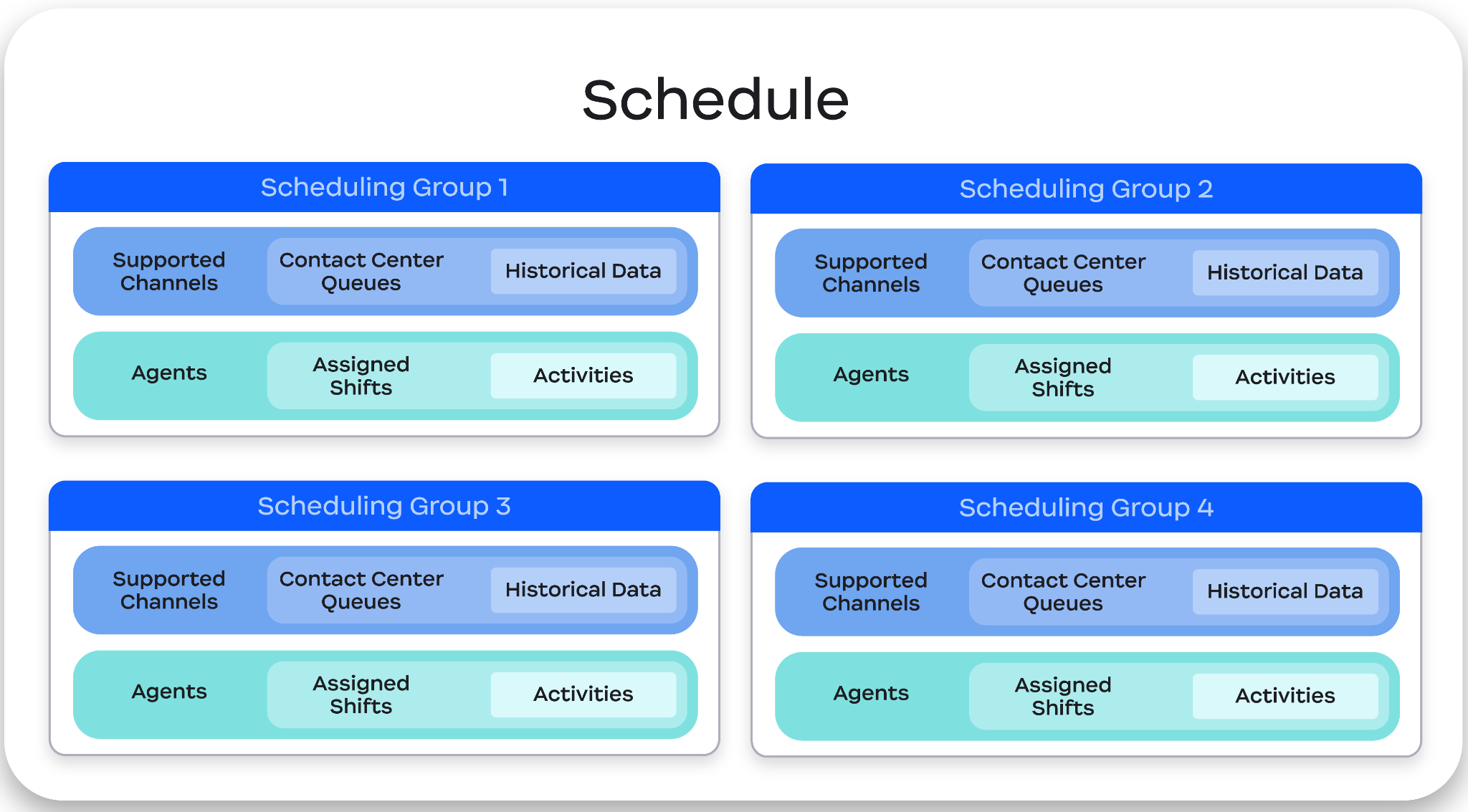
Scheduling Groups are top-level user groups within Zoom Workforce Management, playing a crucial role in organizing, viewing, and managing users. Scheduling Groups act as the primary filter for sorting users throughout the system, and are the key component in creating staff Schedules and generating Forecasts.
#### Scheduling Groups are comprised of agents, queues, and associated contact channels
Every Scheduling Group is built from three components: at least one contact channel (such as voice, video, or messaging), the contact center queues that handle those channels, and the agents assigned to work them.
**Contact channels** are the communication medium customers use to connect with a contact center. Examples of contact channels include **voice** (phone), **video** (video engagement), or **messaging** (SMS, web chat, and in-app chat like Facebook Messenger or WhatsApp).
**Contact center queues** are what enable forecasting. When a queue is linked to a Scheduling Group, Workforce Management pulls its historical engagement data to establish a baseline and project future volume. Without a queue, the group can still be scheduled manually — forecasting just won't be available.
**Agents** can be added to the Scheduling Group for bulk scheduling and filtering. Associating agents with a group makes it faster to build forecasts, generate schedules, and filter adherence reports down to specific teams.
{% hint style="warning" %}
**Important**
A queue or agent can only belong to one Scheduling Group at a time.
{% endhint %}
For larger organizations, Scheduling Groups can be nested inside organizational groups — a hierarchy layer that simplifies permissions management, report filtering, and forecast configuration across multiple teams.
## Activities
Within a contact center, an agent’s Shift is often pre-scheduled with varying tasks or responsibilities, such as attending a team meeting, taking a scheduled lunch break, or working a support queue. Within Workforce Management, these items are referred to as **Activities**, and are the building blocks of an agent’s Shift.
Examples of common Activities include, but are not limited to:
| - Phone Queue
- Chat Queue
- Messaging Queue
- Meeting
| - Lunch Break
- Short Break
- Meeting
- Focus Time / Projects
|
| ---------------------------------------------------------------------------------------- | ----------------------------------------------------------------------------------------------- |
#### Workforce Management offers six unique Activity Types for scheduling and reporting purposes
An **Activity Type** defines the productive or non-productive nature of an Activity, and is used to categorize Activities for reporting and scheduling purposes. With six different Activity Types, an agent only contributes towards the staffing needs of their assigned Scheduling Group when they are scheduled for a *productive* activity type. The six Activity Types are:
* **Productive**: Indicates that an agent is able to contribute to the staffing needs of their associated scheduling group.
* **Out of Office**: Schedules an agent as “out of office.”
* **Non-Productive**: Represents scheduled time for job Activities that do not contribute to the staffing needs of their associated scheduling group, like meetings, coaching, etc.
* **Exception**: Accounts for time an agent spends *out of adherence*, such as if an agent is unable to complete their scheduled activity due to an IT issue or emergency.
* Exceptions are not available when building a shift and can only be added to published Schedules on an as-necessary basis.
* **Meal**: Represents non-productive time reserved for meals.
* **Break**: Represents non-productive time reserved for non-meal breaks.
#### Activities can be created or customized with additional information to suit an environment
Account or scheduling administrators can create or customize Activities specific to their environment and workflows, helping an account ensure they have sufficient Activities for the various tasks an agent may perform throughout their day. Customizable features for Activities include:
* **Name:** Custom names for customized or new Activities
* **Default Duration**: How long an activity is scheduled for by default
* **Channel(s)**: Contact center channels are associated with the Activity
* **Paid status**: Whether the Activity is paid (productive time) or unpaid (meal/break)
* **Adherence**: Whether the Activity is calculated in Adherence reporting
* **Allow for Editing**: Whether an agent can request to *add*, *change*, or *delete* an Activity within their Schedule
#### Fixed-time Activities can be added to user schedules in bulk
After a schedule is generated, Workforce Management admins and supervisors can bulk schedule fixed-time Activities for a specific group of agents at a designated date, time, and duration, streamlining the scheduling of events such as training sessions or team meetings. When this feature is used, Activities are added to the selected agents' schedules regardless of existing Activities; however, in the event of a scheduling conflict or if an Activity is scheduled while a user is not working, alternative time recommendations can be generated and implemented.
## Shifts
Shifts are pre-scheduled Activities an agent performs throughout a workday or week. While an Activity refers to a specific task or responsibility at a given time, a Shift is the combination of an agent’s assigned Activities for a given time frame.
For example, an agent may be responsible for working a phone queue and working a chat queue as two separate Activities at two different times; however, a *Shift* is the formalized plan that defines *when* these Activities are to be performed throughout a workday or week.
#### Shifts support fixed and dynamic scheduling models
When creating a Shift, the scheduling administrator can choose between **fixed** and **dynamic** Shift models.
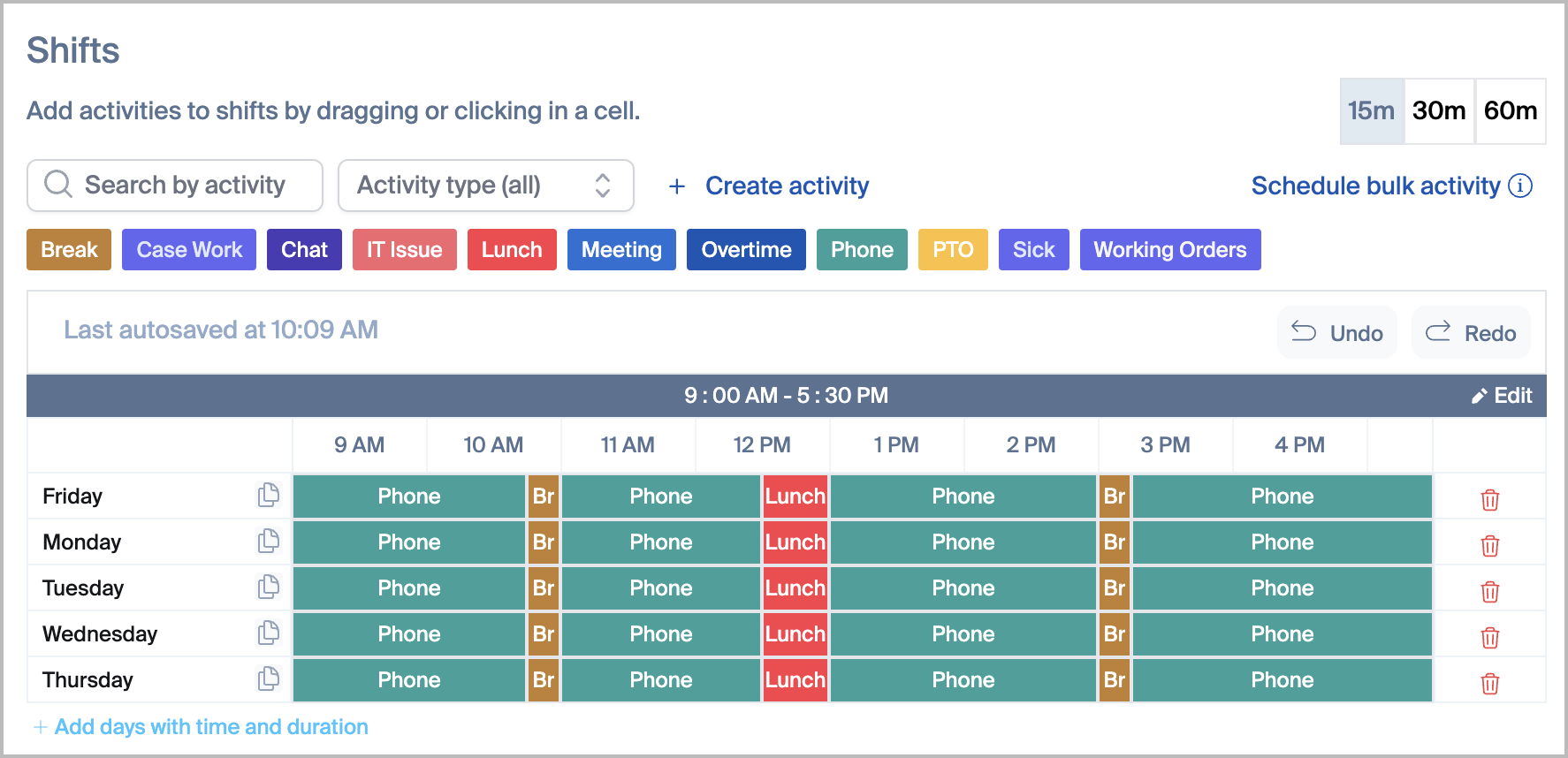
With **fixed** Shift scheduling, users will typically start and end their shifts and breaks at the same time week-to-week. The following image provides an example of a *fixed* Shift, where each assigned agent has consistent Activities every day at consistent times.
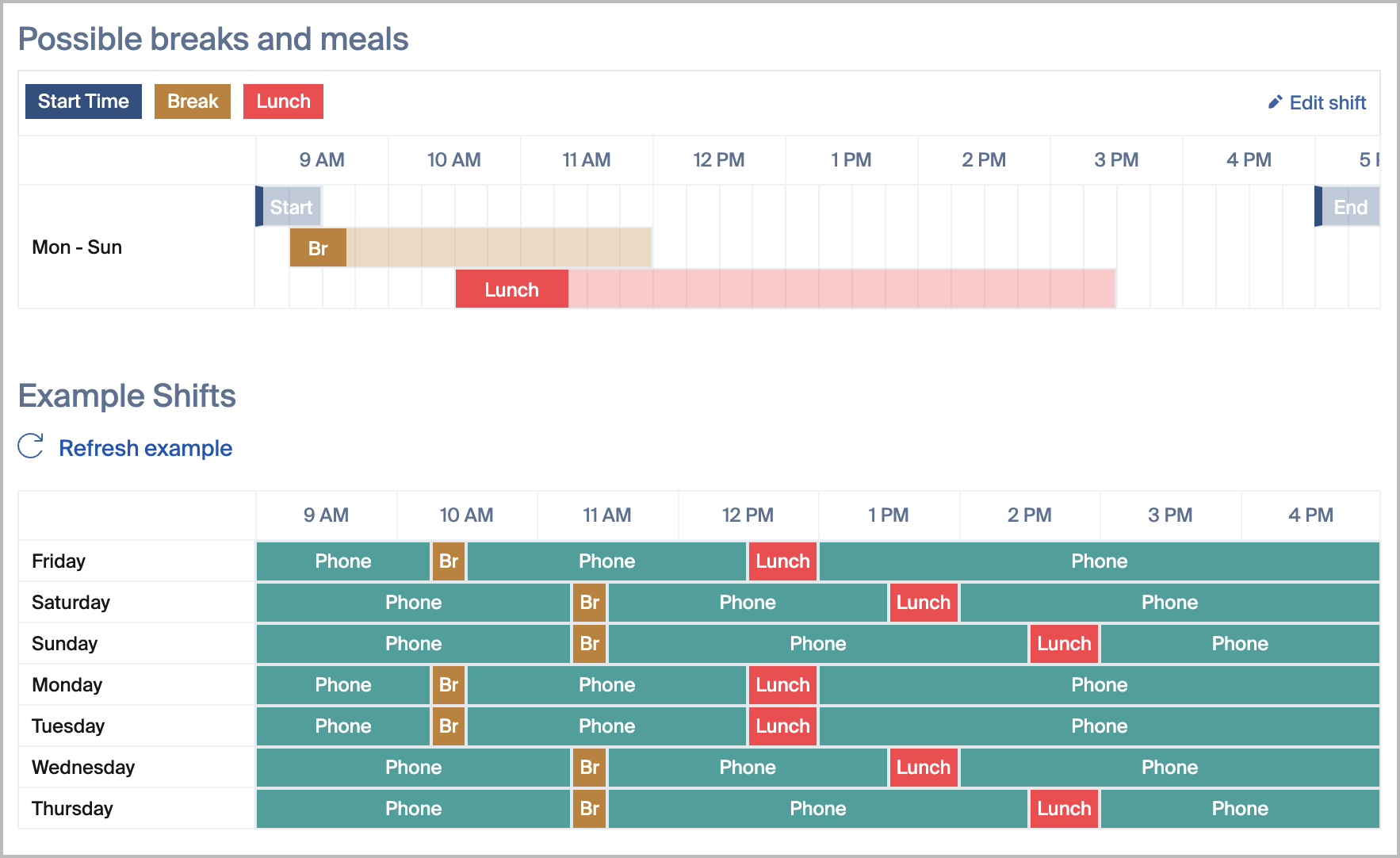
With **dynamic** Shift scheduling, administrators can adjust settings to optimize flexible start, lunch, and break times daily and weekly. For example, an agent’s break could be at 1 PM Monday one week, but at 2 PM Monday the next week, allowing scheduling administrators to align their staffing schedule with a Forecast to meet expected demand. If a business schedules without a Forecast, this can help stagger breaks and lunches to prevent overlap. Dynamic Shifts also support more flexible break durations, allowing administrators to configure breaks and lunches in 5-minute increments such as 5, 15, or 20 minutes while ensuring all activities still begin on standard 15-minute intervals.
\
The following image provides an example of a dynamic Shift, where agents may have fluctuating start, break, and lunch periods each day to fit the needs of the Forecast. In the top half of the image, the flex times for each Activity are specified, while the bottom half reflects an example of their placement within the Shift that coincides with the defined flex times.
{% hint style="info" %}
**Note**
Dynamic shifts can only use one default Activity at a time.
{% endhint %}
#### Shifts support flexible start and end times for each day
Shifts can accommodate both static and flexible start and end times for each day of the week, customizable to meet diverse scheduling needs.
{% hint style="success" %}
**Example**
The scheduling administrator, Alice, can create a simple shift that covers 8-5 Monday through Friday. Alternatively, Alice can also create a Shift that covers 8-5 on Monday, Wednesday, and Friday, with a 10-7 shift on Tuesdays and Thursdays, or any other preferred time combination.
{% endhint %}
#### An agent can only be assigned to one Shift at a time
When designing Shifts, remember that an agent can only be assigned to one Shift at a time. Each Shift should be designed comprehensively, ensuring that all agent’s Activities are scheduled for the week.
#### Each Shift can be assigned to an unlimited number of agents
Although each agent can only be assigned to one Shift, each Shift can be assigned to an unlimited number of agents.
{% hint style="success" %}
**Example**
The scheduling administrator, Alice, created a single Shift for 8-5 with three equal parts of Voice, Video, and Messaging queue time. Alice can assign this shift to agents Bob and Maurice, as well as any additional agents needed.\
\
However, if Alice creates a *second* Shift for 8-5 covering different Activities, she cannot assign Bob and Maurice or any other Shift-assigned agents unless they are removed from their currently assigned Shift.
{% endhint %}
#### When designing a Shift, scheduled work hours will display according to each agent’s configured time zone
When designing a Shift, remember that scheduled work hours will display according to each agent’s configured time zone, and are not static or universal.
{% hint style="success" %}
**Example**
The scheduling administrator, Alice, is based in New York (UTC-5) and creates a Shift for 8-5. When Alice assigns an agent to this Shift, the agent will see the Shift's times and duration based on their Zoom account’s configured time zone.\
\
So, if an agent in Los Angeles (UTC-8) is assigned to the 8-5 Shift, they will see the schedule from 8-5 within their local time zone (UTC-8). Similarly, if an agent in New York is assigned to the same Shift, they will see the schedule in their local time zone as well.\
\
In this scenario, both agents are working from 8-5 according to their respective time zones. However, due to the time zone difference between their locations, they will begin working with a three-hour difference. From the perspective of Alice in New York, the Los Angeles-based agent will work from 11-8 based on the time zone-specific display for each agent.
{% endhint %}
## Schedules
#### A Schedule is a collection of multiple Scheduling Groups and their underlying infrastructure/components
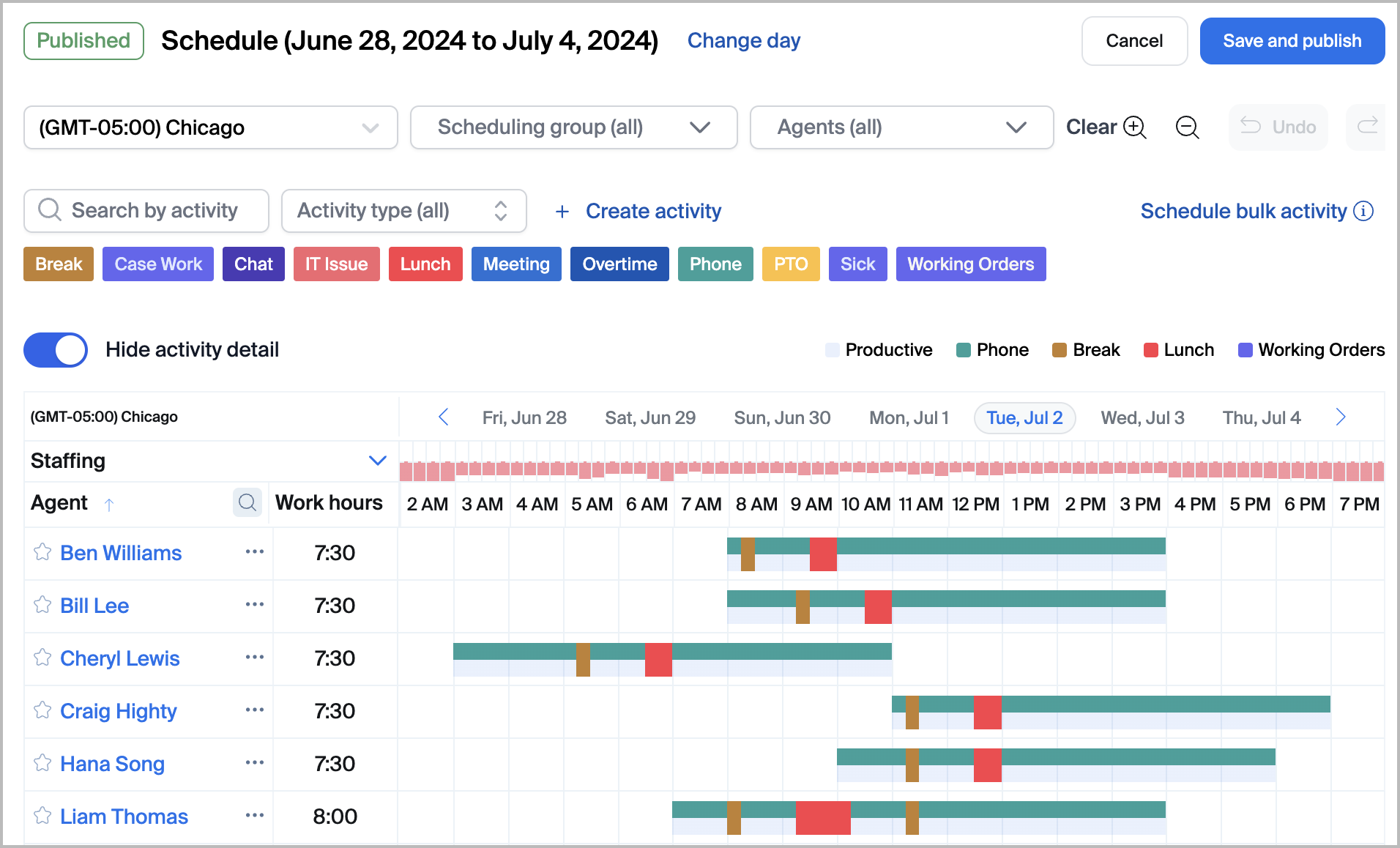
The following image provides an example of a Schedule, composed of multiple Scheduling Groups, spanning a day. The various color blocks note the various Activities that each agent is responsible for throughout the day. If desired, Scheduling administrators can further refine this view to see the Schedule by individual agents or specific Scheduling Groups.
#### Each Schedule can be generated for up to four weeks at a time
When creating a Schedule, the scheduling administrator can create a Schedule for up to four weeks at a time. This does not limit how far out in advance a Schedule can be created, but rather the extent of how long each schedule can be defined at a time. In other words, scheduling administrators can schedule more than four weeks at a time by creating back-to-back Schedules.
{% hint style="success" %}
**Example**
In the month of December, the scheduling administrator, Alice, can create a Schedule beginning January 1st, extending four weeks until January 28th. To schedule beyond January 28th, Alce must create a separate schedule, which she can do immediately.
{% endhint %}
#### Administrators can create custom work rules for specific agents and schedules
Workforce Management administrators can create rules to set certain conditions for shifts and schedules. The system automatically checks for rule violations, such as maximum hours, break timing, consecutive workdays, minimum time between shifts, or mandatory activities. The system will alert administrators when a schedule violates any rules.
## Forecasts
#### Forecasts translate historical engagement data into staffing recommendations
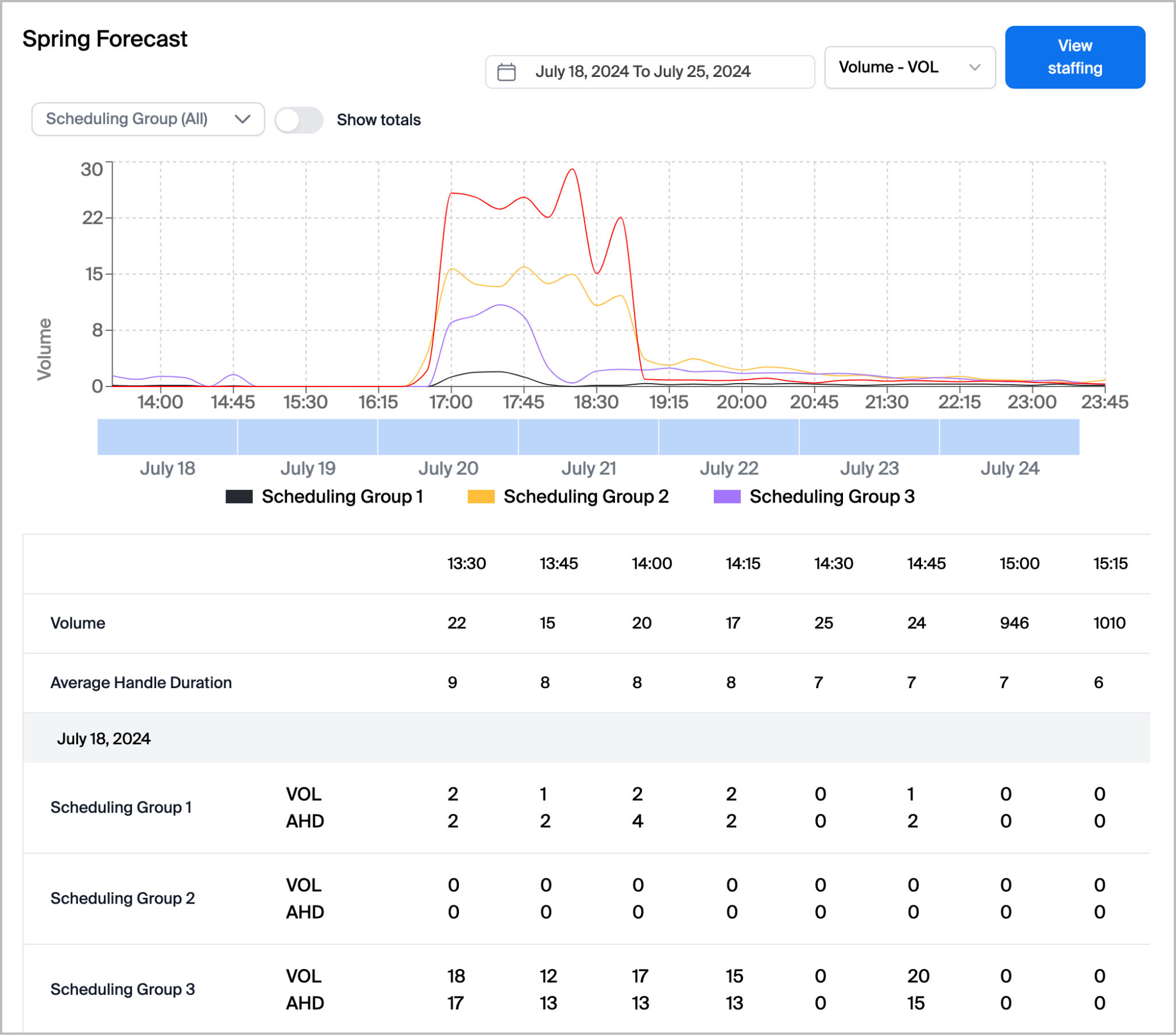
A Forecast predicts future contact center engagement volume so you can staff the right number of agents at the right times. Workforce Management generates forecasts in 15-minute increments using historical queue data, then translates those volume projections into staffing recommendations.
{% hint style="success" %}
**Example**
The scheduling administrator, Alice, created a Forecast for the next four weeks. This Forecast uses historical data to predict daily engagement volume in 15-minute increments. Each day's forecasted volume is based on data from corresponding days in the past, meaning Monday’s Forecast is derived from previous Mondays, and Tuesday’s Forecast from previous Tuesdays. As a result, if the hours between 8AM and 2PM are typically busier on Mondays than on Tuesdays, the Forecast will reflect a higher staffing demand for Monday compared to Tuesday.
{% endhint %}
#### **A** Forecast requires a Scheduling Group with at least one associated queue
Forecasts require a Scheduling Group with at least one associated contact center queue. Once that's in place, administrators define a name, start date, and duration (up to four weeks), then select the metrics to target. The system calculates projected volume and recommended staffing for each 15-minute interval across the forecast window.
New to Zoom Contact Center? Historical queue data can be imported via CSV (up to 10MB per file) to seed your initial forecasts before live data accumulates.
#### Forecasts can be built around four performance targets
| Metric | What it does |
| --------------------------- | ------------------------------------------------------------------------------------------------------------------------------------------------------------------------------------------------------------------------------------------------------------------------------------------------------------------------------------------------------------------------------------------------------------------------------------------------------------------------------------------------------------------------- |
| **Service level target** | Staff is to answer a set percentage of engagements within a defined time window
Example: If a company’s service level agreement is to answer 75% of all inbound engagements within 30 seconds, the Forecast will account for necessary staffing within each 15-minute period to meet the expected goal.
|
| **Average speed of answer** | Staff is to keep the average wait time under a set number of seconds across all calls
Example: If a company aims to maintain an average answer speed of 30 seconds, the Forecast will consider the required staffing to meet that target. It's important to note that this metric calculates the mathematical mean of the waiting time. For instance, if one call is answered in 1 second and another call in 60 seconds, the cumulative average speed of answer for both calls is approximately 30 seconds.
|
| **Occupancy** | Staff is to target a percentage of time agents spend actively handling engagements
Example: If an agent is involved in a customer engagement for 54 minutes out of an hour, the user’s occupancy level is 90%. Consequently, creating a Forecast with a 90% occupancy rate is likely to result in each agent supporting customers for approximately 54 minutes out of every hour.
|
| **Shrinkage** | Adds a staffing buffer to account for absences, non-productive activities, and routine unavailability
Example: If a Forecast is expected to require 10 agents, but has a 20% shrinkage rate, 12 agents will be forecasted to account for two potential absences. In the event 20% of agents are absent, minimum staffing levels for the Forecast are still met.
|
{% hint style="info" %}
**Note**
When multiple metrics are selected for a Forecast, the system applies the most demanding constraint. For example, if a service level target requires answering 75% of engagements within 30 seconds, and an average speed of answer target is set to 60 seconds, the system prioritizes the service level, because meeting that stricter threshold automatically satisfies the average speed of answer requirement.
{% endhint %}
#### Interval and bulk edits let you account for what historical data can't predict
Raw historical data won't always capture what you know is coming. Forecasts can be adjusted two ways:
* **Interval edits**: Manually raise or lower projected volume for any 15-minute window (useful for anticipated spikes)
{% hint style="success" %}
**Example**
If a company expects unusually high call volume for an hour, a scheduling administrator can manually increase the expected volume to compensate for the expected change.
{% endhint %}
* **Bulk edits**: Apply a percentage or fixed-number change across the entire forecast
{% hint style="success" %}
**Example**
If a company is launching a new marketing campaign in an upcoming week and expects a 10% increase in volume, the Forecast can be updated to reflect a 10% increase to ensure adequate staffing. This bulk editing method allows supervisors to modify volume either by a specific number, such as 10 additional (or fewer) calls every 15 minutes, or by a percentage, such as a 20% increase (or decrease) in calls every 15 minutes.
{% endhint %}
#### Apply a Forecast to a Schedule to reveal staffing gaps before the period begins
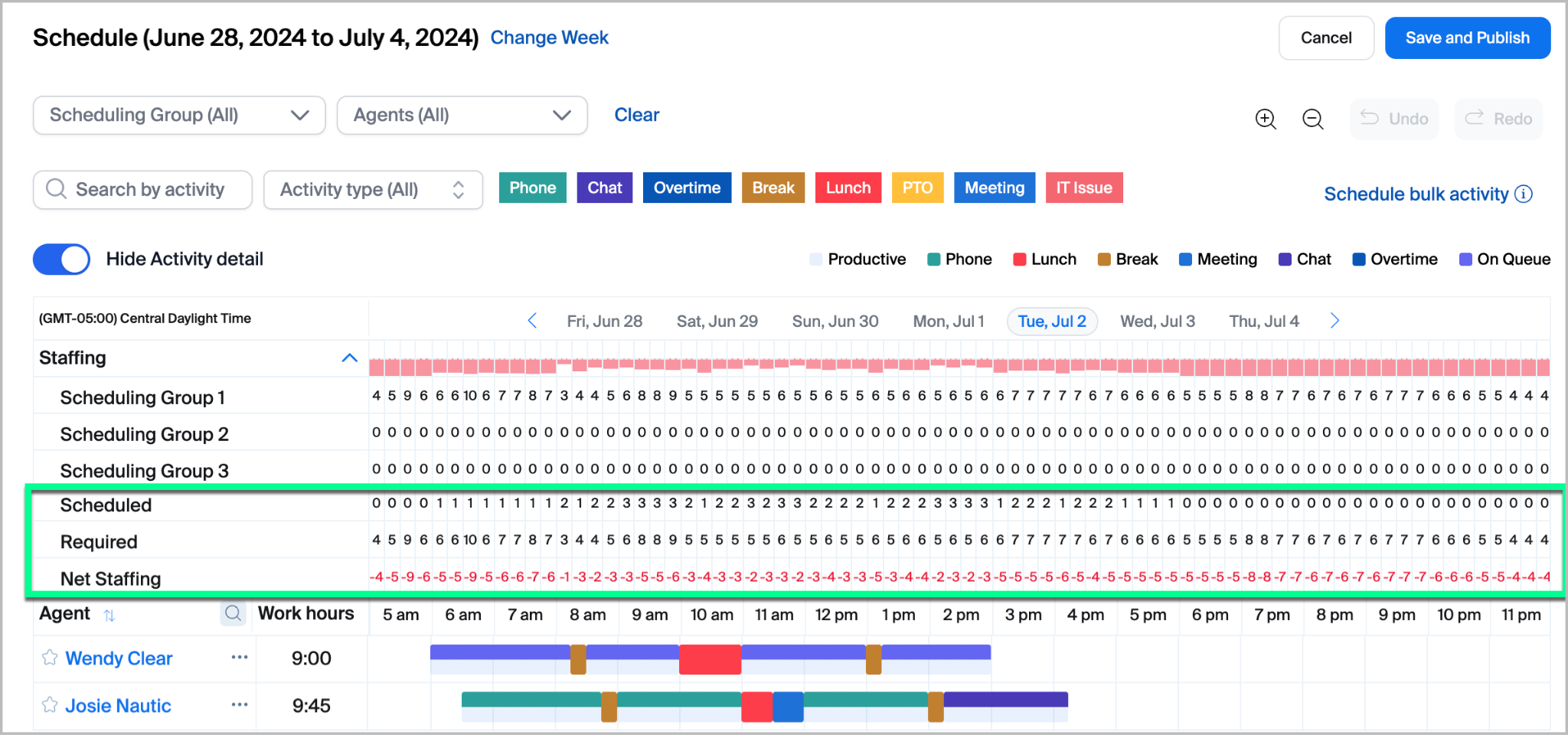
Once published, a Forecast can be applied to a Schedule. The **Staffing** sub-section of a Schedule provides a list of all Scheduling Groups applied to the week’s schedule, compares the *Scheduled* versus *Required* staffing, and provides the *Net Staffing* difference. This table allows a scheduling administrator to quickly determine staffing levels for each 15-minute increment, and can dynamically adjust a user’s scheduled Activities to maintain adequate staffing.
#### Leverage artificial intelligence to automatically generate optimized shift schedules based on forecasts
The system determines the optimal number of shifts needed to meet service level agreements while considering parameters such as shift length, minimum and maximum working days, and pre-planned activities like breaks and lunches. Workforce Management administrators can select multiple service groups, apply the generated shifts to schedules, and bulk assign agents based on their preferences.
#### Create capacity plans to forecast staffing requirements for up to 12 months
The plans calculate full-time equivalent (FTE) requirements, considering factors such as working hours, shrinkage percentage, and attrition rates per scheduling group. Users can view and compare required versus current FTE counts through visual widgets, access detailed monthly and weekly breakdowns, and export data to CSV or PDF formats.
#### Mark special days for customized forecasting, excluding them from past and future data due to holidays, closures, or anomalies
Workforce Management administrators can adjust volume or handle time using percentages or fixed values. Special days are highlighted in forecasts and staffing views, with all changes tracked in audit reports. This helps improve forecast accuracy by accounting for unique business events.
#### Automate the creation of short term forecasts by scheduling them on a recurring basis
Workforce Management administrators can set short-term forecasts to be created automatically on a weekly basis for a period of up to 4 weeks. Administrators can specify when forecasts should be created, such as 5 days before the forecasting period. The scheduled forecasts maintain the same scheduling groups and forecasting metrics as the original template forecast. They can also view and manage recurring forecasts through a calendar view, with options to delete individual instances or entire series.
---
# Agent Instructions
This documentation is published with GitBook. GitBook is the documentation platform designed so that both humans and AI agents can read, navigate, and reason over technical content effectively. Learn more at gitbook.com.
## Querying This Documentation
If you need additional information that is not directly available in this page, you can query the documentation by asking a question.
Perform an HTTP GET request on the following URL with the `ask` and `goal` query parameters:
```
GET https://library.zoom.com/business-services/zoom-workforce-management/workforce-management-explainer/core-concepts.md?ask=&goal=
```
`ask` is the immediate question: it should be specific, self-contained, and written in natural language.
`goal` is what the user is ultimately trying to achieve, the reason they need the answer. Sharing it helps GitBook give you a better, more relevant answer. A goal is most helpful when it describes the outcome the user wants rather than restating the question. For example, with `ask=how do I create an API token`, a goal like `automate deployments from our CI pipeline` lets GitBook tailor the answer to that use case.
The response will contain a direct answer to the question and relevant excerpts and sources from the documentation.
Use this mechanism when the answer is not explicitly present in the current page, you need clarification or additional context, or you want to retrieve related documentation sections.