> For the complete documentation index, see [llms.txt](https://library.zoom.com/llms.txt). Markdown versions of documentation pages are available by appending `.md` to page URLs; this page is available as [Markdown](https://library.zoom.com/zoom-workplace/zoom-meetings/securing-zoom-meetings-explainer/using-automated-meeting-tools-in-a-secure-and-effective-manner.md).
# Using Automated Meeting Tools in a Secure and Effective Manner
### Enhance your Zoom Meeting experience with automated tools
Automated meeting tools (e.g., applications—including bots, integrations, and third-party services) can enhance the Zoom Meeting experience and assist users with several tasks, such as meeting notation, summarization, transcription, and recording. Enterprise professionals may use automated meeting tools to record their collaboration sessions for coaching purposes, and educators and students may use them to summarize lectures to be revisited during study sessions. Automated meeting tools can be added at [marketplace.zoom.us](http://marketplace.zoom.us) or from the Apps icon found in the Zoom Workplace application. Your developers can also create unpublished or internal automated meeting tools to serve specific functions within your organization.
### Application approval process
All automated meeting tools that utilize the Zoom Meeting SDK must comply with the [Zoom SDK App Requirements](https://developers.zoom.us/docs/distribute/sdk-app-requirements/) so they trigger the appropriate notifications when meeting content is being accessed.
All automated meeting tools that are intended to be published to the Zoom App Marketplace undergo a dedicated [review process](https://developers.zoom.us/docs/distribute/app-review-process/). Once an automated meeting tool is submitted, the Zoom App Marketplace team reviews and either approves it or provides feedback to the developer on any remediation work required for it to be approved.
The review process’ primary goals are to:
* Confirm that the automated meeting tool is ready for use by end users.
* Confirm that the automated meeting tool follows best practices for privacy and security to reduce risks to users.
{% hint style="info" %}
[Private-use and beta automated meeting tools](https://developers.zoom.us/docs/platform/key-concepts/#private-vs-beta-vs-published-apps) that are not published to the Zoom App Marketplace do not require review.
{% endhint %}
{% hint style="danger" %}
As of July 16, 2023, all newly submitted automated meeting tools must be approved by the App Marketplace team to join meetings that are hosted by other Zoom accounts. Automated meeting tools that are not approved by the App Marketplace team will only be able to join meetings that are hosted by the account in which they were developed after this date.
{% endhint %}
#### Best practices for building automated meeting tools
Zoom’s [developer website](https://developers.zoom.us/) is your guide to building, designing, and testing new automated meeting tools. The site contains best practice information, including how to use Zoom’s [Meeting software developer kit (SDK)](https://developers.zoom.us/docs/meeting-sdk/). There are also reference implementations available for [Meeting SDK for Windows](https://github.com/zoom/meetingsdk-win-raw-recording-sample) or the [Meeting SDK for Web](https://github.com/zoom/meetingsdk-web-bot-sample).
#### Privacy policies and support for automated meeting tools
Navigate to the **Developer resources** section for each application, integration, or service available in [App Marketplace](https://marketplace.zoom.us/) to view its privacy policy and other support resources.
### Automatic CAPTCHA prevents uninvited automated meeting tools from joining meetings
Users can join a Zoom Meeting without [a Zoom account](https://support.zoom.us/hc/en-us/articles/4423182002317-Joining-a-Zoom-meeting-without-an-account) or from the web if they are unable to download the Zoom desktop client or mobile app. These participants can join as a guest by navigating to [zoom.us](http://zooom.us) and clicking **Join** and then **Join by Meeting ID**. The meeting guest can then enter the meeting ID and passcode (if applicable) to join the meeting.
Some users may also join or start meetings via their web browser by entering these URLs:
*
*
#### CAPTCHA helps prevent uninvited automated meeting tools from joining meetings from the web
Zoom automatically utilizes CAPTCHA v3 for meeting participants, which runs invisibly in the background to help ensure that uninvited automated meeting tools are not able to join meetings from the web. The CAPTCHA requirement is enabled by default for all accounts and cannot be turned off.
### Automated meeting tools can join and record meetings
Automated meeting tools are managed by the user who installs them, and it is at that user’s direction that the automated meeting tool joins a meeting and records content on their behalf.
#### Automated meeting tools can be manually initiated after a meeting has started
You can manually initiate an automated meeting tool and have it join an active meeting by clicking the Apps menu found in the Zoom client or through the automated meeting tool’s respective web interface. The automated meeting tool will join the meeting, start recording the specific content for which it was designed, and be listed in the Active Apps Notifier. The automated meeting tool will also trigger a recording notification, informing all attendees of its presence and function in the meeting.
#### Some automated meeting tools can join meetings automatically
Many automated meeting tools can be synchronized with a user’s calendar and their Zoom account. This allows the tool to access calendar invites that may include a Zoom Meeting invitation and automatically join those meetings if instructed by its user. You can enable or disable an automated meeting tool’s ability to automatically join meetings on your calendar.
{% hint style="info" %}
Automated meeting tools that have access to your calendar events will automatically reference the unique or personal meeting ID and passcode for each calendar event containing a Zoom Meeting invitation and use that information to automatically join the meeting.
{% endhint %}
{% hint style="success" %}
Review your upcoming meetings to confirm whether it is appropriate for your automated meeting tool to join any meeting automatically. Disable the tool from auto-joining a scheduled meeting if the meeting content should not be recorded.
{% endhint %}
#### Automated meeting tools appear as participants
Automated meeting tools commonly join meetings as participants and appear in a manner similar to the people attending the meeting. This means they have their own video thumbnail that appears next to the other meeting participants and labeled with the name of the user who initiated it and its function (e.g., “Steve Miller’s notetaking app”). While in a meeting, the Participants list and the Waiting Room feature (when enabled) will list any automated meeting tools along with all other users, allowing hosts and participants to identify and manage automated meeting tools within their meetings.
#### Automated meeting tools can access certain in-meeting content
Automated meeting tools are developed to access certain in-meeting content such as real-time video, audio, screen or whiteboard sharing, chat, or files shared in the meeting, which are then used to improve workflows like meeting summarization, transcription, or other functions.
#### An authorization prompt will inform users of the specific meeting data the automated meeting tool will access
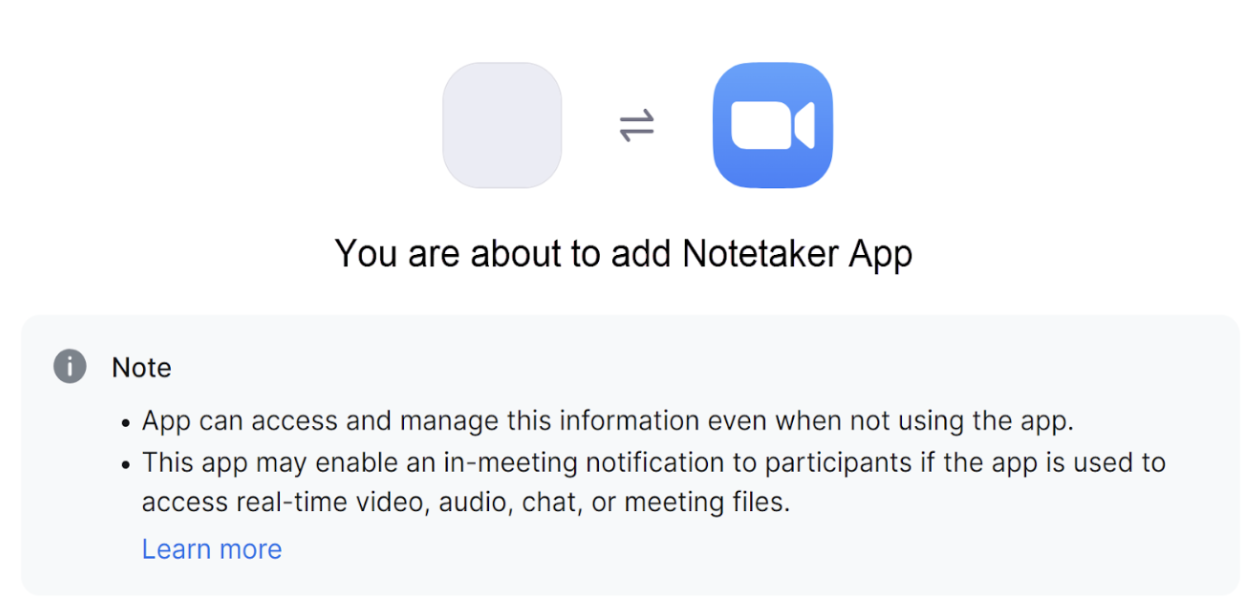
The authorization prompt explains what types of media and data the automated meeting tool will access during a meeting. This prompt will also describe the types of user data the tool will access, which may include profile information, calendar synchronization, or account settings.
#### Some automated meeting tools have a local recording function that will access camera video and microphone audio outside of meetings
It is important to note that in addition to automated meeting tools that join meetings as apps or participants, there is another related category of tools that operate on participants’ local devices. These tools are downloaded by individuals to record their device's system audio and video from outside of the Zoom Workplace platform. Because these tools function locally and not within Zoom Meetings, options to mitigate their use are limited and beyond the scope of this document.
---
# Agent Instructions
This documentation is published with GitBook. GitBook is the documentation platform designed so that both humans and AI agents can read, navigate, and reason over technical content effectively. Learn more at gitbook.com.
## Querying This Documentation
If you need additional information that is not directly available in this page, you can query the documentation dynamically by asking a question.
Perform an HTTP GET request on the current page URL with the `ask` query parameter, and the optional `goal` query parameter:
```
GET https://library.zoom.com/zoom-workplace/zoom-meetings/securing-zoom-meetings-explainer/using-automated-meeting-tools-in-a-secure-and-effective-manner.md?ask=&goal=
```
`ask` is the immediate question: it should be specific, self-contained, and written in natural language.
`goal` is optional and describes the broader end goal you are ultimately trying to accomplish on behalf of the user. GitBook uses it to tailor the answer towards what is most useful for that goal.
The response will contain a direct answer to the question and relevant excerpts and sources from the documentation.
Use this mechanism when the answer is not explicitly present in the current page, you need clarification or additional context, or you want to retrieve related documentation sections.