> For the complete documentation index, see [llms.txt](https://library.zoom.com/llms.txt). Markdown versions of documentation pages are available by appending `.md` to page URLs; this page is available as [Markdown](https://library.zoom.com/admin-corner/third-party-integrations/zoom-for-outlook-add-in-explainer/optional-configuring-the-manifest-file.md).
# (Optional) Configuring the Manifest File
Deploy the Zoom for Outlook add-in using a custom manifest to pre-configure advanced features, or opt for the gallery deployment for simplicity and automatic updates.
Administrators can deploy the Zoom for Outlook add-in using either the Microsoft Entra application gallery or a custom manifest file. This page covers the custom manifest approach, which lets you pre-configure SSO authentication and enable optional features like Zoom Phone and Workspace Reservation before deployment.
### Custom manifest vs. gallery deployment
Before configuring a custom manifest, consider which deployment method fits your organization's needs.
**Microsoft Entra gallery deployment** is the simplest option. The add-in updates automatically, and users get access to the "automatically add Zoom Meeting" setting that adds Zoom meeting details to every new Outlook calendar event by default. However, you can't pre-configure SSO or enable features like Zoom Phone calling directly from Outlook.
**Custom manifest deployment** gives you more control. You can pre-configure your SSO domain so users authenticate automatically, and you can enable Zoom Phone and Workspace Reservation features in the add-in. The trade-off: the add-in won't update automatically, and the "automatically add Zoom Meeting" option isn't available. You'll need to monitor release notes and manually deploy updates to get new features and bug fixes.
| Capability | Gallery deployment | Custom manifest |
| -------------------------------- | ------------------ | --------------- |
| Automatic add-in updates | Yes | No |
| Pre-configured SSO | No | Yes |
| Zoom Phone in Outlook | No | Yes |
| Workspace Reservation in Outlook | No | Yes |
| Auto-add Zoom Meeting to events | Yes | No |
### Requirements
To configure and deploy a custom manifest file, you'll need:
* SSO configured for your Zoom account
* Account owner or admin access to the Zoom web portal
* Admin access to the Microsoft 365 admin portal
* Zoom Phone license (if enabling Zoom Phone)
* Workspace Reservation license (if enabling Workspace Reservation)
### Downloading and configuring the manifest file
The Zoom Download Center provides a configuration panel where you select your SSO domain and enable optional features before downloading the manifest file. The panel displays feature options based on the licenses associated with your admin account.
1. [Sign in](https://zoom.us/signin) to your Zoom admin account.
2. Go to the Zoom Download Center.
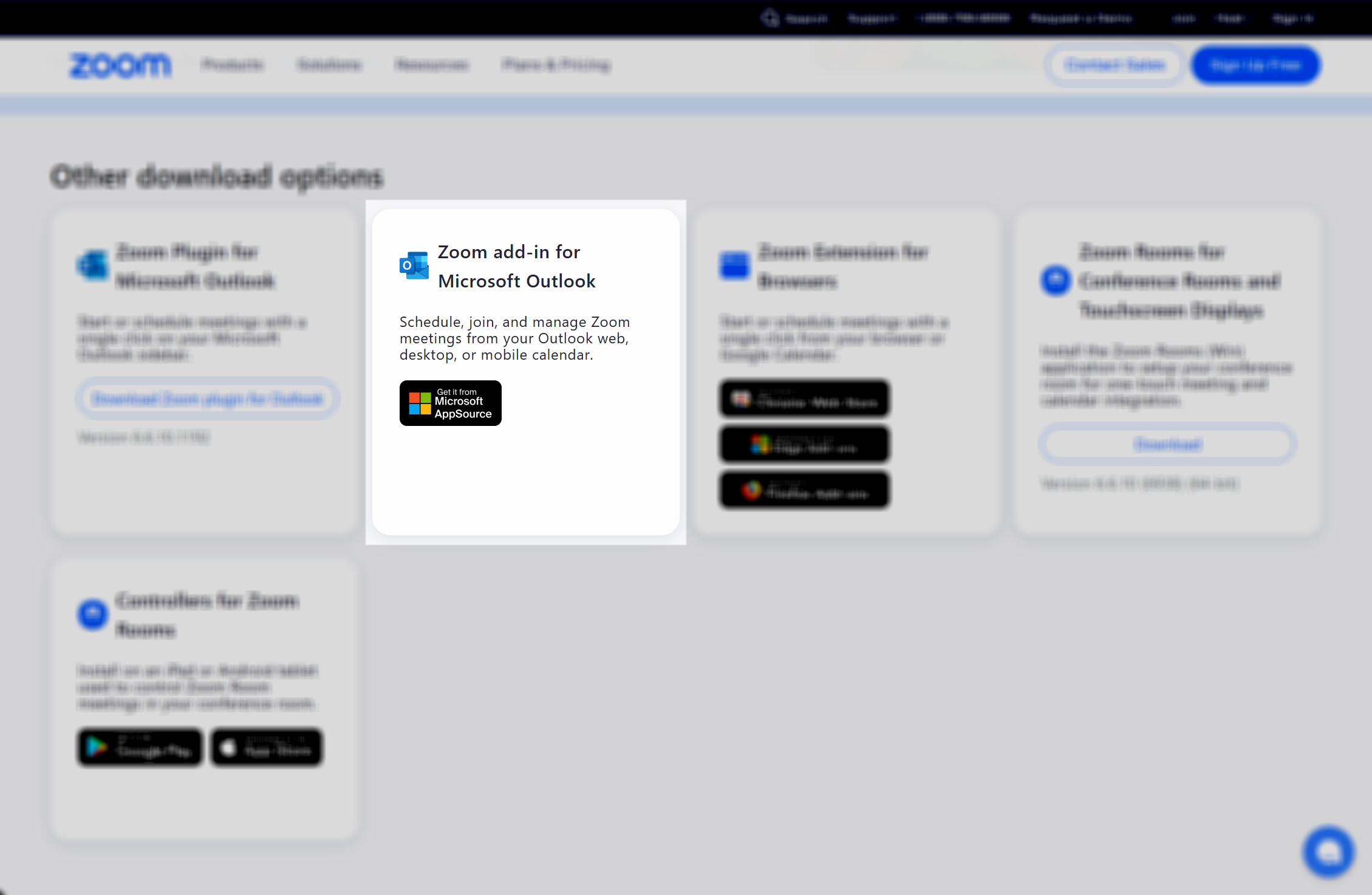
3. Scroll down to **Other download options**.
4. Under **Zoom add-in for Microsoft Outlook**, click **Configure (Admin Only)**.
{% hint style="info" %}
This option will only appear to logged in Zoom administrators with access to manifest creation.
{% endhint %}
5. In the **Select a sign-in method** dropdown, select **Sign in with pre-configured SSO domain: yourcompany-domain.zoom.us**.
6. Select any optional features you want to enable:
1. **Add Zoom Phone to Outlook add-in**: Lets users initiate Zoom Phone calls directly from the Outlook client. Appears in Outlook mail read mode after deployment.
2. **Add Zoom Workspace Reservation to Outlook add-in**: Lets users book Zoom Rooms-equipped meeting spaces while creating calendar events. Appears in Outlook calendar compose mode after deployment.
7. Click **Download Manifest File**.
You can enable both Zoom Phone and Workspace Reservation in the same manifest file if your account has both licenses.
### Deploying the manifest file
After downloading your configured manifest file, deploy it through the Microsoft 365 admin portal. During deployment, you'll choose how the add-in is assigned to users. These are the same options available for gallery deployments:
* **Optional, enabled by default**: The add-in is added for all assigned users, but they can remove it.
* **Optional, disabled by default**: Users can add the add-in themselves, but it won't appear by default.
* **Mandatory**: The add-in is added for all assigned users and can't be removed.
To deploy the manifest:
1. Sign in to the [Microsoft 365 Admin Portal](https://admin.microsoft.com).
2. Go to **Settings** > **Integrated apps**.
3. Click **Upload custom app**.
4. Under **Upload Apps to deploy**, select **Office Add-in** as the app type.
5. Under **Choose how to upload app**, select **Upload manifest file (.xml) from device** and select your downloaded manifest file, or select **Provide link to manifest file** if you're hosting the file at an accessible URL.
6. Follow the deployment wizard to assign users or groups and select your deployment option.
7. Review your selections and complete the deployment.
The add-in typically becomes available to assigned users within a few hours, though it can take up to 72 hours to propagate across all Outlook clients.
### Updating the manifest file
Because custom manifest deployments don't receive automatic updates, you'll need to periodically download a new manifest and update your deployment to get the latest features and fixes.
To update an existing deployment:
1. Download a new manifest file from the Zoom Download Center using the configuration steps above.
{% hint style="info" %}
Make sure to select the same SSO and feature options as your original deployment.
{% endhint %}
2. Sign in to the Microsoft 365 Admin Portal.
3. Go to **Settings > Integrated apps**.
4. Click **Zoom** to open the add-in details.
5. Click **Update add-in**.
6. Under **Choose how to upload the add-in**, select **I have the manifest file (.xml) on this device**.
7. Select your new manifest file and click **Update**.
Your updated add-in will deploy to users following the same 72-hour propagation timeline as new deployments.
---
# Agent Instructions
This documentation is published with GitBook. GitBook is the documentation platform designed so that both humans and AI agents can read, navigate, and reason over technical content effectively. Learn more at gitbook.com.
## Querying This Documentation
If you need additional information that is not directly available in this page, you can query the documentation dynamically by asking a question.
Perform an HTTP GET request on the current page URL with the `ask` query parameter, and the optional `goal` query parameter:
```
GET https://library.zoom.com/admin-corner/third-party-integrations/zoom-for-outlook-add-in-explainer/optional-configuring-the-manifest-file.md?ask=&goal=
```
`ask` is the immediate question: it should be specific, self-contained, and written in natural language.
`goal` is optional and describes the broader end goal you are ultimately trying to accomplish on behalf of the user. GitBook uses it to tailor the answer towards what is most useful for that goal.
The response will contain a direct answer to the question and relevant excerpts and sources from the documentation.
Use this mechanism when the answer is not explicitly present in the current page, you need clarification or additional context, or you want to retrieve related documentation sections.