> For the complete documentation index, see [llms.txt](https://library.zoom.com/llms.txt). Markdown versions of documentation pages are available by appending `.md` to page URLs; this page is available as [Markdown](https://library.zoom.com/admin-corner/third-party-integrations/integrating-zoom-with-microsoft-teams/zooms-in-app-integration-for-microsoft-teams.md).
# Zoom’s in-app Integration for Microsoft Teams
This section provides an overview of Zoom’s in-app integration for Microsoft Teams, including integration functionality for Zoom Meetings, Zoom Phone, and Zoom Whiteboard. Each of these functionalities is described in the following sections, including a brief description of the admin and user experience.
### How it Works
#### The Teams integration performs most functions natively within the Teams client, and opens the Zoom client when required
Most functionality of Zoom’s in-app integration for Microsoft Teams is performed natively within the Teams client, and uses Zoom’s APIs over a TLS connection when required. However, due to technical limitations of in-app integrations, some tasks require the Zoom client to complete the request. These scenarios are defined in the following two sections.
#### Features available natively within the Teams client
Zoom Meetings
See upcoming Zoom meetings
Schedule a Zoom meeting
Share a meeting to a chat
Zoom Whiteboard
Share an existing Whiteboard
*Requires Zoom client to execute
Zoom Phone
Dial or answer a call*
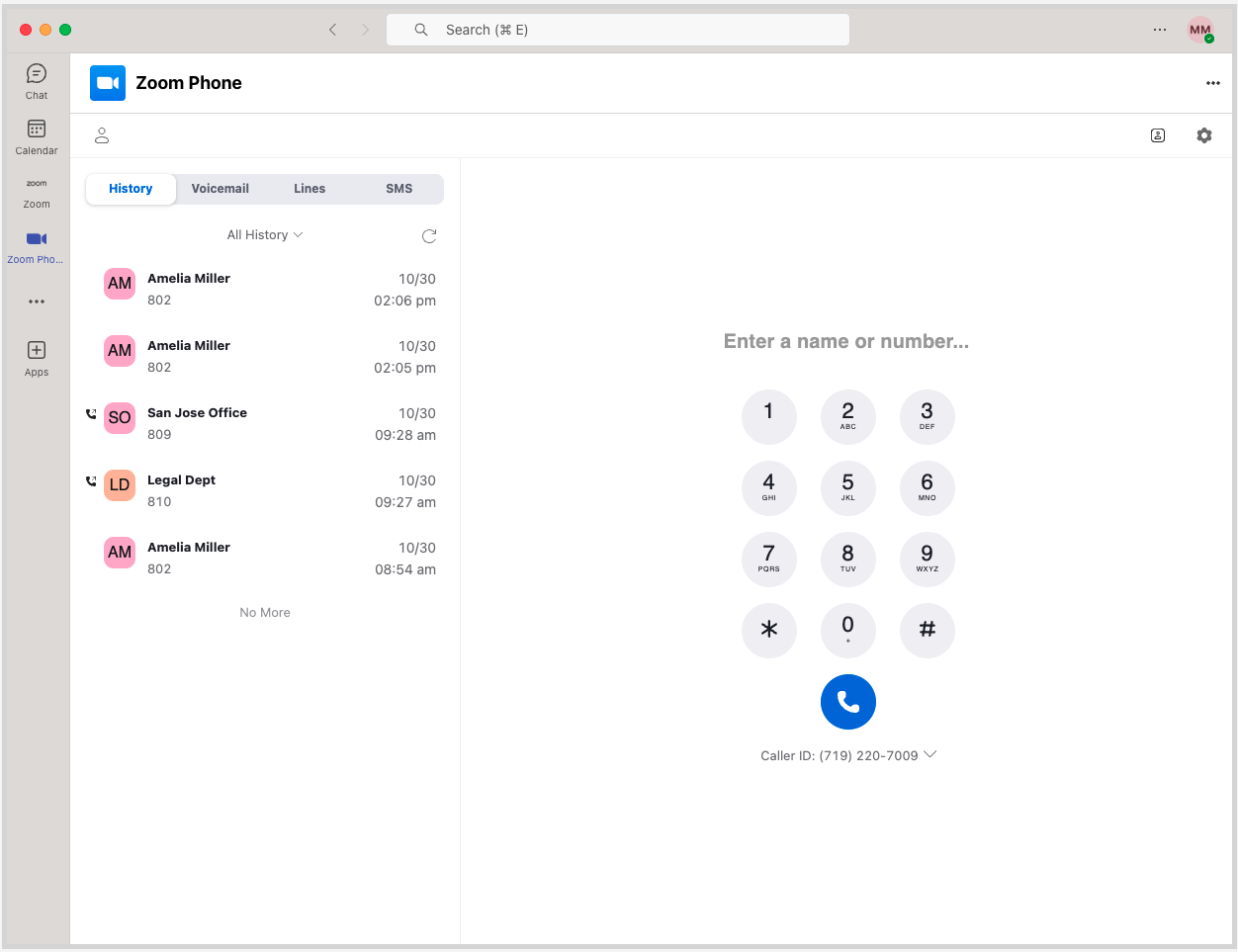
View call history
Send and receive SMS
Record call
Access recorded calls and transcripts
Hold call
Access voicemail
Read voicemail transcription
#### Features that require use of the Zoom client or a web browser
Zoom Meetings
Join a meeting (Zoom client)
Start ad-hoc meetings (Zoom client)
Zoom Phone
Make and receive calls (Zoom client)
Zoom Whiteboard
Create a new Whiteboard (web browser)
Open a shared Whiteboard (web browser)
### The Admin Experience
#### An admin must install the Teams integration from the Zoom Marketplace *and* Microsoft AppSource store
To install and utilize Zoom’s in-app integration for Microsoft Teams, an authorized account admin must approve and install the app in both the [Zoom Marketplace](https://marketplace.zoom.us/apps/BI00RjkzRFaozN9J5-qQ6w) and [Microsoft AppSource](https://appsource.microsoft.com/en-us/product/office/wa104381441?tab=overview) store. Once the integration is installed and approved in both locations, users can start using the app.
#### Admins can define which integration features are available from the Zoom Marketplace
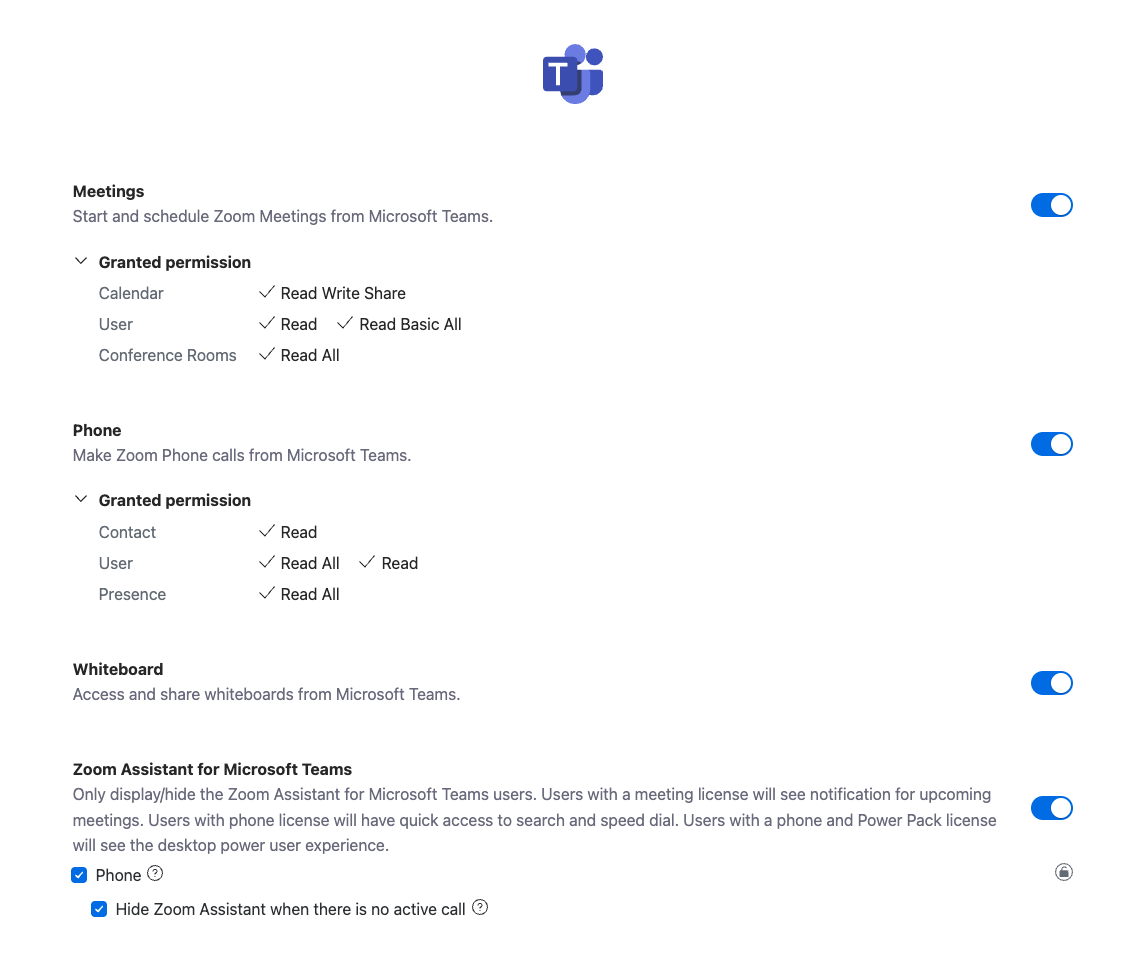
From the **Configuration** menu within the Zoom Marketplace, account admins can determine which integration features are available to users within Microsoft Teams, granting (or restricting) access to Zoom Meetings, Zoom Phone, or Zoom Whiteboard features.
**(Optional) The Teams integration requests permission to Outlook contacts and resources to simplify inviting attendees**
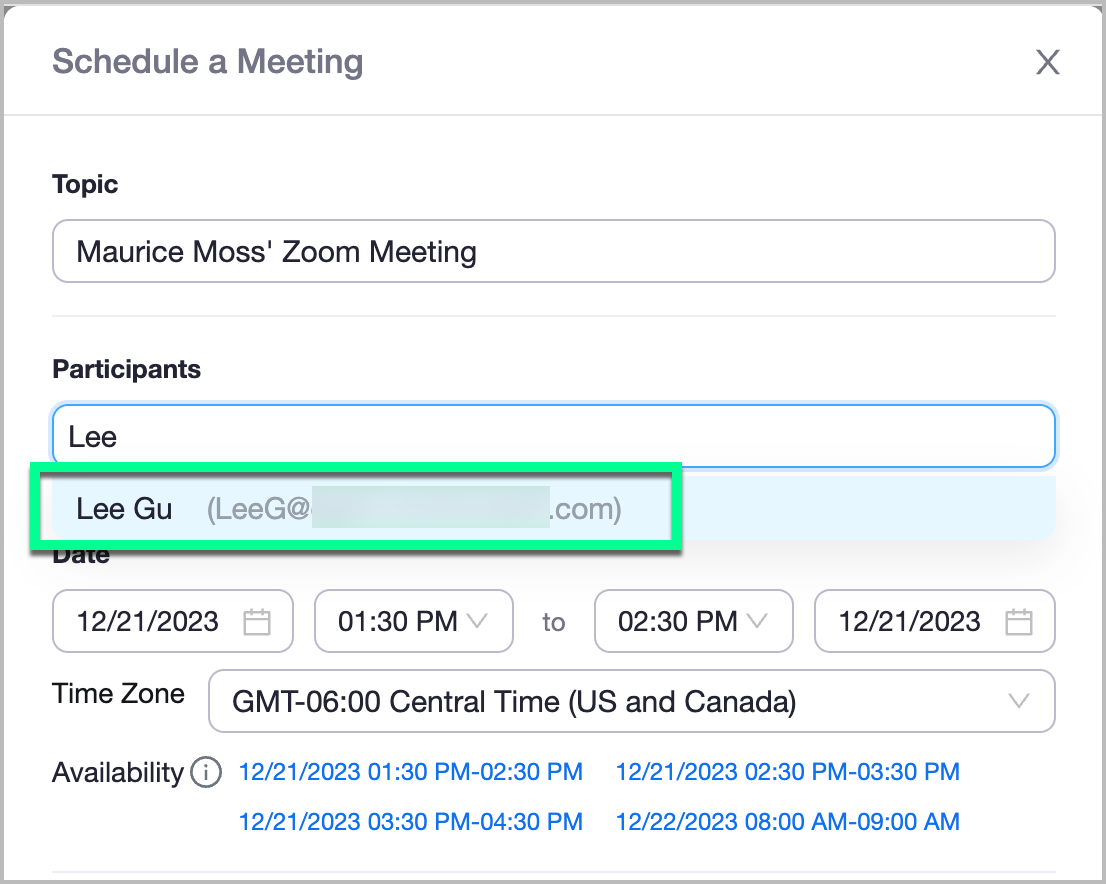
As a part of the app’s **Configuration** menu within the Zoom Marketplace, account admins are presented with the *optional* choice to grant the integration access to user contact lists and account resources (e.g., conference rooms, etc.).
If this setting is enabled, when a user schedules a Zoom Meeting within the Teams client, the integration can automatically look up user contacts within the scheduling interface to simplify inviting attendees.
#### Additional Admin Resources
Account administrators are encouraged to reference Zoom’s support center documentation for the [Microsoft Teams integration](https://support.zoom.com/hc/en/article?id=zm_kb\&sysparm_article=KB0067825). This document provides valuable instructions and information for performing various tasks with the integration, including setup, authorizations, and settings.
### The User Experience: The Chatbot
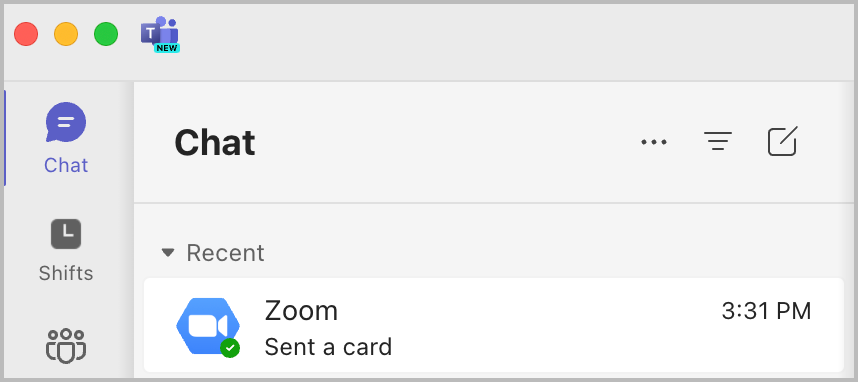
Users with a completed integration have access to a Zoom chatbot within their Teams client **Chat** interface. This chatbot is used to complete integration-related tasks, and inform users about certain notifications from Zoom.
#### Users must manually approve the chatbot's presence within each conversation to use the integration’s features
Before a chatbot can perform any function within a conversation or channel, a user must invite the chatbot to the conversation through the following process:
1. A user opens a chat or channel within Microsoft Teams.
2. The user opens the Zoom integration through the chat’s message extensions toolbar.
3. The user must invite the chatbot to the conversation to complete the task.
4. The user can select one of the integration’s actions.\
\\
This process grants the chatbot access to each conversation’s unique ID and participant list, which are used to deliver information — like a meeting’s details — to the chat and its participants. If the chatbot is *not* invited to the conversation, the integration’s chat-specific features cannot be used.
Users should be aware this process must be repeated and approved for **each** specific chat or channel the integration is used in. For instance, if a user intends to schedule five meetings in five different chat channels, the user must invite the chatbot to each conversation before scheduling a meeting within it.
{% hint style="info" %}
**Note**
This exclusively applies to *utilizing a chatbot within a conversation*. Users can continue to utilize the integration and other features through the integration’s primary interface, via the **Apps** menu.
{% endhint %}
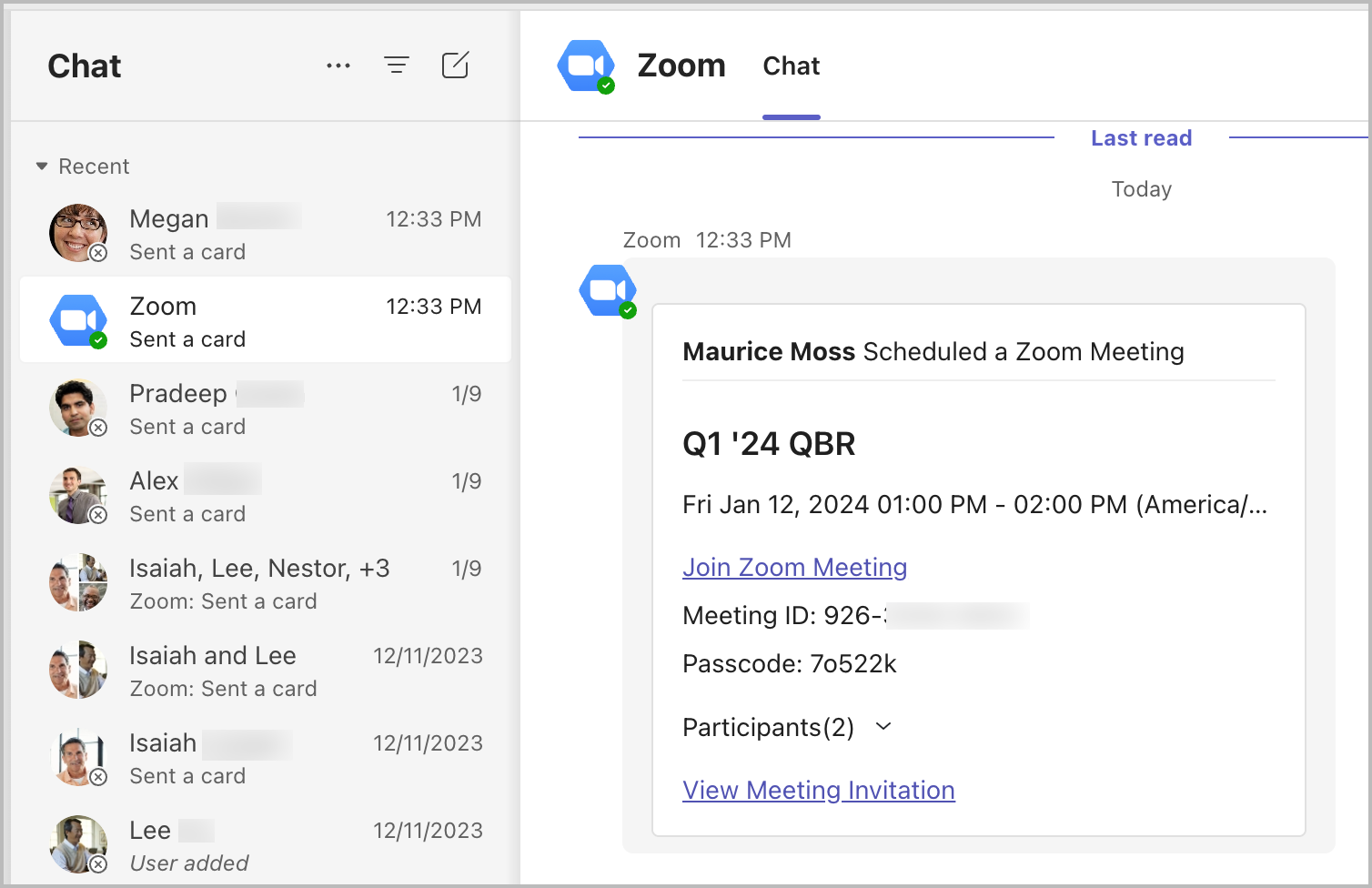
#### Users will receive direct messages from the chatbot for certain Meeting and Whiteboard notifications
Users will automatically receive direct messages from the integration’s chatbot when notable events from the Zoom ecosystem occur. Specifically, users will receive direct messages when:
* They are invited to a Zoom Meeting within a Teams chat or channel.
* They have scheduled a Zoom Meeting within a Teams chat or channel.
* A Zoom Whiteboard is shared with them.
* They are tagged in a Whiteboard comment.
### The User Experience: Zoom Meetings
#### Users can schedule upcoming or impromptu meetings from the integration’s interface, or within a chat channel
Users with a configured integration are provided with two options for scheduling or initiating impromptu (ad-hoc) Zoom Meetings with other users. These options are outlined in the following two sections.
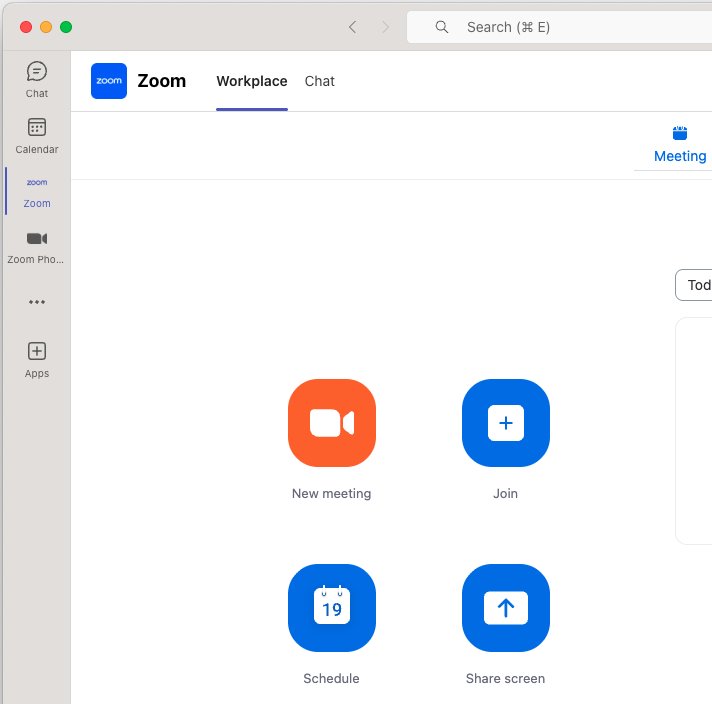
**Scheduling from the App Interface**
| Users can open the Zoom integration interface within the Teams **Apps** menu. Once the app is open and a user has authenticated, the user can start an impromptu (ad-hoc) meeting, schedule a future meeting, or share their screen to a meeting with the meeting ID. |
|
| --------------------------------------------------------------------------------------------------------------------------------------------------------------------------------------------------------------------------------------------------------------------- | ----------------------------------------------------------------------------------------------------------------------------------------------------------------------------------------------------------------------------- |
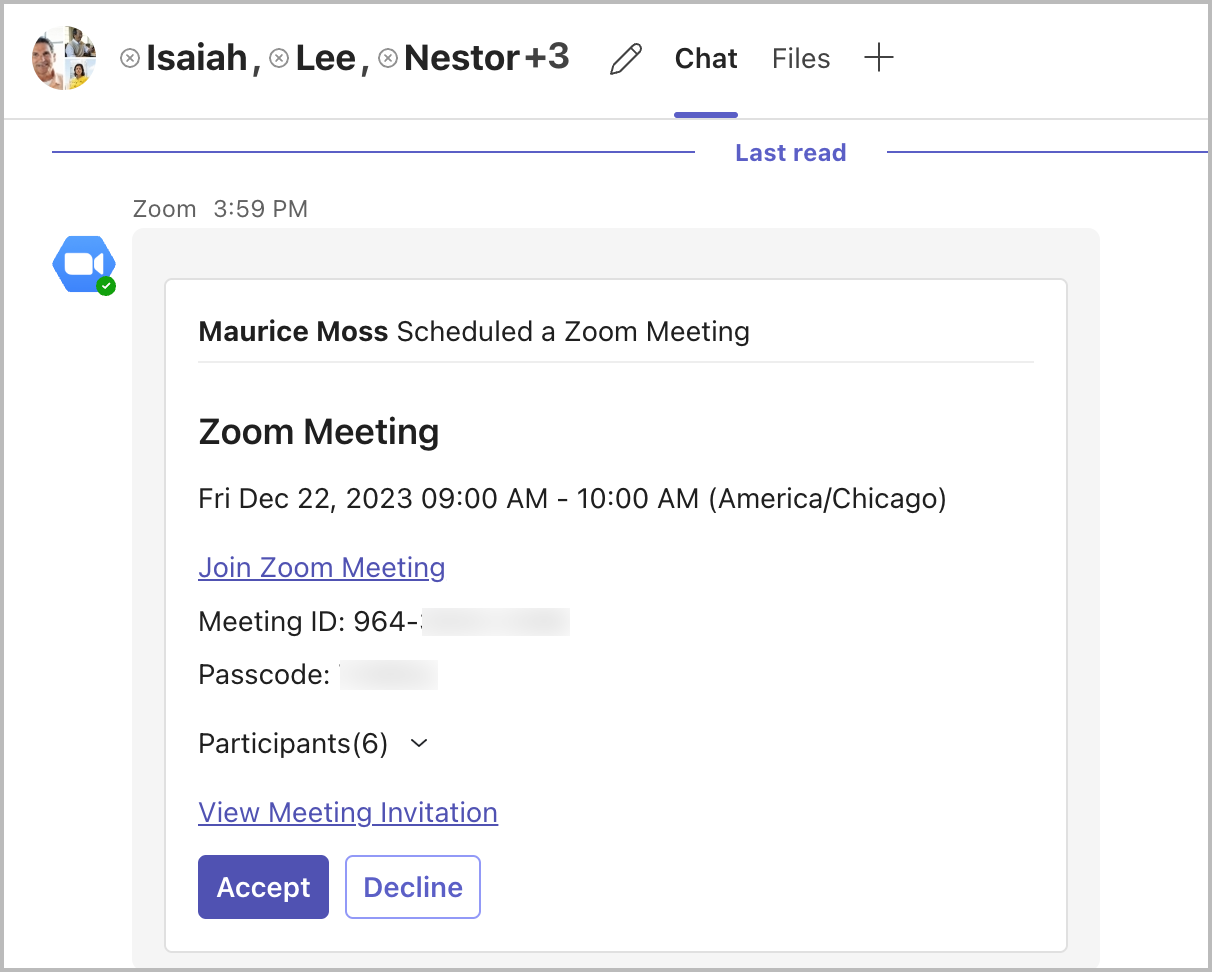
**Scheduling from a Chat**
| Users in a one-on-one or group chat can use the Zoom integration to start and share an impromptu (ad-hoc) meeting to the chat participants, or schedule a meeting for a future date. When scheduling or starting the meeting, all active users within the chat are automatically invited to attend, and will receive an in-chat *and* email notification for the event. |
|
| ----------------------------------------------------------------------------------------------------------------------------------------------------------------------------------------------------------------------------------------------------------------------------------------------------------------------------------------------------------------------- | ------------------------------------------------------------------------------------------------------------------------------------------------------------------------------------------------------------------------------- |
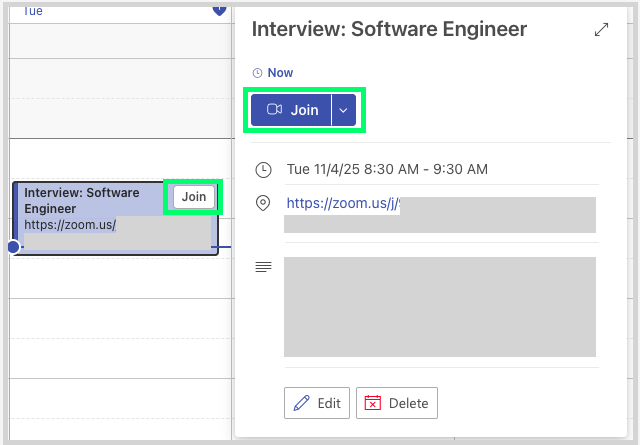
#### When joining a Zoom meeting, Teams will automatically open the Zoom client
Although a user can join a Zoom Meeting *from* the Teams client, users cannot join a Zoom meeting *within* the Teams client. Consequently, when a user joins a Zoom meeting from the Teams client, an internet browser with the meeting’s URL will appear, which will automatically open the Zoom client and bring the user into the meeting.
#### Users with the integration will see both their Zoom *and* Teams meetings on their Teams calendar, so long as the Zoom Meetings are scheduled through the integration
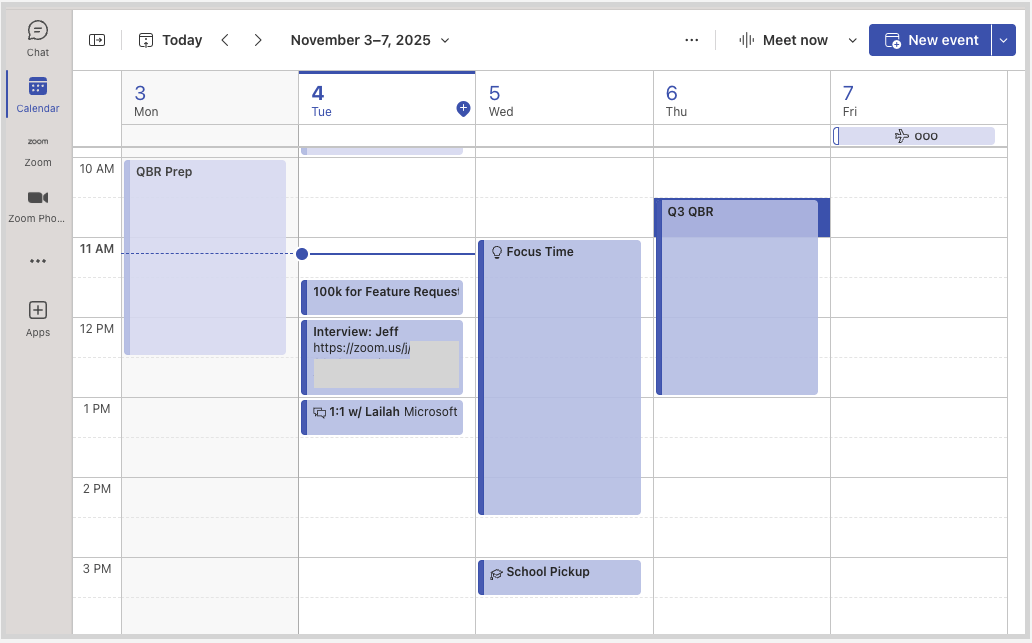
Users with a completed integration will see both their Zoom Meetings and Teams Meetings listed on their Teams and Outlook calendar, so long as the Zoom meetings are scheduled using the integration. This offers users a singular place to manage all of their daily meetings, with consistent availability and visibility between the Teams and Outlook clients.
The following images show a user’s upcoming calendar events within the integration’s **Meetings** list, and from the Teams’ **Calendar** app.
{% hint style="info" %}
**Note**
Meetings that are scheduled outside of the integration app, such as through the web portal or Zoom client will not appear within the Teams Calendar unless [bi-directional calendar sync](https://support.zoom.com/hc/en/article?id=zm_kb\&sysparm_article=KB0058782) is enabled and configured for the user.
{% endhint %}
### The User Experience: Zoom Phone
#### Users with a Zoom Phone license have native access to most core features within the Teams client
Users who are provisioned for Zoom Phone have client-native access to most core Zoom Phone features through the integration’s interface. For a complete list of integration-native functionality, refer to [the section on supported functionality](#features-available-natively-within-the-teams-client).
#### The Zoom desktop client must be running in the background to place or receive Zoom Phone calls
Due to technical limitations, Zoom’s in-app integration for Microsoft Teams requires the Zoom client to run in the background for users to make or receive Zoom Phone calls. This **does not** require that the Zoom desktop client interface be open or minimized in the background; however, the core processes of the application must be running and the user must have an active profile authentication (i.e., they cannot be signed-out).
{% hint style="info" %}
**Note**
In this context, “running in the background” implies the Zoom client is visibly running in programs like Task Manager or Activity Monitor. Silently launching the Zoom application on start-up — such as through the **zSilentStart** [managed client setting](https://support.zoom.com/hc/en/article?id=zm_kb\&sysparm_article=KB0064484#h_01FW2JNVWMVKJX9A10EV3TRTMB) — qualifies as “running in the background,” even if the user never sees the main Zoom client interface.
{% endhint %}
#### Users can get the most out of the integration by pairing it with the Zoom Assistant
Although *most* Zoom Phone functionality is natively available within the Teams client, the integration requires the Zoom desktop client to run in the background to make or receive a Zoom Phone call. To help improve the user experience, users are encouraged to make use of the Zoom Assistant: a lightweight, dockable widget that provides users with simple, easy access to core Zoom Phone features without the full desktop client interface. With the Zoom Assistant ([described further within this document](/admin-corner/third-party-integrations/integrating-zoom-with-microsoft-teams/the-zoom-assistant.md)), users can make, receive, and answer calls from the on-screen widget, offering flexible workflows from any program, including Teams.
### The User Experience: Zoom Whiteboard
#### Users can share Zoom Whiteboards with users over chat, but must open a browser to view or edit the Whiteboard
Users with a configured integration can send links to Zoom Whiteboards natively within a Teams conversation, simplifying the sharing and collaboration process. However, for users to view or edit the Whiteboard, the Teams client must open a web browser to edit from the Zoom web portal.
{% hint style="info" %}
**Note**
Users must authenticate their Zoom account within the pop-up web browser before viewing or editing any Zoom Whiteboard.
{% endhint %}
### Mobile Device Support
Zoom's integration for Microsoft Teams is available on Android and iOS devices; however, the mobile client offers limited functionality compared to the desktop client.
**The following integration features are available natively within the Teams mobile app**
Zoom Meetings
See upcoming Zoom meetings
Schedule a Zoom meeting
Share a meeting to a chat
Zoom Whiteboard
Share Existing Whiteboard
Zoom Phone
View call history
Access recorded calls
Access Voicemail
Voicemail transcripts
AI Summary and Next Steps
Voicemail Prioritization
View shared line history
**The following features require use of the Zoom mobile client or a web browser to complete the task**
Zoom Meetings
Join a meeting
Start an ad-hoc meeting
Zoom Whiteboard
Create a new Whiteboard (Opens in browser)
Open a shared Whiteboard (Opens in browser)
Zoom Phone
Make and receive calls
Transfer/Forward Call
View Call History
Send and Receive SMS
Record call
Recorded call transcripts
Park call
---
# Agent Instructions
This documentation is published with GitBook. GitBook is the documentation platform designed so that both humans and AI agents can read, navigate, and reason over technical content effectively. Learn more at gitbook.com.
## Querying This Documentation
If you need additional information that is not directly available in this page, you can query the documentation by asking a question.
Perform an HTTP GET request on the following URL with the `ask` and `goal` query parameters:
```
GET https://library.zoom.com/admin-corner/third-party-integrations/integrating-zoom-with-microsoft-teams/zooms-in-app-integration-for-microsoft-teams.md?ask=&goal=
```
`ask` is the immediate question: it should be specific, self-contained, and written in natural language.
`goal` is what the user is ultimately trying to achieve, the reason they need the answer. Sharing it helps GitBook give you a better, more relevant answer. A goal is most helpful when it describes the outcome the user wants rather than restating the question. For example, with `ask=how do I create an API token`, a goal like `automate deployments from our CI pipeline` lets GitBook tailor the answer to that use case.
The response will contain a direct answer to the question and relevant excerpts and sources from the documentation.
Use this mechanism when the answer is not explicitly present in the current page, you need clarification or additional context, or you want to retrieve related documentation sections.
%20(1).png?alt=media)