Integrating the Zoom platform with Microsoft Teams

Integrating the Zoom platform with Microsoft Teams offers a significant advancement in establishing a unified digital workspace. By combining elements of these two services within a common application, users can experience streamlined workflows that enhance efficiency and simplify their overall workday experience.

With that goal in mind, this document discusses various ways businesses can pair some of Zoom’s core services and features with Microsoft Teams, and offer users a way to seamlessly collaborate, communicate, and connect in real-time.

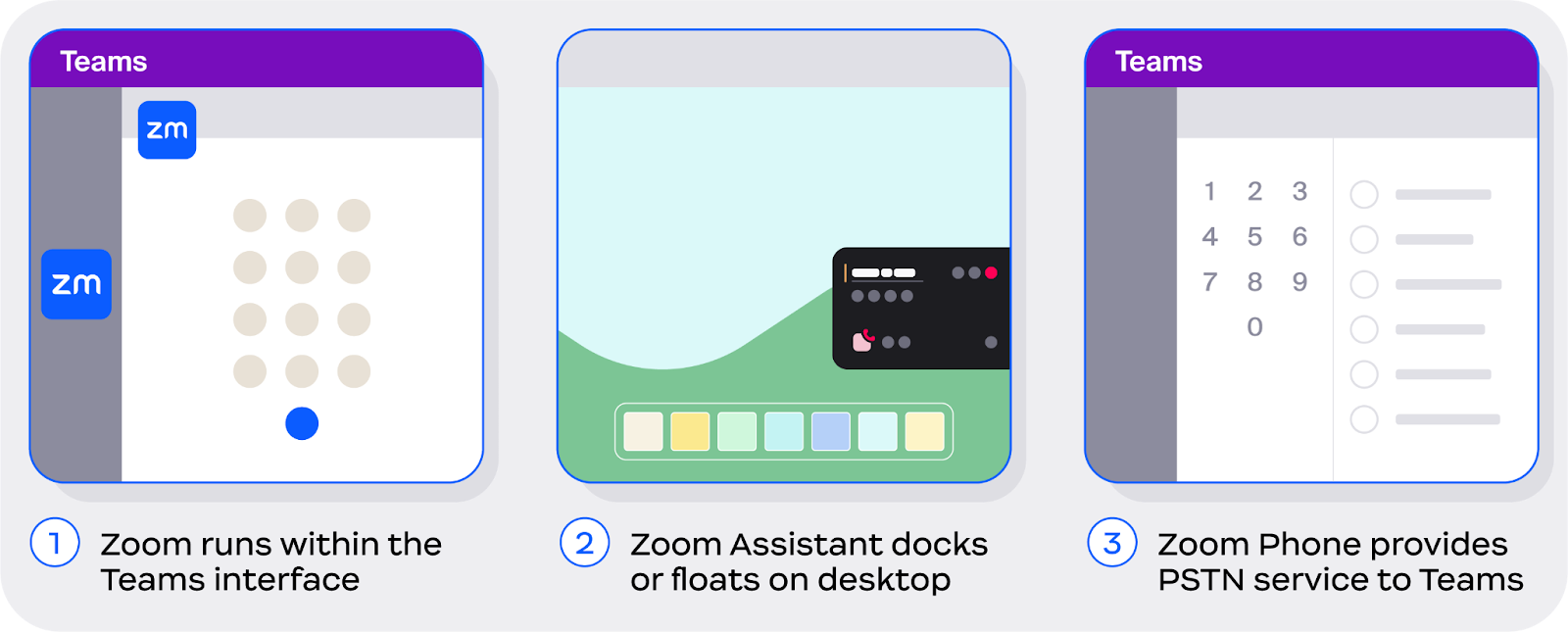
Here are three ways Zoom coexists with Microsoft: an in-app Teams integration, the Zoom Assistant, and Zoom Phone for Microsoft Teams

Here are three ways the Zoom platform coexists with the Microsoft Teams client:

  1. Zoom can integrate core features directly into the Microsoft Teams client through an in-app integration with feature support for Zoom Meetings, Zoom Phone, and Zoom Whiteboard.

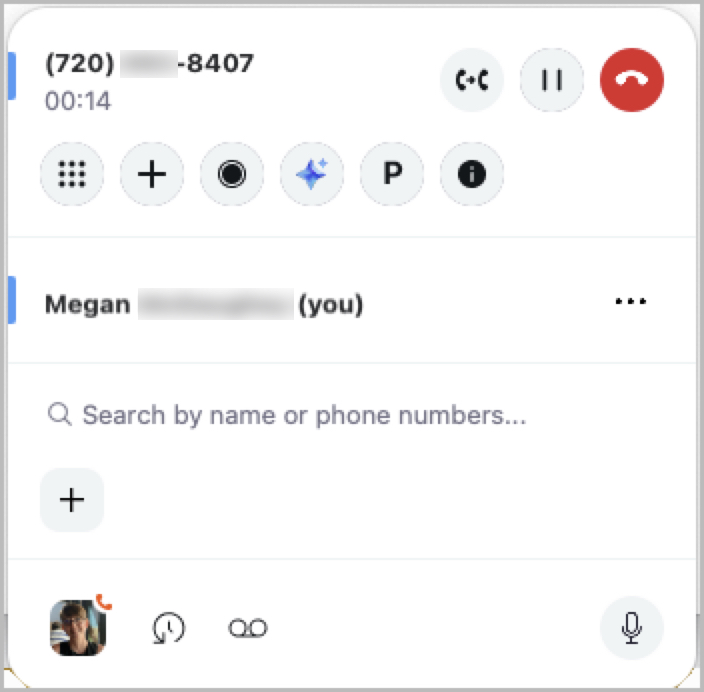
  2. The Zoom Assistant is a lightweight widget that runs from the Zoom client, and offers users a dockable, on-screen menu for managing Zoom Phone calls from any application, including Teams.

  3. Zoom Phone for Microsoft Teams is a direct routing as a service (DRaaS) offering that utilizes Zoom Phone as a PSTN service provider natively within the Teams client.

Each of these options are briefly summarized below, with robust descriptions provided further within the document.

With Zoom's in-app integration for Microsoft Teams, users can easily access Zoom Meetings, Zoom Phone, and Zoom Whiteboard features directly within the Teams client

Zoom’s in-app integration for Microsoft Teams offers you easy access to core features for Zoom Meetings, Zoom Phone, and Zoom Whiteboard within the Teams client. With easy-to-access menus and interfaces that complement existing workflows — as seen in the following image — you can perform many tasks within the Teams client, with limited dependencies on the Zoom desktop client.

Core features of Zoom’s integration for Microsoft Teams include:

Zoom Meetings

  • Join Zoom Meetings*

  • See upcoming Zoom meetings

  • Start ad-hoc meetings*

  • Schedule a Zoom meeting

  • Schedule a meeting to a chat or channel

Zoom Whiteboard

  • Create New Whiteboard

  • Share Existing Whiteboard

*Requires Zoom Client

Zoom Phone

  • Place and receive calls*

  • View Call History

  • Send and Receive SMS

  • Record call

  • Access recorded calls and transcripts

  • Hold call

  • Access Voicemail

  • Read Voicemail Transcription

  • View shared lines

For more information, see the section dedicated to the Teams integration.

The Zoom Assistant, although not an integration, is a compact desktop widget that grants users easy access to Zoom Phone’s core functions from anywhere on a desktop

The Zoom Assistant is a lightweight widget — not an integration — that runs on a user’s desktop as an extension of the Zoom desktop client. Featuring a dockable interface, the Zoom Assistant remains hidden when not in use, and extends when hovered over with a cursor, or when there’s an active call. This compact design grants users full use of their desktop space while working, allowing them to minimize the desktop client when it’s not in use.

With this always-available tool, users can simplify their workflows and processes in conjunction with virtually any other application, granting flexibility and ease of use. Core features of the Zoom Assistant include:

Zoom Phone

  • Place a call

  • Receive a call

  • Dialpad

  • Contact lookup

  • Speed Dial

  • Record a call

  • Park Call

  • Transfer Call

  • Merge Call

  • Self-Mute

  • Open call history*

  • Open voicemail*

*Opens Zoom Client when in use

Zoom Phone with Power Pack

  • Call Queue visibility

  • Open Call Queue Team Chat*

  • Shared Line Appearance Visibility

  • Shared Line Group Visibility

  • Group Call Pickup

  • Call Queue Opt-In/Out

Contact List

  • Start meeting from contact card*

  • Start chat from contact card*

  • Start phone call from contact card*

  • Send SMS from contact card*

For more information, see the complete section dedicated to the Zoom Assistant.

Zoom Phone for Microsoft Teams integrates Zoom Phone directly into the Microsoft Teams client as an underlying PSTN carrier

Zoom Phone for Microsoft Teams is a direct routing as a service (DRaaS) offering that provides businesses with a strategic collaboration option by seamlessly integrating Zoom Phone’s PSTN services directly into the Teams client. With this service, Zoom Phone operates as an underlying PSTN service provider natively within the Teams client, enabling users to make and receive calls through the Teams interface, while leveraging Zoom Phone’s telephony infrastructure.

This service offers businesses flexibility to not only streamline communication workflows within a common application, but additionally provides an option for business continuity and disaster recovery. By offering Zoom Phone’s telephony services natively within the app, without a supplemental application or integration, users can utilize one common workflow whether Zoom Phone is being used as a primary service provider, or secondary provider for disaster-recovery scenarios.

For more information, see the complete section dedicated to Zoom Phone for Microsoft Teams.

When enabled, Zoom AI Companion joins Microsoft Teams meetings as a visible participant for transcription and summaries

When enabled, licensed users can invite Zoom AI Companion to join their Microsoft Teams meetings. AI Companion shows up as a participant, transcribes the session, and provides a post-meeting summary. Users can invite AI Companion to scheduled Teams meetings through the Calendar tab in the Zoom Workplace desktop app by toggling the Invite AI Companion option. They can apply this to individual meetings or all instances of recurring meetings. The toggle also works during active meetings, and AI Companion will immediately leave if it's disabled.

Meeting summaries live in the Calendar tab of the Zoom Workplace desktop app, while transcripts are available in the Recordings & Transcripts section of the Zoom web portal. When AI Companion joins a Microsoft Teams meeting, its video tile shows Zoom branding, an AI Companion indicator, the owner's name, and a Transcribing status so participants are clearly informed. Admins can also enable pre-meeting email notifications that go out about 10 minutes before the meeting starts to either all invitees or just the meeting host, letting them know AI Companion will join to help with transcription.

For more information, visit our support article on Using AI Companion in third-party meetingsarrow-up-right.

Zoom Contact Center integrates with Microsoft Teams for calling, transfers, and directory access

Admins can integrate Zoom Contact Center with Microsoft Teams to enable smooth communication between the two platforms. This integration supports bi-directional calling, so agents can make outbound calls to Microsoft Teams users, receive inbound calls from them, transfer engagements between ZCC and Teams, and even initiate conference calls with Teams users. The integration also syncs Microsoft Teams Presence and Directory data, which means ZCC agents can check Teams users' availability before reaching out to them or adding them to a call.

Setting up the integration involves a few steps in Microsoft Entra first. Admins need to create app registrations and grab the Application (client) ID, Directory (tenant) ID, and client secret, then assign the necessary API permissions including User.ReadWrite.All, Domain.ReadWrite.All, and Organization.Read.All from Microsoft Graph, plus application_access from Teams Tenant Admin API.

Admins need to grant admin consent and assign the app to the Global Administrator role. Then the admin heads over to the Zoom web portal to enable the Microsoft Teams directory integration under Account Management by entering the Tenant ID, Application Client ID, and Application Client Secret.

From there, they'll enable the Microsoft Teams integration for Zoom Contact Center under Contact Center Management, where they can turn on Microsoft Teams Contact Search and decide whether to sync Microsoft Teams contacts directly to Zoom or pull them through real-time API calls instead.

Once everything's set up, agents can easily search for Microsoft Teams contacts (they'll have a Teams icon next to them) when making outbound calls, answer inbound calls from Microsoft Teams users who dial ZCC numbers, transfer calls to Teams users using either a warm transfer (which puts the call on hold while completing the transfer) or a direct transfer (which immediately ends the agent's call after initiating the transfer), and add Microsoft Teams users to ongoing calls for three-way conference conversations. After any engagement wraps up, agents can view Microsoft-related contact details like Department, Job Title, and Business Phone in the Profile tab.

For more information, visit our support article on Setting up the Zoom Contact Center Microsoft Teams integrationarrow-up-right.

Last updated

Was this helpful?