> For the complete documentation index, see [llms.txt](https://library.zoom.com/llms.txt). Markdown versions of documentation pages are available by appending `.md` to page URLs; this page is available as [Markdown](https://library.zoom.com/zoom-workplace/zoom-phone/zoom-phone-local-survivability-field-guide/overview.md).
# Overview
### What is Zoom Phone Local Survivability?
#### ZPLS is an on-premises virtual appliance that supports internal phone calls between users in a common site when Zoom data centers are unreachable
The ZPLS module is an on-premises appliance that allows users within the same **site** to place phone calls to each other when Zoom data centers are unreachable. This creates a survivability solution for business continuity in the event of a network outage.
{% hint style="danger" %}
Within this guide, a **site** is a specific term used within Zoom Phone that groups users together under a common identity, like an office location. For some customers, multiple buildings are represented by a single site; for others, each building in a campus may constitute its own site. Customers should be aware of their existing or potential site configurations when considering the ZPLS module due to design considerations mentioned within this article.
{% endhint %}
**ZPLS also supports cross-site calling when ZPLS appliances and their associated sites are connected through a common network**
On its own, a ZPLS appliance (also referred to as a module i.e., a *Zoom Node module*) provides survivability to users within a common Zoom Phone **site**. However, multiple ZPLS modules connected through a local, campus, or wide area network can support cross-site communication, connecting users from different sites during a survivability event so long as the internal network remains operational.
#### Customers can integrate ZPLS with an SBC to make and receive PSTN calls when Zoom data centers are unreachable
Customers can integrate the ZPLS module with a session border controller (SBC) for external public switched telephone network (PSTN) calling when Zoom data centers are unreachable. This allows users with PSTN numbers provided by Zoom or third-party BYOC carriers to receive inbound calls from external parties when call forwarding for survivability is enabled in the cloud, and to place external phone calls regardless of local network conditions or Zoom data center availability; however, internal calling may be limited by site design.
#### The ZPLS module is the third-priority registration point for supported devices, preferring Zoom Phone’s primary and secondary SIP zones within the cloud when they are available
During a routine boot-up process, a Zoom Phone client downloads the DNS SRV records of primary and secondary SIP zones (registration points) located within Zoom data centers. However, for survivability-enabled sites with a ZPLS module, supported client devices are additionally configured with a *third* SRV record, pointing to the IP Address of the site’s module.
#### The ZPLS module monitors Zoom Cloud availability through routine OPTIONS pings to site-specific SIP zones
In the course of normal operations, the ZPLS module is generally inactive within the local network and does not engage in call handling. Instead, the ZPLS module sends routine OPTIONS pings to site-specific SIP zones to monitor active connectivity between locations.
#### Survivability mode only engages when both the ZPLS module and client devices are unable to connect to site-specific SIP zones
A ZPLS module only enters survivability mode when the routine OPTIONS pings between the ZPLS module and the primary and secondary SIP zones fail. Client devices that lose connection with the SIP zones at the same time as the ZPLS module will register to the module, providing there is IP connectivity between the devices. If the ZPLS module maintains connectivity to the Zoom Phone cloud, it will not accept SIP registrations.
#### The approximate time to failover to a ZPLS module is approximately three minutes, but may vary depending on the number of devices
In the event site-specific SIP zones are unreachable, the approximate device failover time to a ZPLS module is within three minutes. However, this time may vary depending on the number of concurrent devices attempting to register to each ZPLS module.
#### Desktop clients notify users when entering and exiting survivability mode
When Zoom desktop clients failover to survivability mode, users receive an alert informing them that they have no internet connection, but phone service is still available.
Once services are restored, users receive a connection restoration alert.
{% hint style="info" %}
This alert is unique to Zoom desktop clients; IP phones will not display a failover or fallback alert.
{% endhint %}
#### Active calls will drop when survivability mode is engaged and users must manually re-establish the call
Users involved in an active call when disconnected from their site’s SIP zones will hear a fast busy signal before their call is disconnected. After the disconnect and failover to survivability mode, users must manually re-establish their call.
#### Call forwarding can route inbound calls to a BYOC number when survivability mode is active
During a survivability event, devices with phone numbers registered to the Zoom Phone cloud are not reachable due to the loss of internet connectivity. However, ZPLS customers with an SBC and an independent carrier can establish call forwarding rules in the web portal for direct inward dialing. When enabled, call forwarding rules redirect inbound calls to a Zoom Phone-registered number, to a *separate* number bound to a customer’s on-premises PSTN trunk. This allows customers the flexibility to purchase numbers directly from Zoom while still being able to answer calls directly at a site that has lost connectivity to the cloud.
For example, if a user has the phone number X55-555-5555 registered to Zoom Phone and the user’s site enters survivability mode, the user’s phone number is unavailable from the perspective of the Zoom Cloud. If call forwarding is enabled and their number is called, Zoom Phone can forward the request to their designated forwarding phone number (e.g., X11-111-1111) through the PSTN to the customer’s SBC. Consequently, external callers can reach users within an affected site undergoing a survivability event.
#### ZPLS supports Survivability Distribution Groups, providing nuanced call routing capabilities during a survivability event
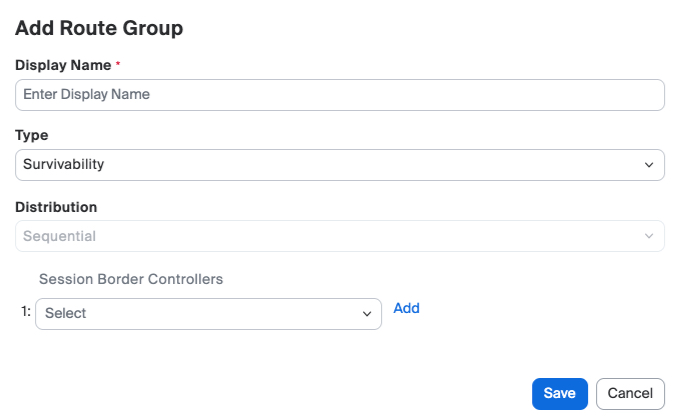
ZPLS modules support Survivability Distribution Groups (SDGs) for nuanced call routing configurations during a survivability event. With SDGs, a business can route internal and inbound PSTN calls to an individual user, a group of users (similar to a call queue or shared group), an IVR menu, another phone number, or, if necessary, another SDG.
Although SDGs do not provide the same full-featured functionality as standard-operation call queues, shared line groups, or auto receptionists, SDGs can continue to support a business’ critical call routing needs until normal operations are restored.
An SDG can be added using the **Add Route Group** configuration within the admin portal.
#### Internal calls between users in survivability mode continue to be protected by SRTP
During survivability mode, internal phone calls between users are protected by Secure Real-time Transport Protocol (SRTP) using AES-128 or 256 encryption, depending on [device capabilities](https://support.zoom.us/hc/en-us/articles/360001299063-Zoom-Voice-Supported-Devices).
#### Cloud services/routing will restore after the ZPLS module has maintained reliable SIP zone connectivity for approximately five minutes
Once the client devices and ZPLS module have re-established a connection with the site-specific SIP zones, the approximate recovery fallback time to normal operations is five minutes. This includes a period of time to ensure network connections are stable in the event of intermittent or partial network recovery (flapping). If network connectivity is intermittent, the client devices and ZPLS module will remain in survivability mode until connections are determined to be stable.
#### The ZPLS module will upload call detail records for all calls made after exiting survivability mode
After the ZPLS module has successfully exited survivability mode and SIP zone connectivity is stable, the module will upload call detail records (CDRs) for all calls made in survivability mode. These records are marked in reports as calls that were completed while in survivability mode.
#### Sites changes, including adding or modifying users or devices, are synchronized to the ZPLS module once every 10 hours
Updates to a site configuration through the Zoom web portal, including adding or modifying users or devices, are synchronized to the ZPLS module once every 10 hours. If a downtime event occurs before new configuration changes are synchronized with the ZPLS module, the module will use the last known configuration.
#### Customers can test or simulate failover events with Testing Mode
Customers can simulate failover events for a site by enabling Testing Mode from the web portal. Once testing mode is enabled for a specific site, the ZPLS module must be rebooted to accept client registrations. After, users that sign out and back into their desktop client will automatically register to the ZPLS module as long as testing mode is enabled.
While Testing Mode is active, the ZPLS module will operate as if a failover event is occurring. Internal users can place calls to other users within their site. Additionally, outbound and inbound calls will route through the connected SBC if configured, and inbound calls will follow call forwarding rules if configured and enabled.
After disabling Testing Mode, the ZPLS Module must be rebooted to resume normal network operations.
{% hint style="info" %}
Testing Mode does not apply to IP phone devices. Testing Mode can only be tested with Zoom desktop applications.
{% endhint %}
### Supported Features and Clients
#### Available Features in Survivability Mode
The following list contains supported features from the ZPLS module when survivability mode is engaged:
**Calling Features**
* Internal Extension Dialing
* Full Extension Dialing with Site Code
* Dial From Call History
* DTMF (RFC 2833)
* Adhoc 3-Party Conference
* Call Forwarding\*
* Inbound/Outbound PSTN\*
* Contact Search/Dialing (first 25,000 contacts)
* Dial By Name
* Mute/Unmute
* Hold/Resume Call
* Call Park
**Transfer & Routing**
* Consult Transfer
* Blind Transfer
* Emergency Location Identification Number
* Inter-ZPLS Module Calling
**Survivability Distribution**
* Route to User
* Route to Group Members
* Route to Phone Number\*
* Route to IVR
* Business Hours
* Sequential Ringing
* Simultaneous Ringing
* Audio Prompts
*\*Requires SBC & BYOC Integration*
#### Unavailable Features in Survivability Mode
The following list contains features that are not supported when survivability mode is engaged:
* Add/Remove Contact
* Voicemail
* Escalate to Multi-Party Conference (4+ Users)
* Escalate to Meeting
* Call Pickup
* Switch to Carrier
* Nomadic e911 Calling
* Speed Dial
* Monitoring (Barge/Monitor/Whisper)
* Call Delegation
* Intercom
* End-to-End Encrypted Calling (E2EE)
* Auto Receptionist
* Call Queue
#### Supported Client Devices
Refer to our support center for a list of [supported client devices](https://support.zoom.us/hc/en-us/articles/360029698771-Supported-desk-phone-features#h_01GGF32MEZ6DDT3VBE8Y2D6JH3) and [supported firmware versions](https://support.zoom.us/hc/en-us/articles/360001299063-Zoom-Phone-Certified-Hardware).
### Network Ports and Data Flow
#### Overview Diagram
The following diagram demonstrates the network ports and data flows used with a ZPLS module and an SBC configuration.
#### ZPLS Survivability Firewall Requirements
The following table lists the network ports utilized by Zoom Phone during normal operations when there is no disruption with connectivity to the cloud. Refer to our support center for a [complete list of IPs](https://support.zoom.us/hc/en-us/articles/201362683-Zoom-network-firewall-or-proxy-server-settings#h_01EEBSGCKBYVB20MCVPR78T0NN) used for the Zoom Phone cloud.
| Transport | Source IP | Destination IP | Destination Port | Purpose |
| --------- | ----------------- | ---------------- | ---------------- | -------------------------------- |
| TCP | Zoom Phone Client | Zoom Phone Cloud | 5091 | SIP Signaling Traffic |
| TCP | Zoom Phone Client | Zoom Phone Cloud | 443 | Web Traffic - Client Settings |
| TCP | Zoom Phone Client | Zoom Phone Cloud | 390 | Directory Search from Deskphones |
| UDP | Zoom Phone Client | Zoom Phone Cloud | 20000-64000 | SRTP Media Traffic |
| TCP | ZPLS | Zoom Phone Cloud | 5091 | SIP Options Ping (Keepalive) |
| TCP | ZPLS | Zoom Phone Cloud | 443 | Node / OS Management Traffic |
| TCP | ZPLS | Zoom Phone Cloud | 9669 | Call History / Recovery Sync |
| TCP | SBC | Zoom Phone Cloud | 5061 | SIP Signaling Traffic (BYOC) |
| UDP | SBC | Zoom Phone Cloud | 10000-64000 | SRTP Media Traffic (BYOC) |
The following table outlines the TCP and UDP ports utilized by Zoom Phone when failover to ZPLS is active due to disruption with connectivity to the cloud.
| Transport | Source IP | Destination IP | Destination Port | Purpose |
| --------- | ----------------- | -------------- | ---------------- | -------------------------------- |
| TCP | Zoom Phone Client | ZPLS | 5091 | SIP Signaling Traffic |
| UDP | Zoom Phone Client | ZPLS | 20000-64000 | SRTP Media Traffic |
| TCP | ZPLS | SBC | 5061 | Directory Search from Deskphones |
| UDP | ZPLS | SBC | 20000-64000 | SRTP Media Traffic |
#### BYOC Premises Peering Firewall Requirements
Customers integrating the ZPLS module with an SBC for external dialing during a survivability event must enable the required ports for premises peering. After configuring a route group, the necessary IP addresses for the route group are available on the web. To access the IPs, perform the following steps:
1. Sign into the Zoom web portal.
2. Under the **Phone System Management** sub-menu, select **Company Info**.
3. Click **Account Settings**
4. Locate the option for **Route Groups**. Click **Manage** to load a new page.
5. On the following page, locate the intended Route Group, and hover over the **"i"** icon.
6. Enable the specified IP address and ports within the window as necessary within your network.
---
# Agent Instructions
This documentation is published with GitBook. GitBook is the documentation platform designed so that both humans and AI agents can read, navigate, and reason over technical content effectively. Learn more at gitbook.com.
## Querying This Documentation
If you need additional information that is not directly available in this page, you can query the documentation dynamically by asking a question.
Perform an HTTP GET request on the current page URL with the `ask` query parameter, and the optional `goal` query parameter:
```
GET https://library.zoom.com/zoom-workplace/zoom-phone/zoom-phone-local-survivability-field-guide/overview.md?ask=&goal=
```
`ask` is the immediate question: it should be specific, self-contained, and written in natural language.
`goal` is optional and describes the broader end goal you are ultimately trying to accomplish on behalf of the user. GitBook uses it to tailor the answer towards what is most useful for that goal.
The response will contain a direct answer to the question and relevant excerpts and sources from the documentation.
Use this mechanism when the answer is not explicitly present in the current page, you need clarification or additional context, or you want to retrieve related documentation sections.