> For the complete documentation index, see [llms.txt](https://library.zoom.com/llms.txt). Markdown versions of documentation pages are available by appending `.md` to page URLs; this page is available as [Markdown](https://library.zoom.com/zoom-workplace/zoom-phone/expert-insights/zoom-phone-and-contact-center-spam-solutions.md).
# Zoom Phone and Contact Center SPAM Solutions
### Introduction
Since its inception, Zoom Phone has released several solutions to help customers mitigate the impact of inbound spam calls and SMS, as well as outbound calls mistakenly marked as spam. This guide provides an overview of the current spam solutions that are available for Zoom Phone, and how and when customers may want to use them.
Zoom Support articles already detail the specific configuration steps, so this guide references those support articles with notes and guidance to assist with configuration choices.
In this article:
* **Inbound Spam Solutions**
* STIR/SHAKEN
* Automatic and Manual Spam Marking
* Call Screening
* SMS options
* **Outbound Spam Solutions**
* STIR/SHAKEN
* Free Caller Registry
* Enterprise Spam Registration
* Spam Remediation
* Branded Calling and Spoof Protection
Each spam solution will be available in different locales and for either Zoom Phone and/or Zoom Contact Center. This will be noted in the article for each solution.
As Zoom is always working to expand the reach of these solutions, refer to the linked support articles for current country coverage.
### Inbound Spam Options - Answer with Confidence
Zoom Phone has multiple methods to handle and mitigate calls and SMS that come into Zoom Phone (users, call queues, etc.) from the PSTN.
* Inbound spam mitigation options include:
* STIR/SHAKEN marking
* Marking calls as Spam
* Call Screening
* SMS
#### STIR/SHAKEN markings
In 2020, the U.S. FCC implemented a new framework of standards called [STIR/SHAKEN](https://www.fcc.gov/call-authentication). At a very high level, this allows the Caller ID to be "signed" by the originating carrier and that signature to be passed on and validated by destination carriers. (See the above link if you want to dig into the details more!)
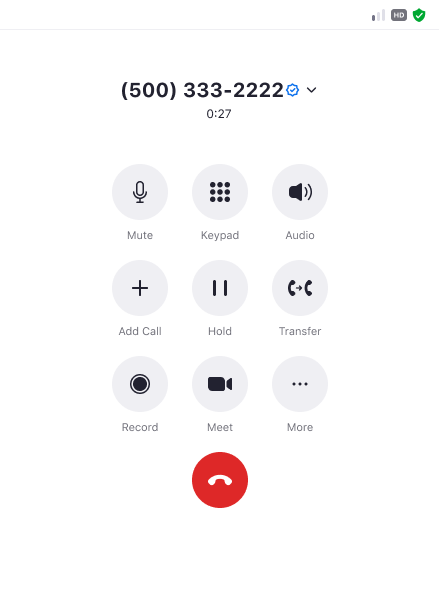
When Zoom Phone receives a call, its signature will be reviewed and the result of that review will be noted as described and shown below in the Zoom Workplace app.
There is no setting to enable or disable this feature, as it must always be enabled.
Options users will see are:
|  | Caller Signature Verified |
| ------------------------------------------------------------------------------------------------------------------------------------------------------------------------------------------------------------------- | ------------------------- |
| Blank | Caller NOT verified |
Here's an example of how the inbound call notification appears in the Zoom Workplace desktop and mobile app and during an active call. **Caller Verified** marks also appear on Zoom Phone Appliances during inbound calls.
{% hint style="info" %}
**Coverage**
* Zoom Products - ZP and ZCC
* Countries - U.S. and Canada
{% endhint %}
#### Manual Spam Marking
Zoom Phone allows customers to "crowdsource" their spam markings within their organization with Manual Spam Marking. This setting is enabled at the account level only and is documented in our [support article](https://support.zoom.com/hc/en/article?id=zm_kb\&sysparm_article=KB0057965).
**Enabling**
When enabling Spam Protection in the Account Settings, you will have the option to exclude any user and company contact from the spam list. If checked, this setting will:
* Not block any internal Zoom Phone users (including any Zoom Rooms that may have Zoom Phone numbers on them)
* Not block any users set up as External Contacts for the company
**End User Marking**
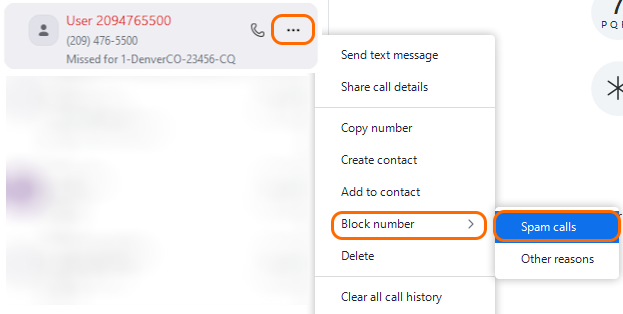
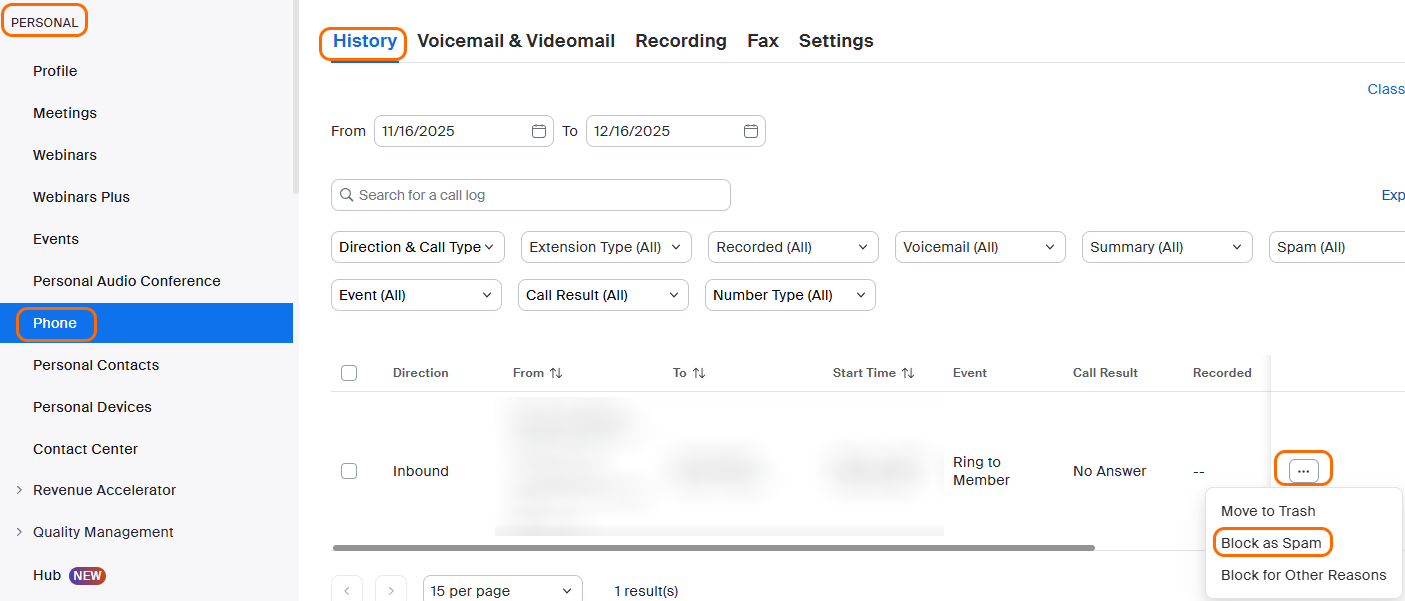
Zoom Phone users can manually mark spam calls within their Zoom Workplace app (desktop or mobile) or within their call logs in the Personal section of the Zoom web portal.
Zoom Workplace app: Find the call in **History**, click the ellipsis, and choose **Block Number**, then **Spam Calls**.
In the Zoom web portal, browse to [**My account**](https://zoom.com/profile/setting) → **Zoom Phone** → **History** and locate the call. Click the ellipsis and choose **Block as Spam**.
**Setting Marking Triggers**
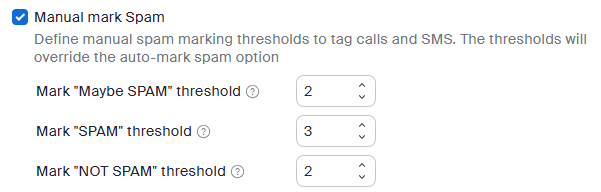
Once Manual Marking is enabled, the Zoom Phone administrator can set three thresholds that will be used. These numbers come from Zoom Phone users manually marking calls as Spam across the company, as shown in the previous section.
* **Maybe SPAM** - This threshold is where calls from that number will show the "Maybe Spam" notice to Zoom Phone users when a new call comes in from that number
* **SPAM** - This threshold is where calls will show the "Spam" notice to Zoom Phone users when a new call comes in from that number
* **NOT SPAM** - If a call is marked as Maybe Spam or Spam and a user sees it as a legitimate call, they can mark it as "NOT SPAM". This threshold is where "Maybe SPAM" or "SPAM" will no longer show for your company.
**Setting How to Handle Calls Once Marked**
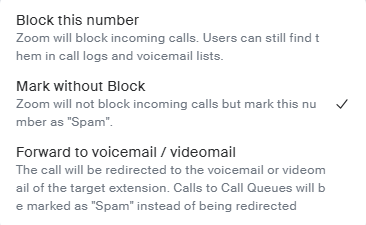
Zoom Phone administrators can then decide how to handle calls that meet the "SPAM" threshold. The options are:
* Mark without Block
* Block This Number
* Forward to voicemail/videomail
**Administrator Spam Review**
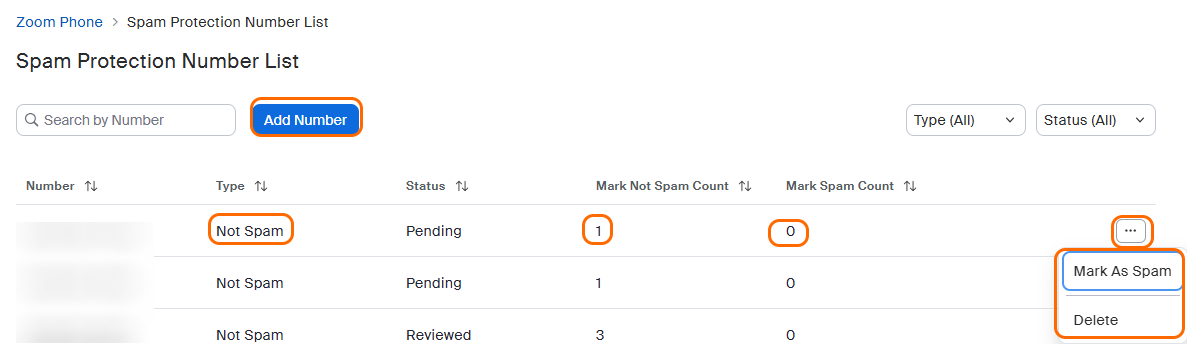
Under **Account Settings** and **Spam Protection,** Zoom Phone administrators can review the list of numbers that have been marked by clicking **Manage Number List**.
In that view, admins can:
* Manually add numbers
* View Number Type (Spam, Maybe Spam, or Not Spam)
* View user's manual markings for Spam and Not Spam
* Mark numbers as Spam directly or even delete them from the list
{% hint style="info" %}
**Note**
Manually adding numbers and marking as Not Spam is the primary method to whitelist numbers for both Auto and Manual Spam marking.
{% endhint %}
**Example Use Case**
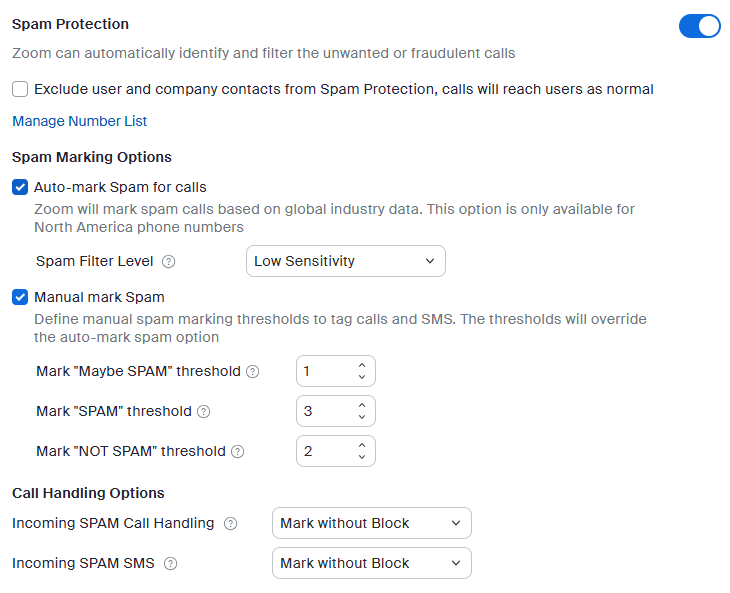
* The Zoom Phone administrator sets the Spam thresholds as below:
* The Zoom Phone administrator sets the Spam Call Handling options as below:
* Calls from **720-555-1234** are marked as Spam by users ZP1 and ZP2.
* The next call from **720-555-1234** comes in to user ZP3 and has the Maybe Spam marking, but will not be blocked.
* User ZP3 agrees it is Spam and marks it as Spam.
* The next call from **720-555-1234** comes in to user ZP4 and has the Spam marking, but will not be blocked.
* Users ZP5 and ZP6 now get calls from **720-555-1234** and see the Spam marking, but decide it's a legitimate call now. They mark it as Not Spam and, as it meets the threshold of 2 for Not Spam, calls from that number will no longer be marked as Spam.
{% hint style="info" %}
**Coverage**
* Zoom Products - ZP only
* Countries - Any
{% endhint %}
#### Auto Spam Marking
Zoom's Auto Spam Marking leverages a third-party spam database to review the spam potential for each number. This setting is enabled at the account level only and is documented in our [support article](https://support.zoom.com/hc/en/article?id=zm_kb\&sysparm_article=KB0057965).
**Enabling**
Auto Spam Marking is enabled very similarly to Manual Spam Marking above. Below is the full admin settings under Account Settings to help put it in perspective.
Administrators will enable it by checking **Auto-mark Spam for calls** and then setting a sensitivity for the Spam Filter Level. The sensitivity levels are determined by our third-party vendor and are detailed below:
* **Low Sensitivity** - only calls that have a Definite Certainty of Spam will be marked
* **Medium Sensitivity** - only calls that have a Moderate Certainty of Spam will be marked
* **High Sensitivity** - only calls that have a Strong Certainty of Spam will be marked
Please note the inverse relationship above between **Certainty** and **Sensitivity**.
As an example, with a low sensitivity, spam marking will only trigger on calls that are the most likely to be spam. Therefore, the company will mark fewer calls as spam, but the ones marked will be the most likely to be spam calls. Calls that are possible spam (Strong or Moderate certainty) will not be tagged.
**Setting How to Handle Calls Once Marked**
{% hint style="info" %}
**Note**
These settings are the same as above, as they are used for both Manual and Auto-mark Spam settings.
{% endhint %}
Zoom Phone administrators can then decide how to handle calls that meet the spam threshold. The options are:
* Mark without Block
* Block This Number
* Forward to voicemail/videomail
**Spam Dashboard**
Since customers may need to adjust their Auto-Marking sensitivity levels, Zoom has provided a Spam dashboard where you can review calls marked as Spam and how many more (or less) calls would be marked if you change the sensitivity.
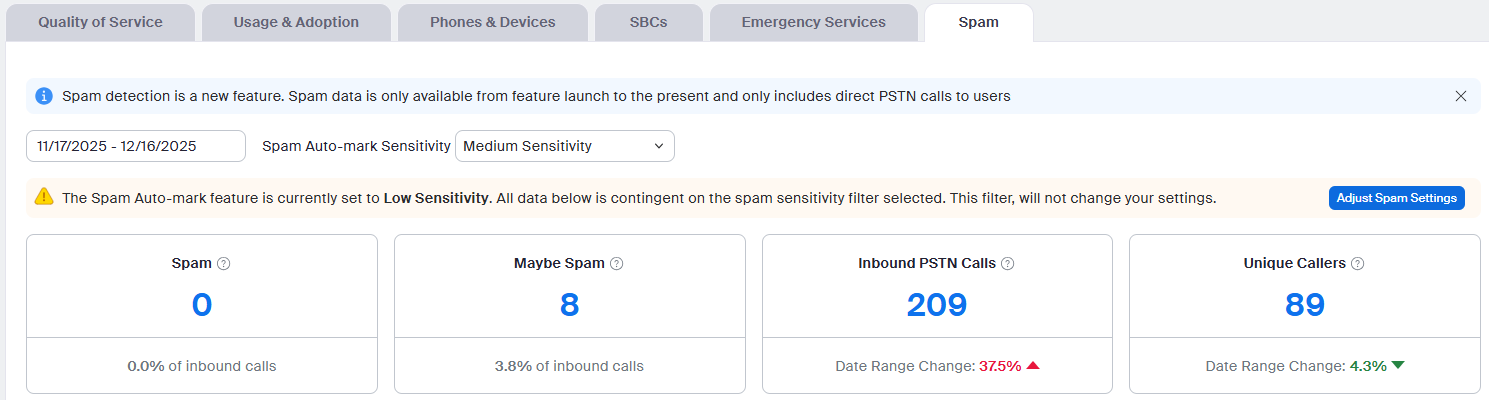
Under **Dashboard → Phone**, go to the **Spam** tab.
You can now set a date range of up to 30 days and see how many calls have been marked as Spam or Maybe Spam and the current sensitivity.
In the example below, no calls have been marked with Low Sensitivity.
You can select the Sensitivity drop-down and choose one of the other options and see how markings would change with inbound calls during that same date range. There is also a quick link to take you to the Account Settings if you want to quickly change it.
In the example below, we've selected Medium Sensitivity and now 8 calls of that same 209 will be marked as Maybe Spam.
To continue this example, we now set the Sensitivity to High and those 8 Maybe Spam become marked as Spam and would trigger the call handling setting the Zoom Phone administrator set (block, mark without block, or send to voicemail/videomail).
{% hint style="info" %}
**Coverage**
* Zoom Products - ZP only
* Countries - US and Canada
{% endhint %}
#### Call Screening
Call Screening helps reduce unwanted calls by sending direct external callers to a prompt that will require them to press 1 before being connected to the Zoom Phone User. This setting can be enabled at the following levels:
* Account
* Group
* Site
* User
* Auto Receptionists
* Call Queues
* Shared Line Groups
* Common Area Devices
The full setup process is documented in our [support article](https://support.zoom.com/hc/en/article?id=zm_kb\&sysparm_article=KB0077181).
**Enabling**
Call Screening is enabled in the Policy section at all levels mentioned above, except the user level. This setting is under the User Settings section for Zoom Phone users, which allows users (if provided access) to modify the Call Screening setting on their own.
Enabling Call Screening will not allow Zoom Fax to work for that entity, since the inbound fax cannot press 1 to bypass the screening.
When enabling **Call Screening**, you are provided with the following options:
* **Call Screening Prompt** - Use the default or custom prompt that external callers will hear. If using a custom prompt, be sure to tell the caller to press 1 to be connected.
* **Exclude user and company contacts** - This will allow any other Zoom Phone user in your company calling from a known PSTN number and any caller set up in your External Contacts to bypass Call Screening.
{% hint style="info" %}
**Coverage**
* Zoom Products - ZP only
* Countries - Any
{% endhint %}
#### SMS
Zoom Phone extends Manual Spam Marking to include SMS, as well as inbound calls. Separate treatment options are available when an SMS is marked as Spam.
In addition to spam markings for inbound SMS, Zoom provides additional SMS features to block attachments, suspicious links, etc. The full setup process for these features is outlined in our [Support Article](https://support.zoom.com/hc/en/article?id=zm_kb\&sysparm_article=KB0069635).
**Enabling**
As you can see below, the Manual Mark Spam setup mentions both calls and SMS.
The handling of SMS coming from numbers marked as Spam is separate from the handling of voice calls marked as Spam. Below is the setting under Manual mark Spam for handling of Incoming Spam SMS, which allows Mark without Block and Blocking.
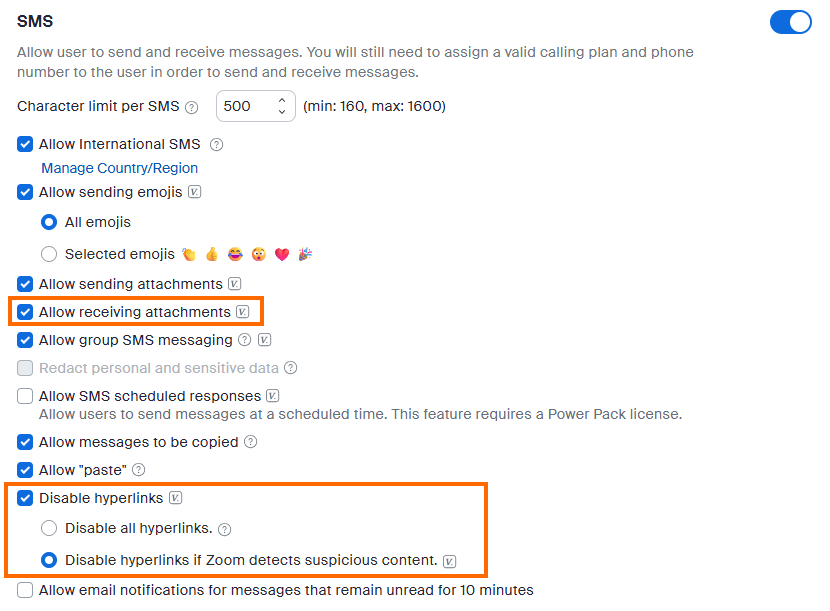
To provide extra security from spam content, Zoom provides several SMS settings that can help to secure your inbound messaging. These additional policies can be set at the **Account**, **Site**, **Group**, and **User** level. While all of the SMS policies are shown below, we'll highlight the ones to help minimize the risk from inbound spam messages.
* **Allow Receiving Attachments** - If this box is unchecked, attachments will be removed from all inbound SMS messages. The end user will still receive the text of the SMS along with a note that an attachment was removed.
* **Disable Hyperlinks** - Checking this box will provide the two options below and the end user will still receive the text of the SMS along with a note that a hyperlink was removed.
* Disable all hyperlinks - No hyperlinks will be allowed
* Disable hyperlinks if Zoom detects suspicious content - Zoom will compare the link to a database of known suspicious links and block the hyperlink if it appears in that database.
{% hint style="info" %}
**Coverage**
* Zoom Products - ZP only
* Countries - Any
{% endhint %}
### Outbound Spam Options - Connect with Confidence
Zoom has multiple methods to mitigate calls that come from Zoom Phone or Contact Center (users, call queues, dialers, etc.) to the PSTN and are marked as Spam.
* Outbound spam mitigation options include:
* STIR/SHAKEN Markings
* Free Caller Registry
* Branded Calling and Spoof Protection
* Enterprise Registration
* Spam Remediation
{% hint style="info" %}
**Note**
These solutions do not assist with outbound SMS markings, as those are handled differently than voice calls by cellular carriers.
{% endhint %}
While we provide several solutions below to help mitigate Zoom Phone calls from being marked as Spam on cellular carriers, it's ultimately up to each cellular carrier to determine what metrics go into their specific solution for spam tagging.
It's important to ensure your calling behaviors align with best practices for the countries and regions you are calling so they aren't tagged as Spam. If calling behavior resembles spam-like calling (multiple calls in short periods of time, calling when asked not to, calling outside normal business hours, etc.), the number will likely be marked as Spam regardless of the remediation solution in place.
#### STIR/SHAKEN markings
For any outbound call a Zoom Phone user makes, Zoom will mark the call with an A Level Attestation. This translates to a "Full Attestation" or trust in the call.
There is no setting to enable or disable this feature — it is always enabled.
Note: This will apply to any Zoom Phone Native call in the U.S. and Canada. Customers using Bring Your Own Carrier (BYOC) will need to work with their carrier to ensure the STIR/SHAKEN attestation level is being set appropriately.
{% hint style="info" %}
**Coverage**
* Zoom Products - ZP and ZCC
* Countries - US and Canada
{% endhint %}
#### Free Caller Registry
Each cellular carrier has different resources it uses to determine if inbound calls to its cellular phones are Spam. Due to the variety of sources, it can be difficult to ensure your company numbers are not marked as Spam across all the cellular carriers you are calling in a given region.
We outline links to different carriers and spam database services in our [Support Article](https://support.zoom.com/hc/en/article?id=zm_kb\&sysparm_article=KB0062095), but one of the best resources for the U.S. and Canada is the Free Caller Registry.
Registering your numbers through this third-party resource will share that data with the three "call protection providers" that the three main U.S./Canada cellular carriers (Verizon, AT\&T, and T-Mobile) use. It is free to register, but it does require some manual work on the customer side with quarterly reviews to ensure the numbers are still tied to your business.
{% hint style="success" %}
**Coverage**
* Zoom Products - ZP and ZCC
* Countries - U.S. and Canada
{% endhint %}
#### Branded Calling and Spoof Protection
Zoom has partnered with TransUnion and First Orion to offer Branded Calling and Spoof Protection. Below we outline how these solutions work, but the full configuration is covered in our [Support Article](https://support.zoom.com/hc/en/article?id=zm_kb\&sysparm_article=KB0081495).
Let's start with what **Branded Calling** and **Spoof Protection** are and why you may want these.
**Branded Calling**
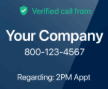
This allows company branding to show up on customer's cellular phones when you call them from an enabled Zoom Phone number. Branding includes:
* Company/Organization Logo
* Call Reason (static)
Below is an example image of how this will appear on a customer's cellular phone.
**Spoof Protection**
This service will help to detect and block spoofed calls to a customer's cellular phone. In short, if a bad actor is making a call to a customer's cellular phone and is spoofing your protected number, Spoof Protection will block it at the cellular carrier side so the customer won't get that call.
When your call from the protected number is made, the customer will also see a Verified mark on the call. You can see that mark in the image above, but below it's called out:
**Enabling**
Let's go into some detail about how this works and the requirements to set it up.
Our current partners for Call Branding and Spoof Protection have worked directly with cellular carriers to provide their service when calls ring into those cellular carriers. As such, it is critical the customer determines which partner provides coverage to the countries and cellular carriers they call the most.
Below are links to our current Call Branding and Spoof Protection partners:
* [TransUnion and Zoom's Partnership](https://partner.zoom.com/solutions/transunion/)
* [First Orion and Zoom's Partnership](https://partner.zoom.com/solutions/first-orion/)
Customers will need to engage with one of the above partners, set up an account, billing, configuration, etc. before beginning the configuration on the Zoom side. Zoom's configuration consists of one step:
* Identify which numbers should leverage Call Branding and Spoof Protection
When Zoom makes an outbound call from a phone number enabled for Call Branding, we leverage an API to the Call Branding partner that communicates the call information to the supported cellular carrier.
Below is a graphic showing the API path taken, which is separate from the standard PSTN call to that same cellular phone.
Spoof Protection relies completely on the Call Branding partner integration with each cellular carrier to verify if a call is coming from the supported Zoom Phone source before allowing it to proceed to the cellular phone.
Below are the steps required to enable Call Branding and Spoof Protection:
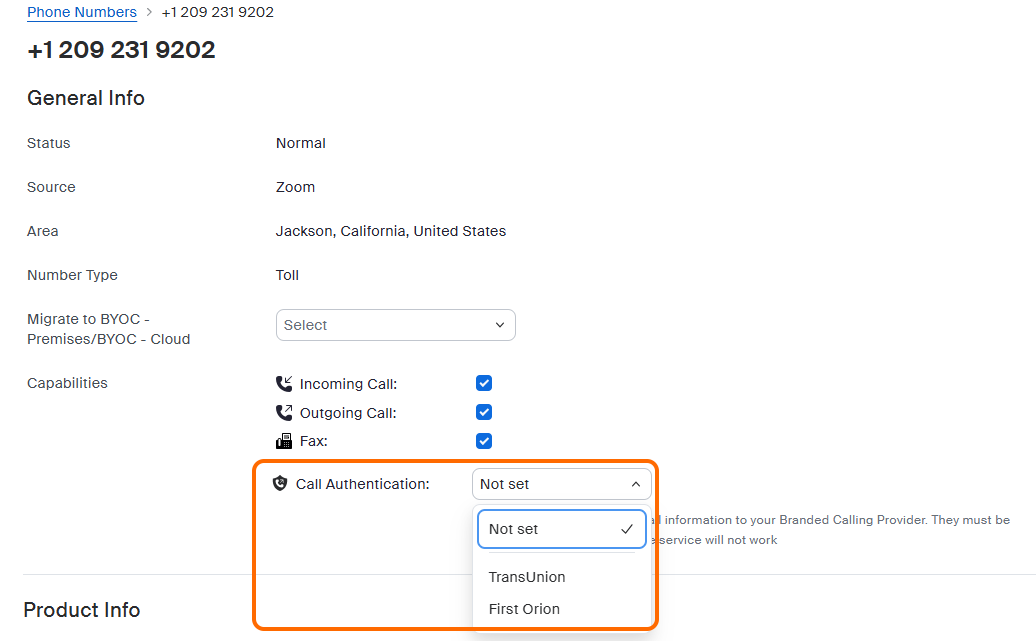
1. Set up Call Branding and Spoof Protection with a supported Zoom Partner
2. In the Zoom web portal, go to **Number Management** → **Phone Numbers**
1. To set up one number, find the number and click on it to go to the configuration tab, then select the correct Provider under the **Call Authentication** section.
2. To set up multiple numbers, select the individual numbers you want to enable Call Branding and Spoof Protection on and choose the vendor from the Call Authentication drop-down.
{% hint style="info" %}
**Coverage**
* Zoom Products - ZP and ZCC
* Countries - Dependent on the third party's supported country list.
{% endhint %}
#### Enterprise Registration
Zoom is now offering the ability for customers to register their Zoom Phone numbers with their business information and call purposes with a third-party service that will then share that with the major U.S./Canada mobile carriers. This service works for:
* Zoom Phone Native numbers
* Bring Your Own Carrier (BYOC) numbers
* Provider Exchange numbers
Once registered, the supported carriers will have a higher trust in calls from those numbers.
Zoom will automatically keep the registered list updated as you add and remove supported numbers from your Zoom account.
Note: This service will help calls be trusted by the cellular carriers and provide information about how likely they will be marked as Spam, but it does not provide a way to resolve a number that gets flagged as Spam.
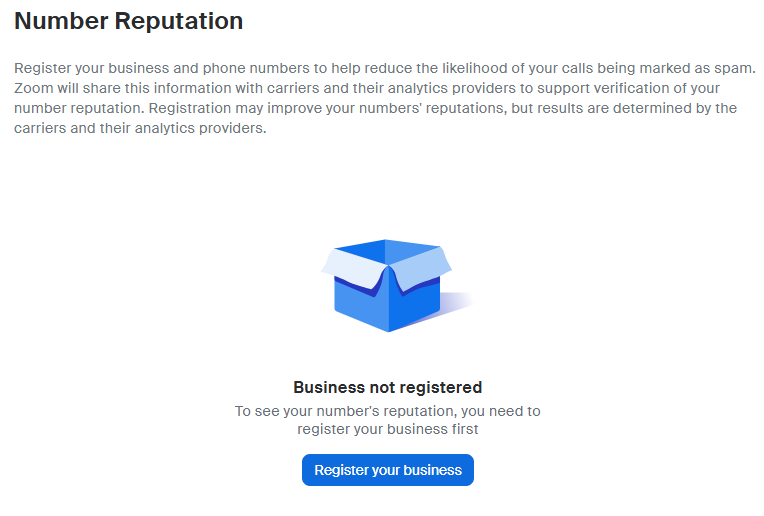
Zoom will also provide a Number Reputation dashboard to show the spam reputation of each registered number once Enterprise Registration is completed. Below is an example of the dashboard that can be located under **Number Management** → **Number Reputation**.
Key definitions for the dashboard are below:
* **Registration Status** - Confirms the number is registered with our third-party service. Failed numbers may occur if you have international numbers that are not covered or BYOC numbers that are not PSTN-capable E.164 numbers.
* **Spam Likelihood Rating** - Showing how likely a number will be tagged as spam when you make an outbound call.
* Unflagged - No expectation that a call will be flagged as Spam
* Low - Low likelihood the call will be flagged as Spam
* Flagged - Call will very likely be flagged as Spam
* **Maturity** - How well established are the numbers? Number establishment is tied to how long the number has been registered and how long there has been activity on that number.
* **Connection** - Do recipients choose to answer calls from this number often?
* **Engagement** - Once they have answered the call, do recipients stay connected to the call?
* **Sentiment** - Do recipients tend to flag, complain about, or block calls from this number?
**Enabling**
Enabling this service takes just a few steps.
* Customers will need to have the **Enterprise Spam Registration SKU** added to their account. This is a $50 monthly list fee that will cover the entire account registration, regardless of the quantity of phone numbers your account has.
With Zoom's Carrier Platform, all Zoom Phone (including Zoom Auto Dialer) and Zoom Contact Center numbers are in a single platform, so the monthly charge will cover all numbers used for both products.
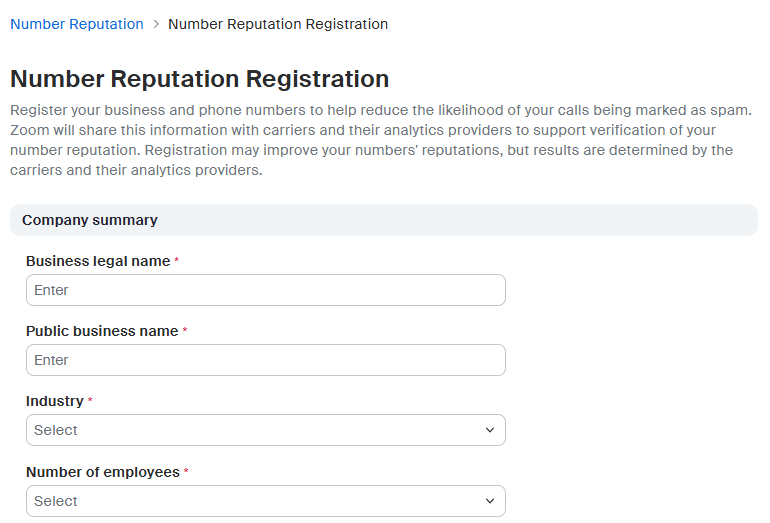
* Register Your Business - This will provide specifics about your company that our third-party spam registration service will use to share with the cellular carriers.
* Navigate to **Number Management** → **Number Reputation**
* Click on **Register your business**
* Enter specific Company information such as Public Business Name and Address, individual point of contact, DUNS/EIN number (optional), and company Website.
That's it. In 24–48 hours, your registration will be accepted and the numbers will be registered with our third-party spam registration service.
{% hint style="info" %}
**Note**
* The Number Reputation Dashboard can take up to 2–4 weeks to fully populate and does not provide information in real time, as it requires call traffic to generate ratings.
* Numbers with very low monthly call volume will not populate all fields in the Number Reputation dashboard, as there's not enough information to generate the ratings.
{% endhint %}
{% hint style="info" %}
**Coverage**
* Zoom Products - ZP and ZCC
* Countries - U.S. and Canada
{% endhint %}
#### Spam Remediation
The Spam tag remediation feature enables customers to efficiently manage Spam indicators associated with their phone numbers. This includes the following two features:
* Automatic spam remediation for monitored numbers
* Inline alerts when a spam tag is detected on a number
Below we will outline some details about the Spam Remediation solutions, but the full configuration is covered in our [Support Article](https://support.zoom.com/hc/en/article?id=zm_kb\&sysparm_article=KB0080575).
**What is Spam Remediation**
Spam Remediation is a solution Zoom offers with our partner(s) to actively monitor selected Zoom Phone numbers with the major U.S. cellular carriers to see if they are tagged as Spam. If this service sees a monitored number tagged as Spam, it will actively work to resolve that marking on the customer's behalf with the specific carrier.
Spam remediation can take up to one week to resolve. As with all outbound spam solutions, it's important that call behaviors are not spam-like, or the cellular carriers will continue to mark the number as Spam.
It's important to understand a few key details about Spam Remediation to ensure you get the most out of this solution:
* Spam Remediation is assigned and charged per number.
* Most customers will enable Spam Remediation on key numbers only, like the main site Auto Receptionist or Call Queue numbers. It is also often used for both ZP Auto Dialer and ZCC Dialer number pools.
* Monthly charges will be withdrawn from your existing Audio Commit (for ZP or ZCC) and will be for the maximum total numbers set up for Remediation for that month.
* If numbers are assigned to ZP, they will pull from the ZP Audio Commit and any overages will apply to your Pay-as-you-Go (PAYG) billing
* If numbers are assigned to ZCC, they will pull from the ZCC Audio Commit and any overages will apply to your Pay-as-you-Go (PAYG) billing
{% hint style="success" %}
**Example Billing:**
* On January 1, you have:
* 5 Zoom Phone numbers set up for Spam Remediation
* 6 Zoom Contact Center numbers set up for Spam Remediation
* On January 18, you made the following changes:
* Added 3 Zoom Phone numbers and removed 1 ZP number from Spam Remediation
* Added 1 Zoom Contact Center number to Spam Remediation
* For January, you will be billed:
* From Zoom Phone Audio Commit:
* 8 total numbers
* Started the month with 5 and added 3 which reached a peak of 8 numbers, even though 1 was removed.
* If nothing changes for Zoom Phone in February, you'd then be charged with 7 numbers going forward
* From ZCC Audio Commit:
* 7 total numbers
* Started the month with 6 and added 1 which reached a peak of 7 numbers for the month.
{% endhint %}
**Enabling**
Our [Zoom Support Article](https://support.zoom.com/hc/en/article?id=zm_kb\&sysparm_article=KB0080575) details each step of the setup process, so we won't repeat that information here. At a high level, here are the steps to go through to enable Spam Remediation:
* Get the Spam Monitoring and Remediation SKU added to your account
* Enroll in Spam Remediation (2–4 business days)
* This will require your company's name and address, website, EIN/DUNS (optional), estimated number of monthly calls for the remediated list of numbers, and a point of contact.
* Customers must agree to several spam calling-related regulatory requirements such as adhering to the Telephone Consumer Protection Act (TCPA), respecting unsubscribe requests, no misleading information, etc.
* Enable Spam Monitoring on one or more numbers
**Monitoring**
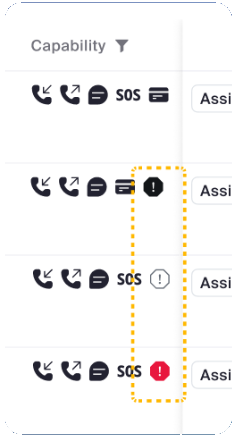
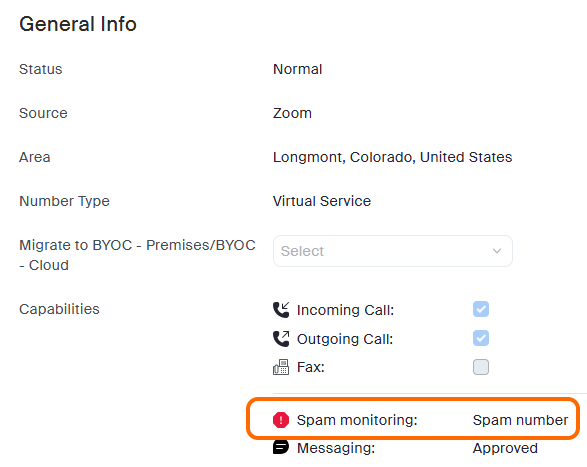
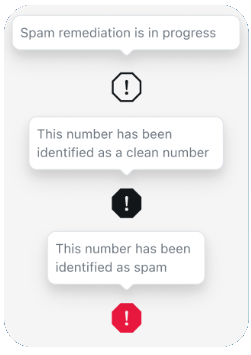
Users can monitor the current Spam Remediation status within the Zoom web portal, under **Number Management** → **Phone Numbers**. When numbers have been registered with Spam Remediation, a new icon will appear under the Capability column in the number list and will also appear inside the number details.
The three icons are detailed below with their definition.
{% hint style="info" %}
**Coverage**
* Zoom Products - ZP and ZCC
* Countries - U.S.
{% endhint %}
---
# Agent Instructions
This documentation is published with GitBook. GitBook is the documentation platform designed so that both humans and AI agents can read, navigate, and reason over technical content effectively. Learn more at gitbook.com.
## Querying This Documentation
If you need additional information that is not directly available in this page, you can query the documentation by asking a question.
Perform an HTTP GET request on the following URL with the `ask` and `goal` query parameters:
```
GET https://library.zoom.com/zoom-workplace/zoom-phone/expert-insights/zoom-phone-and-contact-center-spam-solutions.md?ask=&goal=
```
`ask` is the immediate question: it should be specific, self-contained, and written in natural language.
`goal` is what the user is ultimately trying to achieve, the reason they need the answer. Sharing it helps GitBook give you a better, more relevant answer. A goal is most helpful when it describes the outcome the user wants rather than restating the question. For example, with `ask=how do I create an API token`, a goal like `automate deployments from our CI pipeline` lets GitBook tailor the answer to that use case.
The response will contain a direct answer to the question and relevant excerpts and sources from the documentation.
Use this mechanism when the answer is not explicitly present in the current page, you need clarification or additional context, or you want to retrieve related documentation sections.