Account and User Consolidation Explainer

Authored by Jakob Ganschow

Introduction

Complex scenarios can arise when creating a new company Zoom account, particularly when existing paid or free users already have accounts under the corporate domain but are outside the new main account. This document explains how to manage and consolidate those accounts into the main company account and how to prevent users from creating accounts outside of it. It also outlines potential impacts on user data throughout the integration process.

Five tools for managing and consolidating isolated accounts and users

Zoom offers five tools for consolidating users into your account: Organizations, Sub-Accounts, Associated Domains, the Data Domain Release Form, and Manual User Invites. This section will explore each of these.

Organizations

Organizations: Connecting members between two separate accounts

A Zoom Organization allows multiple Zoom accounts to be linked together so their users can communicate more easily, while still keeping each account fully independent. Each Zoom account can belong to only one organization, and only account owners or administrators can create these links. This model is ideal for scenarios where two separate companies—or business units under common ownership—need to collaborate closely without consolidating into a single Zoom account.

When accounts are joined in an organization, users gain streamlined access to one another. Members can search for contacts across linked accounts, see presence, chat, meet, and—if both accounts are enabled for Zoom Phone—place phone calls or even use extension dialing. Users do not need to manually add contacts from another account; shared contact and presence information makes cross-account communication work out of the box. Ungrouped users can also search for contacts across the same account or the broader organization, depending on admin configuration.

Organizations also support shared use of Workspace Reservation configurations, Zoom Rooms resources, and Visitor Management setups across linked accounts.

Refer to Zoom’s support center for more information on linking accounts to an organization, enabling Workspace Reservation between linked accounts, and configuring extension-to-extension dialing between linked accounts.

Organizations do not merge accounts or data in any capacity

It is important to note what an organization does not do. Linking accounts does not merge users, mix account data, or alter internal settings. Each account keeps full control over its own configurations, licenses, and administration. Users also remain “external” to one another for meeting policies, even when the accounts are linked.

Sub-Accounts

Sub-Accounts: A unique, separate account hosted within another account

A Sub Account is a fully independent Zoom account provisioned beneath a main (parent) account. While the parent account hosts and oversees the structure, each sub account maintains complete autonomy over its own users, settings, configurations, and integrations. Sub accounts are commonly used to separate subsidiaries, business units, or sister organizations that need their own Zoom environments but still benefit from centralized oversight.

Sub accounts can be licensed and billed independently or included under the main account’s invoice, offering flexibility for organizations with varied financial or administrative models.

Why Organizations Use Sub Accounts

Sub accounts provide several operational and governance advantages:

  • Clear separation of users, groups, and organizational structures.

  • Individual configuration of integrations, security standards, and administrative policies.

  • Streamlined management for Zoom administrators overseeing multiple related entities.

  • Independent branding, ownership, and billing information for each account.

  • A scalable model for companies with subsidiaries, acquired entities, franchise networks, or distinct operating groups.

This structure allows each sub account to function as its own environment while still rolling up into a central framework for visibility and governance.

Associated Domains

Associated Domains: Automatically consolidate users over time

The Associated Domains feature offers Zoom administrators insight and automated capabilities for consolidating previously registered Zoom accounts under the company domain (e.g., @yourcompany.com) to the company account.

Note

Associated Domains are often used to consolidate pre-existing user accounts into a new corporate/organization account.

From the web portal, Zoom administrators can view a summary report of outstanding users, configure backend settings to prompt users to change their email or consolidate into the main company account, and enforce security options like single sign-on (SSO). Customers must verify ownership of the domain before accessing Associated Domain features, as described in this support article.

Customers that intend on using Associated Domains should confirm information on the Account Profile page. The Account Name should match the name of your company as your employees know it. Under Account Support Information, a support Name and Email should be provided as well for user reference.

Associated Domains can tell you how many existing Zoom accounts are using your company domain

Once an associated domain is verified, Zoom administrators have access to a User Summary for the domain available on the account profile page. This summary specifies how many users with your company domain are members of the main company account, and how many users are left to be consolidated. This function does not provide any information about the users like name or email address — it will only show a count of users.

Example of Associated Domains summary, showing a quantity of users who part of an account and users outside the account.
Example of Associated Domains summary.

Associated Domains simplifies and automates account consolidation

Associated Domains also enables automated capabilities for account consolidation so Zoom administrators can prompt users to either join the account or change their email address:

  • Managing users with the same domain with no further options selected will require users to change their email address to continue using Zoom.

  • Allow users with the same domain to consolidate into the account will offer all users the chance to change their email address or consolidate into the main company account.

  • Allow users with the same domain to sign up for Zoom allows users to create their own accounts that are automatically added to the main company account.

Example of an associated domain with no management options enabled.

Note

Users that join your account through associated domains will not use SSO by default. Be sure to direct users to your identity provider’s login page when you begin employee communications on upcoming changes

Once Associated Domain settings are implemented, affected users are automatically signed out of their active sessions once every 24 hours. When authenticating, users will be prompted to either change their email or consolidate into the main company account every sign-in, up to a maximum of three times. If a user does not choose an option within three attempts, they will be unable to access their profile until a selection is made by the user. Note that users cannot be forced to consolidate accounts and can always change their email without consolidating.

A menu showing user options to consolidate into the company account, update their email address, or skip this time.
The interface users see when choosing to consolidate their account, change their email, or skip.

Additionally, Zoom administrators can send an automated email to all users outside the account from the User Summary screen. This email will prompt all unconsolidated users to change their email or consolidate into the account, depending on configured options for domain management.

Screenshot of an email informing a user their domain has been claimed by their company and they are encouraged to join the account or change their email.
Example of automated prompt encouraging users to consolidate into the company account.
Associated Domains are a prerequisite for enforcing SSO and using SCIM

Once a domain is associated, a Zoom administrator can enforce SSO for all accounts that match the domain from the account security page. Enabling this feature automatically redirects all users signing in with the company domain to your SSO Identity Provider (IdP) login page. If this feature is disabled, users will be able to authenticate through a username and password and can bypass SSO and SAML mapping.

Additionally, Associated Domains allows account administrators to add users with the matching domain to the account through a System for Cross-domain Identity Management (SCIM). If a user’s domain is not associated, accounts that are created through SCIM will require an email activation to use.

Refer to our support articles for more information on account consolidation with associated domains.

Data Domain Release Certification

The Data Domain Release Certification: Request a list of users using your domain

Accounts on a Business, Enterprise, or Education plan can request Zoom to disclose the email address and name of user accounts that use an owned domain through the Data Domain Release Certification. Zoom will only disclose this information to the organization that owns the associated domain(s) for the purpose of account consolidation, and only if all of the following criteria are met:

  • The customer is a paid, non-prospective customer.

  • The party requesting the list of email addresses and names is paying for a Business (50+ licenses), Enterprise, or Education Subscription Plan.

  • The requestor is the Admin/Owner on the paid plan.

  • The requestor has signed the Domain Data Release Certification via Docusign for each requested domain.

The Domain Data Release Certification will confirm the following points:

  • The organization is the current lawful registrant of the specified domain.

  • The organization maintains and enforces written acceptable use policies that notify all users that information technology resources (including email) made available to them belong to the organization and that they have no expectation of privacy while using these resources.

  • The request is being made for a lawful purpose.

Once the process is complete, Zoom will provide a list of users for the specified domain(s) that can be pursued for account consolidation. Please note that Zoom Support is unable to forcibly move or consolidate user accounts based on this list. The intent is that the requestor will work to notify and migrate the individuals on the list.

User Invites

User Invites: Request known email addresses to join your account

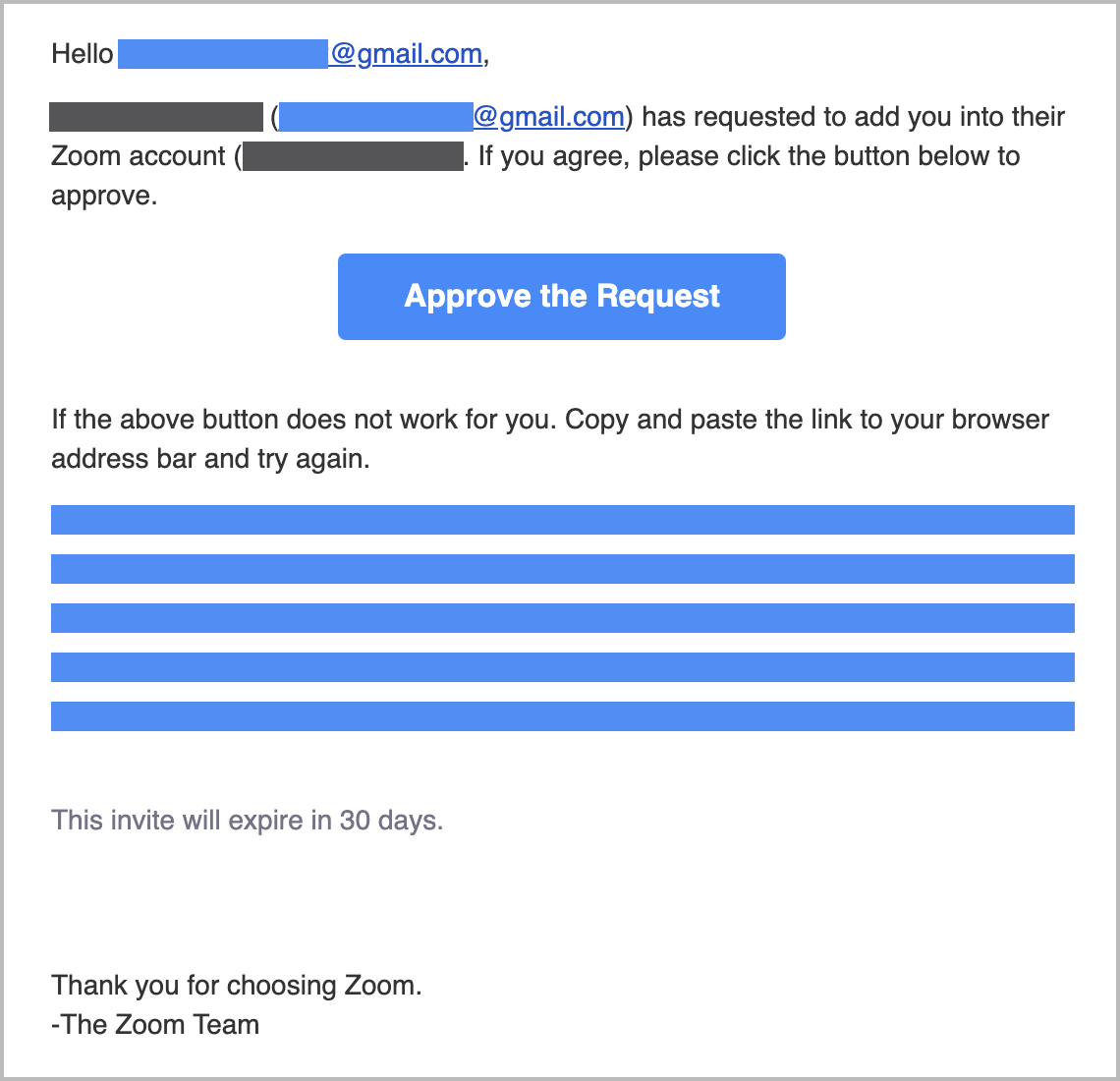
Zoom administrators can manually invite users to their account in bulk with a CSV file or or individually from the web portal if they have a list of known email addresses. This method is similar to the User Summary invite option offered through Associated Domains, but allows administrators specific control over who is invited and when.

Invited users will receive an email offering them the chance to consolidate into the main company account, but if the domain is not associated, users can choose to ignore the invitation and will not consolidate.

Screenshot of an account invitation email with a link to approve the request
Example of an account invitation email

Refer to Zoom’s support center for more information on adding users in bulk or individually.

Account Consolidation Considerations

There are numerous factors that can impact an account’s ability to easily consolidate into a company account. Pro or Basic single user accounts with no additional users, subscriptions, or add-ons can easily accept and consolidate into the corporate account. However, business-level accounts, accounts with add-ons like Zoom Phone and Zoom Rooms, and accounts with more than one user require careful planning to consolidate without impacting existing operations.

Previously purchased licenses do not transfer with account consolidations

Any previously purchased licenses will not transfer and will be refunded (if applicable) to the account at a prorated rate once consolidation is complete.

Consolidating an account with more than one user can bring non-company users to the company account

Account owners with more than one user on the account have the ability to consolidate all underlying users—including potential external, non-company users—when invited to join a new account. To prevent consolidating external users, the owner must disassociate all external users before consolidating, or establish a new account owner and then accept the account invitation.

Administrators are encouraged to work with account owners to prevent unauthorized Zoom account access by external parties during an account consolidation.

All Zoom Rooms must be deleted before consolidating an account

Account owners with Zoom Rooms and additional users on the account cannot migrate to another account without first fully deleting all Zoom Rooms. Once all Zoom Rooms have been deleted, if there are no other users on the account, the account owner can migrate to the new account. Users experiencing difficulties deleting Zoom Rooms from their account should contact Zoom Support for additional assistance.

Zoom Phone configurations and data do not transfer when consolidating accounts

By default, Zoom Phone data and configurations, including phone numbers, calling plans, call queues, call logs, and auto receptionists do not transfer between two consolidating accounts. Before consolidating an account with a Zoom Phone subscription, the current account owner should detail which configurations and settings require documentation to reimplement on the new account. Users can download copies of relevant call logs and Zoom Phone reports before consolidating through reporting tools.

Consolidating account owners are highly encouraged to coordinate their account consolidation with a member of their Zoom account team to ensure minimal impact during the transition.

Zoom Phone numbers can be transferred to the main company account

Customers who require transferring specific phone numbers between two accounts can submit a request to the Zoom Phone Porting Team to transfer numbers to the new account if the account has sufficient licenses available. Failing to transfer numbers directly or consolidating accounts before the numbers can be transferred can result in a permanent loss of phone number access.

To transfer numbers between two accounts, follow the instructions detailed within Zoom’s support center.

Once the phone numbers have been transferred, documentation has been noted, and all pertinent records externally stored, the account is ready to consolidate.

Transitioning to a Sub Account is uncommon and should only be done by Zoom

If an account is transitioning to a sub-account relationship, this process must be fulfilled through your Zoom account team. Do not attempt to manually convert or consolidate an existing account to a sub account without assistance from your account team. (This is an uncommon practice and does not apply to most account consolidations.)

Some accounts require backend migrations

In addition to previous considerations, if an invited user account is stored on a different server cluster than the main account, the user account will require a backend data migration before they are consolidated into the main account. This process is automatic, and users will receive a message advising a pending account migration before the consolidation is complete. This migration period will not disrupt any Zoom services but can delay the completion of the account consolidation.

Screenshot informing the user of a background account switching process
Example of backend migration notification

Account Splitting requires Zoom Support

Existing accounts that require an account “split” or large user breakaway in the case of a partial merger should submit a ticket with a project summary to Zoom Support for assistance.

Understanding the User Consolidation Experience

Consolidating users will not retain all data

When a user changes accounts, not all data and settings transfer with the user. The following table outlines what users can expect when consolidating into another account. Information and settings under Subject to New Account can be overridden if the new account or user group settings conflict with previous configurations set by the user. Users that want to retain copies of account reports can export data that will not transfer through reporting tools.

Subject to New Account
Will Transfer
Will Not Transfer

Feature access User Group User License Assignments User Role Zoom Feature Access Zoom Feature Settings

Chat Contacts Chat history within app Clips Cloud Contacts Cloud Recordings Docs Meeting Summaries (Docs) Notes Profile Details (Name, email, etc.) Scheduled Meetings Scheduled Webinars Whiteboards Workflows

Historical Reporting Polling Data Attendance Data Registration Data Scheduling Privilege Previous Meeting History Zoom Rooms Zoom Phone Configurations Cloud Chat History Integrations Marketplace Applications Room Connector Configurations Purchased Licenses / Add Ons Zoom Revenue Accelerator Data Zoom Revenue Accelerator Recordings Zoom Events Zoom Mail Service Data Zoom Calendar Service Data Zoom Tasks

Refer to Zoom’s support center for an additional list of transferable data.

Users must accept account and data changes before consolidating

Users that receive an invitation to consolidate into the company account must accept and confirm the account and data changes (outlined above) to complete the consolidation process. An example of this is provided on the following page.

Screenshot of the notification a user is provided related to their account data when switching to a new account.
Example of account data changes notification

Users with previous vanity URLs should update their calendar events

If a user previously belonged to an account with a Vanity URL (e.g., success.zoom.us) and has transferred to a new account with a different Vanity URL (e.g., **newcompany.**zoom.us)– any user that joins a meeting using the previous Vanity URL will experience a security warning message. This warning is designed as a security feature to warn users that the meeting does not belong to the account referenced in the URL and the link may be suspicious.

Screenshot of a notification informing a user the meeting they are joining does not belong to the vanity URL it claims
Example of "Join External Meeting" warning

Users with calendar events that reflect their previous account’s Vanity URL should manually update their invitations to reflect the updated Vanity URL and resend registration confirmation emails if applicable.

Note

Zoom subdomains such as us02.zoom.us or us03.zoom.us do not qualify as Vanity URLs and do not require updating.

If an account recently changed their Vanity URL, such as after a renaming or merger, and users did not change accounts, Vanity URLs do not need to be updated if a redirect is in place. Customers can verify if a redirect is in place by testing their previous Vanity URL and confirming it redirects to the current one. If a Vanity URL redirect is not in place, customers can reach out to Zoom Support for additional assistance.

Planning Account Consolidations

When preparing to consolidate a large number of users or merge two large accounts together, there are several key planning and implementation stages on a user and administrative level.

Note

This process is designed to help medium-to-small businesses with consolidating their user base. If you are consolidating two or more accounts with Zoom Business Services offerings like Zoom Contact Center, Zoom Virtual Agent, Zoom Revenue Accelerator, or other similar products, please coordinate your account consolidation with your Zoom account team.

Phase 1: Intelligence Gathering

Begin preparation by understanding the full scope of the project and identifying the domains to consolidate.

Customers can use Associated Domains without enabling any consolidation options to gain insight into how many users with the domain already exist within the system. If more information is required, customers can request the list of existing users under the domain through the Corporate Domain Consent Form process.

Once an account has a comprehensive understanding of the pre-existing user base, the account can prepare a plan to execute the consolidation process.

Phase 2: Planning the Consolidation

To prevent service disruption of existing accounts, a phased approach to consolidating user accounts is recommended.

Special Cases

Coordinate to manually invite and consolidate any outlying special circumstance accounts, such as accounts that may harbor executive users, Zoom Rooms, Zoom Phone, or accounts that are greater than one user.

Associated Domains

After addressing special consolidation cases, determine if your account plans on using Associated Domains. If proceeding, decide if you will allow users to consolidate into your account or require them to change their account’s email address. After enabling, Zoom recommends waiting at least 2–4 weeks for outstanding users to naturally consolidate.

SSO Implementation & Enforcement

Customers can enable Single Sign-On (SSO) at any time in the implementation process. However, it is not recommended to require its use until a significant majority of users (about 75% for corporate accounts) have been consolidated through direct invite or associated domain consolidation.

In the early stages of consolidating accounts with SSO enabled, Zoom recommends enabling Provision at sign-in for SSO to assist with the creation of the SSO login type. Pre-provisioning will not work for existing, external Zoom accounts and will lock users out of their accounts.

Zoom Recommendation A consolidation rate of 75% of outstanding users for a corporate account is usually achievable due to the smaller number of outstanding user accounts. For education accounts, this consolidation target number may be significantly lower due to the number of possible student accounts, which often ranges in the thousands. Prioritize the manual consolidation of VIP users and special circumstance accounts first. After, enable associated domains and allow sufficient time to naturally consolidate users to prevent substantial service disruptions. Only enforce SSO authentication once you are reasonably confident there are no major outstanding accounts or users.

Phase 3: Technical Considerations

Technical administrators are encouraged to notify users about the upcoming consolidation process. A user’s default settings from their previous account will carry over to the new account unless the general account or user group settings they are assigned to overrides their previous settings.

Common examples of changes users may experience include:

No Meeting Telephony Access No Personal Meeting ID (PMI) No Join Before Host Requirement of Passcodes/Waiting Room Shared Content Restrictions Loss of Marketplace integrations Zoom Apps Restrictions

No File Transfer No Zoom Chat SSO-Only Authentication Vanity URL Change (if applicable) Recording restrictions Restricted application preferences (MSI, Group Policy, PLIST) Loss of existing API functionality

Phase 4: Employee Communications

Advanced and periodic employee communications for upcoming consolidations simplify the earliest stages of the account consolidation process. Recommended communication details include:

  • Background: Why a change is forthcoming

  • Scope: Who is and is not included in the forthcoming changes

  • Timing: When will change occur

  • Expected Actions and Tasks

    • What will occur (e.g., invitations to expect, special case consolidation reach-outs)

    • What actions to take (e.g., open email, approve, refund, new IDP, etc.)

  • Success: How to check your successful consolidation (e.g., confirming account number from web portal)

  • Support: Who users should contact for more information (e.g., local IT, point of contact)

Phase 5: Execute Accordingly

Once the consolidation and communication plans are prepared and confirmed, execute the plan and monitor to enable appropriate adoption and consolidation rates. Accounts are encouraged to keep in contact with their Zoom account team for assistance or questions throughout the process.

Last updated

Was this helpful?