> For the complete documentation index, see [llms.txt](https://library.zoom.com/llms.txt). Markdown versions of documentation pages are available by appending `.md` to page URLs; this page is available as [Markdown](https://library.zoom.com/zoom-workplace/zoom-phone/expert-insights/zoom-phone-salesforce-integration.md).
# Zoom Phone Salesforce Integration
Authored by Nate Raper
### Introduction
The Zoom Phone integration for Salesforce (SFDC) Lightning allows end users to leverage a Zoom Phone dialer widget in SFDC to make and receive calls, log activity via Tasks, pop contacts, and include Zoom AI call summaries. This integration works whether users are logged in to Salesforce or not. This is ideal for users who may take calls on their mobile device at times. When they log back in to SFDC, they can see the Task associated with an existing contact or create a new contact from those previous calls. The Zoom integration for Salesforce (SFDC) Lightning also includes integration with Zoom Revenue Accelerator (ZRA). This integration includes:
* ZRA: Used to analyze customer interactions and provide intelligence linked to SFDC customers and opportunities. This guide does not go through the full ZRA integration with SFDC. That can be found at [Configuring Zoom Revenue Accelerator with a CRM](https://support.zoom.com/hc/en/article?id=zm_kb\&sysparm_article=KB0059005).
* Zoom Auto Dialer: Provides a streamlined sales outreach calling solution tied to SFDC.
This article will dive into the setup, configuration, and end-user experience with the Zoom Phone integration for Salesforce. This article assumes that:
* Zoom Phone is already set up for your users and working correctly.
* (optional) Zoom Revenue Accelerator or Zoom Auto Dialer setup for your users and working correctly.
* Salesforce is already set up for your users and working correctly.
* No existing Zoom and Salesforce integration has been set up.
{% hint style="info" %}
In addition to the text description, there's an associated brief video to help walk through each section.
{% endhint %}
### Installation
The setup of this integration requires the following permissions:
* Zoom - Account Owner or Administrator with Zoom App Marketplace permissions (via Role).
* SFDC - Administrator permissions and access to Salesforce Trailblazer. At a high level, we will be installing the integration app from the Zoom App Marketplace first, which will redirect us to the Salesforce web page to install the integration app from their side. The detailed step-by-step process is outlined in our [Support Article](https://support.zoom.com/hc/en/article?id=zm_kb\&sysparm_article=KB0060915), but here's the higher-level steps.
1. Log in to the [Zoom App Marketplace](https://marketplace.zoom.us/), search for "[Salesforce Lightning](https://marketplace.zoom.us/apps/ozGm-qsFRBqBkYYzJg4Y6g)" to find the integration app and click **Add.**
2. You will be redirected to the Salesforce AppExchange for **Zoom for Lightning** where you can click on **Get It Now** (for Production) or **Try it** (for Sandbox).
3. Ensure you select the correct account for the Production or Sandbox environment.
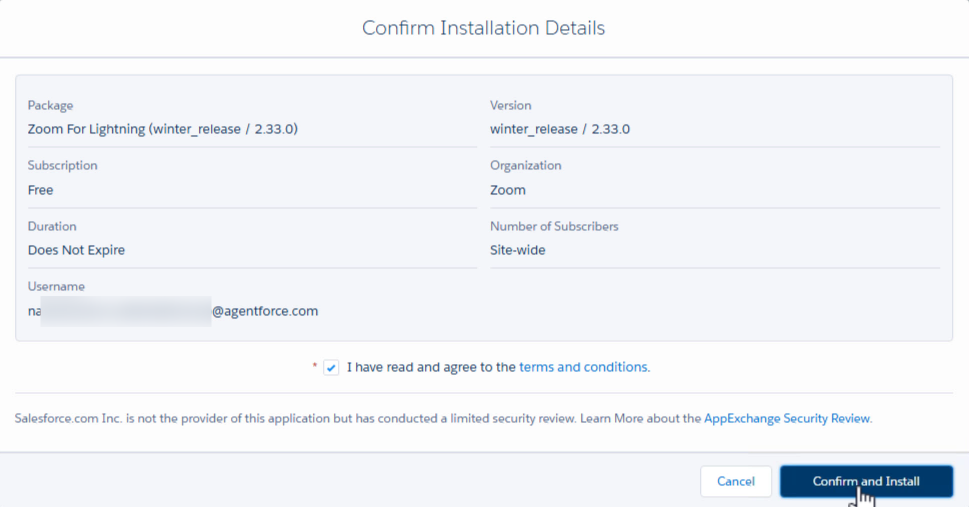
4. Note the current release number (this screenshot is version 2.33.0 in January of 2026) and select **Confirm and Install**.
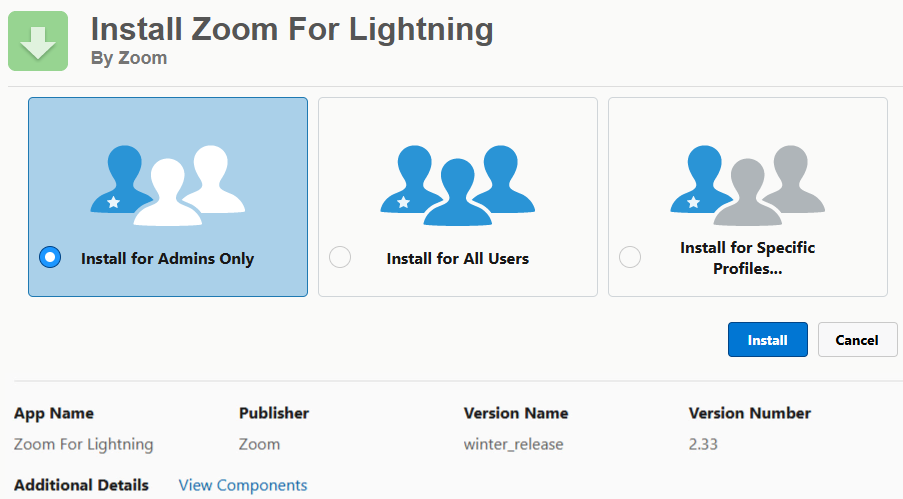
5. We recommend selecting **Install for Admins Only** so your SFDC Admin can control who gets permissions to this integration. Press **Install** and approve third-party access to Zoom.
{% hint style="info" %}
Installation usually takes 5–10 minutes. You will most likely see a message stating the installation is taking longer than expected. This is normal. You may want to wait for the completion email, or check the status in SFDC Setup → Apps → Packaging → Installed Packages.
{% endhint %}
#### Video - Installation
{% embed url="" %}
### Configuration for Zoom Phone
#### User Setup and Permissions
Before anyone can use the Zoom Phone integration in Salesforce, you’ll need to give them the right access. This includes Permission Sets and Call Center assignment.
1. Assign Permission Sets
1. Access the SFDC Setup via the gear icon and click Setup.
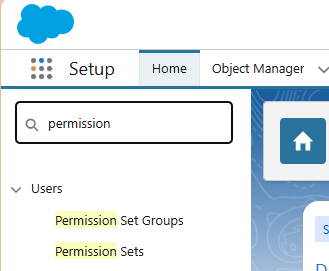
2. In SFDC Setup, search for Permission Sets.
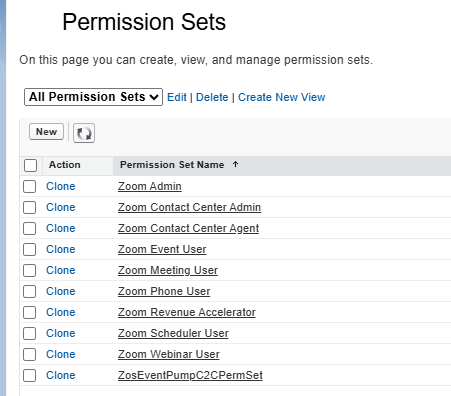
3. This integration has two permission sets: **Zoom Admin** and **Zoom Phone User**. (Other Zoom components like Meetings, Contact Center, Scheduler, etc. also have their own permission sets.) Open the appropriate permission set. Only use Zoom Admin for users who need access to the Zoom Admin for Lightning application, which is typically administrators. Zoom Phone User should be the only permission set required for standard users.
4. Under Manage Assignments add users to the Zoom Phone User permission set.
2. Add SFDC Users to Call Center Sets
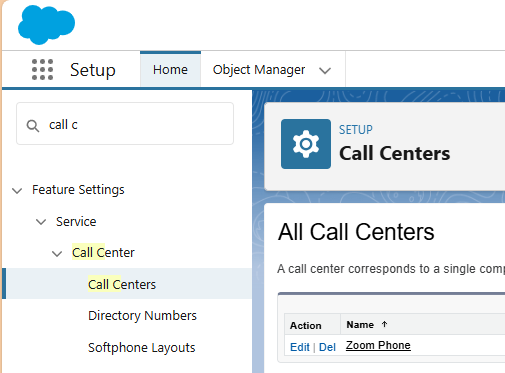
1. Locate the Zoom Phone Call Center. Navigate to the Call Centers section in Setup and find your configured Zoom Phone integration. Click the Name. Do not click Edit.
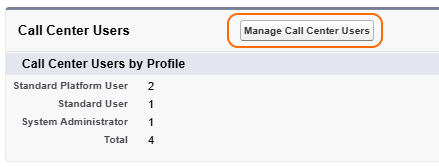
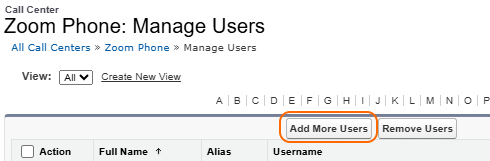
2. Managing User Assignments - Using the **Manage Call Center Users** button, add users to this Call Center set.
{% hint style="info" %}
When setting up the Zoom Phone integration with Salesforce, there’s one critical step that often gets overlooked: adding users to the Call Centers set. This controls whether a user sees Zoom Phone or Zoom Contact Center. Each user can only be in one Call Center in Salesforce at any given time.
{% endhint %}
#### Set Up Zoom Phone Interface
Next, we need to make the **Zoom Phone Widget** appear in Salesforce so agents can use it. In many cases, you'll add it to the **Sales** or **Sales Console** app in SFDC, but this is a decision that can be unique for each customer.
1. Add Open CTI Softphone to SFDC app (include start automatically)
1. Next, you'll need to add the Open CTI Softphone utility to your Lightning apps and enable the "Start Automatically" setting. This puts the Zoom Phone widget directly in the utility bar where users can access it, and the automatic start feature ensures the component pre-loads in the background even when the utility bar is collapsed — making click-to-dial functionality easily accessible on every page.
2. **Adding the Utility Item** - Edit an existing Lightning app via **App Manager** and add the **Open CTI Softphone** to the **Utility Items** tab.
3. **Adjust CTI Widget** - It's best to update the size of the ZP CTI Widget to 400 (W) x 640 (H) and be sure to check the "Start Automatically" box while you're here.
### Configuring How Calls/SMS Work
{% hint style="info" %}
Remember to check out the support article if you want to do a deep dive into any particular setting!
{% endhint %}
This important section will walk through setting up your Business Rules for how calls and SMS messages are handled inside of Salesforce.
#### **Zoom Admin for Lightning** Settings
1. Once your Zoom Phone integration is up and running in Salesforce, you'll want to fine-tune the settings to match your organization's workflow. This configuration happens through the **Zoom Admin for Lightning** app, where you can customize everything from call logging behavior to user interface options. Keep in mind that when you make changes, *users will need to refresh their Salesforce pages to see the updates*!
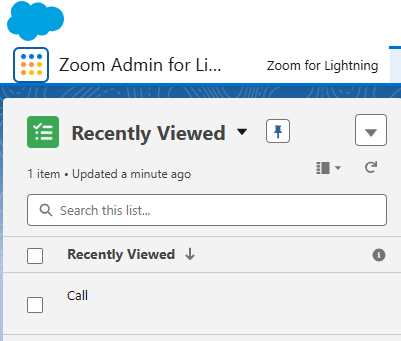
1. Access the configuration through the **Zoom Admin for Lightning** app in Salesforce, then navigate to the **Zoom Phone** Settings section. The key areas to focus on include:
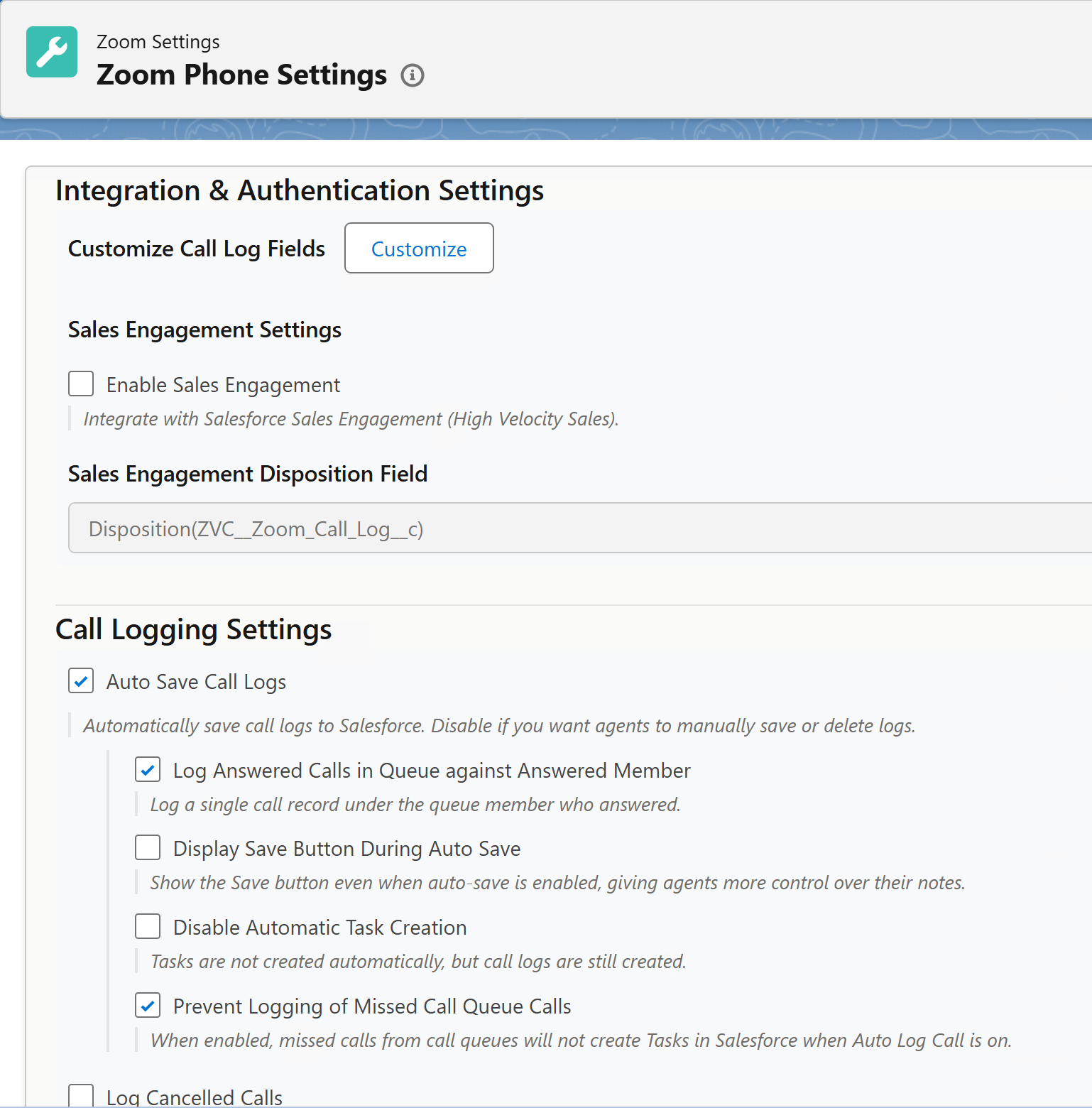
1. **Call and SMS Logging Options** - Control automatic saving of call logs and text messages, customize which fields appear in the Zoom Phone widget, and set up the integration with Sales Engagement features.
2. **User Interface Controls** - These controls include items like:
1. Configuring contact/lead settings
2. Enabling advanced click-to-dial behavior
3. Controlling "Related To" settings, screen pop, and button visibility (for example - save/delete options).
2. **Authentication and System Settings** - Set up user matching between Zoom and Salesforce accounts, and configure internal call handling.
3. Customize Call Log Panel (Optional)
1. While in the Zoom Phone Settings, you can customize the Call Log panel with the fields you would like to see, and reorder the added fields.
4. Customize Task Detail Page
1. To get the full value from your Zoom Phone integration, you'll want to add the call log details directly to your Salesforce task pages. This gives users easy access to call information right where they're already working, eliminating the need to jump between screens.
2. This customization happens through Salesforce's Lightning App Builder and involves working with the task detail page layout. The process involves:
1. **Accessing Lightning App Builder** - Navigate to any *existing* task record and go to **Edit Page** to modify the Task Layout.
2. **Adding the Zoom Component** - Drag the zoomCallLogDetail component onto the task detail page layout.
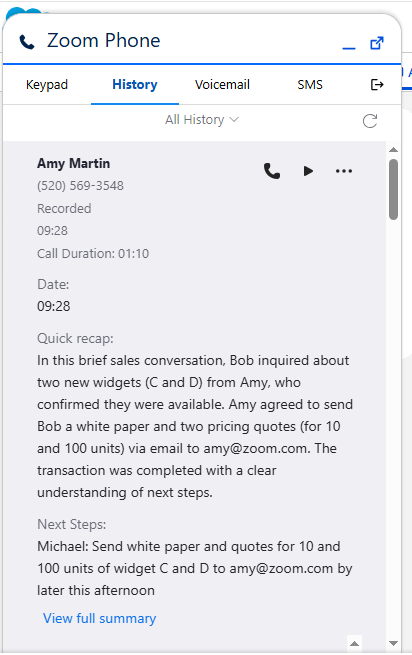
3. The zoomCallLogDetail also includes Zoom AI call summaries, as well as links to recordings and voicemails.
5. **Activating the Changes** - Save and activate the updated layout, then assign it to the appropriate record types or user profiles, or org-wide.
#### Mobile SFDC Configuration
If your users leverage the SFDC and Zoom Workplace mobile apps for handling calls on the go, this section will walk through extra setup steps needed to make that integration work even more smoothly.
1. Set up **Click to Call** and **Click to SMS**.
1. This allows users to tap phone numbers directly in their mobile Salesforce app and have the call placed or SMS started through their Zoom Workplace mobile app - creating a seamless experience between the two platforms.
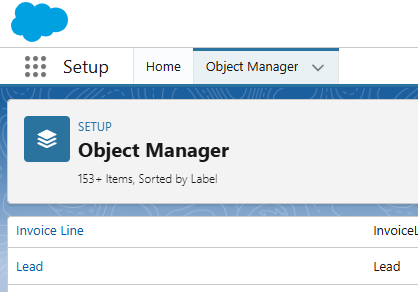
2. **Opening Object Manager** - Open up the Object Manager and choose the object you want to add the Zoom Phone action to (Leads, Contacts, and Accounts are common Objects updated).
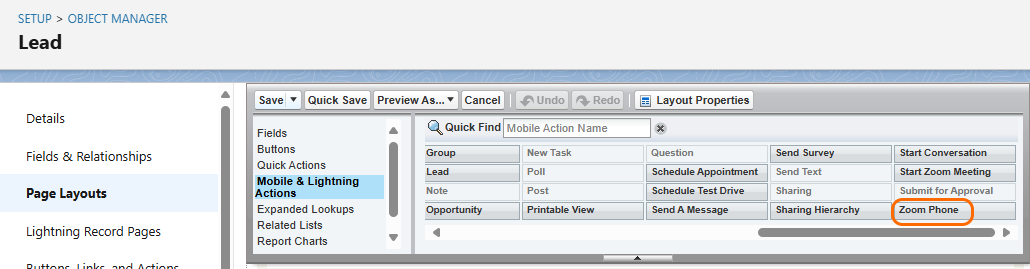
3. Select "Page Layout" and find the "Mobile & Lightning Actions" Section.
4. Add **Zoom Phone** to that section.
#### Video - Configuration for Zoom Phone
{% embed url="" %}
### Configuration for Zoom Auto Dialer for SFDC
Zoom Auto Dialer leverages components of Zoom Revenue Accelerator (ZRA) on top of Zoom Phone to provide a powerful customer outbound contact tool. With the SFDC integration, users can pull call lists from SFDC contacts and leverage the same Zoom Phone integration to include call logs, Zoom AI call summaries, recordings, etc. in the SFDC Task after each call. Zoom Auto Dialer doesn't require the full ZRA integration with SFDC. Once you have completed the Zoom Phone integration outlined above, the ZRA integration for searching contacts only requires a quick user-side OAuth Authorization. Please see the [OAuth Authorization ](#oauth-authorization-process)section below for that component.
### End User Experience
#### Final Setup and Personal Settings
Once your Zoom Phone integration is configured in Salesforce, individual users need to complete their personal setup to start making calls and sending SMS messages. This involves completing the OAuth authorization process and configuring their personal preferences for how they want to interact with phone numbers in Salesforce.
#### OAuth Authorization Process
If users see a message about completing OAuth when they try to sign in, they'll need to authorize the connection through the **Zoom User Config** app in Salesforce. Once completed, users can sign in to the Zoom Phone widget using their Zoom credentials, and the authorization will remain active as long as they use the integration regularly.
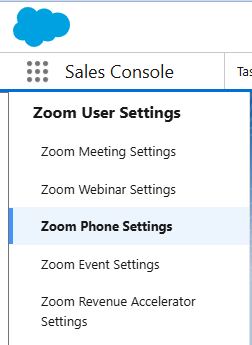
1. Select the Apps drop-down and search for **Zoom User Config.**
2. Click **Zoom Phone Settings.**
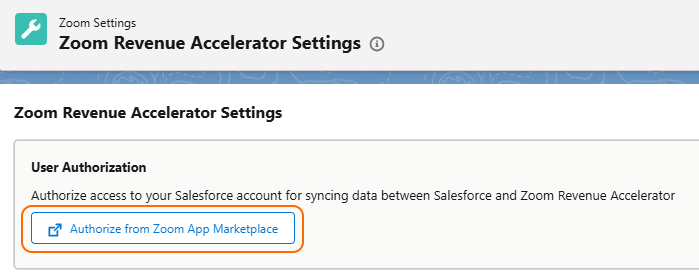
1. Click the **Authorize from the Zoom App Marketplace** box. This opens another browser window and prompts the user to sign in with their Zoom credentials or SSO.
2. Users can choose from three options for what they want to happen when they click on a phone number in Salesforce.
3. Users can also choose if they want the Zoom Phone widget to automatically pop up on every page, tab refresh, or link click. This is not normally recommended, unless you specifically want the Zoom Phone widget to always display on all pages. Without this option checked, the widget will stay minimized and pop when you place outbound or receive inbound calls.
3. (Optional) For the Zoom Auto Dialer integration, select **Zoom Revenue Accelerator Settings** under the same **Zoom User Settings** SFDC app.
1. Click **Authorize from the Zoom App Marketplace**.
#### Video - End User Experience
{% embed url="" %}
### Using the Zoom Phone Widget in Salesforce
Once you're signed in and configured, the Zoom Phone widget becomes your command center for all phone and SMS communications within Salesforce. The widget automatically pops up (unless disabled) when calls come in and provides seamless integration with your Salesforce records, making it easy to stay connected while keeping your CRM data up to date.
#### Making and Receiving Calls
* **Inbound/Outbound calls** - Search for contacts by name or dial directly from the Keypad tab.
* **Contact matching** - See phone number types and "Do Not Call" indicators when searching.
* **Call controls** - Use mute, hold, record, and note-taking during active calls.
* **Incoming calls** - Widget automatically pops up with accept/decline options.
#### SMS Communication and Management
* **Send messages** - Type contact names or phone numbers in the SMS tab or use click-to-SMS functionality.
* **Auto-linking** - Messages automatically connect to matching contacts/leads.
* **Conversation view** - All SMS threads are organized by contact.
* **Auto-save option** - Messages create Salesforce tasks when enabled by admin.
#### Call History and Voicemail Access
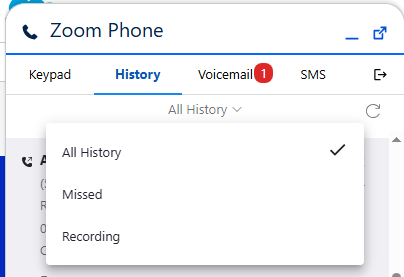
* **History filtering -** View all calls, missed calls only, recordings, or notes.
* **Quick actions -** Redial numbers, play recordings, or add post-call notes.
* **Voicemail playback -** Access and play voice messages with return call options.
* **Call details -** See date, time, duration, and caller information.
#### Unlinked Call Log Management
* **Unlinked Call Log** - These are calls made while the Zoom Phone user is not connected to Salesforce. Examples would be when the user is on the go and taking calls on their Zoom Workplace mobile app.
* **Selective syncing** - Review a list of up to 3 days of calls from the current date and choose which calls to import and assign to which Salesforce records.
* **Contact matching** - System shows matched leads/contacts for each call.
* **Recordings/Voicemails** - These are not available for unlinked call logs.
#### Video - End-user Experience
The following video will show the end-user experience for the following scenarios:
* Inbound call with contact screen pop and task that's created
* Outbound call
* Linking an unlinked call log
{% embed url="" %}
### References
* [Installing the Zoom for Salesforce Lightning App](https://support.zoom.com/hc/en/article?id=zm_kb\&sysparm_article=KB0060915)
* [Configuring Zoom Phone for Salesforce Lightning](https://support.zoom.com/hc/en/article?id=zm_kb\&sysparm_article=KB0057958)
* [Using Zoom Phone in Salesforce for Lightning](https://support.zoom.com/hc/en/article?id=zm_kb\&sysparm_article=KB0057953)
---
# Agent Instructions
This documentation is published with GitBook. GitBook is the documentation platform designed so that both humans and AI agents can read, navigate, and reason over technical content effectively. Learn more at gitbook.com.
## Querying This Documentation
If you need additional information that is not directly available in this page, you can query the documentation by asking a question.
Perform an HTTP GET request on the following URL with the `ask` and `goal` query parameters:
```
GET https://library.zoom.com/zoom-workplace/zoom-phone/expert-insights/zoom-phone-salesforce-integration.md?ask=&goal=
```
`ask` is the immediate question: it should be specific, self-contained, and written in natural language.
`goal` is what the user is ultimately trying to achieve, the reason they need the answer. Sharing it helps GitBook give you a better, more relevant answer. A goal is most helpful when it describes the outcome the user wants rather than restating the question. For example, with `ask=how do I create an API token`, a goal like `automate deployments from our CI pipeline` lets GitBook tailor the answer to that use case.
The response will contain a direct answer to the question and relevant excerpts and sources from the documentation.
Use this mechanism when the answer is not explicitly present in the current page, you need clarification or additional context, or you want to retrieve related documentation sections.