Zoom Auto Dialer

Authored by Nate Raper

Introduction

Zoom Auto Dialer is a smart, integrated outbound calling tool designed specifically for modern sales and outreach teams. Built as a native Zoom Phone add-on, it eliminates workflow fragmentation and inefficiencies that plague today's sales and calling processes. Our solution empowers sales, support, services, and outreach representatives to focus on what matters most—meaningful conversations with leads and contacts—rather than wasting time on technical configurations and manual processes. Zoom Auto Dialer includes:

  • Automated Sequential Dialing

  • Smart Voicemail Drop

  • AI Generated Summaries

  • History, Notes, and Contact Dispositions

  • Integrated Email and Scheduling

  • Integration with 3rd parties and CSV imports for Call Lists

This guide will help Zoom Phone Administrators understand the overall setup and configuration options to make the best selection for their business needs. Zoom Support articles already detail the specific configuration steps, so this guide will reference those support articles with a focus on guides and suggestions to assist with configuration choices.

Covered in this article:

  • Setting up Zoom Auto Dialer

  • Call Lists and Prospects

    • CSV

    • Salesforce

    • Outreach

    • HubSpot

    • API

  • End User Experience

  • Reporting

At the end of each section, a brief video is included to demonstrate what was covered in the section.

Setting up Zoom Auto Dialer

Zoom Auto Dialer can take as little as a few minutes to set up and begin using! As mentioned above, we won't walk through every setting available in this article, but we will talk about the overall process with references to relevant Support Articles if you want to dig into each setting. While we will touch on many of the options you can set up for your Auto Dialer users, please know that the out-of-the box settings will allow users to import call lists and start dialing right away! The configuration options allow you to get as granular, or not, as you would like for your organization. One key thing to keep in mind throughout this setup is that Zoom Auto Dialer works with Zoom Phone to place calls. You'll want to ensure that Zoom Phone is set up and working for the users before adding Zoom Auto Dialer. Zoom Phone dialing rules and policies (like call recording) are leveraged for every call. If a user isn't allowed to call specific countries or has call recording enabled with a disclaimer in Zoom Phone, Auto Dialer will follow those same rules and policies.

Licenses

You'll first need to add Zoom Auto Dialer licenses to Zoom Phone users. The type of Zoom Auto Dialer license (Region and Unlimited/Metered) needs to match the type Zoom Phone license. Below is a quick reference table for matching up Zoom Auto Dialer with Phone licenses.

Zoom Phone (ZP) License
Zoom Auto Dialer License

ZP Pro (BYOC or Metered Calling)

Zoom Auto Dialer

ZP US/CA Metered

Zoom Auto Dialer

ZP Japan Metered

Zoom Auto Dialer

ZP UK/Ireland Metered

Zoom Auto Dialer (Late Q1 2026)

ZP AU/NZ Metered

Zoom Auto Dialer (Late Q1 2026)

ZP US/CA Unlimited

Zoom Auto Dialer US/CA Unlimited

ZP Japan Unlimited

Zoom Auto Dialer JP Unlimited

ZP UK/Ireland Unlimited

Zoom Auto Dialer US/IR Unlimited (March/April 2026)

ZP AU/NZ Unlimited

Zoom Auto Dialer AU/NZ Unlimited (March/April 2026)

In short, the Zoom Auto Dialer license will match to any Metered or BYOC calling plan while each regional Unlimited Calling Plan will have a unique Auto Dialer licenses. Zoom also offers a bundled package called: US/CA Auto Dialer Plus, which bundles the following licenses together.

  • Zoom Phone US/CA Unlimited

  • 10 Zoom Phone US/CA Number licenses

  • Zoom Auto Dialer US/CA Unlimited

  • Zoom Scheduler

  • Zoom Revenue Accelerator

  • Zoom Clips

NOTE: in Q1 of 2026, Auto Dialer Plus will also be available for the Japan market, swapping out the US/CA licenses above with Japan licenses.

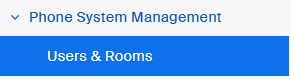
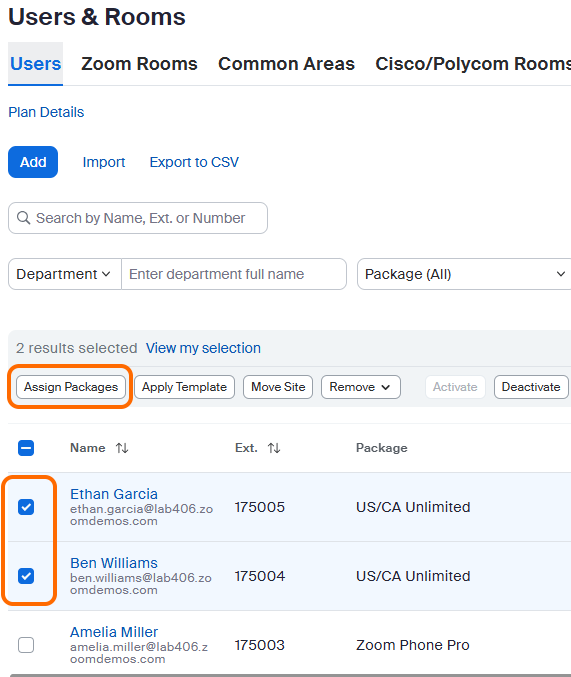
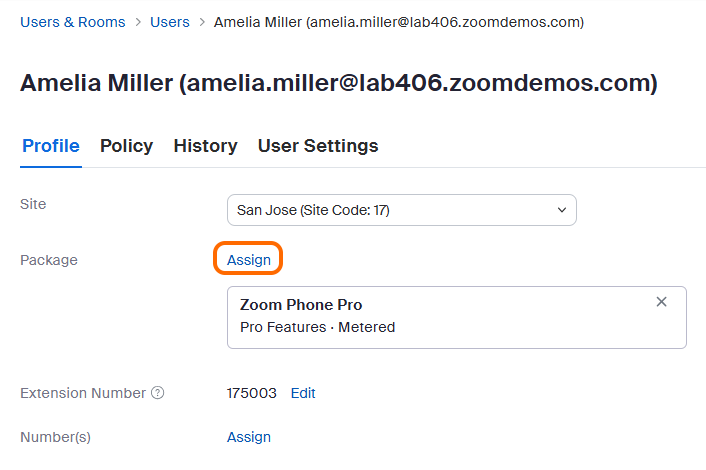
Once you have the correct licenses, simply add them to the Zoom Phone user! This can be done by going into Phone System Management → Users & Rooms and adding in bulk or individually.
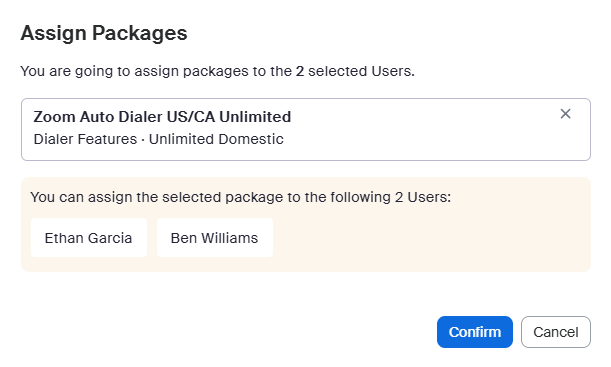
  • Bulk - Select multiple Zoom Phone users, Assign Packages, and then choose the correct Auto Dialer license and hit Confirm.

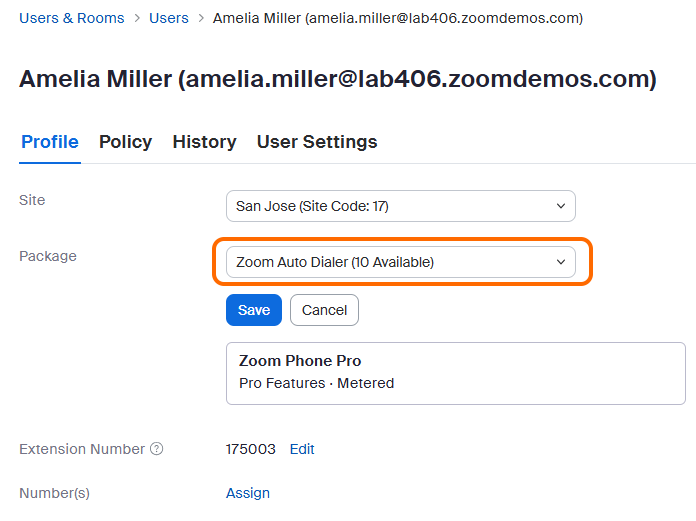
  • Individually - Open the specific Zoom Phone user, click on Assign, and choose the correct Auto Dialer license and hit Save.

Configure Default Settings

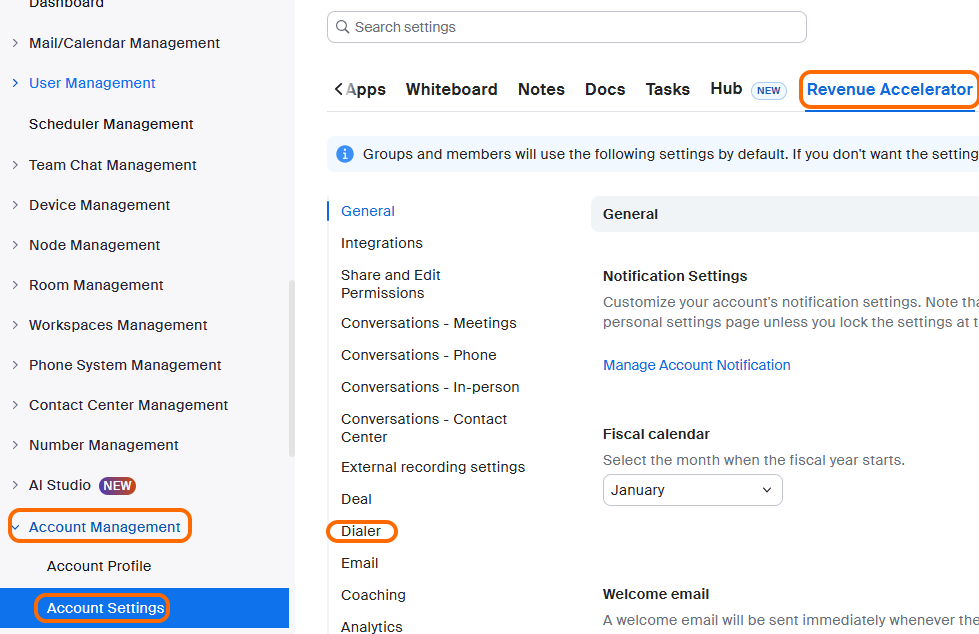
Administrators may want to customize some of the default settings for Auto Dialer so users don't have to set them individually, but the out-of-the-box settings will allow your users to create call lists and start calling right away! Navigate to Account ManagementAccount Settings and then select the Revenue Accelerator tab. You can then click on Dialer to jump to the specific Auto Dialer Settings. (There may be fewer options depending on if you have additional licensing for Zoom Revenue Accelerator - always great to have, but not required for Auto Dialer.) Many items in the configuration have the LOCK icon. If you lock those settings, end users will not be able to change them.

Here are some notes on each of the available settings to help you decide on what may be best for your organization.

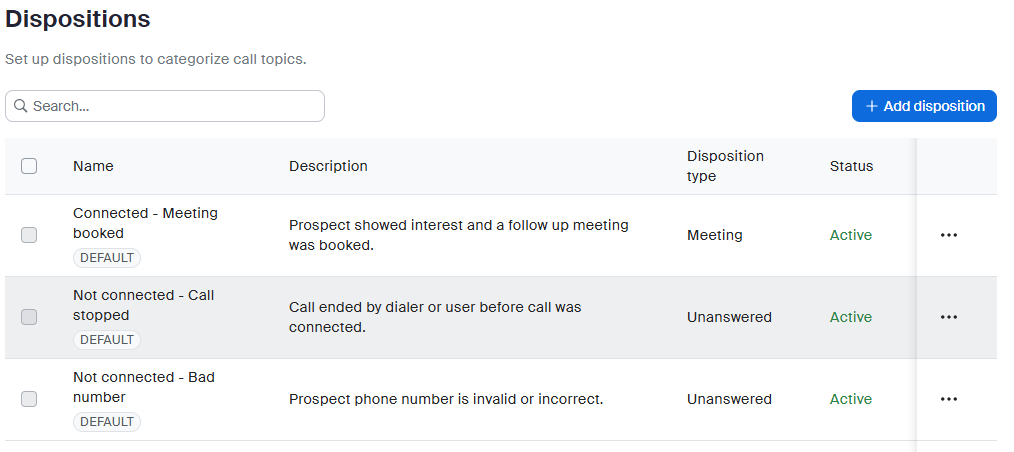
  • Dispositions - The default dispositions (Connected, Unanswered, Busy, etc.) work great for most teams. Consider adding custom dispositions if your sales process has unique outcomes—like 'Demo Scheduled' or 'Needs Technical Review'—that help your team track what matters most to your business.

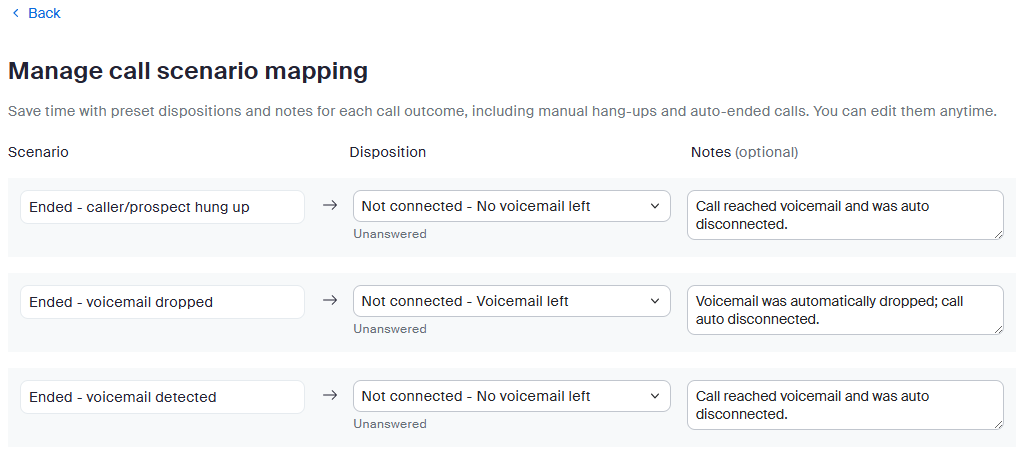
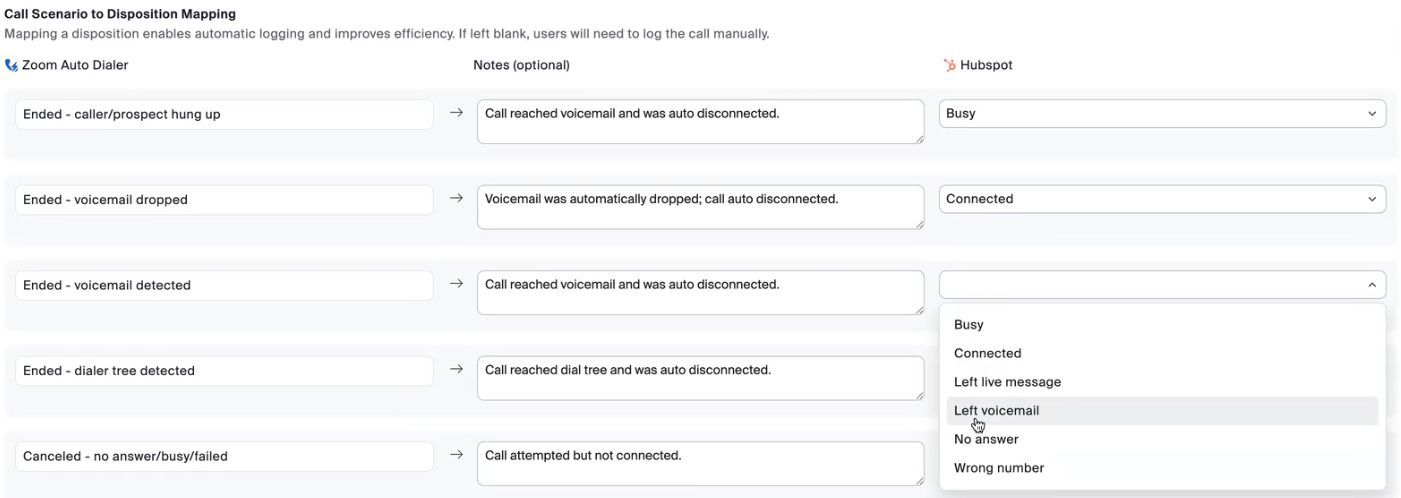
  • Call Scenario Mapping - Call Scenario Mapping is a huge time-saver! When calls go to voicemail or get a busy signal, Auto Dialer can automatically tag them and add notes—so your reps don't waste time on manual data entry. Most teams start with the defaults and refine them after a week or two of real-world use.

Settings That Impact Dialing Speed

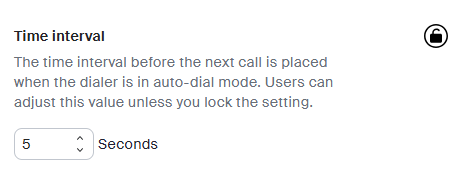
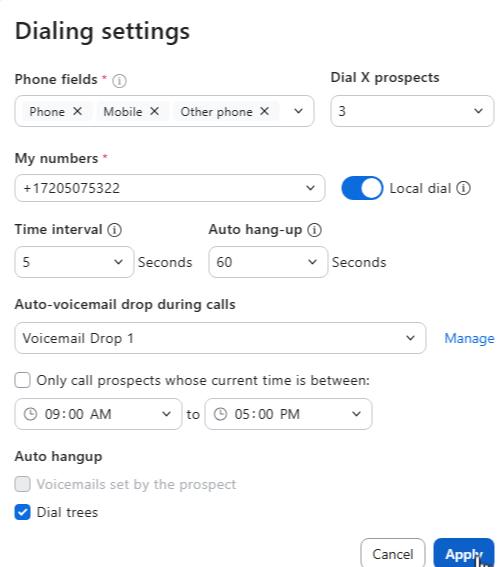
  • Time Interval - When using sequential dialing (calling more than 1 prospect at a time), this is how quickly to move to the next call (0–20 seconds). Start with 3–5 seconds to give reps a moment to breathe between calls.

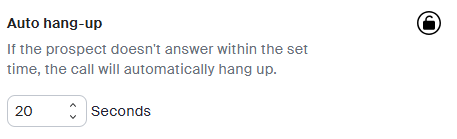
  • Auto Hang-up - When a call is ringing and not answered, how long to wait before hanging up. Remember: 6 seconds ≈ 1 ring in the US.

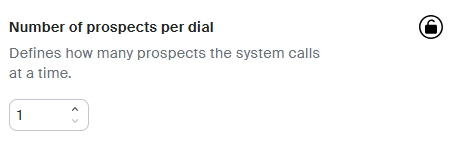
  • Number of Prospect per Dial - This is your power setting! Set to 1 for one call at a time or set to 2-4 for high-volume campaigns where speed matters. The maximum setting is 4, as that is the maximum number of concurrent calls a Zoom Phone user can have.

  • Settings That Help with Compliance

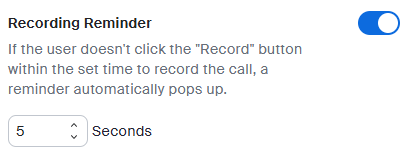
    • Recording Reminder - Prompts reps to start recording after X seconds, giving them time to notify the customer first. The Range is 0 to any number of seconds you wish.

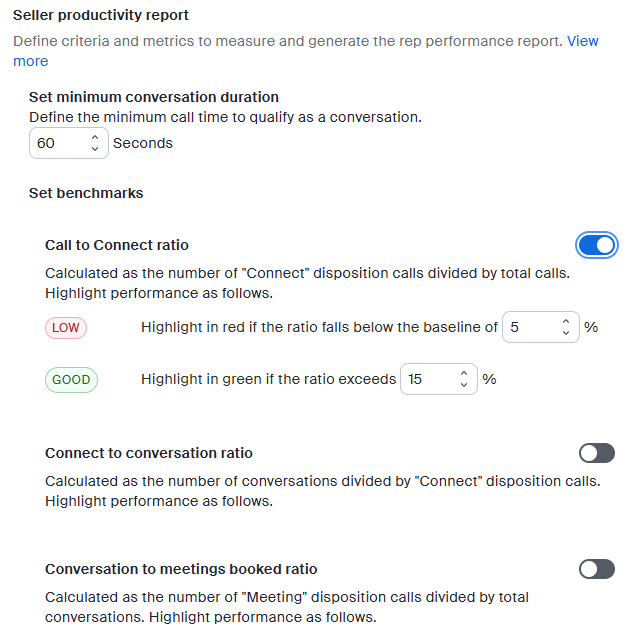
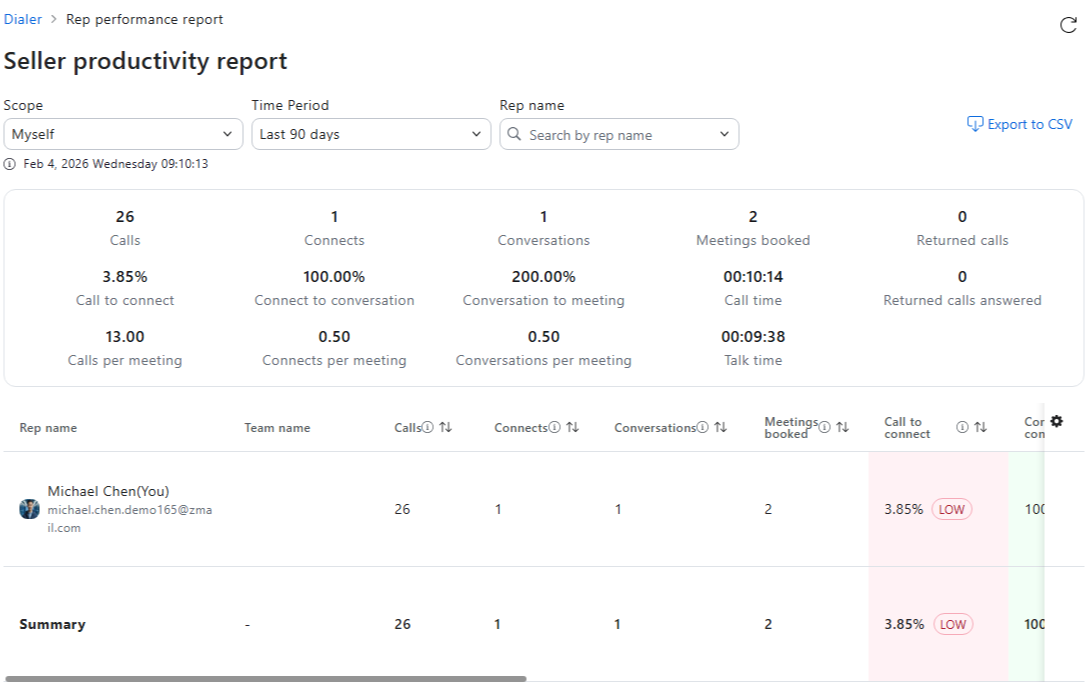
  • Seller Productivity Report - This setting configures how the reporting will be handled. Each toggle, when enabled, provides a threshold to trigger the Low and Good tags in the reporting. These will help you quickly see if Zoom Auto Dialer users are hitting their goals when looking at the report. Please refer to the support article below if you want to dive into each item.

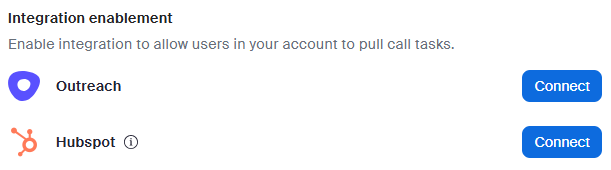
  • Integration Enablement - This section may or may not be present depending on if you have specific integration enabled. It allows you to connect to a 3rd party at the account level. Not all integrations have this account level connection tool.

Please reference our Support Article - Managing Zoom Auto Dialer Account Settingsarrow-up-right if you'd like additional details on any settings.

Setting up a Number Pool for Local Dial

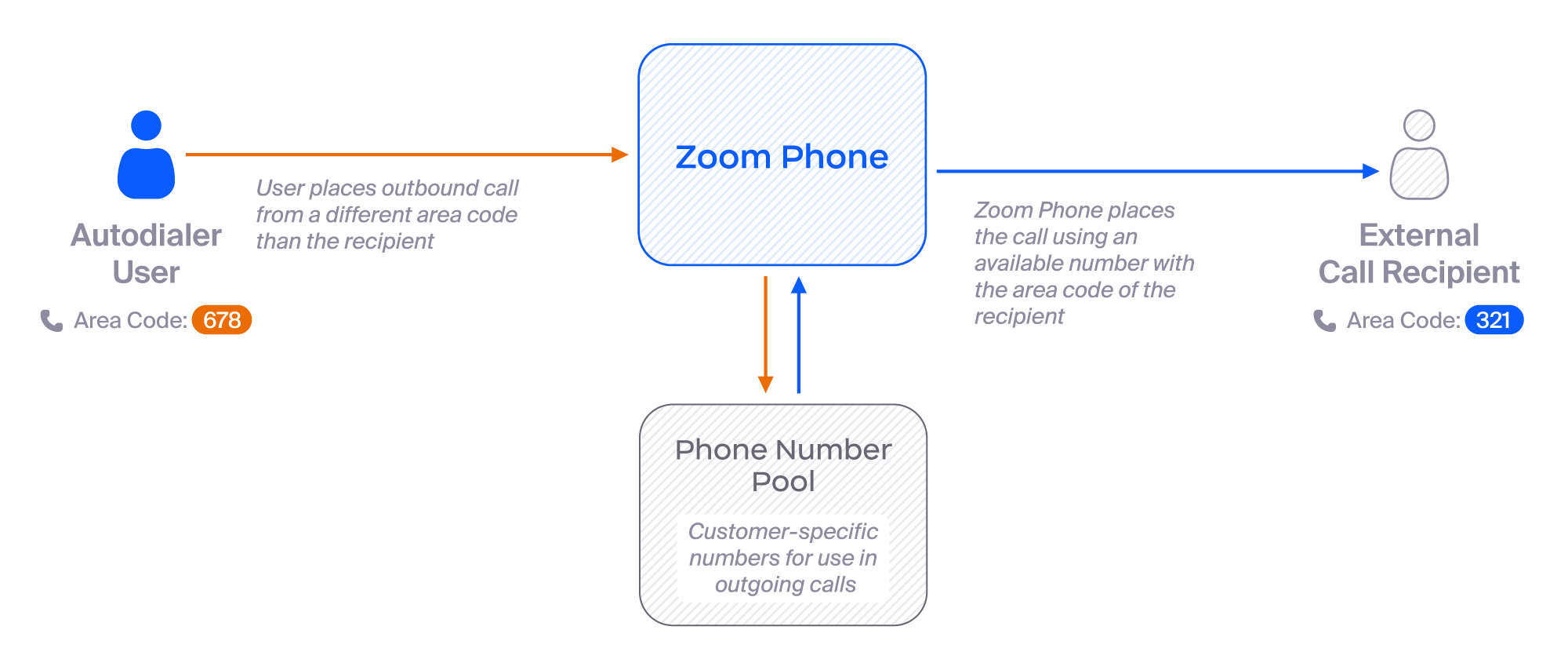
Zoom Auto Dialer has an amazing feature called Local Dial. Local Dial allows you to create a pool of Zoom Phone numbers that can be used by all Auto Dialer users. Then, when the Auto Dialer user places an outbound call, Local Dial will try to find a number with the same Area Code as the callee's number and use that as the Caller ID for that call. This makes the call appear more local!

In addition to outbound calls, Local Dial also provides the ability to handle customer (callee) callbacks and how to route them. Here's the configuration as a high level:

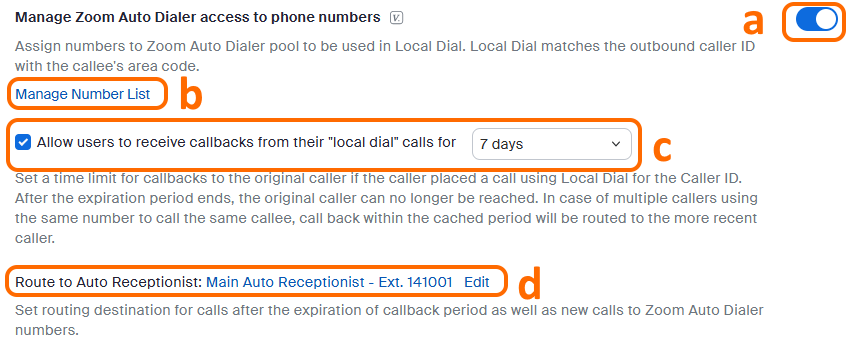
  • Navigate to Account ManagementAccount Settings and then select the Zoom Phone tab.

  • Scroll down (or search) for Manage Zoom Auto Dialer access to phone numbers.

  • In this section, you can:

    1. Enable Local Dial.

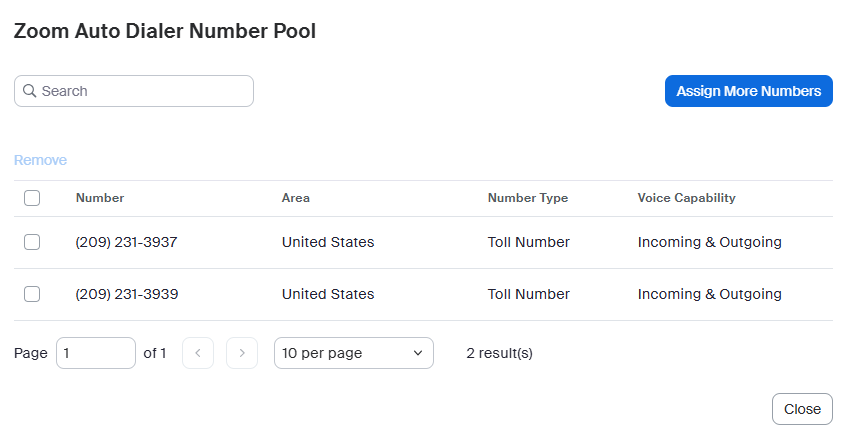
    2. Manage the Number List - Numbers will show any unassigned Zoom Phone numbers. If additional numbers are needed, you will use the same Zoom Phone process and number licenses as if you were getting numbers to add them to a Zoom Phone User.

    3. Allow callbacks to the Auto Dialer user (matches the callee caller ID to the Auto Dialer user that placed the call).

    4. Where to route calls if it's outside the callback timeframe. This also applies if someone calls and doesn't match the caller ID.

Integrate with Mail and Calendar

Another benefit of Auto Dialer is the ability to quickly send emails to contacts and schedule follow-up meetings. This is done directly from the call window in Auto Dialer to save users from having to toggle between different windows.

Please see Support Article - Setting up Revenue Accelerator email integrationarrow-up-right for details on linking your email and calendars to Auto Dialer (same process used to link to full Revenue Accelerator).

Call Lists and Prospects

Zoom Auto Dialer has the ability to import Call Lists with individual Prospects to call, either directly via CSV (comma separated values), via one of our supported 3rd party integrations, or via API, allowing flexible customization. Keep in mind that Zoom Auto Dialer is an add-on to Zoom Phone. The 3rd party solutions below leverage the existing Zoom Phone integrations to write data from Zoom to the 3rd party solution. For example, logging the call, links to recordings, and AI Call Summaries. Those integrations will need to be set up if they are not already. Please reference the Support Article - Importing Zoom Auto Dialer Prospects and Managing Call Listsarrow-up-right to go through specific setup instructions. Below we will go through the high-level process for each and any important notes on each method for creating call lists.

CSV

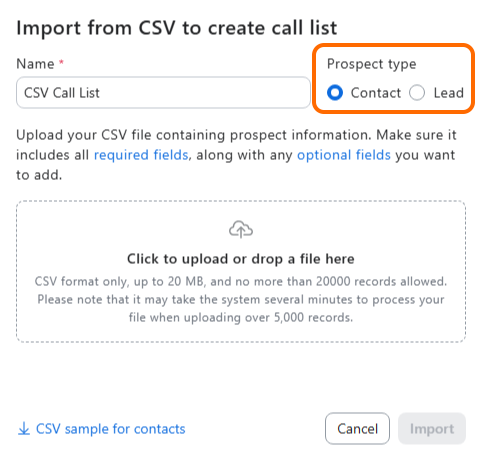
Creating a CSV call list is straightforward—think of it like filling out a spreadsheet:

  • First, decide if you're calling existing customers (Contacts) or potential ones (Leads). This matters because the fields are slightly different.

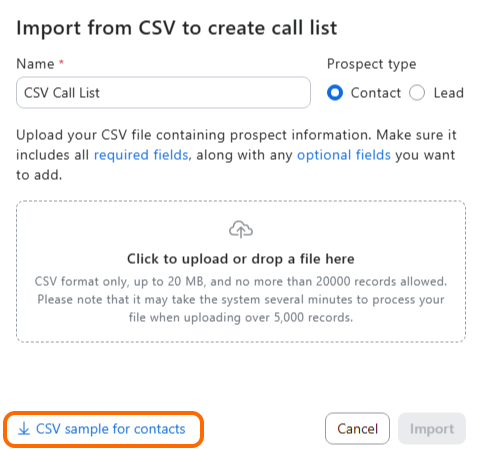
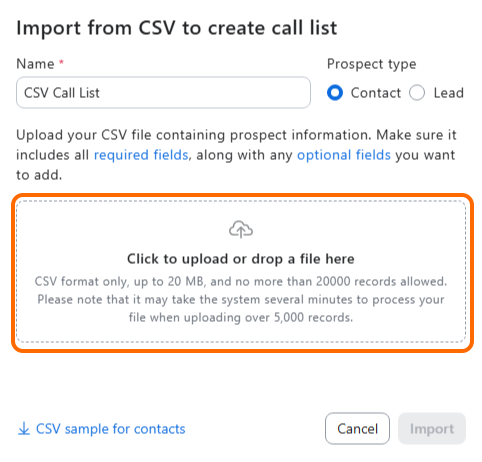
  • Then, grab the CSV template (it's basically a pre-formatted spreadsheet), fill in your prospect info, and upload it. Done! Be aware that the CSV Template is slightly different for Contacts versus Leads!

  • Pro tip: Start with a small test list of 5–10 prospects to make sure your data maps correctly before uploading hundreds of contacts.

3rd Party Integration

3rd Party Integrations allow your users to automatically pull call lists and prospects from a supported 3rd party systems. Just a reminder, you want to have completed the Zoom Phone integration into these same 3rd Party solutions before setting up the Zoom Auto Dialer integration Setup of these integrations has the following steps:

  • Admin - Authorize the integration to the 3rd Party system from Account ManagementAccount SettingsRevenue AcceleratorIntegration Enablement section.

  • NOTE: Salesforce authorization is done as part of the Zoom Phone integration setuparrow-up-right.

  • User - Authorize the integration from within the Zoom Auto Dialer.

  • User - Select the correct filters to import the call list and prospects you want to call.

Salesforce

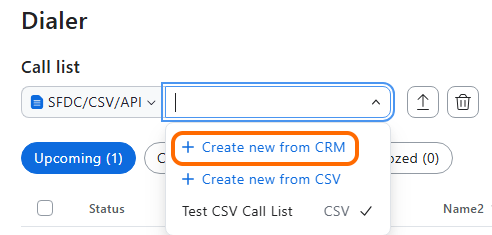
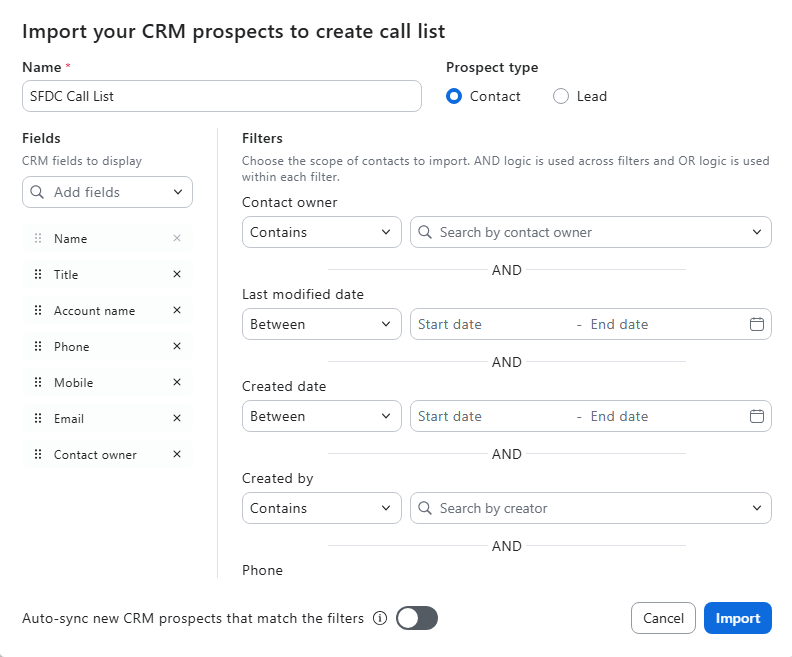
After Salesforce is linked to the Zoom Auto Dialer user, you can make a new call list by choosing Create new from CRM from the call list drop down.

  • You can then pull in your Salesforce contacts using many available filter fields like Account Name, Department, Email, Contact Owner, etc. These fields are often updated by Zoom, so please review the integration window or support docs for the most current available Filters.

  • Keep the list current by enabling the auto-sync new SFDC Prospects that match your filter criteria!

Outreach

Admin Setup - Admins will need to connect Auto Dialer to their Outreach instance and can then go through a few configuration steps.

  • Connect - Navigate to Account ManagementAccount Settings and then select the Revenue Accelerator tab and hit Connect for Outreach which will prompt you to sign in to Outreach.

  • Once Connected, go to configure.

  • You can then choose to customize, if you want:

    • Which Outreach Fields for users to see in Auto Dialer.

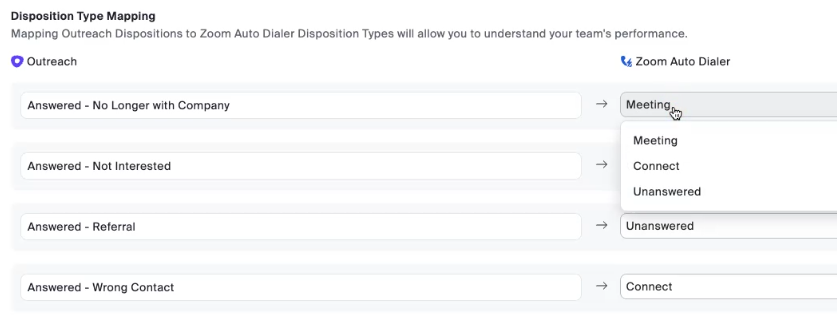
  • Outreach Disposition to Zoom Auto Dialer Disposition.

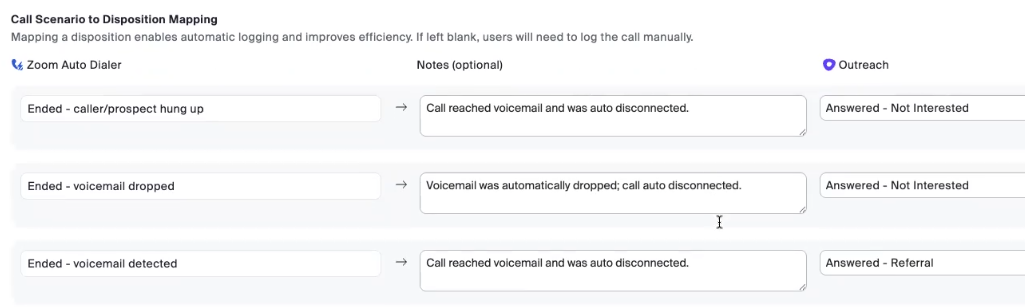
  • Call Scenario mapping, like covered in the Auto Dialer Configuration setup to save time for when you don't talk to a person!

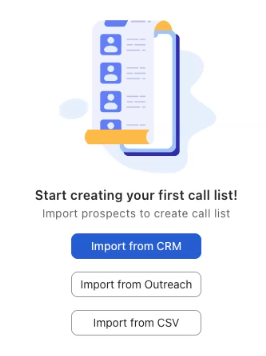
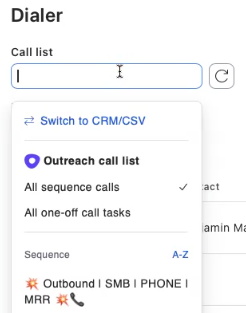
  • User Setup - Simply choose the Import from Outreach button when creating a new call list, log in to Outreach as the user, then search and pull in your Sequences from Outreach. If you have existing call lists, you can connect directly to Outreach from there and create your call list.

HubSpot

  • Admin Setup - Admins will need to connect Auto Dialer to their HubSpot instance and can then go through a few configuration steps.

    • Connect - Navigate to Account ManagementAccount Settings and then select the Revenue Accelerator tab and hit Connect for HubSpot, which will prompt you to sign in to HubSpot.

  • Once Connected, go to Configure.

  • You can then choose to customize, if you want:

    • Which HubSpot fields for users to see in Auto Dialer.

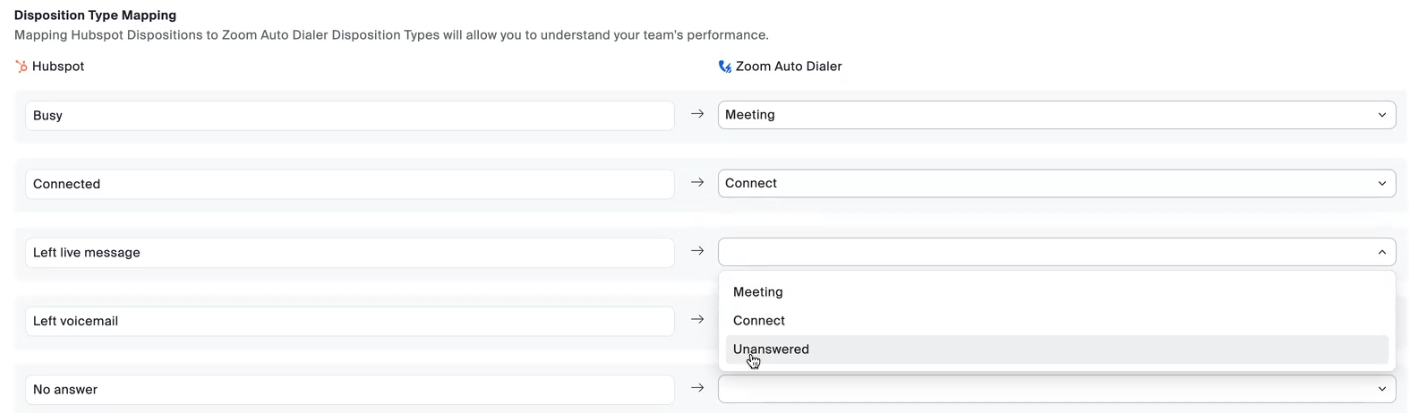
  • HubSpot Disposition to Zoom Auto Dialer Disposition.

  • Call Scenario mapping, like covered in the Auto Dialer Configuration setup to save time for when you don't talk to a person!

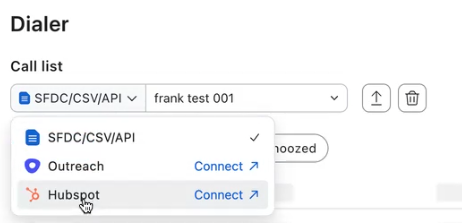
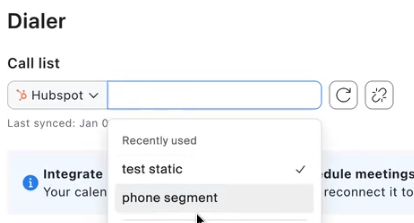
  • User Setup - Simply choose the Import from HubSpot button when creating a new call list, log in as the user to HubSpot, then search and pull in your Sequences from Outreach. If you have existing call lists, you can connect directly to HubSpot from there and create your call list.

API

The Auto Dialer APIs can be leveraged to manage Zoom Auto Dialer for many users quickly. These are ideal for customers with programming skills and resources to build custom integrations between your data sources (databases, CRMs, etc.) and Zoom Auto Dialer. These APIs include the ability to:
  • Create call lists for users

  • Populate call lists with prospects

  • View call history and reporting

One common use case for APIs is if you have a 3rd-party or custom-built CRM that doesn't have a built-in connector to Zoom Auto Dialer, you can leverage the APIs to create call lists for all your Zoom Auto Dialer users, populate those call lists with prospects from your CRM, and then pull call/dialer results post call back into your CRM for reporting/logging purposes. Developing using APIs is beyond the scope of this document. You can view all available APIs for Zoom Auto Dialer in our Zoom Developers site in the Auto Dialerarrow-up-right section.

Video - Creating Call Lists

This video will show creating a call list from a CSV file as well as from the SFDC integration.

End User Experience

Zoom Auto Dialer provides the user with a single interface in which to: Add/View/Edit call lists, set dialing options, interact with live customers during the dialing process, schedule follow-up meetings, and send emails to customers. No switching between windows or different apps needed! Please refer to the Support Article - Using Zoom Auto Dialerarrow-up-right to dig in to all the specifics, but keeping with the theme in this article, here's the high-level user process to engage with Auto Dialer.

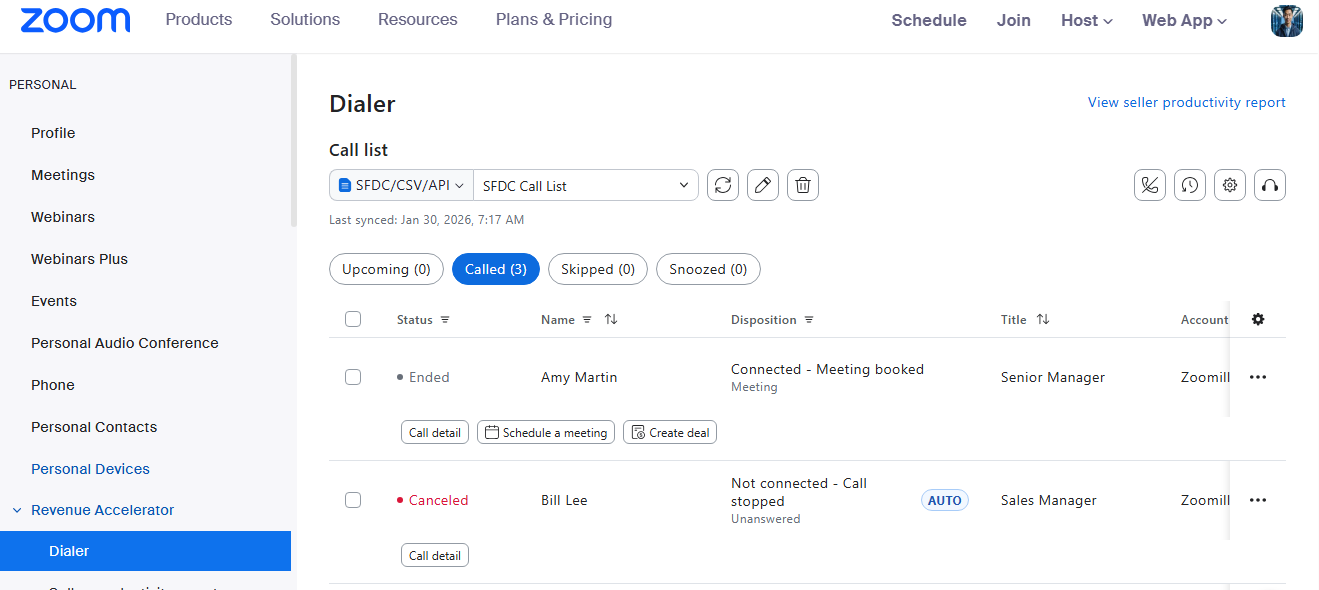
  1. Call List - Import (see above), view Upcoming calls as well as Called, Skipped, and Snoozed contacts (ones that you paused to call at a later time).

  2. Dialing Settings - Remember all the Default Settings we did above? This is where a user can update those settings if the Administrator didn't lock them.

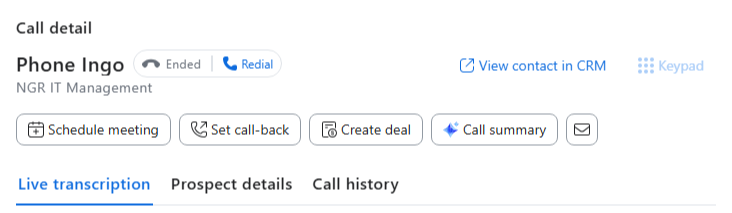
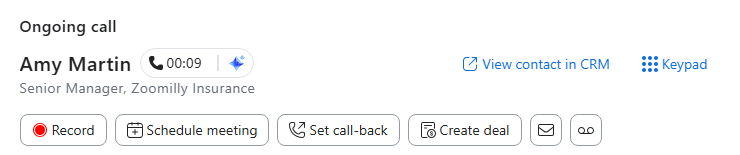
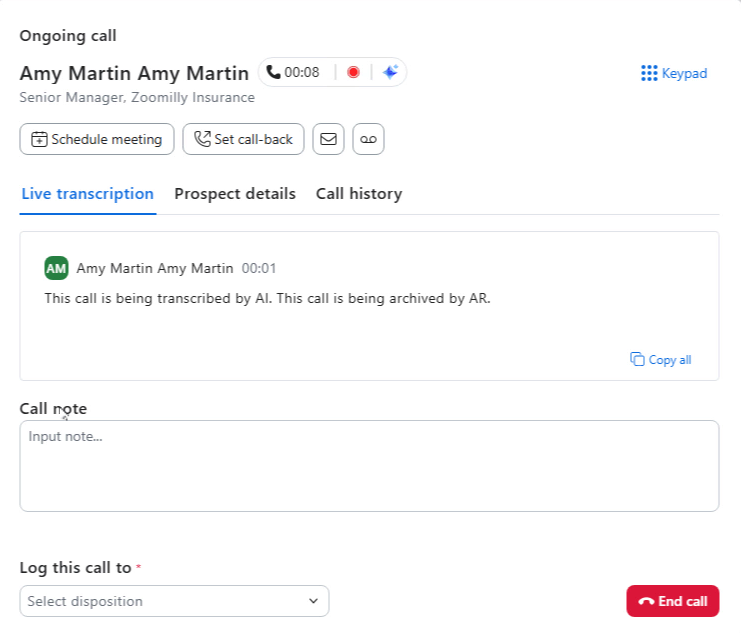
  3. Interacting with Live Callers - When Auto Dialer detects a live person (it filters out Voicemails to do Voicemail drops and IVR/Call Trees), here's where you can see the live transcription, customer details, add notes, disposition of the call, schedule follow-up meetings, schedule callbacks, and even send emails to the customer. You can reference the Support Article - Understanding Zoom Auto Dialer call statusarrow-up-right to help with the status that appear during active dialing sessions.

  4. View Productivity Report - See how well your calls have been going! It leverages the goals for number of connects, meetings booked, etc. set in the earlier Seller Productivity Report to help users keep up to date on if they are hitting their goals for the day, week, month, or longer!

While we won't dive into every setting, here's some suggestions for users that may help!

Access to Auto Dialer

  • Zoom Workplace desktop/mobile app or Zoom Web Portal?

    • Did you know that Auto Dialer can work inside the Zoom Workplace desktop or mobile app or directly in the Zoom Admin Portal? Under Personal → Revenue Accelerator → Dialer, you'll have the same Call Lists and options available in the Zoom Workplace desktop and mobile app! Use what works best for your workflow!

  • Dialing Settings

    • Phone Field - Pro tip: Import contacts with multiple phone numbers! Auto Dialer automatically tries alternate numbers if the first one doesn't connect—no manual redialing needed.

    • Dial X Prospects - Here's the magic: Set this to 2-4 prospects, and Auto Dialer handles voicemails in the background while you're already talking to the next person. No more dead time waiting for voicemail systems!

Interacting with Live Callers

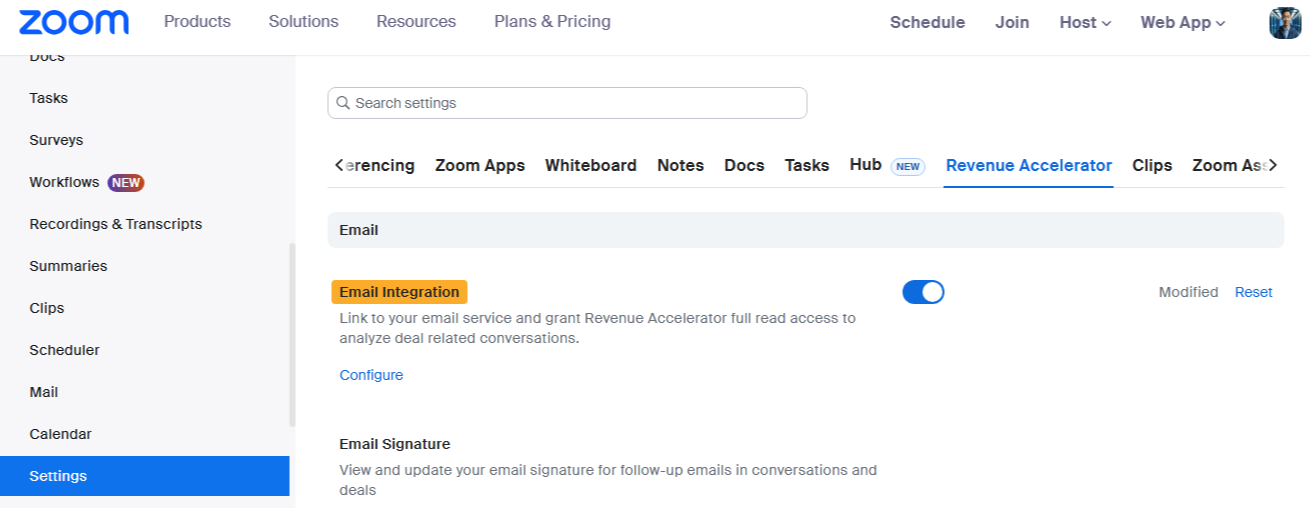
  • Remember to integrate your e-mail with Auto Dialer before starting calls! Under Personal → Settings → Revenue Accelerator, enable Email Integration and link to your Google or Microsoft 365 Account.

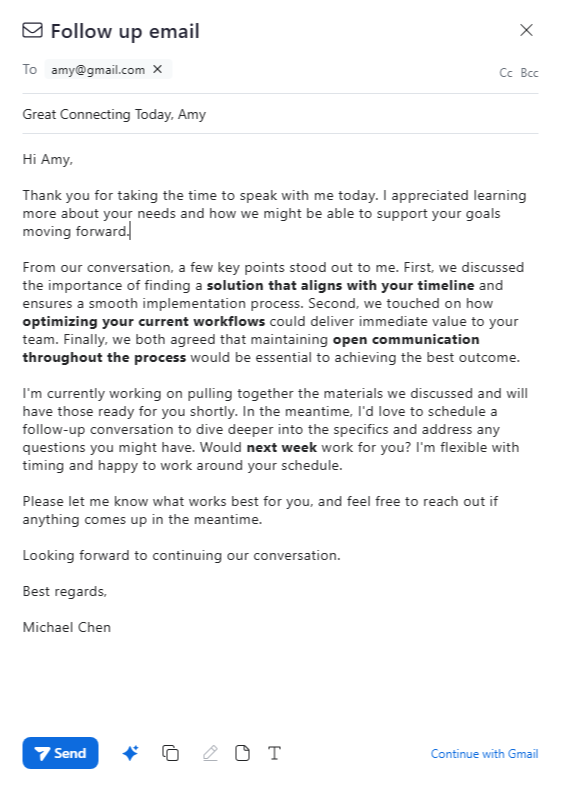
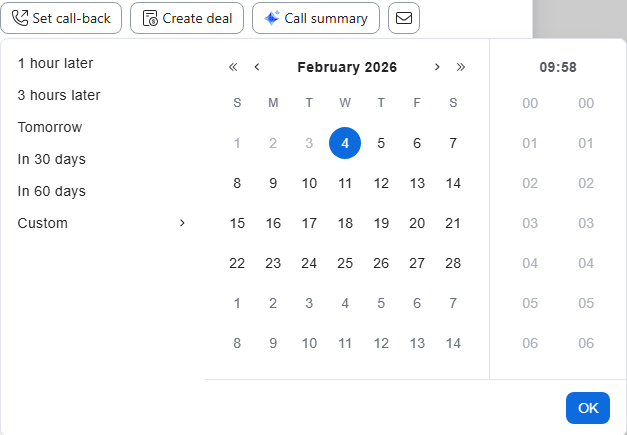
  • When you connect with someone: Use the live transcription to catch details you might miss, and let AI Companion draft your follow-up email based on what was discussed. If they are busy and want to talk to you later, set a call-back from within the same window!

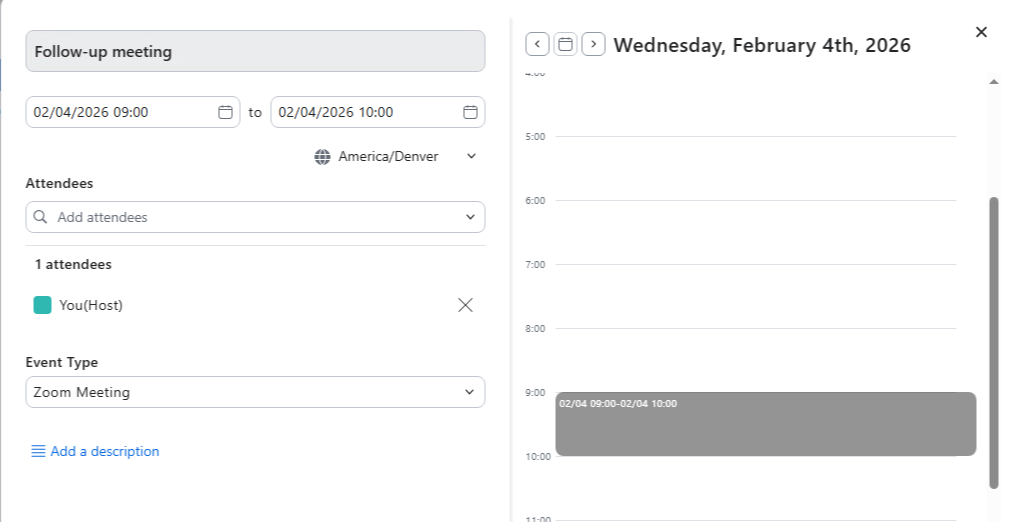
  • Need to schedule next steps? Hit the Schedule Meeting button right from the call window—no need to open your calendar separately.
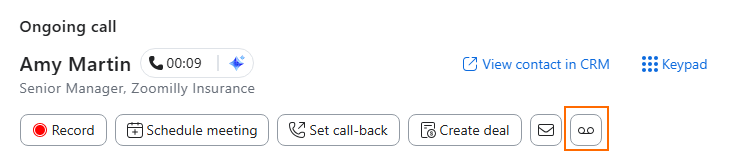
  • Accidentally reached voicemail? Just click the Voicemail button to drop your pre-recorded message and move on. Auto Dialer usually catches these automatically, but this is your backup.
Video - End User Experience

Reporting

Zoom Auto Dialer provides the users and admins with a Seller Productivity Report showing details of Calls, Connects, Meetings Booked, and more. The default thresholds for the ratings are set by the admin back in our Configuring the Default Settings section. We won't dive into each field as the support article below covers them well, but we will provide you with a screenshot of what is available and a video walking through the settings and report. Support Article - Understanding Zoom Auto Dialer Analyticsarrow-up-right

Video - Reporting

Last updated

Was this helpful?