> For the complete documentation index, see [llms.txt](https://library.zoom.com/llms.txt). Markdown versions of documentation pages are available by appending `.md` to page URLs; this page is available as [Markdown](https://library.zoom.com/technical-library/zh/zoom-workplace/zoom-meetings/securing-zoom-meetings-explainer/zoom-realtime-media-streams.md).
# Zoom 实时媒体流
截至 2025 年 6 月 25 日,Zoom 提供 Realtime Media Streams,使开发者能够直接访问丰富、结构化的会议数据,从而释放 AI 驱动的洞察、自动化关键工作流,并在 Zoom 平台上构建有影响力的集成。开发者可以参考 [Realtime Media Streams 文档](https://developers.zoom.us/docs/rtms/?optimizely_user_id=03078374c135469fa2033b8a4833dc38\&DeviceId=b4f137e8-7d3f-4959-8869-8d3a7934e55e\&SessionId=1754350951481&_ics=1754350950680\&irclickid=~eb8ZWZ4~396XY52RUV28ZPQNSKEFwszqurujkab5YWLGFvpic96X&_gl=1*1r8vnfc*_gcl_au*MTUzNTIzNzY3MC4xNzUzMjgwMjYy*_ga*MTg3NjIzMzc5OS4xNzIzNDk1Mjcz*_ga_L8TBF28DDX*czE3NTQzNTA5NTAkbzE4MSRnMCR0MTc1NDM1MDk1MCRqNjAkbDAkaDA.) 开始使用。
### 启用 Zoom RTMS,以消除对第三方机器人的需求
Realtime Media Streams 消除了会议中对第三方自动化工具的需求。应用将按参会者接收结构化数据流,反映授权它们的用户可见的上下文。
借助 RTMS,开发者可以使其应用脱颖而出、提升性能并拓展收入机会。此外,企业还可以获得一种解决方案,实时访问其最关键的对话,以获取洞察、合规性和增强的工作流。
### 主持人控制和管理员工具
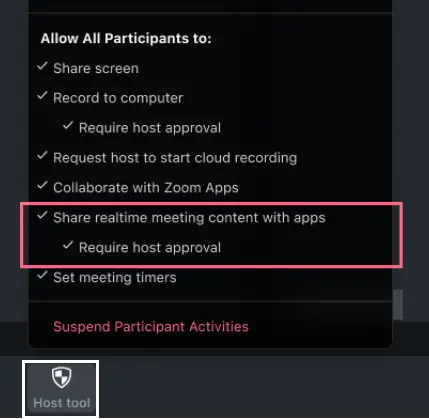
账户管理员可以在 Zoom Web门户 中启用 RTMS,并设置 RTMS 自动启动切换。此外,主持人可以使用会议中的主持人工具来控制参会者是否必须请求主持人批准才能访问会议内容。
#### 管理员 Web 门户控制
管理员可以在 Zoom Web门户 中的 Zoom Apps 设置里,于账户、群组或用户级别启用 RTMS。
除了将实时会议内容与应用共享外,管理员还可以选择让应用自动启动:
1. 在“自动启动访问共享实时会议内容的应用”设置下,点击“选择一个应用以自动启动”。
2. 选择启用了 RTMS 的一个或多个应用,并将“自动启动”设为“开启”。
#### 会议中的主持人工具
以下工具可供会议主持人使用:
* 与应用共享实时会议内容:启用参会者共享会议内容。
* 需要主持人批准:要求参会者请求主持人批准以访问会议内容。
### 主持人会议中体验
以下屏幕是会议主持人可用的披露、通知和 AAN 屏幕示例。
#### 披露弹窗
标准披露会向主持人和参会者显示:“此会议的内容正在与一个或多个应用共享。”
#### RTMS 设置为自动启动
当 RTMS 启用了应用由账户管理员设置为自动启动时,这是 AAN 的主持人视图。
#### 由主持人启动的 RTMS
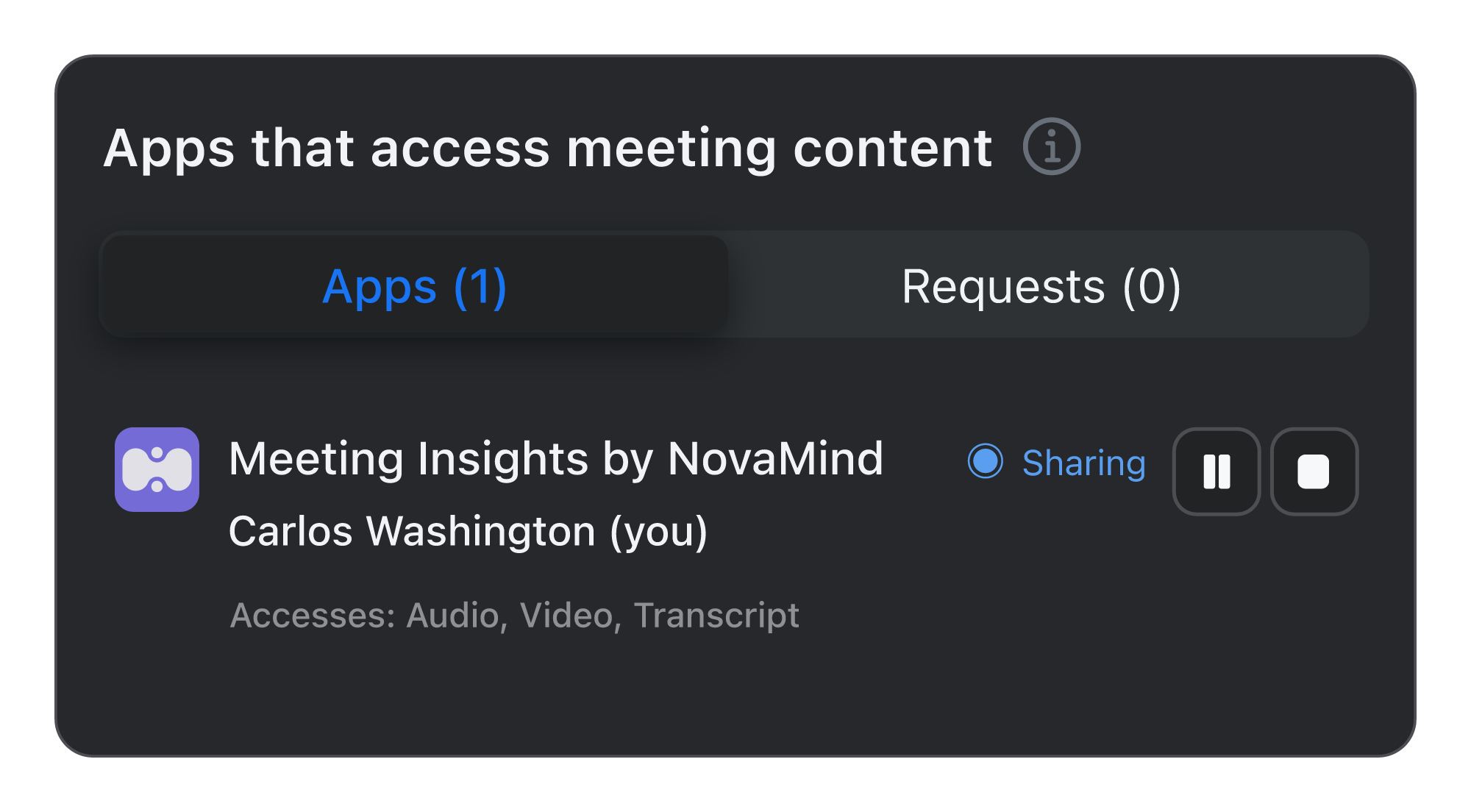
当主持人通过应用 UI(JS API)或 REST API 启动 RTMS 时,这是 AAN 的主持人视图。在这张示例图中,你是 Carlos Washington,主持人。
#### 单个应用的请求弹窗
此弹窗表示主持人要求批准共享会议内容的场景,并且:
* 管理员将应用设置为从与主持人不同的账户自动启动。
* 来自相同或不同账户的参会者请求在会议中使用某个应用,该请求通过应用(JS API 或 REST API)发起。
这是单个应用请求弹窗的主持人视图。主持人可以批准或拒绝该请求。
#### 多个应用的请求弹窗
下图涵盖主持人要求批准共享会议内容,且以下情况:
* 一个或多个参会者请求了多个应用。
* 多个外部管理员将应用设置为为来自不同账户的多个参会者自动启动。
* 来自相同或不同账户的参会者请求在会议中共享内容。
这是多个应用请求弹窗的主持人视图。主持人可以批准或拒绝该请求:
#### 正在共享内容的应用
这是已批准的应用正在主动共享内容时 AAN 的主持人视图。它显示应用名称、应用用户以及状态为“共享中”。
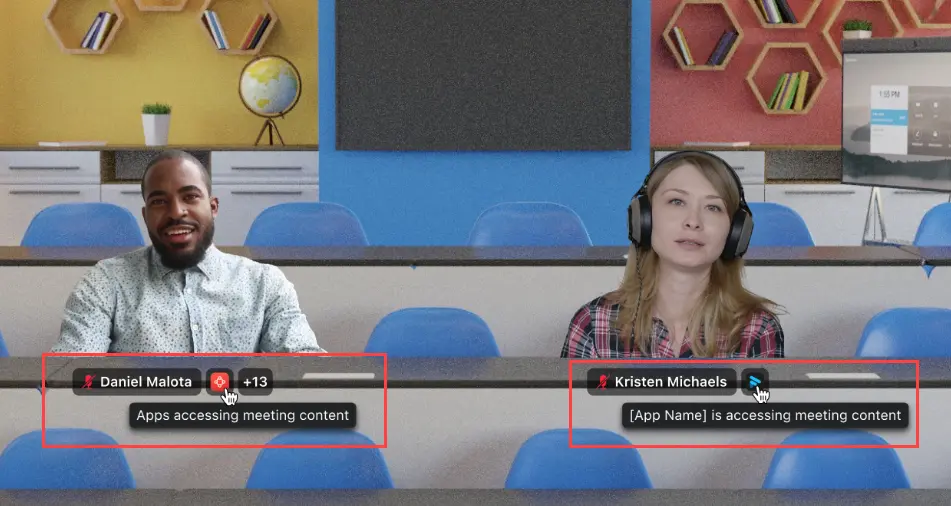
#### 视频平铺
活动应用的视频平铺视图对所有会议参会者和主持人都相同。会议参会者使用的应用名称会显示在其视频平铺中。
#### 沉浸式视图
活动应用的沉浸式视图对所有会议参会者和主持人都相同。会议参会者使用的应用名称会显示在其视频图像下方。
### 会议参会者用户体验
以下屏幕是会议参会者可用的披露、通知和 AAN 屏幕示例。
#### 披露弹窗
标准披露会向主持人和参会者显示:“此会议的内容正在与一个或多个应用共享。”
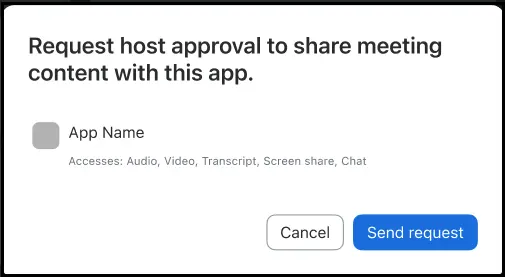
#### 请求共享会议内容
这是参会者用于向主持人请求共享会议内容的请求弹窗。
#### 向参会者显示的确认消息
以下是针对其请求向参会者显示的可用确认消息:
* 请求已发送给主持人。
* 主持人已拒绝应用共享会议内容的请求。
* 主持人无法批准你的应用访问会议内容。
* 主持人已禁止你的应用共享会议内容。
* 在主持人加入会议之前,无法发送共享会议内容的请求。
* 共享会议内容的应用已被禁用。
#### 视频平铺
活动应用的视频平铺视图对所有会议参会者和主持人都相同。会议参会者使用的应用名称会显示在其视频平铺中。
#### 沉浸式视图
活动应用的沉浸式视图对所有会议参会者和主持人都相同。会议参会者使用的应用名称会显示在其视频图像下方。
---
# Agent Instructions
This documentation is published with GitBook. GitBook is the documentation platform designed so that both humans and AI agents can read, navigate, and reason over technical content effectively. Learn more at gitbook.com.
## Querying This Documentation
If you need additional information that is not directly available in this page, you can query the documentation by asking a question.
Perform an HTTP GET request on the following URL with the `ask` and `goal` query parameters:
```
GET https://library.zoom.com/technical-library/zh/zoom-workplace/zoom-meetings/securing-zoom-meetings-explainer/zoom-realtime-media-streams.md?ask=&goal=
```
`ask` is the immediate question: it should be specific, self-contained, and written in natural language.
`goal` is what the user is ultimately trying to achieve, the reason they need the answer. Sharing it helps GitBook give you a better, more relevant answer. A goal is most helpful when it describes the outcome the user wants rather than restating the question. For example, with `ask=how do I create an API token`, a goal like `automate deployments from our CI pipeline` lets GitBook tailor the answer to that use case.
The response will contain a direct answer to the question and relevant excerpts and sources from the documentation.
Use this mechanism when the answer is not explicitly present in the current page, you need clarification or additional context, or you want to retrieve related documentation sections.