> For the complete documentation index, see [llms.txt](https://library.zoom.com/llms.txt). Markdown versions of documentation pages are available by appending `.md` to page URLs; this page is available as [Markdown](https://library.zoom.com/technical-library/zh/zoom-workplace/zoom-meetings/securing-zoom-meetings-explainer/administrative-settings-for-automated-meeting-tools.md).
# 自动化会议工具的管理设置
### 访问 Zoom App Marketplace,获取应用 分析和管理
账户管理员可以通过应用 Marketplace 中提供的分析,了解已安装了哪些自动化会议工具,以及这些工具如何被其账户用户使用。管理员可以查看每个自动化会议工具的活动日志,包括:
* 哪些用户已获预先批准可使用该工具
* 当某个工具已预先批准时
* 哪些用户安装了该工具以及何时安装的
* 哪些用户已卸载该工具以及何时卸载
* 账户上的用户发起的 API 调用
登录到 [marketplace.zoom.us](https://marketplace.zoom.us/) 作为管理员。点击屏幕右上角的“管理”,然后在“管理员应用管理”菜单中点击“账户中的应用”,即可查看添加到您组织的账户中的自动化会议工具列表。每个工具的日志和管理选项可在此处访问:
### 预先批准或限制自动化会议工具
多用户管理账户的管理员可以 [预先批准](https://support.zoom.us/hc/en-us/articles/360061555152-Admin-deployment-of-Zoom-Apps-) 或限制某些自动化会议工具。您的账户类型可能会影响是否需要管理员预先批准。根据您的账户类型,某些工具的使用也可能会自动启用并在会议客户端中显示,也可能不会。
登录到 [marketplace.zoom.us](https://marketplace.zoom.us/) 作为管理员,然后点击 **管理** 屏幕右上角,然后前往 **管理员应用管理** 菜单中的该部分。点击 **权限** 以管理自动化会议工具的批准。点击 **通知** 以管理您的管理员如何收到请求通知,以及如何向用户发送批准通知。
{% hint style="info" %}
禁止使用自动化会议工具会阻止它在您的账户中被使用,但不会阻止外部用户未受邀请的自动化会议工具可能加入由您账户中的用户主持的会议。启用等候室和其他功能有助于阻止未受邀请的工具加入会议,如后文所述。
{% endhint %}
### 查看您账户中的自动化会议工具使用情况
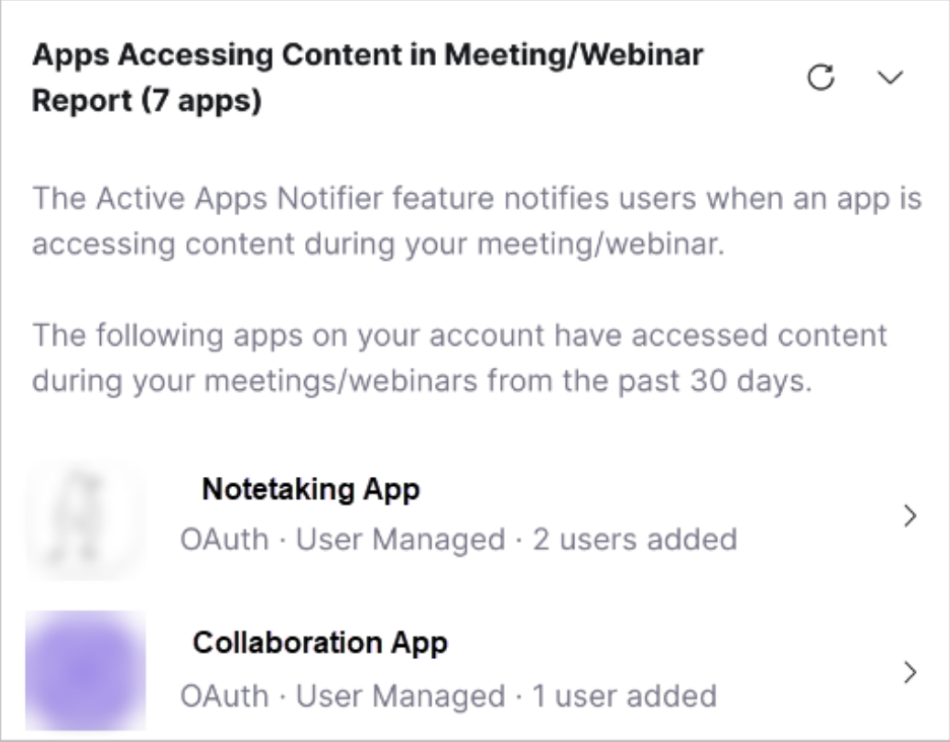
该 [活动应用通知器报告](https://support.zoom.us/hc/en-us/articles/360061982491-Active-App-Notifier-Report-) 允许管理员查看和管理在过去 30 天内访问过该账户所有用户会议内容的自动化会议工具。这使管理员有机会就是否希望批准在其会议和网络研讨会中使用这些工具做出明智决定。管理员还可以使用该报告轻松查看 [应用 Marketplace](https://marketplace.zoom.us/) 每个有效工具的页面,了解更多信息,并在需要时禁用它。
要查看活动应用通知器报告,请登录 [marketplace.zoom.us](https://marketplace.zoom.us/) 作为管理员。点击 **管理** 屏幕右上角,然后点击 **账户上的应用** 在管理员应用管理菜单中,查看添加到您组织账户中的自动化会议工具列表。
活动应用通知器报告将出现在屏幕右下角,并列出过去 30 天内访问过您账户中会议或网络研讨会内容的工具。
### 根据您组织关于自动化会议工具的政策来配置您的 Zoom 账户
有几项 [管理设置](https://docs.google.com/document/d/1eGdaWvXgyzmCDPojxVfigODKQ6Y9mQaKVZrPcc-gnjg/edit#heading=h.fj846oo3myui) 本文件后文将分享一些可在您的账户上启用的设置,用于管理自动化会议工具,以及拨入用户或第三方会议室设备。这些账户级设置有助于确保加入您的会议的自动化会议工具已根据您组织的会议安全政策获得授权。
{% hint style="success" %}
在您的组织内建立一项自动化会议工具政策,说明这些工具在您的账户中可以或不可以如何使用。指定哪些工具获准使用,并根据您组织的最佳实践配置您的账户设置。
{% endhint %}
---
# Agent Instructions
This documentation is published with GitBook. GitBook is the documentation platform designed so that both humans and AI agents can read, navigate, and reason over technical content effectively. Learn more at gitbook.com.
## Querying This Documentation
If you need additional information that is not directly available in this page, you can query the documentation by asking a question.
Perform an HTTP GET request on the following URL with the `ask` and `goal` query parameters:
```
GET https://library.zoom.com/technical-library/zh/zoom-workplace/zoom-meetings/securing-zoom-meetings-explainer/administrative-settings-for-automated-meeting-tools.md?ask=&goal=
```
`ask` is the immediate question: it should be specific, self-contained, and written in natural language.
`goal` is what the user is ultimately trying to achieve, the reason they need the answer. Sharing it helps GitBook give you a better, more relevant answer. A goal is most helpful when it describes the outcome the user wants rather than restating the question. For example, with `ask=how do I create an API token`, a goal like `automate deployments from our CI pipeline` lets GitBook tailor the answer to that use case.
The response will contain a direct answer to the question and relevant excerpts and sources from the documentation.
Use this mechanism when the answer is not explicitly present in the current page, you need clarification or additional context, or you want to retrieve related documentation sections.