> For the complete documentation index, see [llms.txt](https://library.zoom.com/llms.txt). Markdown versions of documentation pages are available by appending `.md` to page URLs; this page is available as [Markdown](https://library.zoom.com/technical-library/zh/zoom-workplace/zoom-mail-and-calendar/clients.md).
# Zoom Mail 和日历客户端
本文件概述并介绍 Zoom Mail 和 Zoom Calendar *客户*,请勿将其与 Zoom Mail 和 日历混淆 *服务*。Zoom Mail 和 日历 客户端专门指用于管理用户电子邮件和 日历 的客户端界面,并不适用于 Zoom 的 日历 和 电子邮件 基础设施或服务。
### 这是什么?
Zoom 邮件和日历客户端可将受支持的电子邮件和日历帐户带入 Zoom Workplace 桌面和移动应用。
### 兼容性
用户可以在 Zoom Workplace 应用内,将他们的 Gmail 或 Microsoft 365 帐户用于工作和学习,并通过原生 日历 和 电子邮件 访问进行 集成。Zoom Mail 服务 用户会自动使用 Zoom Workplace 应用作为邮件和日历客户端。关于第三方 集成、授权以及 访问 的信息如下所述。
### 同时使用邮件和日历客户端集成的优势
已完成 Zoom Mail 和日历集成的用户可以在 Zoom Workplace 应用中访问他们的电子邮件账户和日历,从而简化工作流程并减少对独立电子邮件应用或浏览器的依赖。
#### Zoom Mail 客户端 支持核心 电子邮件 功能
启用 Zoom Mail 客户端 集成 的用户可访问核心 电子邮件 功能和特性,包括但不限于收件箱、发件箱、草稿、已发送邮件、归档、搜索、规则(过滤器)、星标、自定义标签、度假/离开消息以及签名。
#### 使用 Zoom Calendar 客户端 的用户可在客户端内安排、更新和删除日历事件
用户在 Zoom Workplace 应用中可以完全访问他们的日历,包括共享日历和资源日历。这包括为他们有访问权限且有权操作的任何日历安排/定时发送、更新或删除日历事件的能力。
#### Zoom Calendar 客户端 还支持在其他用户的日历上安排权限
在其日历服务提供商中,拥有向用户的日历进行安排权限的授权委派 **和** 在 Zoom 中,可以代表用户将会议直接安排/定时发送到用户的日历中。这样安排/定时发送的会议会自动归入日历所有者的 Zoom 账户下,但如有需要,也可以手动安排/定时发送到代理人的账户下。
### 用于简化用户工作流的功能
使用 Zoom Mail 和日历客户端集成的用户可以在 Zoom Workplace 应用中简化并 合并 工作流程。以下功能适用于同时拥有这两个集成的用户:
{% columns %}
{% column %}
* 集成安排(查看受邀者可用情况)
* 将邮件分享到 Zoom 聊天
* 将云录制附加到日历邀请中
* 使用 Zoom Phone 号码安排
{% endcolumn %}
{% column %}
* 与事件 & 活动 &直播中的参会者开始聊天
* 在侧边栏中查看谁已加入 Zoom 会议
* 将 Zoom 联系人卡片与邮件和日历集成
{% endcolumn %}
{% endcolumns %}
### Zoom Mail 和日历客户端功能
#### 默认情况下,所有 商业版、企业版、教育 和 医疗保健 账户的 Zoom Mail 和 日历 客户端均被禁用,除非由 管理员 启用
Zoom Mail 和 日历客户端会针对所有 Zoom 商业版、企业版、教育和医疗保健(已签署 BAA)账户自动禁用。账户管理员可以在网页端的以下位置启用此设置: **账户设置**. 请参阅我们的支持文档,以获取有关启用该功能的更多信息 [Zoom Mail 客户端和日历客户端](https://support.zoom.us/hc/en-us/articles/9868737154061).
* **用户可以选择启用邮件和日历中的一个或两个集成**\
\
如果在一个账户上同时启用 Zoom Mail 和 日历客户端,Zoom 将默认提示用户集成这两项服务。用户可以通过取消范围权限来选择退出其中一项或两项集成 **邮件** 或 **日历** 在账户集成过程中。
* **管理员可以在账户或群组级别启用 Zoom Mail 客户端和日历客户端**\
\
账户管理员或授权用户可以为整个账户或在群组级别启用 Zoom Mail 客户端和 日历 客户端。有关启用的更多信息,请参阅我们的 支持 文档 [Zoom Mail 客户端和日历客户端](https://support.zoom.us/hc/en-us/articles/9868737154061).
* **Zoom Workplace 应用在产品发布之初不包含客户端级控制功能,例如 MSI 或 GPO 设置,用于 Zoom Mail 和 日历 客户端**\
\
Zoom 桌面端和移动端客户端不会包含用于限制客户端访问 Zoom Mail 和 Zoom Calendar 客户端的 MSI 或组策略 (GPO) 控制项。账户管理员或已授权用户只能从网页端专门限制对这些功能的访问。
* **Zoom Mail 和 日历客户端对 Zoom政府版 客户不提供在线**\
\
Zoom Mail 和日历客户端对 Zoom政府版(FedRAMP)客户不可在线。
#### Zoom Mail 客户端支持一次仅一个经过身份验证的电子邮件账户
用户一次最多只能在客户端集成一个电子邮件账户;不过,用户可以访问其电子邮件账户被授权的任意数量的日历。如果已订阅,拥有委派访问权限的用户仍可能会收到新日历事件的电子邮件通知。
#### Zoom Mail 和 Zoom Calendar 客户端通过 REST API 并使用 OAuth 2.0 身份验证发送和接收数据
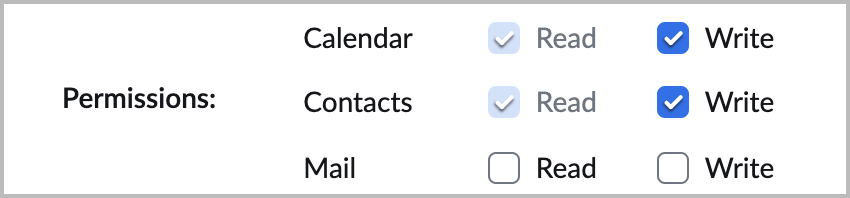
类似于 Zoom 现有的日历和联系人集成,日历和邮件集成使用用于电子邮件和日历读取与写入权限的其他应用程序作用域。Zoom Workplace 应用程序通过使用 OAuth 2.0 身份验证的 REST API 请求,从 Gmail、Microsoft 365 和 Zoom Mail 获取日历和电子邮件数据。
#### 不会在 Zoom Mail 服务器中存储任何第三方邮件或日历数据
在 Zoom Mail 服务器中不会存储来自第三方集成(与 Zoom Mail 和 日历 客户端相关)的电子邮件或日历数据。所有数据都会直接从 服务提供商 处理到 用户 的客户端。
#### 日历事件会存储在临时内存中,直到客户端退出
用户日历事件存储在本地机器内的临时内存(RAM)中。此数据会保留在该机器中,直到客户端退出时被清除。
#### 电子邮件数据存储在本地机器上的加密数据库中,直到用户注销为止
来自电子邮件客户端集成的数据存储在用户本地设备上的加密数据库中。这些数据不会过期,且除非用户在 Zoom Workplace 应用中退出其电子邮件账户,否则不会从设备中删除。
#### Zoom Mail 客户端不支持第三方插件
Zoom Mail 客户端不支持第三方加载项或开发功能,例如为替代视频会议提供商集成的安排。用户只能在 Zoom Mail 客户端内安排 Zoom Meetings。
---
# Agent Instructions
This documentation is published with GitBook. GitBook is the documentation platform designed so that both humans and AI agents can read, navigate, and reason over technical content effectively. Learn more at gitbook.com.
## Querying This Documentation
If you need additional information that is not directly available in this page, you can query the documentation by asking a question.
Perform an HTTP GET request on the following URL with the `ask` and `goal` query parameters:
```
GET https://library.zoom.com/technical-library/zh/zoom-workplace/zoom-mail-and-calendar/clients.md?ask=&goal=
```
`ask` is the immediate question: it should be specific, self-contained, and written in natural language.
`goal` is what the user is ultimately trying to achieve, the reason they need the answer. Sharing it helps GitBook give you a better, more relevant answer. A goal is most helpful when it describes the outcome the user wants rather than restating the question. For example, with `ask=how do I create an API token`, a goal like `automate deployments from our CI pipeline` lets GitBook tailor the answer to that use case.
The response will contain a direct answer to the question and relevant excerpts and sources from the documentation.
Use this mechanism when the answer is not explicitly present in the current page, you need clarification or additional context, or you want to retrieve related documentation sections.