> For the complete documentation index, see [llms.txt](https://library.zoom.com/llms.txt). Markdown versions of documentation pages are available by appending `.md` to page URLs; this page is available as [Markdown](https://library.zoom.com/technical-library/zh/shang-ye-ban-fu-wu/zoom-contact-center/expert-insights/integrate-zoom-contact-center-features-into-your-website/web-chat-and-video-configuration-tasks.md).
# 网页聊天和视频配置任务
本主题讨论队列、流程、首选项以及 Zoom CX Web SDK 流程图。
***
### 队列
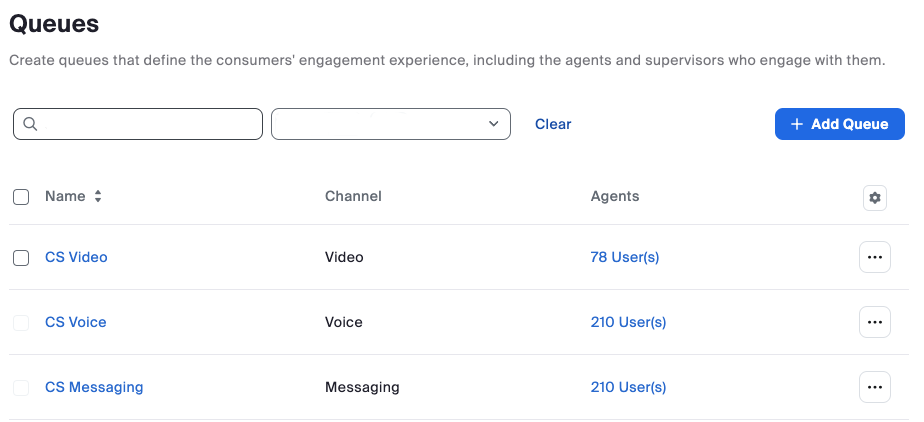
队列可有效地将客户咨询引导至相应的客服人员。队列可用于网页聊天和视频互动。
请按照以下高级步骤创建队列:
1. 根据您的通信需求配置一个或多个 Zoom 呼叫中心队列。发送消息队列用于网页聊天互动,而视频队列则处理视频通话。
2. 访问 Zoom 管理员 Web 门户:呼叫中心管理 > 队列。
3. 创建所需的队列并分配相应的客服人员。
作为 Zoom 呼叫中心的核心组件,队列可高效地将网页聊天和视频互动路由至在线人工客服人员。
请参阅 [管理 Zoom 呼叫中心队列](https://support.zoom.com/hc/en/article?id=zm_kb\&sysparm_article=KB0061959) 有关更多信息,请参阅 Zoom 支持文章。
***
### 流程
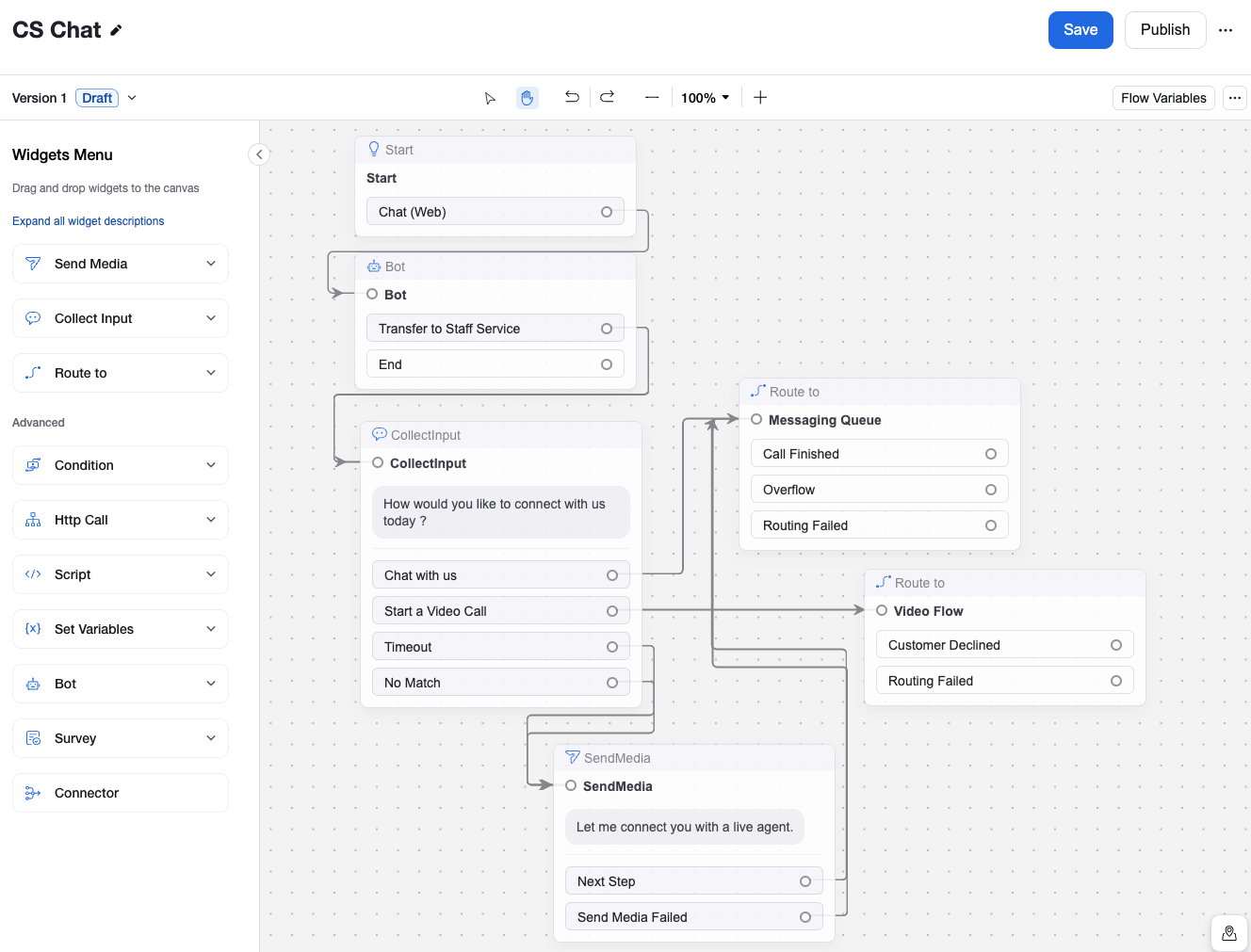
流程可高效地将客户咨询引导至其指定队列,您可以配置流程,以便在将客户正在连接至队列中的客服人员之前收集信息。在此过程中,可配置 AI 聊天机器人(仅限网页聊天)和自动消息/提示(网页聊天和视频)与客户互动。这些流程同时适用于网页聊天和视频互动频道。
请按照以下高级步骤创建流程:
1. 配置 Zoom 呼叫中心流程以管理您的通信频道。对于网页聊天互动,请使用聊天(Web)流程。对于视频通信,请实施视频流程。
2. 通过管理员 Web 门户访问:呼叫中心管理 > 流程。
3. 在您的流程与先前创建的队列之间建立连接。
{% hint style="info" %}
**注意**
您知道吗?如果您同时使用 Zoom 呼叫中心和 Zoom Virtual Agent,您可以在起始小组件中的 Zoom 呼叫中心流程内自定义机器人名称和头像。
{% endhint %}
请参阅 [管理流程](https://support.zoom.com/hc/en/article?id=zm_kb\&sysparm_article=KB0060866) 有关更多信息,请参阅 Zoom 支持文章。
***
### 营销活动
了解更多有关 Zoom 呼叫中心 Web 营销活动的信息,包括其在您网站上的外观和功能。
{% content-ref url="/pages/21b35a3c6b68dc45ed9edf8de388e7e725188577" %}
[活动](/technical-library/zh/shang-ye-ban-fu-wu/zoom-contact-center/expert-insights/integrate-zoom-contact-center-features-into-your-website/web-chat-and-video-configuration-tasks/campaigns.md)
{% endcontent-ref %}
***
### 首选项
对于 Zoom 呼叫中心客户,可使用其他设置来自定义与 Zoom CX 网页聊天和视频互动的网站访客体验。这些设置包括:
* **头像:** 当网站访客在 Zoom CX 中与自动化系统聊天时,无论是通过已配置的 Zoom 呼叫中心网页聊天流程小组件,还是通过 Zoom Virtual Agent AI 聊天机器人,他们都会看到您在账户首选项下设置的头像图像和名称。
* **输入延迟:** 为了控制网站访客在使用 Zoom CX 小组件和 ZVA 机器人聊天时所经历的输入延迟,您可以调整默认和动态延迟选项。
* **显示图像:** 您可以管理网站访客与人工客服人员建立连接时所显示的头像。您可以使用客服人员自定义的显示图像,也可以为所有客服人员应用统一的标准图像。
这些选项及其他选项可在 Zoom 管理员 Web 门户的“呼叫中心管理”>“首选项”>“消费者体验”下访问。
***
### 高级功能/特性
了解更多关于 Zoom CX Web SDK 如何提高您整体效率的信息。
{% content-ref url="/pages/9f605ac12d1e154fec81c6ed037ceb9f59fc8741" %}
[高级功能](/technical-library/zh/shang-ye-ban-fu-wu/zoom-contact-center/expert-insights/integrate-zoom-contact-center-features-into-your-website/web-chat-and-video-configuration-tasks/advanced-features.md)
{% endcontent-ref %}
***
### Zoom CX Web SDK 流程图
下图说明了 Zoom CX Web SDK 解决方案中各个组件相互连接的操作。具体而言,它展示了 Zoom CX 中的网页聊天流程。请注意,在与视频频道和预约回电功能配合使用时,该图会略有不同。
---
# Agent Instructions
This documentation is published with GitBook. GitBook is the documentation platform designed so that both humans and AI agents can read, navigate, and reason over technical content effectively. Learn more at gitbook.com.
## Querying This Documentation
If you need additional information that is not directly available in this page, you can query the documentation by asking a question.
Perform an HTTP GET request on the following URL with the `ask` and `goal` query parameters:
```
GET https://library.zoom.com/technical-library/zh/shang-ye-ban-fu-wu/zoom-contact-center/expert-insights/integrate-zoom-contact-center-features-into-your-website/web-chat-and-video-configuration-tasks.md?ask=&goal=
```
`ask` is the immediate question: it should be specific, self-contained, and written in natural language.
`goal` is what the user is ultimately trying to achieve, the reason they need the answer. Sharing it helps GitBook give you a better, more relevant answer. A goal is most helpful when it describes the outcome the user wants rather than restating the question. For example, with `ask=how do I create an API token`, a goal like `automate deployments from our CI pipeline` lets GitBook tailor the answer to that use case.
The response will contain a direct answer to the question and relevant excerpts and sources from the documentation.
Use this mechanism when the answer is not explicitly present in the current page, you need clarification or additional context, or you want to retrieve related documentation sections.