> For the complete documentation index, see [llms.txt](https://library.zoom.com/llms.txt). Markdown versions of documentation pages are available by appending `.md` to page URLs; this page is available as [Markdown](https://library.zoom.com/technical-library/zh/guan-li-yuan-zhuan-qu/third-party-integrations/zoom-for-outlook-add-in-explainer/additional-features-for-the-zoom-for-outlook-add-in.md).
# 适用于 Outlook 的 Zoom 插件的其他功能/特性
适用于 Outlook 的 Zoom 插件具有多项可由管理员启用的附加功能/特性。以下各节介绍适用于 Outlook 的 Zoom 插件可用的一些最新功能/特性,并提供启用说明。
#### **适用于 Outlook 的 Zoom 插件的许多附加功能/特性要求管理员在部署插件前预先配置其清单文件。**
要启用插件的附加功能/特性,管理员必须先在适用于 Outlook 的 Zoom 插件清单文件中添加特定命令行,然后才能在 Microsoft 365 管理员门户中部署该插件。 [预先配置 Outlook 插件](https://support.zoom.com/hc/en/article?id=zm_kb\&sysparm_article=KB0066033) 支持文章介绍了如何下载清单文件,并根据您希望启用的功能/特性对其进行自定义。
{% hint style="danger" %}
**警告**
使用自定义清单文件时,插件不会自动更新。因此,下载并安装的版本将一直使用,直到手动更新为止。管理员应密切关注 Outlook 插件的版本说明,了解重要的新功能/特性和错误修复,并在需要时部署最新版本。
{% endhint %}
## 从 Outlook 客户端发起 Zoom Phone 呼叫
#### **使用适用于 Outlook 的 Zoom 插件直接从 Outlook 客户端发起 Zoom Phone 呼叫**
同时拥有 Zoom Phone 的 Microsoft Outlook 用户可以在 Outlook 客户端上方的控制菜单中点击省略号 (...) 按钮,然后选择 Zoom Phone 选项,打开 Outlook 联系人和先前呼叫过的号码列表,从中选择以发起 Zoom Phone 呼叫。
#### **必须在适用于 Outlook 的 Zoom 插件清单文件中启用 Zoom Phone 选项**
即使您的账户拥有 Zoom Phone,系统也不会默认提供 Zoom Phone 选项。管理员如需为用户添加此选项,请参阅我们的 [预先配置 Outlook 插件](https://support.zoom.com/hc/en/article?id=zm_kb\&sysparm_article=KB0066033) 支持文章,了解如何下载适用于 Outlook 的 Zoom 插件清单文件,并在部署前手动在文件中添加 Zoom Phone 选项。
## 预订配备 Zoom Rooms 的会议空间
#### **使用适用于 Outlook 的 Zoom 插件和 Zoom 工作区预约,在创建 Outlook 日历事件 & 活动 &直播时预订配备 Zoom Rooms 的会议空间**
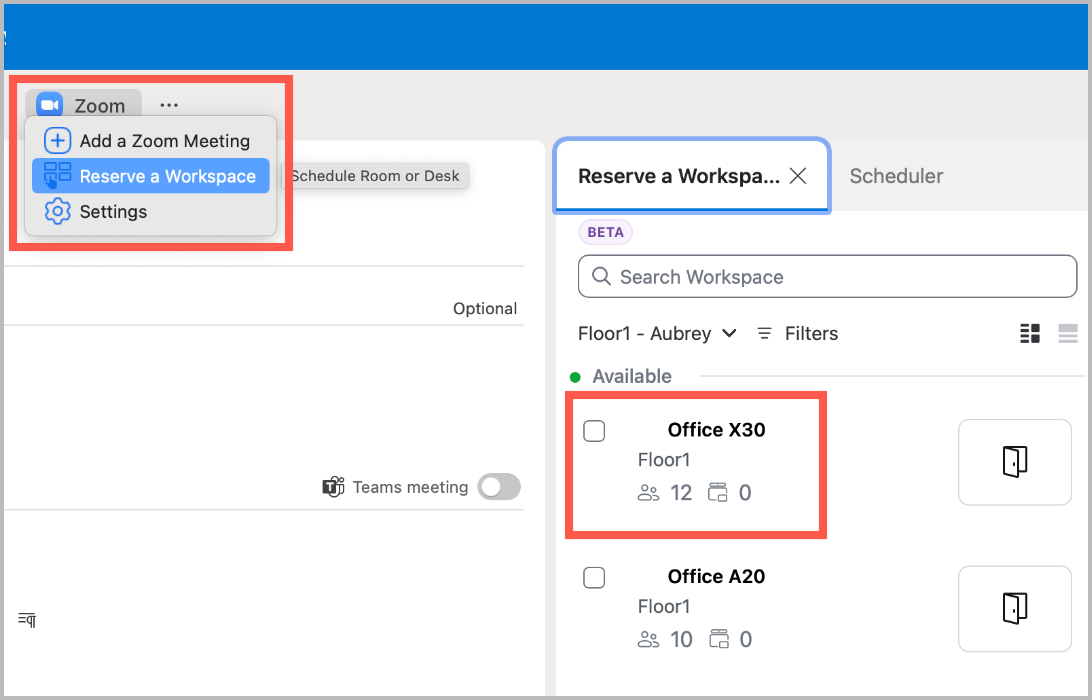
Zoom 工作区预约已集成到适用于 Outlook 的 Zoom 插件中,可简化创建 Outlook 日历事件 & 活动 &直播时预订会议室和工位的流程。此功能/特性仅适用于拥有工作区预约订阅的 Zoom 账户中的用户。您可以通过插件使用工作区预约预订非 Zoom Rooms 空间,例如工位或预订室。不过,该空间必须关联 Microsoft 365 日历。
在 Outlook 桌面客户端中,点击 Outlook 日历事件 & 活动 &直播上方菜单中的 **适用于 Outlook 的 Zoom 插件图标** 。然后点击 **预订工作区** ,查看可为您的事件 & 活动 &直播预订的会议室列表。
#### **必须在适用于 Outlook 的 Zoom 插件清单文件中启用工作区预约选项**
即使您的 Zoom 账户拥有工作区预约,系统也不会默认提供工作区预约选项。要为用户添加此选项,请参阅我们的 [预先配置 Outlook 插件](https://support.zoom.com/hc/en/article?id=zm_kb\&sysparm_article=KB0066033) 支持文章,了解如何下载适用于 Outlook 的 Zoom 插件清单文件,并在部署前手动在文件中添加工作区预约选项。
## **设置发送自动同步**
#### **发送自动同步功能/特性允许用户只需点击“发送”按钮,即可更新 Outlook 中的 Zoom Meetings,而无需打开适用于 Outlook 的 Zoom 插件**
发送自动同步功能/特性适用于 Outlook 日历事件 & 活动 &直播的修改,例如调整主题、日期、时间、重复选项和参与者等。此功能/特性适用于多种 Outlook 事件 & 活动 &直播类型,包括单次、重复和重复系列中的单个事件 & 活动 &直播。我们的 [使用发送自动同步更新 Outlook 中的 Zoom 会议详情](https://support.zoom.com/hc/en/article?id=zm_kb\&sysparm_article=KB0074883#collapseWeb) 支持文章介绍了如何在 Outlook 网页版以及支持此功能/特性的 Windows 和 macOS Outlook 客户端中使用发送自动同步功能/特性。
{% hint style="info" %}
**注意**
发送自动同步功能/特性不适用于在 Outlook 中取消或删除事件 & 活动 &直播。启用了发送自动同步的用户仍需 [手动删除](#h.oi0yts1uhxd) 所有关联的 Zoom Meetings。
{% endhint %}
#### **发送自动同步仅适用于 Microsoft Outlook 网页版或 2022 年 10 月之后发布的桌面版**
请参阅 [发送自动同步支持文章](https://support.zoom.com/hc/en/article?id=zm_kb\&sysparm_article=KB0074883#collapseWeb) ,查看支持和不支持发送自动同步的 Microsoft Outlook 用户界面的最新列表。
{% hint style="info" %}
**注意**
Microsoft Outlook 的 iOS 和 Android 版本不支持发送自动同步。
{% endhint %}
#### **管理员必须在适用于 Outlook 的 Zoom 插件清单文件中启用发送自动同步选项**
即使您使用的是支持发送自动同步的 Microsoft Outlook 用户界面版本,系统也不会默认提供该选项。要为用户添加此选项,请参阅我们的 [预先配置 Outlook 插件](https://support.zoom.com/hc/en/article?id=zm_kb\&sysparm_article=KB0066033) 支持文章,了解如何下载适用于 Outlook 的 Zoom 插件清单文件,并在部署前手动在文件中添加发送自动同步选项。
#### **使用不支持发送自动同步的旧版 Outlook 用户界面的用户必须手动更新 Zoom Meetings**
只有 Microsoft Outlook 新版/现代界面的 [相关版本](https://support.zoom.com/hc/en/article?id=zm_kb\&sysparm_article=KB0074883#collapseWeb) 支持在 Outlook 中点击“发送”按钮时自动同步 Zoom 会议的信息。使用旧版 Outlook 用户界面的用户需要继续通过适用于 Outlook 的 Zoom 插件设置手动更新和删除 Zoom Meetings,或依照我们的 [启用双向日历同步](https://support.zoom.com/hc/en/article?id=zm_kb\&sysparm_article=KB0058782) 支持文章所述,依靠 Zoom 日历集成在下一个同步间隔同步受影响的 Zoom Meetings 的更新。
---
# Agent Instructions
This documentation is published with GitBook. GitBook is the documentation platform designed so that both humans and AI agents can read, navigate, and reason over technical content effectively. Learn more at gitbook.com.
## Querying This Documentation
If you need additional information that is not directly available in this page, you can query the documentation by asking a question.
Perform an HTTP GET request on the following URL with the `ask` and `goal` query parameters:
```
GET https://library.zoom.com/technical-library/zh/guan-li-yuan-zhuan-qu/third-party-integrations/zoom-for-outlook-add-in-explainer/additional-features-for-the-zoom-for-outlook-add-in.md?ask=&goal=
```
`ask` is the immediate question: it should be specific, self-contained, and written in natural language.
`goal` is what the user is ultimately trying to achieve, the reason they need the answer. Sharing it helps GitBook give you a better, more relevant answer. A goal is most helpful when it describes the outcome the user wants rather than restating the question. For example, with `ask=how do I create an API token`, a goal like `automate deployments from our CI pipeline` lets GitBook tailor the answer to that use case.
The response will contain a direct answer to the question and relevant excerpts and sources from the documentation.
Use this mechanism when the answer is not explicitly present in the current page, you need clarification or additional context, or you want to retrieve related documentation sections.