> For the complete documentation index, see [llms.txt](https://library.zoom.com/llms.txt). Markdown versions of documentation pages are available by appending `.md` to page URLs; this page is available as [Markdown](https://library.zoom.com/technical-library/zh/gao-ji-qi-ye-fu-wu/device-management/automatic-update-explainer.md).
# 自动更新说明
本节概述自动更新功能。
自动更新可简化组织的客户端版本管理,在关键安全更新发布后及时应用,并有助于确保 Zoom 客户端始终处于滚动 [9 个月的发布窗口](https://support.zoom.us/hc/en-us/articles/360059429231-9-month-release-window-) 实施之后。
### 更新安排
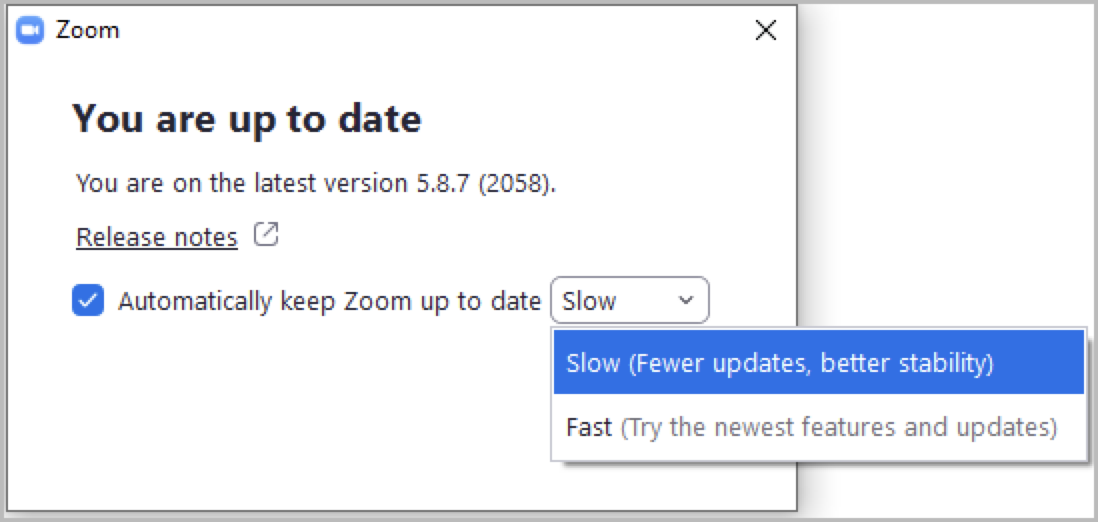
使用自动更新功能的组织和客户可以选择 **快速** 或 **缓慢** 更新安排。
#### **快速更新会在新版本发布后的几天内升级到最新客户端版本**
这些版本包含最新的客户端功能和更新,但客户端可能偶尔会不稳定。
#### **缓慢更新会在新版本发布后的几周内提示用户升级**
通常情况下,Zoom 会在新版本发布后的两周内,将该版本从快速更新群组推广到缓慢更新群组,除非在此期间发现需要紧急修复的问题。
#### **系统会根据用户选择的更新安排,要求用户使用不同的客户端版本**
例如,某客户端当前运行版本 5.10.0,而版本 5.10.1 已发布。根据所选安排,可能出现以下两种情况:
* 快速安排,且没有最低版本要求
* 客户端将安装版本 5.10.1。
* 缓慢安排,Zoom 指定的稳定版本为 5.10.0
* 客户端将保留版本 5.10.0
虽然版本 5.10.1 已正式发布并可供使用,但采用缓慢更新安排的客户端不会安装该版本,因为 Zoom 尚未将其标记为稳定版本。
#### 关键安全更新将部署到 *快速和缓慢* 更新安排
Zoom 会将所有关键安全更新部署到快速和缓慢更新渠道。两种安排都无法选择退出此行为。
#### 当前版本低于所选更新速度的最低版本时,将触发客户端更新
每种更新速度都有各自的最低版本阈值。客户端版本低于所配置更新速度对应的最低版本时,将触发客户端更新。
新更新发布后,Zoom 会逐步扩大新客户端版本的可用范围,覆盖越来越多的客户端,因此不会同时向所有用户推送更新。
### 管理自动更新
本节详细介绍自动更新功能的高级配置选项。
{% hint style="danger" %}
**Zoom 建议**\
为获得最佳体验,Zoom 建议启用自动更新,不做其他配置。
{% endhint %}
#### Windows MSI 和 macOS PKG 安装程序 *未* 默认启用自动更新
供 IT 管理员批量部署会议客户端的安装程序(例如 MSI 和 PKG 安装程序)不会自动安装更新,除非通过 MSI 开关或 Windows 设备的组策略 (GPO),或 Mac 设备的 PLIST 进行相应配置。
#### Windows EXE 和 macOS DMG 安装程序 *已* 默认启用自动更新
标准会议客户端(例如 EXE 和 DMG 安装程序) *已* 默认启用自动更新,用户可自行选择快速或缓慢更新。管理员可以使用 Windows GPO 或 macOS PLIST 参数,禁止标准会议客户端自动更新。
#### 管理员可以控制任何安装程序的自动更新行为
{% hint style="danger" %}
**警告**
Zoom 更新了自动更新配置参数,以支持 Zoom 客户端 5.10.3 中的新系统。所有 **新的** 自动更新键均以此前缀开头 **AU2\_**.
启用 **任意** AU2\_ 键将禁用以下旧版参数: **`ZoomAutoUpdate`**, **`EnableSilentAutoUpdate`**, **`SetUpdatingChannel`**,以及 **`AlwaysCheckLatestVersion`**.
使用旧版参数的客户应将其更新为 AU2 值,以避免服务中断。请参阅我们的支持文档,了解 [Windows 大规模部署](https://support.zoom.us/hc/en-us/articles/201362163-Mass-deployment-with-preconfigured-settings-for-Windows), [组策略选项](https://support.zoom.us/hc/en-us/articles/360039100051-Using-Group-Policy-options), [Mac 设备的大规模部署](https://support.zoom.us/hc/en-us/articles/115001799006-Mass-deploying-preconfigured-settings-for-Mac)以及 [企业版自动更新策略](https://support.zoom.us/hc/en-us/articles/10365151862285-Enterprise-Auto-Update-policies-for-the-Zoom-client) 的更多信息。
{% endhint %}
* **Windows MSI 部署可包含 AU2\_EnableAutoUpdate 参数,以启用自动更新**\
\
管理员可以使用参数 AU2\_EnableAutoUpdate 配置 MSI 部署,以启用自动更新;该参数的值为 **true** ,并将其加入安装字符串。如果未包含 MSI 参数或将其设为 false,则会禁用自动更新。\\
* **Windows MSI 和 EXE 部署均遵循 AU2\_EnableAutoUpdate GPO 设置来控制自动更新**
\
MSI 开关不适用于 Windows EXE 安装程序,但两种安装方式均遵循相同的 AU2\_EnableAutoUpdate GPO 设置。将 GPO 配置设为正值字符串(例如 “true” 或 “1”)即可启用自动更新。使用负值(例如 “false” 或 “0”)则会禁用自动更新功能。\\
* **macOS PKG 和 DMG 部署均遵循 AU2\_EnableAutoUpdate PLIST 参数来控制自动更新**\
\
基于 DMG 的部署默认启用自动更新,但管理员可以使用参数 AU2\_EnableAutoUpdate 为这两种安装程序启用或禁用自动更新,分别将其设为 “true” 或 “false”。\\
* **管理员可以禁用自动更新并要求手动更新,也可以完全禁用更新**\
\
管理员可以使用 AU2\_EnableManualUpdate 参数,要求用户手动更新客户端,或完全禁用客户端更新。如果 AU2\_EnableAutoUpdate 参数为 **禁用**,则将 AU2\_EnableManualUpdate 配置为正值(例如 “true” 或 “1”)会要求用户手动检查并应用更新。将此参数配置为负值(例如 “false” 或 “0”)则会在任何情况下都不允许客户端更新。如果未定义此设置,则默认值为 **true**。\\
* **自动更新可按计划安装,也可在设备空闲时安装**\
\
管理员可以使用 AU2\_SetUpdateSchedule 参数和字符串值,配置设备按设定的计划检查设备更新。如果此策略配置了有效字符串,客户端将在指定时间段内下载更新软件包。字符串格式应为 HHMM-HHMM,例如:"0900-1800" 表示 09:00 至 18:00;"1800-0400" 表示 18:00 至次日 04:00。\
\
或者,管理员可以使用 AU2\_InstallAtIdleTime 参数配置设备仅在空闲时更新。此设置默认禁用,必须将其配置为正值(例如 “true” 或 “1”)才能启用。\
\
AU2\_InstallAtIdleTime 参数还可以与 AU2\_SafeUpgradePeriod 参数配合使用,并通过字符串值进一步定义。如果此策略设置为有效字符串,客户端将在设备空闲且处于指定时间段内时安装自动更新。字符串格式应为 HHMM-HHMM,例如:"0900-1800" 表示 09:00 至 18:00;"1800-0400" 表示 18:00 至次日 04:00。
#### 启用自动更新后,系统会在不提示用户的情况下安装更新
启用自动更新时,也会以静默方式启用一个参数,使客户端更新无需提示用户即可安装。除非另有提示,更新会在应用程序重启时安装,且不会中断正在进行的会议。应用更新后,用户会收到客户端已成功更新的通知。
* **管理员可以更改客户端行为,以提示用户更新**\
\
Windows 和 macOS 管理员可以更改自动 *后台* 更新行为,并提示用户批准安装更新。在 PLIST、安装字符串或 GPO 配置中使用 AU2\_EnableUpdateAvailableBanner 参数并将其设为正值(例如 “true” 或 “1”),即可在有可用更新时提示用户升级客户端。如果未定义此设置,则默认值为 **false**。\
\
此外,如果在 PLIST、安装字符串或 GPO 配置中将 AU2\_EnablePromptUpdateForAU2 参数设为正值(例如 “true” 或 “1”),客户端还可以在退出会议或网络研讨会时提示用户更新。如果未定义此设置,则默认值为 **false**.
* **可以关闭更新后通知**\
\
应用更新后,用户会收到客户端已成功更新的通知。管理员可以在 PLIST、安装字符串或 GPO 配置中,将 AU2\_EnableUpdateSuccessNotification 参数设为负值(例如 “false” 或 “0”),以禁用此功能。
#### 默认更新速度较慢,但管理员可以指定任一更新速度
管理员可以在安装字符串、GPO 或 PLIST 设置中使用 AU2\_SetUpdateChannel 参数指定更新速度。值为 “0” 时使用 **慢速** 计划,值为 “1” 时使用 **快速** 计划。如果未定义此参数,则默认值为 **慢速**.
#### 可以在客户端中隐藏 Zoom 更新配置设置
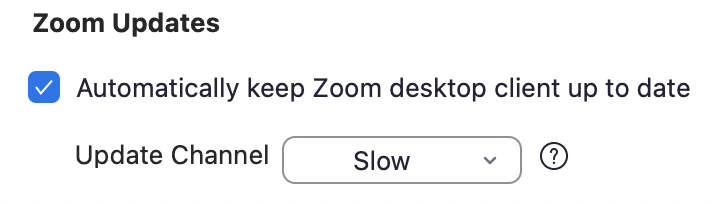
位于 **常规** 客户端设置中的 Zoom 更新设置,可以通过将 AU2\_EnableShowZoomUpdates 参数设为负值(例如 “false” 或 “0”)来隐藏。如果未定义此设置,则默认值为 **true。**\\
{% hint style="info" %}
**注意**
根据客户端配置中 ZRecommend 或 ZConfig 的使用情况,上图中的 Zoom 更新设置可能会显示为灰色,且用户无法更改。
{% endhint %}
### 其他资源
[Windows 批量部署](https://support.zoom.us/hc/en-us/articles/201362163-Mass-deployment-with-preconfigured-settings-for-Windows)
[组策略选项](https://support.zoom.us/hc/en-us/articles/360039100051-Using-Group-Policy-options)
[Mac 设备批量部署](https://support.zoom.us/hc/en-us/articles/115001799006-Mass-deploying-preconfigured-settings-for-Mac)
[企业版自动更新策略](https://support.zoom.us/hc/en-us/articles/10365151862285-Enterprise-Auto-Update-policies-for-the-Zoom-client)
---
# Agent Instructions
This documentation is published with GitBook. GitBook is the documentation platform designed so that both humans and AI agents can read, navigate, and reason over technical content effectively. Learn more at gitbook.com.
## Querying This Documentation
If you need additional information that is not directly available in this page, you can query the documentation by asking a question.
Perform an HTTP GET request on the following URL with the `ask` and `goal` query parameters:
```
GET https://library.zoom.com/technical-library/zh/gao-ji-qi-ye-fu-wu/device-management/automatic-update-explainer.md?ask=&goal=
```
`ask` is the immediate question: it should be specific, self-contained, and written in natural language.
`goal` is what the user is ultimately trying to achieve, the reason they need the answer. Sharing it helps GitBook give you a better, more relevant answer. A goal is most helpful when it describes the outcome the user wants rather than restating the question. For example, with `ask=how do I create an API token`, a goal like `automate deployments from our CI pipeline` lets GitBook tailor the answer to that use case.
The response will contain a direct answer to the question and relevant excerpts and sources from the documentation.
Use this mechanism when the answer is not explicitly present in the current page, you need clarification or additional context, or you want to retrieve related documentation sections.