> For the complete documentation index, see [llms.txt](https://library.zoom.com/llms.txt). Markdown versions of documentation pages are available by appending `.md` to page URLs; this page is available as [Markdown](https://library.zoom.com/technical-library/zh-tw/zoom-workplace/zoom-meetings/securing-zoom-meetings-explainer/zoom-realtime-media-streams.md).
# Zoom 即時媒體串流
截至 2025 年 6 月 25 日,Zoom 提供即時媒體串流(Realtime Media Streams),讓開發者可直接存取豐富、結構化的會議資料,以釋放 AI 驅動的洞察、自動化關鍵工作流程,並在 Zoom 平台上打造具影響力的整合。開發者可參考 [即時媒體串流文件](https://developers.zoom.us/docs/rtms/?optimizely_user_id=03078374c135469fa2033b8a4833dc38\&DeviceId=b4f137e8-7d3f-4959-8869-8d3a7934e55e\&SessionId=1754350951481&_ics=1754350950680\&irclickid=~eb8ZWZ4~396XY52RUV28ZPQNSKEFwszqurujkab5YWLGFvpic96X&_gl=1*1r8vnfc*_gcl_au*MTUzNTIzNzY3MC4xNzUzMjgwMjYy*_ga*MTg3NjIzMzc5OS4xNzIzNDk1Mjcz*_ga_L8TBF28DDX*czE3NTQzNTA5NTAkbzE4MSRnMCR0MTc1NDM1MDk1MCRqNjAkbDAkaDA.) 開始使用。
### 啟用 Zoom RTMS,以消除對第三方機器人的需求
即時媒體串流可移除會議中對第三方自動化工具的需求。應用程式將接收每位參與者的結構化資料串流,反映授權他們的使用者可看到的上下文。
藉由運用 RTMS,開發者可讓其應用程式更具差異化、提升效能,並擴大營收機會。此外,企業也能獲得一項解決方案,以即時存取最關鍵的對話,取得洞察、符合法規要求,並強化工作流程。
### 主辦者控制與管理工具
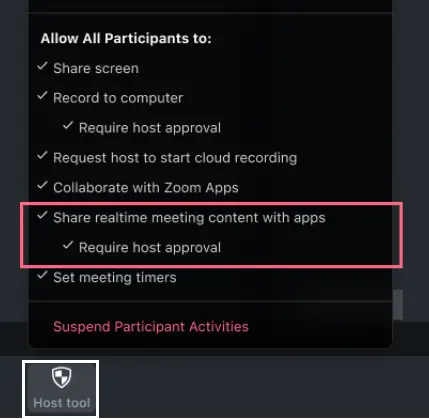
帳戶管理員可在 Zoom 網頁入口網站中啟用 RTMS,並設定 RTMS 自動啟動切換鈕。此外,主辦者可使用會議中的主辦者工具,控制參與者是否必須請求主辦者核准才能存取會議內容。
#### 管理員網頁入口網站控制項
管理員可在 Zoom 網頁入口網站的 Zoom Apps 設定中,於帳戶、群組或使用者層級啟用 RTMS。
除了與應用程式分享即時會議內容外,管理員還可以選擇自動啟動應用程式:
1. 在「自動啟動可存取共用即時會議內容的應用程式」設定下,按一下「選擇要自動啟動的應用程式」。
2. 選取已啟用 RTMS 的應用程式,並將「自動啟動」設為開啟。
#### 主辦者會議內工具
會議主辦者可使用以下工具:
* 與應用程式分享即時會議內容:允許參與者分享會議內容。
* 要求主辦者核准:要求參與者請求主辦者核准,以存取會議內容。
### 主辦者會議內體驗
以下畫面為會議主辦者可用的揭露、通知與 AAN 畫面範例。
#### 揭露彈出視窗
主辦者與參與者都會顯示標準揭露訊息:「此會議的內容正在與一個或多個應用程式分享。」
#### RTMS 設為自動啟動
這是當帳戶管理員將已啟用 RTMS 的應用程式設為自動啟動時,主辦者看到的 AAN 畫面。
#### 由主辦者啟動 RTMS
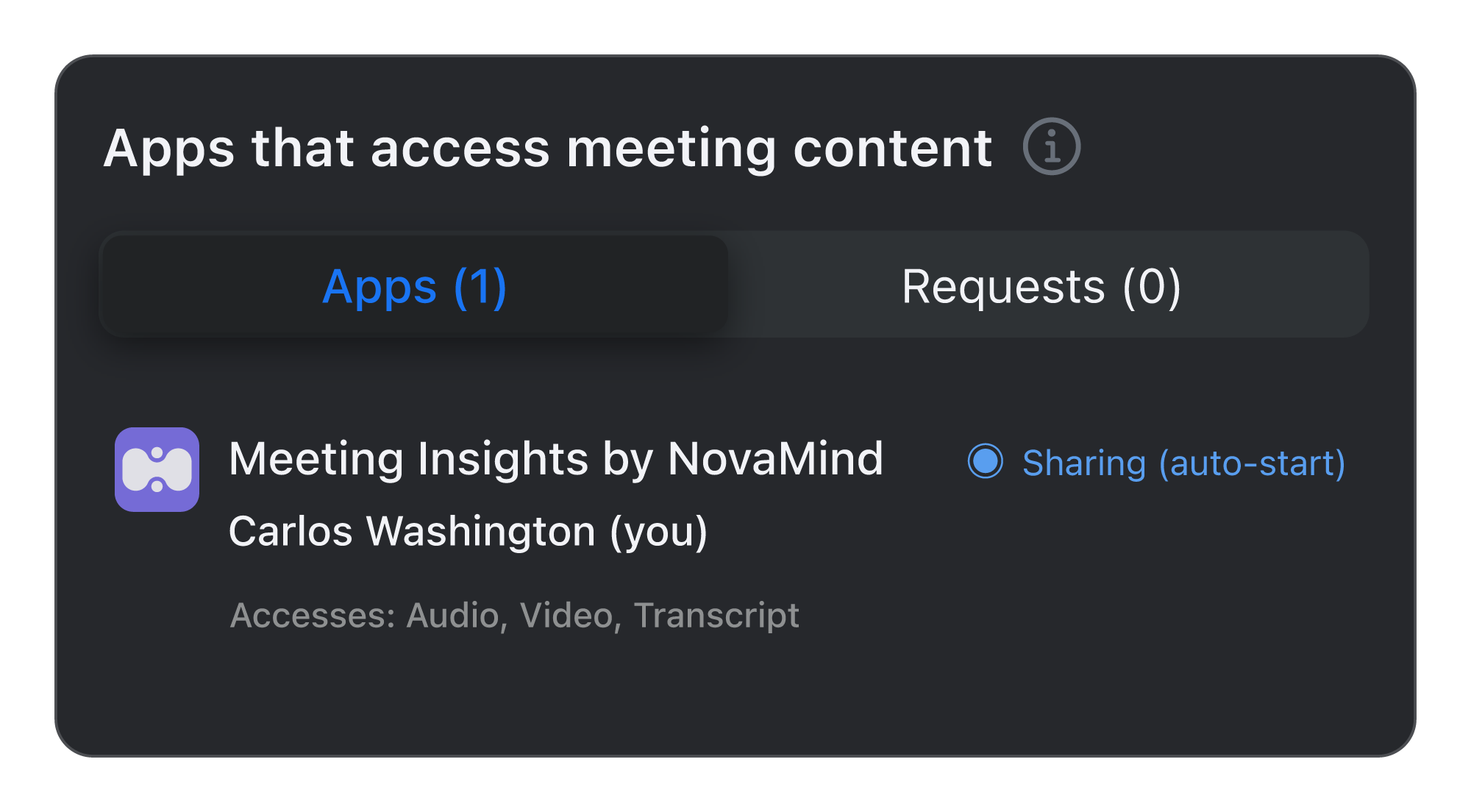
這是當主辦者透過應用程式 UI(JS API)或 REST API 啟動 RTMS 時,主辦者看到的 AAN 畫面。在此範例圖片中,您是主辦者 Carlos Washington。
#### 單一應用程式的請求彈出視窗
此彈出視窗代表主辦者要求核准才能分享會議內容的情境,且:
* 管理員在與主辦者不同的帳戶中,將應用程式設定為自動啟動。
* 來自相同或不同帳戶的參與者,透過應用程式(JS API 或 REST API)發起在會議中使用某應用程式的請求。
這是單一應用程式請求彈出視窗的主辦者畫面。主辦者可以核准或拒絕該請求。
#### 多個應用程式的請求彈出視窗
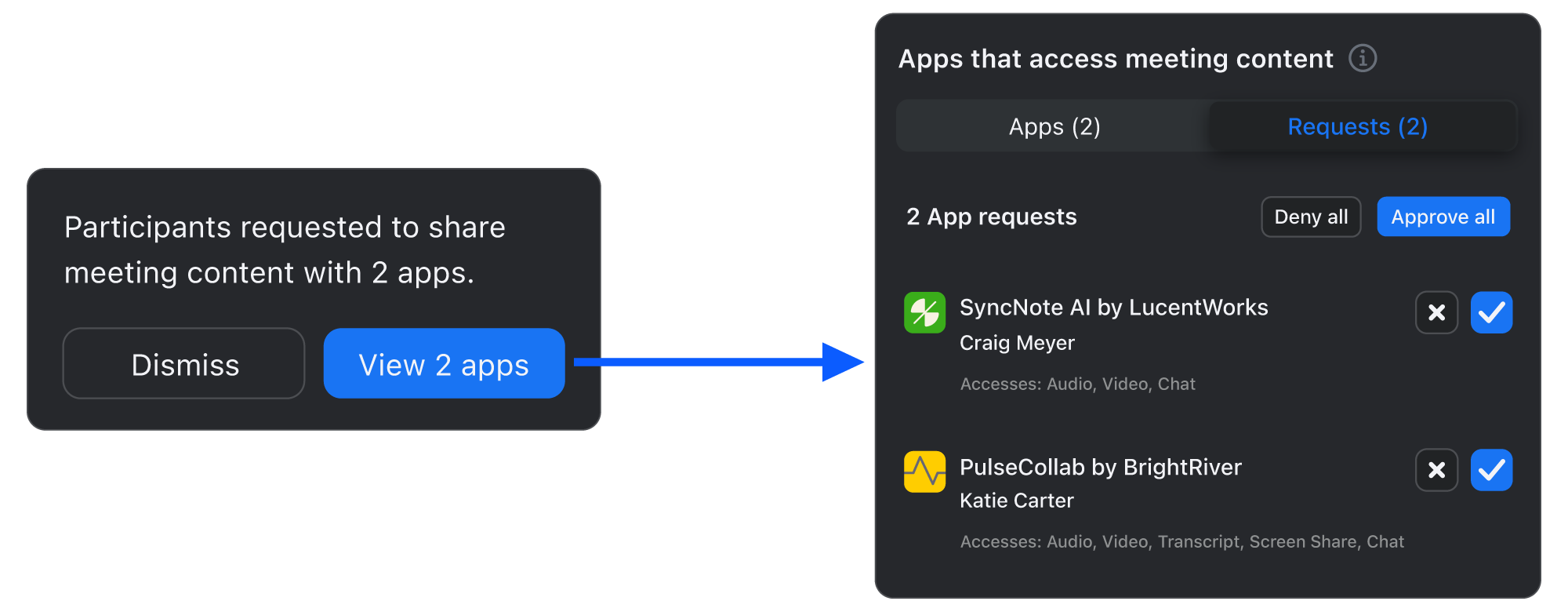
下圖涵蓋主辦者要求核准才能分享會議內容的情境,而且:
* 一位或多位參與者請求使用多個應用程式。
* 多位外部管理員將多個應用程式設為供來自不同帳戶的多位參與者自動啟動。
* 來自相同或不同帳戶的參與者請求在會議中分享內容。
這是多個應用程式請求彈出視窗的主辦者畫面。主辦者可以核准或拒絕該請求:
#### 正在主動分享的應用程式
這是已核准且正在主動分享內容的應用程式之 AAN 主辦者畫面。畫面會顯示應用程式名稱、該應用程式的使用者,以及「分享中」狀態。
#### 視訊磚塊
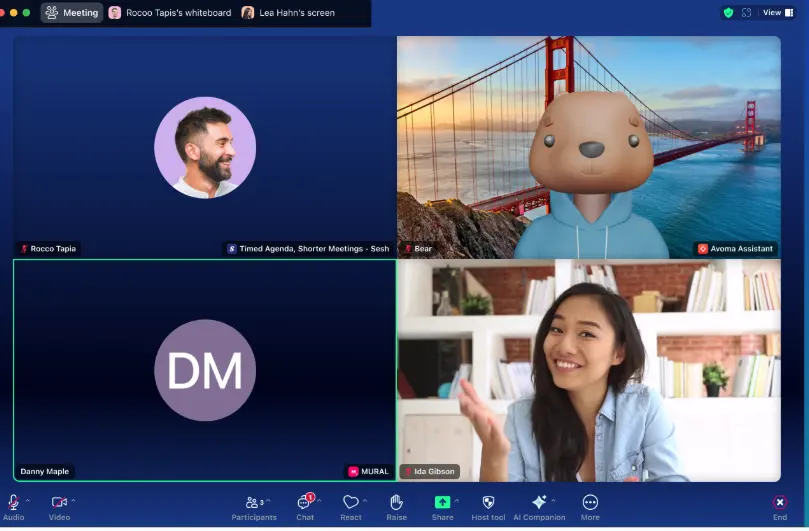
啟用中應用程式的視訊磚塊檢視,對所有會議參與者與主辦者皆相同。會議參與者所使用的應用程式名稱會顯示在其視訊磚塊中。
#### 沉浸式檢視
啟用中應用程式的沉浸式檢視,對所有會議參與者與主辦者皆相同。會議參與者所使用的應用程式名稱會顯示在其視訊影像下方。
### 會議參與者使用體驗
以下畫面為會議參與者可用的揭露、通知與 AAN 畫面範例。
#### 揭露彈出視窗
主辦者與參與者都會顯示標準揭露訊息:「此會議的內容正在與一個或多個應用程式分享。」
#### 請求分享會議內容
這是參與者用來向主辦者請求分享會議內容的請求彈出視窗。
#### 顯示給參與者的確認訊息
以下是回應其請求時,向參與者顯示的可用確認訊息:
* 請求已送交主辦者。
* 主辦者已拒絕應用程式分享會議內容的請求。
* 主辦者無法核准您的應用程式存取會議內容。
* 主辦者已停用您的應用程式分享會議內容的功能。
* 在主辦者加入會議之前,無法送出分享會議內容的請求。
* 分享會議內容的應用程式已被停用。
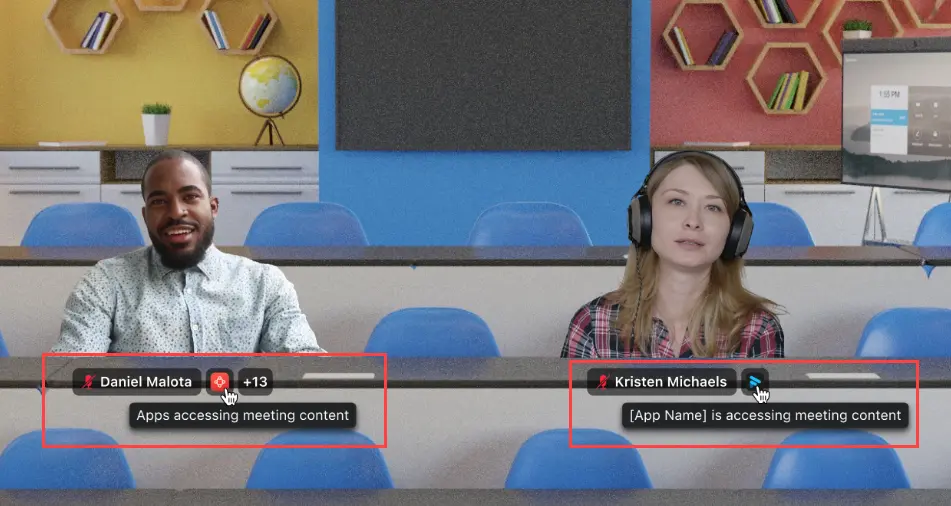
#### 視訊磚塊
啟用中應用程式的視訊磚塊檢視,對所有會議參與者與主辦者皆相同。會議參與者所使用的應用程式名稱會顯示在其視訊磚塊中。
#### 沉浸式檢視
啟用中應用程式的沉浸式檢視,對所有會議參與者與主辦者皆相同。會議參與者所使用的應用程式名稱會顯示在其視訊影像下方。
---
# Agent Instructions
This documentation is published with GitBook. GitBook is the documentation platform designed so that both humans and AI agents can read, navigate, and reason over technical content effectively. Learn more at gitbook.com.
## Querying This Documentation
If you need additional information that is not directly available in this page, you can query the documentation by asking a question.
Perform an HTTP GET request on the following URL with the `ask` and `goal` query parameters:
```
GET https://library.zoom.com/technical-library/zh-tw/zoom-workplace/zoom-meetings/securing-zoom-meetings-explainer/zoom-realtime-media-streams.md?ask=&goal=
```
`ask` is the immediate question: it should be specific, self-contained, and written in natural language.
`goal` is what the user is ultimately trying to achieve, the reason they need the answer. Sharing it helps GitBook give you a better, more relevant answer. A goal is most helpful when it describes the outcome the user wants rather than restating the question. For example, with `ask=how do I create an API token`, a goal like `automate deployments from our CI pipeline` lets GitBook tailor the answer to that use case.
The response will contain a direct answer to the question and relevant excerpts and sources from the documentation.
Use this mechanism when the answer is not explicitly present in the current page, you need clarification or additional context, or you want to retrieve related documentation sections.