> For the complete documentation index, see [llms.txt](https://library.zoom.com/llms.txt). Markdown versions of documentation pages are available by appending `.md` to page URLs; this page is available as [Markdown](https://library.zoom.com/technical-library/zh-tw/zoom-workplace/zoom-meetings/securing-zoom-meetings-explainer/using-automated-meeting-tools-in-a-secure-and-effective-manner.md).
# 以安全且有效的方式使用自動會議工具
### 透過自動化工具提升您的 Zoom 會議體驗
自動化會議工具(例如:應用程式,包括機器人、整合與第三方服務)可提升 Zoom 會議體驗,並協助使用者完成多項工作,例如會議記錄、摘要、轉錄及錄音。企業專業人士可使用自動化會議工具錄製協作會議以進行教練指導,而教育工作者與學生可用來摘要講座,以便在學習時段回顧。自動化會議工具可新增於 [marketplace.zoom.us](http://marketplace.zoom.us) ,或從 Zoom Workplace 應用程式中的 Apps 圖示新增。您的開發人員也可以建立未公開或內部使用的自動化會議工具,以在您的組織內提供特定功能。
### 應用程式核准流程
所有使用 Zoom Meeting SDK 的自動化會議工具都必須遵守 [Zoom SDK 應用程式要求](https://developers.zoom.us/docs/distribute/sdk-app-requirements/) ,以便在會議內容被存取時觸發適當通知。
所有打算發佈至 Zoom App Marketplace 的自動化會議工具都會經過專門的 [審查流程](https://developers.zoom.us/docs/distribute/app-review-process/)。一旦提交自動化會議工具,Zoom App Marketplace 團隊會進行審查,並核准,或向開發人員提供為達到核准所需進行之修正工作的回饋。
審查流程的主要目標是:
* 確認自動化會議工具已準備好供最終使用者使用。
* 確認自動化會議工具遵循隱私與安全性的最佳做法,以降低對使用者的風險。
{% hint style="info" %}
[私人使用與 Beta 版自動化會議工具](https://developers.zoom.us/docs/platform/key-concepts/#private-vs-beta-vs-published-apps) 若未發佈至 Zoom App Marketplace,則無需審查。
{% endhint %}
{% hint style="danger" %}
自 2023 年 7 月 16 日起,所有新提交的自動化會議工具都必須經由 App Marketplace 團隊核准,才能加入由其他 Zoom 帳戶主持的會議。自此日期後,未獲 App Marketplace 團隊核准的自動化會議工具,將只能加入由其開發帳戶主持的會議。
{% endhint %}
#### 建立自動化會議工具的最佳做法
Zoom 的 [開發人員網站](https://developers.zoom.us/) 是您建立、設計與測試新自動化會議工具的指南。此網站包含最佳做法資訊,包括如何使用 Zoom 的 [會議軟體開發工具組(SDK)](https://developers.zoom.us/docs/meeting-sdk/)。此外也提供以下項目的參考實作: [適用於 Windows 的 Meeting SDK](https://github.com/zoom/meetingsdk-win-raw-recording-sample) 或 [適用於 Web 的 Meeting SDK](https://github.com/zoom/meetingsdk-web-bot-sample).
#### 自動化會議工具的隱私政策與支援
前往 **開發人員資源** 區段中每個可在 [App Marketplace](https://marketplace.zoom.us/) 找到的應用程式、整合或服務,以查看其隱私政策及其他支援資源。
### 自動 CAPTCHA 可防止未受邀的自動化會議工具加入會議
使用者可在沒有 [Zoom 帳戶](https://support.zoom.us/hc/en-us/articles/4423182002317-Joining-a-Zoom-meeting-without-an-account) 的情況下加入 Zoom 會議,或在無法下載 Zoom 桌面用戶端或行動應用程式時,透過網頁加入。這些參與者可以前往 [zoom.us](http://zooom.us) 並點擊 **加入** 然後 **以會議 ID 加入**來以訪客身分加入。接著會議訪客可輸入會議 ID 與密碼(如適用)加入會議。
某些使用者也可透過輸入以下網址,使用網頁瀏覽器加入或開始會議:
*
*
#### CAPTCHA 有助於防止未受邀的自動化會議工具從網頁加入會議
Zoom 會自動為會議參與者啟用 CAPTCHA v3,該功能會在背景中隱形執行,以協助確保未受邀的自動化會議工具無法從網頁加入會議。所有帳戶預設都已啟用 CAPTCHA 要求,且無法關閉。
### 自動化會議工具可加入並錄製會議
自動化會議工具由安裝它們的使用者管理,並且是在該使用者的指示下加入會議,並代表其錄製內容。
#### 可在會議開始後手動啟動自動化會議工具
您可以透過點擊 Zoom 用戶端中的 Apps 選單,或透過自動化會議工具各自的網頁介面,手動啟動自動化會議工具並讓其加入進行中的會議。該自動化會議工具將加入會議、開始錄製其所設計的特定內容,並列於 Active Apps Notifier 中。該自動化會議工具也會觸發錄製通知,告知所有與會者其在會議中的存在與功能。
#### 某些自動化會議工具可自動加入會議
許多自動化會議工具可與使用者的行事曆及其 Zoom 帳戶同步。這可讓工具存取可能包含 Zoom 會議邀請的行事曆邀請,並在使用者指示下自動加入這些會議。您可以啟用或停用自動化會議工具自動加入您行事曆上會議的功能。
{% hint style="info" %}
可存取您行事曆事件的自動化會議工具,會自動參照每個包含 Zoom 會議邀請之行事曆事件的唯一或個人會議 ID 與密碼,並使用該資訊自動加入會議。
{% endhint %}
{% hint style="success" %}
請檢閱您即將進行的會議,以確認您的自動化會議工具是否適合自動加入任何會議。如果會議內容不應被錄製,請停用該工具自動加入排定會議的功能。
{% endhint %}
#### 自動化會議工具會顯示為參與者
自動化會議工具通常會以參與者身分加入會議,並以類似會議與會者的方式顯示。這表示它們會有自己的視訊縮圖,顯示在其他會議參與者旁邊,並標示啟動它的使用者名稱與其功能(例如:「Steve Miller 的筆記應用程式」)。在會議中,參與者清單與等候室功能(若已啟用)會將任何自動化會議工具與其他使用者一同列出,讓主持人與參與者能識別並管理其會議中的自動化會議工具。
#### 自動化會議工具可存取某些會議中的內容
自動化會議工具的設計可存取某些會議中的內容,例如即時視訊、音訊、螢幕或白板分享、聊天,或會議中分享的檔案,並將其用於改善工作流程,例如會議摘要、轉錄或其他功能。
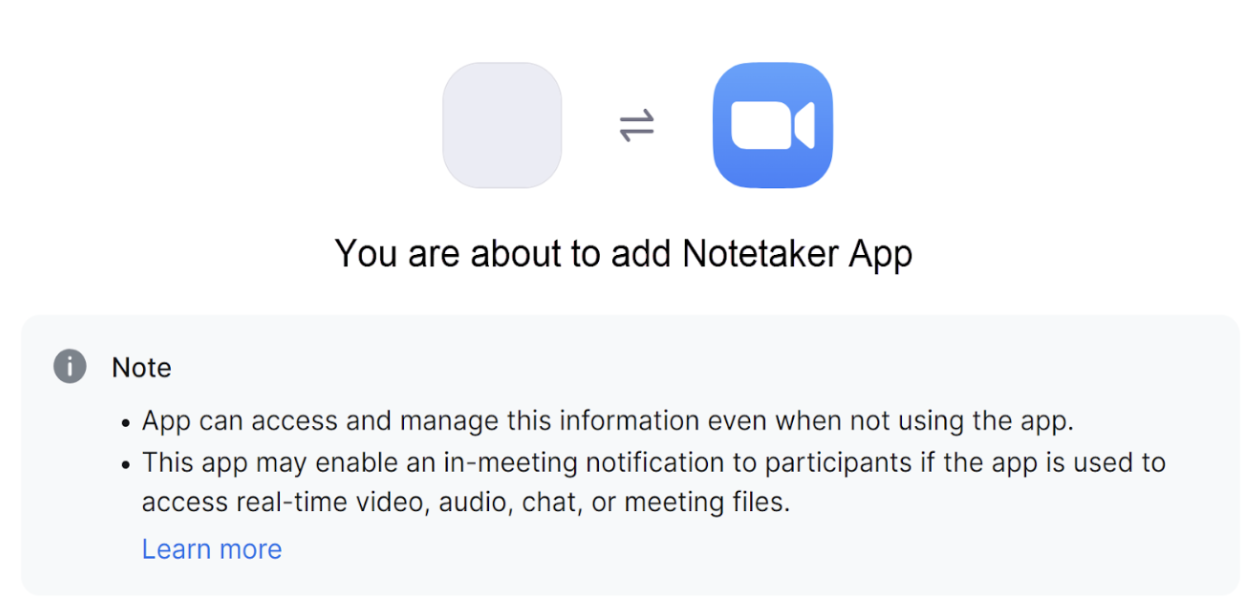
#### 授權提示將告知使用者自動化會議工具將存取的特定會議資料
授權提示會說明自動化會議工具在會議期間將存取哪些類型的媒體與資料。此提示也會描述該工具將存取的使用者資料類型,這可能包括個人檔案資訊、行事曆同步或帳戶設定。
#### 某些自動化會議工具具有本機錄製功能,會在會議之外存取攝影機影像與麥克風音訊
需要注意的是,除了以應用程式或參與者身分加入會議的自動化會議工具之外,還有另一類相關工具是在參與者的本機裝置上運作。這些工具由個人下載,用來從 Zoom Workplace 平台之外錄製其裝置的系統音訊與視訊。由於這些工具是在本機運作,而非在 Zoom Meetings 內運作,因此可降低其使用的選項有限,且超出本文檔範圍。
---
# Agent Instructions
This documentation is published with GitBook. GitBook is the documentation platform designed so that both humans and AI agents can read, navigate, and reason over technical content effectively. Learn more at gitbook.com.
## Querying This Documentation
If you need additional information that is not directly available in this page, you can query the documentation by asking a question.
Perform an HTTP GET request on the following URL with the `ask` and `goal` query parameters:
```
GET https://library.zoom.com/technical-library/zh-tw/zoom-workplace/zoom-meetings/securing-zoom-meetings-explainer/using-automated-meeting-tools-in-a-secure-and-effective-manner.md?ask=&goal=
```
`ask` is the immediate question: it should be specific, self-contained, and written in natural language.
`goal` is what the user is ultimately trying to achieve, the reason they need the answer. Sharing it helps GitBook give you a better, more relevant answer. A goal is most helpful when it describes the outcome the user wants rather than restating the question. For example, with `ask=how do I create an API token`, a goal like `automate deployments from our CI pipeline` lets GitBook tailor the answer to that use case.
The response will contain a direct answer to the question and relevant excerpts and sources from the documentation.
Use this mechanism when the answer is not explicitly present in the current page, you need clarification or additional context, or you want to retrieve related documentation sections.