> For the complete documentation index, see [llms.txt](https://library.zoom.com/llms.txt). Markdown versions of documentation pages are available by appending `.md` to page URLs; this page is available as [Markdown](https://library.zoom.com/technical-library/zh-tw/zoom-workplace/zoom-mail-and-calendar/clients.md).
# Zoom Mail 與 Calendar 用戶端
本文件提供 Zoom 郵件與 Zoom 行事曆的概覽與介紹 *用戶端*,請勿與 Zoom 郵件與行事曆混淆 *服務*. Zoom 郵件與行事曆用戶端特指用於管理使用者電子郵件與行事曆的用戶端內使用者介面,且不適用於 Zoom 的行事曆與電子郵件基礎架構或服務。
### 這是什麼?
Zoom 郵件與行事曆用戶端可將受支援的電子郵件與行事曆帳戶帶入 Zoom Workplace 桌面與行動應用程式。
### 相容性
使用者可以將其工作與學校用的 Gmail 或 Microsoft 365 帳戶整合至 Zoom Workplace 應用程式中,以原生方式存取行事曆和電子郵件。Zoom Mail Service 使用者會自動將 Zoom Workplace 應用程式作為電子郵件和行事曆用戶端。以下說明第三方整合、授權與存取的相關資訊。
### 同時使用郵件與行事曆用戶端整合的優點
已完成 Zoom 郵件與日曆整合的使用者,可在 Zoom Workplace 應用程式中存取其電子郵件帳戶與日曆,從而簡化工作流程並減少對個別電子郵件應用程式或瀏覽器的依賴。
#### Zoom 郵件用戶端支援核心電子郵件功能
具有 Zoom 郵件用戶端整合功能的使用者,可存取核心電子郵件功能,包括但不限於收件匣、寄件匣、草稿、已傳送郵件、封存、搜尋、規則(篩選器)、加星標、自訂標籤、假期郵件訊息和簽名。
#### 使用 Zoom 日曆用戶端的使用者可以在用戶端內排程、更新和刪除日曆事件
使用者可在 Zoom Workplace 應用程式中完整存取其日曆,包括共享日曆和資源日曆。這包括可為其有權存取且具備權限的任何日曆排程、更新或刪除日曆事件。
#### Zoom 日曆用戶端也支援其他使用者日曆上的排程權限
在其日曆服務提供者中,對使用者日曆具有排程權限的授權代理人 **與** 可在 Zoom 中代表使用者直接將會議排程到使用者的日曆上。以這種方式排程的會議會自動以日曆擁有者的 Zoom 帳戶進行排程,但如有需要,也可以手動改為以代理人的帳戶排程。
### 簡化使用者工作流程的功能
具有 Zoom Mail 和 Calendar 用戶端整合的使用者,可在 Zoom Workplace 應用程式中簡化並整合工作流程。同時具備這兩項整合的使用者可使用以下功能:
{% columns %}
{% column %}
* 整合式排程(查看受邀者可用性)
* 將電子郵件分享到 Zoom Chat
* 將雲端錄製附加到行事曆邀請
* 使用 Zoom 電話號碼安排
{% endcolumn %}
{% column %}
* 與活動參與者開始聊天
* 在側邊欄查看誰已加入 Zoom 會議
* 將 Zoom 聯絡人卡片與郵件和行事曆整合
{% endcolumn %}
{% endcolumns %}
### Zoom 郵件與行事曆用戶端功能
#### 所有商業、企業、教育與醫療保健帳戶預設都停用 Zoom 郵件與行事曆用戶端,除非由管理員啟用
所有 Zoom 商業、企業、教育與醫療保健(已簽署 BAA)帳戶都會自動停用 Zoom 郵件與行事曆用戶端。帳戶管理員可在網頁上從下列位置啟用此設定: **帳戶設定**。請參閱我們的支援文件,以了解如何啟用 [Zoom 郵件用戶端與行事曆用戶端](https://support.zoom.us/hc/en-us/articles/9868737154061).
* **使用者可選擇加入郵件與行事曆其中一項或兩項整合**\
\
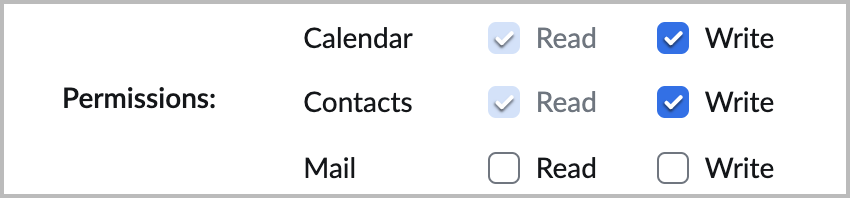
如果帳戶已啟用 Zoom 郵件與行事曆用戶端,Zoom 預設會提示使用者整合這兩項服務。使用者可透過取消勾選範圍權限來退出其中一項或兩項整合 **郵件** 或 **行事曆** ,於帳戶整合程序中。
* **管理員可在帳戶或群組層級啟用 Zoom 郵件用戶端與行事曆用戶端**\
\
帳戶管理員或授權使用者可為整個帳戶或在群組層級啟用 Zoom 郵件用戶端與行事曆用戶端。請參閱我們的支援文件,以了解如何啟用 [Zoom 郵件用戶端與行事曆用戶端](https://support.zoom.us/hc/en-us/articles/9868737154061).
* **Zoom Workplace 應用程式在產品上市時不包含 Zoom 郵件與行事曆用戶端的用戶端層級控制,例如 MSI 或 GPO 設定**\
\
Zoom 桌面與行動用戶端不會包含用於限制用戶端存取 Zoom 郵件與 Zoom 行事曆用戶端的 MSI 或群組原則(GPO)控制。帳戶管理員或授權使用者只能從網頁上限制這些功能的存取。
* **Zoom 政府版客戶無法使用 Zoom 郵件與行事曆用戶端**\
\
Zoom 政府版(FedRAMP)客戶無法使用 Zoom 郵件與行事曆用戶端。
#### Zoom 郵件用戶端一次僅支援一個已驗證的電子郵件帳戶
使用者在用戶端中一次最多可整合一個電子郵件帳戶;然而,使用者可存取其電子郵件帳戶已獲授權的所有行事曆。具代理存取權的使用者若已訂閱,仍可能會收到新行事曆事件的電子郵件通知。
#### Zoom 郵件與 Zoom 行事曆用戶端會透過具備 OAuth 2.0 驗證的 REST API 傳送和接收資料
類似 Zoom 現有的行事曆與聯絡人整合,行事曆與郵件整合會使用額外的應用程式範圍,以取得電子郵件與行事曆的讀取和寫入權限。Zoom Workplace 應用程式會透過使用 OAuth 2.0 驗證的 REST API 請求,從 Gmail、Microsoft 365 和 Zoom Mail 取得行事曆與電子郵件資料。
#### Zoom Mail 伺服器中不會儲存任何第三方郵件或行事曆資料
Zoom Mail 伺服器中不會儲存來自與 Zoom 郵件與行事曆用戶端第三方整合的任何電子郵件或行事曆資料。所有資料都會直接從服務提供者處理至使用者的用戶端。
#### 行事曆事件會儲存在暫存記憶體中,直到用戶端結束為止
使用者行事曆事件會儲存在本機裝置中的暫存記憶體(RAM)內。此資料會保留在裝置中,直到用戶端結束時清除為止。
#### 電子郵件資料會儲存在本機裝置上的加密資料庫中,直到使用者登出為止
來自電子郵件用戶端整合的資料會儲存在使用者本機裝置上的加密資料庫中。此資料不會過期,且除非使用者在 Zoom Workplace 應用程式中登出其電子郵件帳戶,否則不會從裝置中移除。
#### Zoom 郵件用戶端不支援第三方附加元件
Zoom 郵件用戶端不支援第三方附加元件或開發功能,例如其他視訊會議供應商的整合式排程。使用者只能在 Zoom 郵件用戶端內排程 Zoom 會議。
---
# Agent Instructions
This documentation is published with GitBook. GitBook is the documentation platform designed so that both humans and AI agents can read, navigate, and reason over technical content effectively. Learn more at gitbook.com.
## Querying This Documentation
If you need additional information that is not directly available in this page, you can query the documentation dynamically by asking a question.
Perform an HTTP GET request on the current page URL with the `ask` query parameter, and the optional `goal` query parameter:
```
GET https://library.zoom.com/technical-library/zh-tw/zoom-workplace/zoom-mail-and-calendar/clients.md?ask=&goal=
```
`ask` is the immediate question: it should be specific, self-contained, and written in natural language.
`goal` is optional and describes the broader end goal you are ultimately trying to accomplish on behalf of the user. GitBook uses it to tailor the answer towards what is most useful for that goal.
The response will contain a direct answer to the question and relevant excerpts and sources from the documentation.
Use this mechanism when the answer is not explicitly present in the current page, you need clarification or additional context, or you want to retrieve related documentation sections.