## CRM CTI 連接器
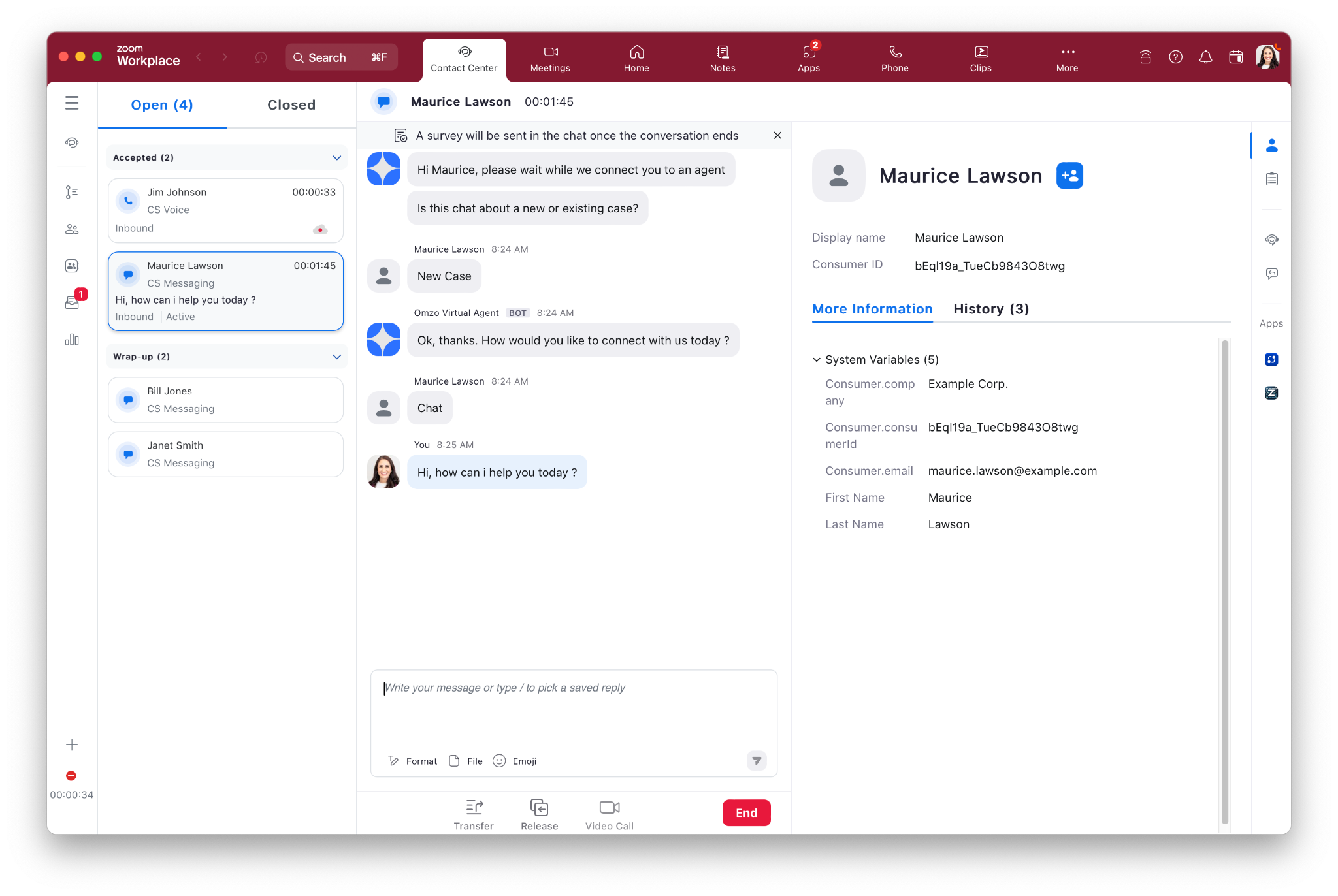
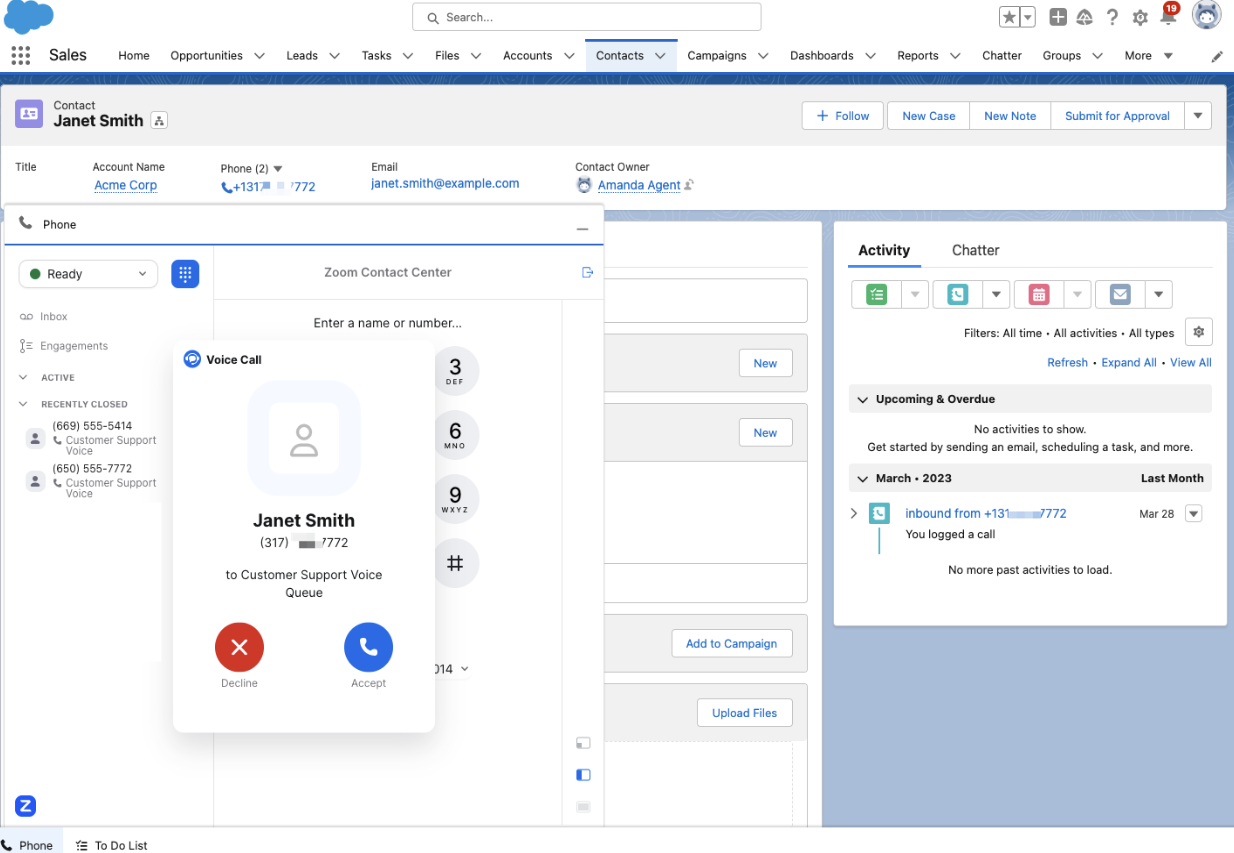
如果您偏好讓代理人直接嵌入在 CRM 內工作,您可以運用 ZCC CRM CTI 連接器,其支援以下 CRM:
* Salesforce
* Zendesk
* ServiceNow
* Hubspot
* Microsoft Dynamics 365
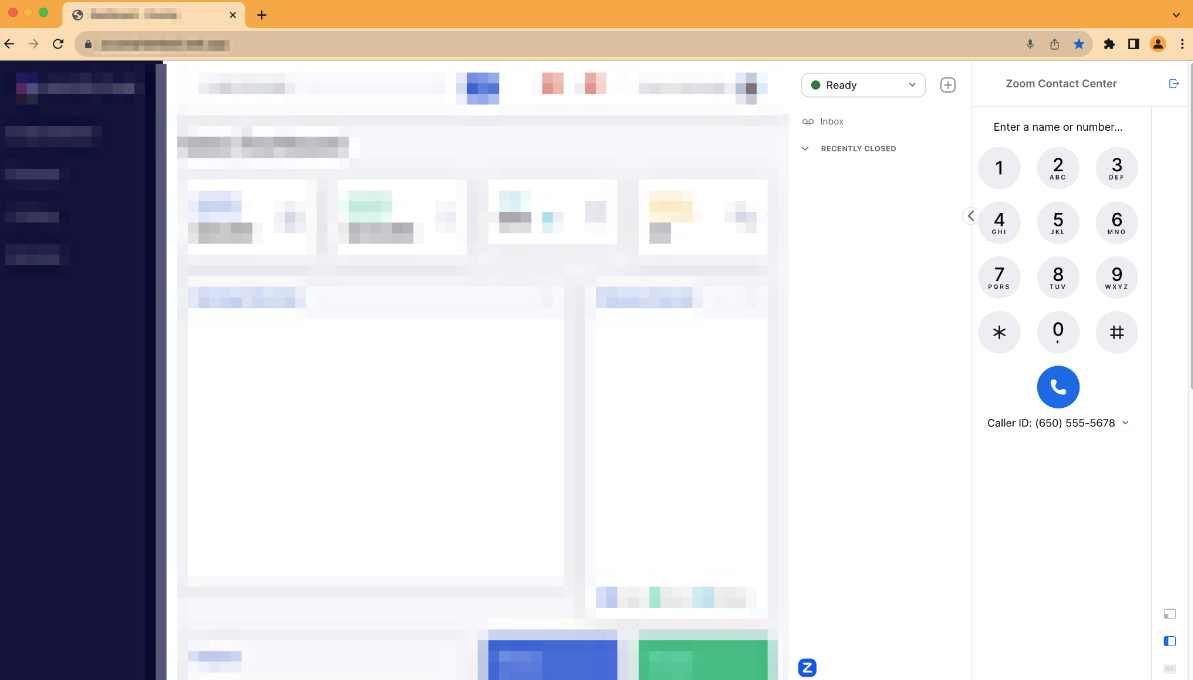
如果您使用這些整合之一,代理人將透過內嵌的 Zoom Contact Center 整合在 CRM 內處理互動。系統內建支援螢幕彈出與通話記錄功能。
{% hint style="info" %}
**附註**
如需更多關於 CRM CTI 連接器的資訊,請參閱 [Zoom 支援](https://support.zoom.com/hc/en/article?id=zm_kb\&sysparm_article=KB0078354).
{% endhint %}
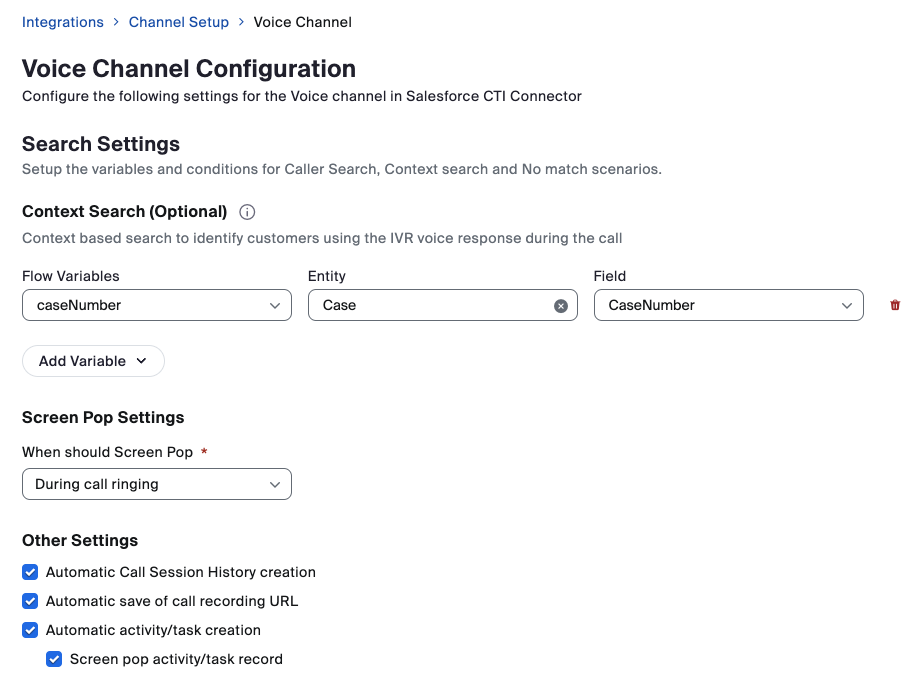
這些整合的預設行為是根據來電顯示(語音/SMS 通道)或電子郵件(網頁聊天/視訊通道)進行螢幕彈出,但您也可以設定為根據 Flow 中蒐集的其他資料進行螢幕彈出,例如案件或工單編號。接下來我們來看看該設定。
{% hint style="info" %}
**附註**
通道設定畫面上顯示的選項會依據所使用的 CRM 與 ZCC 通道而有所不同。
{% endhint %}
## Zoom Contact Center Smart Embed(CCSE)整合
Zoom CCSE 是一個彈性解決方案,可讓開發人員透過 HTML iFrame 設定,快速將代理人嵌入自己的網頁應用程式中。您的網頁開發團隊會在網頁應用程式中加入額外的 JavaScript 程式碼,以接收來電響鈴/已連線事件,並可用來在您的網頁應用程式內觸發螢幕彈出及/或通話記錄。
{% hint style="info" %}
**附註**
如需 Smart Embed 的更多資訊,請查看 [開發者文件](https://developers.zoom.us/docs/contact-center/smart-embed/?optimizely_user_id=efe7866fa2ae9ac46f7e6b8bb8e98da9\&DeviceId=178f00fc-724f-4a48-8bc8-2e79500f8f07\&SessionId=1745602375311).
{% endhint %}
## 合作夥伴解決方案
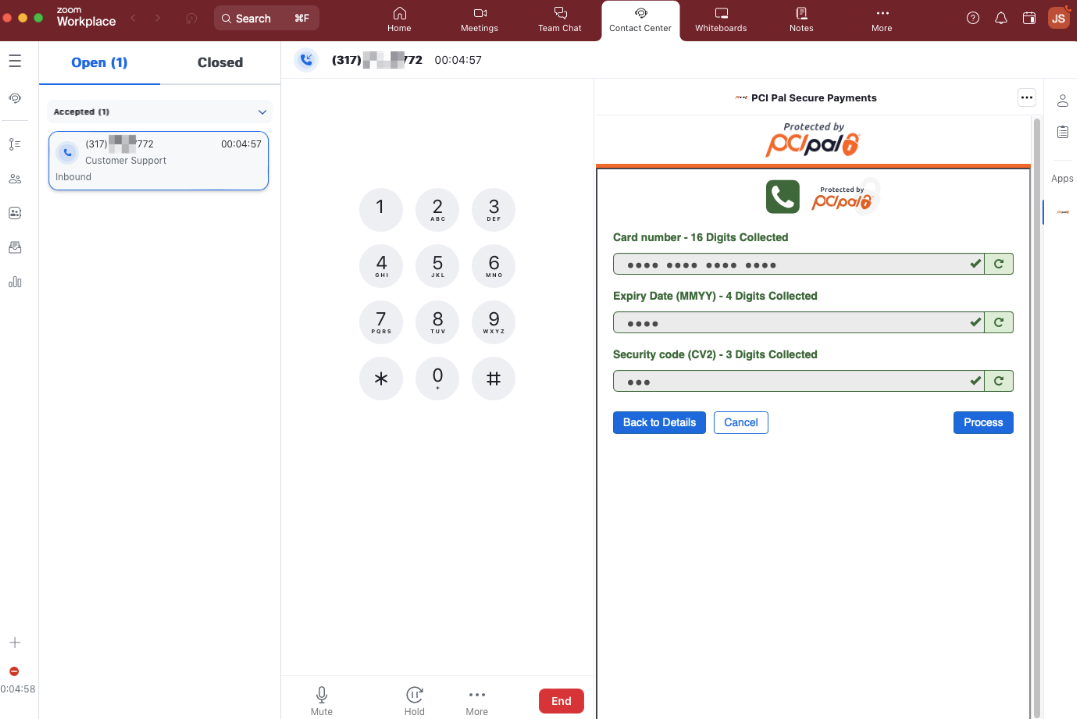
如果您在尋找上述未涵蓋的代理人解決方案,Zoom Innovative Solutions Vendor(ISV)合作夥伴還提供其他整合。ISV 合作夥伴計畫包含為銀行、信用合作社、保險、醫療保健等領域打造的解決方案。
{% hint style="info" %}
**附註**
如需更多資訊,請參閱 [Zoom Contact Center 的 ISV 合作夥伴](https://partner.zoom.us/solutions/?filter-types=ISV\&filter-products=Contact+Center).
{% endhint %}
更複雜的代理人桌面整合可運用 Zoom CX Flow 事件或 Zoom App Marketplace API 事件(webhooks/WebSockets)。透過這些選項,Zoom CX 平台會根據 Zoom Contact Center 事件向外部 API 端點傳送 HTTPS 請求。
視您的整合需求而定,您可以選擇使用 Flow 事件、API 事件,或兩者皆用。
您可以設計整合,在接收到這些事件時進行螢幕彈出或通話記錄。Flow 事件與 Zoom App Marketplace 事件都適用於上述所有代理人部署選項。
| 事件類型 | 支援的互動 | 有效負載類型 |
| --------------------------------------------------------------- | ----- | ------- |
| [ZCX Flow 事件指令碼](#flow-event-script) | 僅限入站 | 自訂 JSON |
| [Zoom App Marketplace API 事件](#zoom-app-marketplace-api-events) | 入站與出站 | 固定 JSON |
當 Zoom Contact Center 中發生特定動作時,Flow 事件指令碼便會被觸發。觸發該事件時,相關的事件指令碼程式碼會在互動的內容中執行,這表示該指令碼可以存取互動的變數。
## Flow 事件指令碼
我們來看看兩個常見的 Flow 事件指令碼。
| 事件名稱 | 事件觸發條件 |
| ----------------------------------------------- | ---------------- |
| [互動已接受](#engagement-accepted-event-script-code) | 當代理人接受來電時。 |
| [結案分類已儲存](#disposition-saved-event-script-code) | 代理人已儲存結案分類並結束互動。 |
{% hint style="info" %}
**附註**
完整的事件指令碼清單可在中取得 [支援文章](https://support.zoom.com/hc/en/article?id=zm_kb\&sysparm_article=KB0059146\&DeviceId=178f00fc-724f-4a48-8bc8-2e79500f8f07\&SessionId=1745602375311).
{% endhint %}
讓我們看看如何使用上述事件向外部系統傳送 HTTP 請求的範例。當外部系統收到這些事件時,資料可用於提供記錄、螢幕彈出或其他用途。實際可提供的功能將取決於外部系統所具備的能力。
### **範例設定**
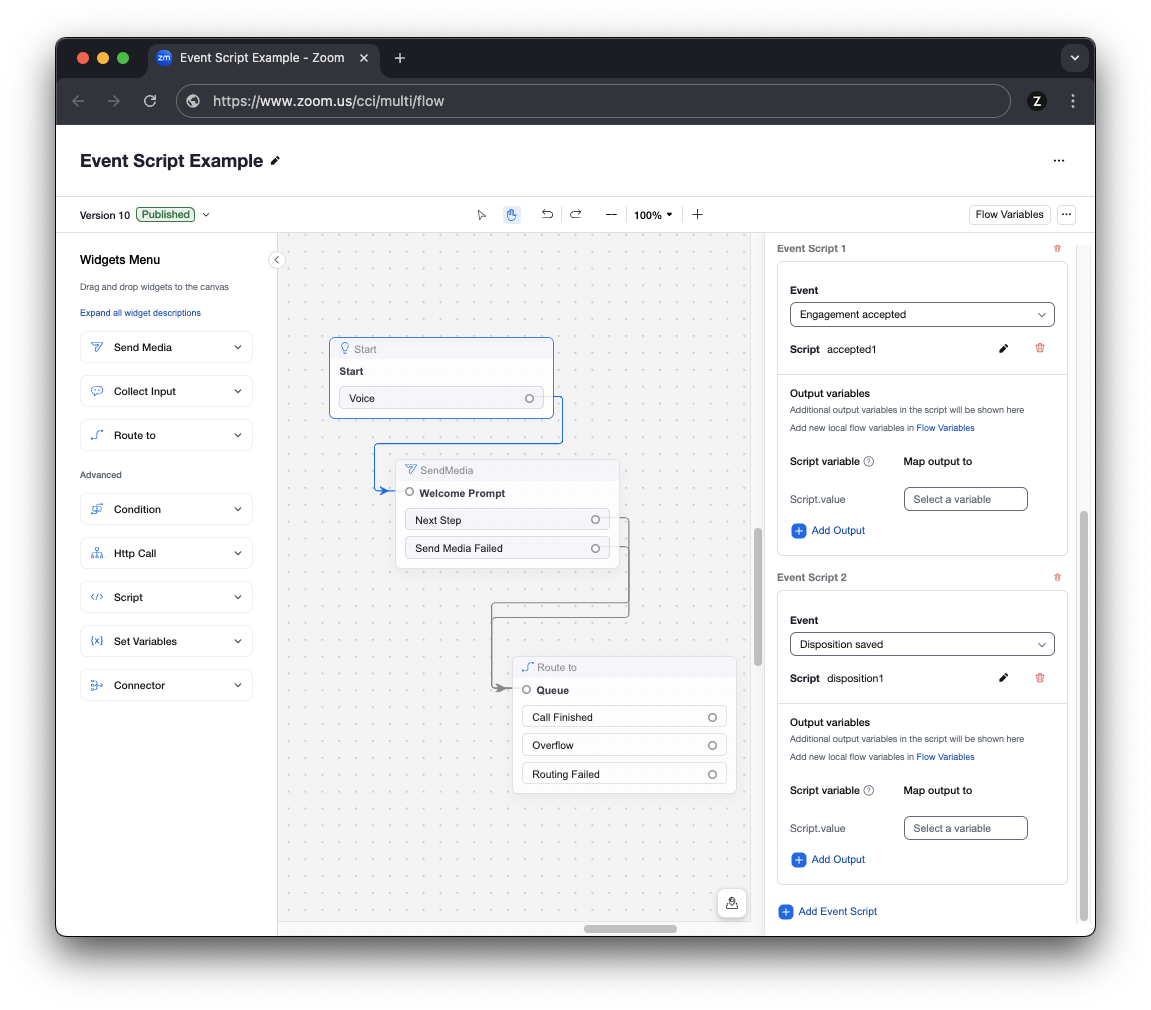
在 Flow 中,我們先從 Start widget 上設定事件指令碼開始。在下方圖片中,您可以看到 Start widget 已設定兩個事件指令碼。
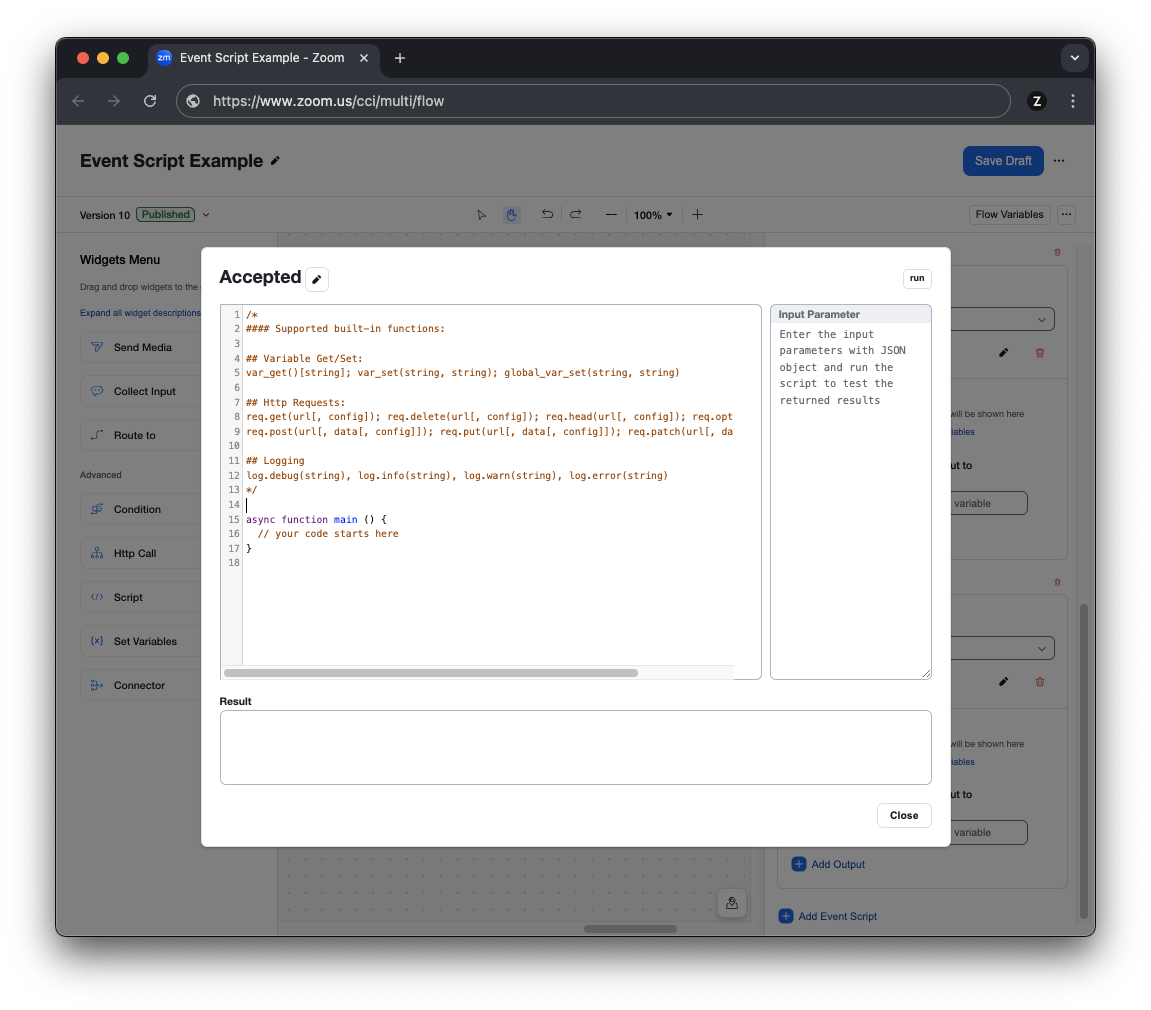
若要建立事件指令碼程式碼,請將新的事件指令碼加入 Start widget,然後如以下所示,直接在流程編輯器中撰寫程式碼。
「互動已接受」與「結案分類已儲存」這兩個事件使用類似的程式碼。兩者都是 JavaScript 程式碼區塊,使用內建的 HTTP 函式來產生出站 HTTPS POST 請求。
### 「互動已接受」事件指令碼程式碼
在這個程式碼範例中,我們包含了互動 ID、來電者電話號碼、代理人的電子郵件,以及佇列名稱。當代理人接起互動並開始與消費者交談時,程式碼就會執行。
這是一個很可能只是產生螢幕彈出或開始記錄新來電所需之最少資訊的範例。值得一提的是,如果您的 ZCC Flow 設定正在 Flow/IVR 中蒐集來電者資料,只要將額外變數加入 `request_body` 變數中,即可在此 HTTP 請求中包含額外資料。
{% code overflow="wrap" %}
```javascript
async function main() {
try {
let request_body = {
engagementId: var_get()["global_system.Engagement.engagementId"],
caller_number: var_get()["global_system.Engagement.ANI"],
agent_email: var_get()["global_system.Agent.email"],
queue_name: var_get()["global_system.Engagement.queue"]
};
const result = await req.post('https://api.example.com/acceptedcall', request_body);
let jsonResponseBody = result.data;
log.debug("Axios jsonResponseBody=" + JSON.stringify(jsonResponseBody));
} catch (error) {
log.debug("Received HTTP error " + error);
}
}
```
{% endcode %}
### 「結案分類已儲存」事件指令碼程式碼
對於「結案分類已儲存」事件,我們將重用前一個範例中的程式碼,並加入 `disposition` 變數。當代理人為來電選取結案分類時,此程式碼會執行,這是代理人在互動中執行的最後一個動作。透過傳送此請求,外部系統可以追蹤代理人已完成該互動的結案分類。
和「互動已接受」事件一樣,視您的使用情境而定,也可以加入其他變數。
{% code overflow="wrap" %}
```javascript
async function main() {
try {
let request_body = {
engagementId: var_get()["global_system.Engagement.engagementId"],
caller_number: var_get()["global_system.Engagement.ANI"],
agent_email: var_get()["global_system.Agent.email"],
queue_name: var_get()["global_system.Engagement.queue"],
disposition_name: var_get()["global_system.Engagement.disposition"]
};
const result = await req.post('https://api.example.com/dispositionedcall', request_body);
let jsonResponseBody = result.data;
log.debug("Axios jsonResponseBody=" + JSON.stringify(jsonResponseBody));
} catch (error) {
log.debug("Received HTTP error " + error);
}
}
```
{% endcode %}
視您的解決方案而定,您可能會發現 Flow 事件指令碼已足夠使用;或者您可能需要一些 Zoom App Marketplace API 事件來協助涵蓋整合所需的所有使用案例。
例如,您可以透過訂閱 Zoom App Marketplace API 的保留、恢復、靜音與取消靜音事件,來補充上述兩個 flow 事件。這些額外事件可讓您的應用程式了解代理人將通話保留或靜音的頻率。
上述兩個 flow 事件指令碼,以及 Zoom App Marketplace webhook/WebSocket 事件,都可供您的解決方案使用。
## Zoom App Marketplace API 事件
與其他 Zoom 產品一樣,Zoom CX 在 Zoom App Marketplace 中也提供 API webhook/WebSocket 事件。
可用事件可追蹤代理人活動,例如登入/登出、佇列加入/退出,以及狀態變更事件。互動事件可在系統中追蹤互動,包括互動開始、互動已接聽、互動靜音/取消靜音、傳送 DTMF、發起轉接、結束、新增備註、新增結案分類等事件。透過追蹤互動事件,您可以深入了解詳細的互動層級資料。
請查看 [Zoom 開發者網站](https://developers.zoom.us/docs/api/rest/reference/contact-center/methods/?optimizely_user_id=efe7866fa2ae9ac46f7e6b8bb8e98da9#overview) 以取得聯絡中心 API 的更多資訊。
---
# Agent Instructions
This documentation is published with GitBook. GitBook is the documentation platform designed so that both humans and AI agents can read, navigate, and reason over technical content effectively. Learn more at gitbook.com.
## Querying This Documentation
If you need additional information that is not directly available in this page, you can query the documentation by asking a question.
Perform an HTTP GET request on the following URL with the `ask` and `goal` query parameters:
```
GET https://library.zoom.com/technical-library/zh-tw/shang-wu-fu-wu/zoom-contact-center/expert-insights/zoom-cx-agent-desktop-deployment-options.md?ask=&goal=
```
`ask` is the immediate question: it should be specific, self-contained, and written in natural language.
`goal` is what the user is ultimately trying to achieve, the reason they need the answer. Sharing it helps GitBook give you a better, more relevant answer. A goal is most helpful when it describes the outcome the user wants rather than restating the question. For example, with `ask=how do I create an API token`, a goal like `automate deployments from our CI pipeline` lets GitBook tailor the answer to that use case.
The response will contain a direct answer to the question and relevant excerpts and sources from the documentation.
Use this mechanism when the answer is not explicitly present in the current page, you need clarification or additional context, or you want to retrieve related documentation sections.