> For the complete documentation index, see [llms.txt](https://library.zoom.com/llms.txt). Markdown versions of documentation pages are available by appending `.md` to page URLs; this page is available as [Markdown](https://library.zoom.com/technical-library/zh-tw/shang-wu-fu-wu/zoom-contact-center/expert-insights/integrate-engagement-data.md).
# 整合互動資料
由 Justin Steinberg 撰寫
### 概覽
Zoom Contact Center 會在每次客戶互動期間產生有價值的互動資料,包括通話錄音、逐字稿、客服備註與處置結果。繼續閱讀,了解如何將互動資料儲存在外部系統中(例如 CRM 和其他紀錄系統),以建立統一的客戶檢視、協助有效的客服培訓,或在使用 Zoom Contact Center 時滿足法規遵循要求。
我們將拆解不同的整合方式,協助您根據客服人員如何以更高效率工作來選擇最佳做法。
最佳方法主要取決於一個關鍵因素: **客服人員處理互動的應用程式**。我們將討論的兩種選項是:
1. 在 CRM 內使用開箱即用的 ZCC CRM CTI 連接器的客服人員。
2. 在 Zoom Workplace 應用程式中工作的客服人員,這需要使用 ZCC API 和 Webhook 的自訂解決方案。
***
### 開箱即用的 CRM CTI 連接器整合
這是最直接的方法。如果您的客服人員使用 ZCC CRM CTI 連接器,大多數互動資料都可以在 Zoom 平台與相應的 CRM 之間自動同步。
#### 運作方式
CTI 連接器會將 ZCC 客服介面直接嵌入 CRM。當互動結束時,錄音、逐字稿、備註和處置結果等資料會自動儲存在 Zoom 中,並連結到您 CRM 中的相關記錄(例如,案件單或聯絡人)。
#### 設定需求
可讓 Zoom 與 CRM 之間同步資料的功能是「開箱即用」的,但需要在 ZCC 管理入口網站中啟用。
請完成下列步驟:
{% stepper %}
{% step %}
**在 ZCC 管理入口網站中啟用**
以管理員身分登入 Zoom 管理入口網站。在 [管理中心](https://zoom.com/account)中,前往 CX 管理 → Contact Center → 整合 → [應用程式](https://zoom.com/cci/index/admin#/admin-integrations).
找到相關的 CRM 整合,並啟用適當的設定,允許資料儲存在您的 CRM 中。
{% endstep %}
{% step %}
**CRM 權限**
檢閱並遵循 [CRM 整合設定指南](https://support.zoom.com/) 以確認您的 CRM 整合使用者具有所有相關物件所需的寫入權限。
{% endstep %}
{% endstepper %}
#### 支援的 CRM 平台
當客服人員使用下列 CRM 時,這項功能可透過 ZCC CRM CTI 連接器使用:
* Salesforce
* Zendesk
* ServiceNow
* Microsoft Dynamics
* HubSpot
使用 CRM CTI 連接器時,不需要任何特殊設定,整合會預設將互動資料儲存到 CRM 中。
***
### 透過 API 的自訂整合
如果您的客服人員使用原生的 Zoom Workplace 應用程式或 ZCC Smart Embed,則需要自訂解決方案來傳遞互動資料。主要做法是使用 Zoom Contact Center API。
透過 API 存取互動資料主要有兩種方法:
* **輪詢:** 定期查詢 Zoom API,看看是否有新的互動資料可用。
* **Webhook:** 一旦逐字稿就緒,立即從 Zoom 接收即時通知。
另外還有第三種做法, **Flow Events 整合**,適用於某些資料類型。
#### 輪詢 Zoom Contact Center API
若要下載互動資料,您必須查詢適當的 ZCC API 端點。請注意,不同類型的資料來自不同的 API,因此您很可能需要為每個相關端點建立輪詢邏輯。
Reports V2(CX Analytics)中的許多與互動相關的 API 現在支援使用 `end_time_from` 以及 `end_time_to`進行結束時間篩選。若可用,建議優先使用這些參數,讓您的輪詢作業根據互動實際結束的時間擷取互動。這有助於減少遺漏記錄,因為完整的互動資料(包括 report V2 資料)會在互動結束時定案。
| 若要取得此資料... | 輪詢此 API... | 使用此欄位... | 附註: |
| ------------------------------ | ------------------------------------------------------------------------------------------------------------------------------------------------------------------------------------------------------------------------------------------------------------------------------------------------------------------- | ---------------- | ------------------------------- |
| 錄音媒體檔案
(語音與視訊頻道)
| 列出錄音 或
列出互動錄音
| `download_url` | 需要為佇列啟用通話錄音。 |
| 錄音逐字稿
(語音與視訊頻道)
| 列出錄音 或
列出互動錄音
| `transcript_url` | 需要啟用帶有轉錄的通話錄音。 |
| 逐字稿
(訊息頻道)
| 取得互動 或
列出歷史互動日誌資料
| `transcript_url` | 訊息頻道預設已啟用逐字稿。 |
| 處置結果
(所有頻道)
| 取得互動 或
列出歷史互動日誌資料
| `處置結果` | 處置物件陣列。 |
| 備註
(所有頻道)
| 取得互動 或
列出歷史互動日誌資料
| `備註` | 備註物件陣列。 |
| 語音信箱媒體檔案
| 列出帳戶的收件匣訊息 或
列出收件匣的訊息
| `download_url` | 適用於留在 Contact Center 收件匣中的語音信箱。 |
| 語音信箱逐字稿 | 列出帳戶的收件匣訊息 或
列出收件匣的訊息
| `transcript_url` | 需要為收件匣啟用轉錄。 |
{% hint style="danger" %}
**警告**
這些 Zoom API 提供的下載網址(`download_url`, `transcript_url`, `playback_url`等)是 **不會** 公開連結。它們是為程式化存取而設計,並且需要 API 驗證(例如,在 Authorization 標頭中提供存取權杖)才能下載相關檔案。
這表示:
* 您不能直接將這些網址儲存在 CRM 中供使用者點擊。使用者在瀏覽器中點擊連結時不會通過驗證,下載將會失敗。
* 正確的做法是讓後端服務使用該網址抓取檔案。接著,您的服務可以將檔案儲存在自己的系統中(例如 Amazon S3、Azure Blob Storage,或您的 CRM 檔案儲存空間),再從那裡向使用者提供安全連結。
{% endhint %}
{% hint style="warning" %}
**提醒**
**處理延遲-語音與視訊錄音:**
這些資料不會在通話結束的瞬間就可用。音訊必須先經過處理並上傳,對於長通話來說,這可能需要幾分鐘。為確保不會遺漏錄音,請將 `query_date_type` 參數設為 `recording_end_time` ,並在輪詢 List recordings API 時使用。這會根據處理完成的時間擷取資料,而不是根據通話結束的時間。
對於 Reports V2(CX Analytics)以互動為中心的對帳作業,請使用重疊的時間區間,並以 `end_time_from` 以及 `end_time_to` 提供緩衝,以應付處理延遲與暫時性的傳遞問題。
{% endhint %}
如需更多關於 Zoom Contact Center API 的資訊,請參閱 [Contact Center API](https://developers.zoom.us/docs/api/contact-center/) 文件。
#### 使用 Webhook 進行即時事件
若要採用更即時、以事件驅動的方式,您可以訂閱 ZCC Webhook。這是近乎即時整合最有效率的方法。
**運作方式**
1. 在 Zoom App Marketplace 訂閱適當的事件。
2. 當事件發生時,Zoom 會將通知傳送到您的 webhook URL(或您的 WebSocket 連線)。
3. 事件酬載會包含您需要的資料,可能直接包含,或以供後續 API 呼叫使用的 URL/ID 形式提供。
**互動資料的常見 Webhook 事件**
* **互動結束資料就緒:** contact\_center.cx\_engagement\_end\_data\_ready(表示互動結束報表 V2 資料已可擷取)
* **語音/視訊錄音:** contact\_center.recording\_completed(提供一個 `download_url`)
* **語音/視訊逐字稿:** contact\_center.recording\_transcript\_completed(提供一個 `transcript_url`)
* **訊息逐字稿:** contact\_center.engagement\_messaging\_transcript\_completed(提供一個 `transcript_url`)
* **附註:** contact\_center.engagement\_note\_added(提供一個 `note` 欄位,內含備註資料)
* **處置結果:** contact\_center.engagement\_disposition\_added(提供一個 `disposition_name` 欄位,內含處置結果資料)
**建議模式:在互動資料就緒時觸發擷取**
當您收到 `contact_center.cx_engagement_end_data_ready`時,請將其視為該互動的結束報表 V2 資料已完成的訊號。此時,請呼叫歷史互動日誌資料 API 以及任何其他相關 API 來收集最終資料集。在這個事件中,請使用 `engagement_id` 作為查詢鍵,然後從您需要的端點擷取完整的互動構件。
{% hint style="warning" %}
**提醒**
* **留意多個事件:** 該 `note_added` 以及 `disposition_added` 事件可能會在單一互動中觸發多次(例如,若客服人員儲存了多則備註或通話被轉接)。您的應用程式邏輯必須能夠處理這種情況。
* **內建冗餘:** 事件傳遞並不總是能 100% 保證(例如,您的端點或 websocket 連線可能暫時中斷)。
* **備援策略:** 我們建議使用帶有 `end_time_from` 以及 `end_time_to` 區間的輪詢 API 執行對帳腳本,以捕捉遺漏的事件並彌補資料缺口。
{% endhint %}
如需更多關於 Zoom Contact Center Webhook/WebSocket 事件的資訊,請參閱 [Contact Center Webhook](https://developers.zoom.us/docs/api/contact-center/events/) 文件。
#### 流程事件整合
對於某些資料類型,您可以在 ZCC Flow 編輯器中使用 JavaScript Event Script,將資料直接推送到外部系統。
**支援的資料與限制:**
* **處置結果:** 可透過以下方式存取所有傳入互動頻道類型: `global_system.Engagement.disposition` 變數。
* **逐字稿:** 僅可透過以下方式存取傳入訊息互動(例如 Web Chat): `global_system.Engagement.transcript` 變數。
* **多個 Flow:** 在您的設定中使用多個 Flow 時,特別是當某個 Flow 使用 `RouteTo` 小工具連接到另一個 Flow 時,務必要確保所有 Flow 都正確設定了相同的 Event Script 與觸發條件。
這種方法在訊息 Flow 中最為強大,您可以在單一事件中同時結合逐字稿與處置結果。
**設定步驟**
請按照以下步驟設定您的 flow:
{% stepper %}
{% step %}
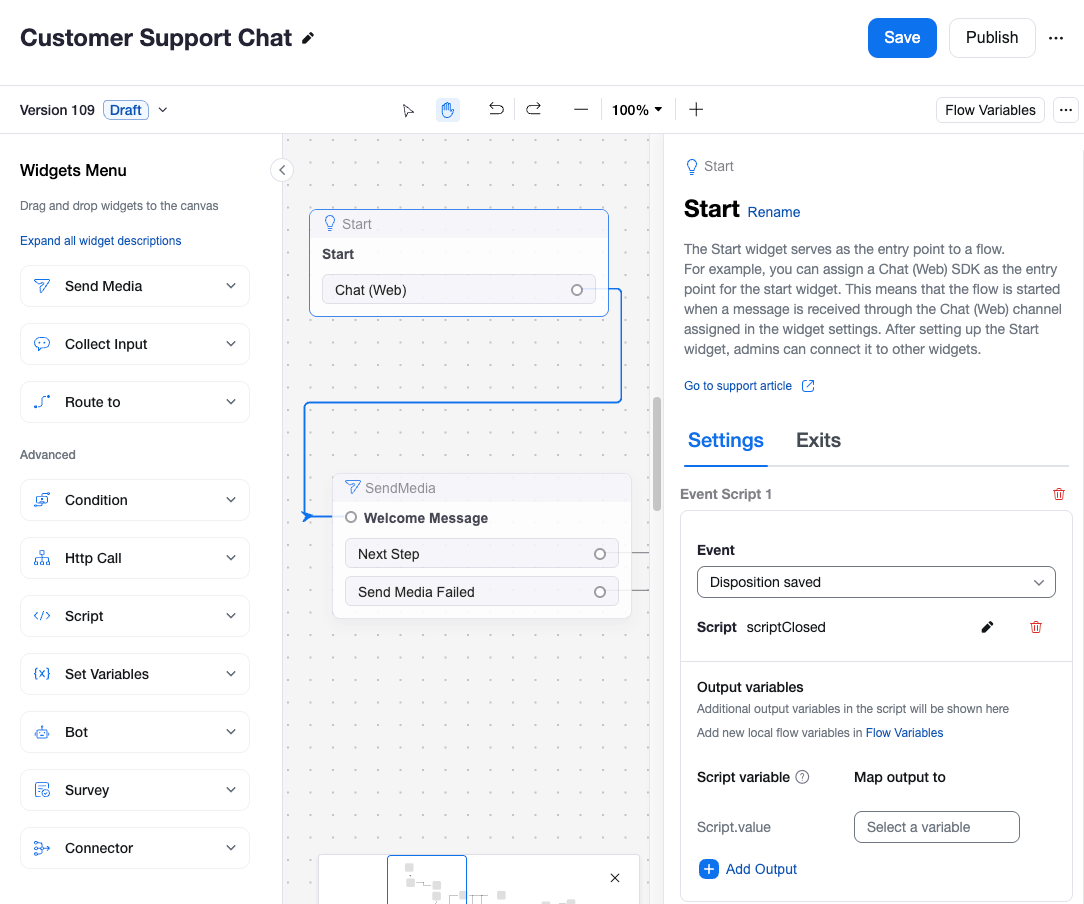
**新增 Event Script**
在您的 ZCC Flow(例如 Web Chat flow)中,按一下 Start 小工具。
找到 Event Scripts,並為 Engagement Closed 和/或 Disposition Saved 等事件新增 Event Script。
';
// 將合併後的資料傳送到您的外部系統
const response = await req.post(external_api_url, payload_to_send);
// 記錄外部系統的回應,以便疑難排解
log.debug("外部 API 回應:" + JSON.stringify(response.data));
} catch (error) {
log.debug("逐字稿事件腳本發生錯誤:" + error);
}
}
```
{% endstep %}
{% endstepper %}
***
### 摘要與建議
選擇最符合您的客服工作流程與技術資源的整合方式。
| 如果您的客服人員使用... | 那麼您的最佳選項是... | 主要考量: |
| -------------------------------- | ------------------------- | -------------------------------------------------------------------------------------------------------------------------------------------------------------------------------------------- |
| 支援的 CRM 中的 ZCC CTI 連接器 | 內建整合 | |
| Zoom Workplace App 或 Smart Embed | API Webhook 加上結束時間篩選的輪詢對帳 | 使用 contact\_center.cx\_engagement\_end\_data\_ready 作為您的擷取觸發條件 然後搭配 end\_time\_from/end\_time\_to 區間 提升效率,同時減少遺漏的互動 較小眾,但很強大 需要 JavaScript 最適合傳送訊息逐字稿與處置結果 &goal=
```
`ask` is the immediate question: it should be specific, self-contained, and written in natural language.
`goal` is what the user is ultimately trying to achieve, the reason they need the answer. Sharing it helps GitBook give you a better, more relevant answer. A goal is most helpful when it describes the outcome the user wants rather than restating the question. For example, with `ask=how do I create an API token`, a goal like `automate deployments from our CI pipeline` lets GitBook tailor the answer to that use case.
The response will contain a direct answer to the question and relevant excerpts and sources from the documentation.
Use this mechanism when the answer is not explicitly present in the current page, you need clarification or additional context, or you want to retrieve related documentation sections.