> For the complete documentation index, see [llms.txt](https://library.zoom.com/llms.txt). Markdown versions of documentation pages are available by appending `.md` to page URLs; this page is available as [Markdown](https://library.zoom.com/technical-library/zh-tw/shang-wu-fu-wu/zoom-contact-center/expert-insights/configuring-agent-occupied-rules/configuration-examples.md).
# 設定範例
以下範例示範如何在您的 Zoom Contact Center 帳戶中設定忙碌規則。
### 單一頻道忙碌規則
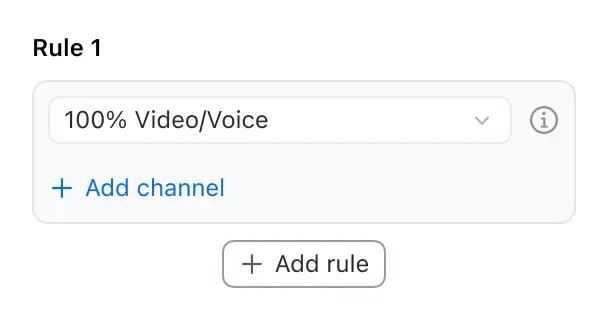
在此範例中,我們只在忙碌規則中設定語音/視訊頻道。採用此設定時,客服人員只有在處理語音通話或視訊通話時才會進入忙碌狀態。所有其他通訊頻道都不會觸發客服人員的忙碌狀態。
#### 語音/視訊設定範例
{% hint style="success" %}
規則:客服人員在處理一通語音通話或一通視訊通話時會變為忙碌。
結果:客服人員在進行語音或視訊通話時,無法接收任何新的互動(來自任何頻道)。
{% endhint %}
### 多頻道個別規則
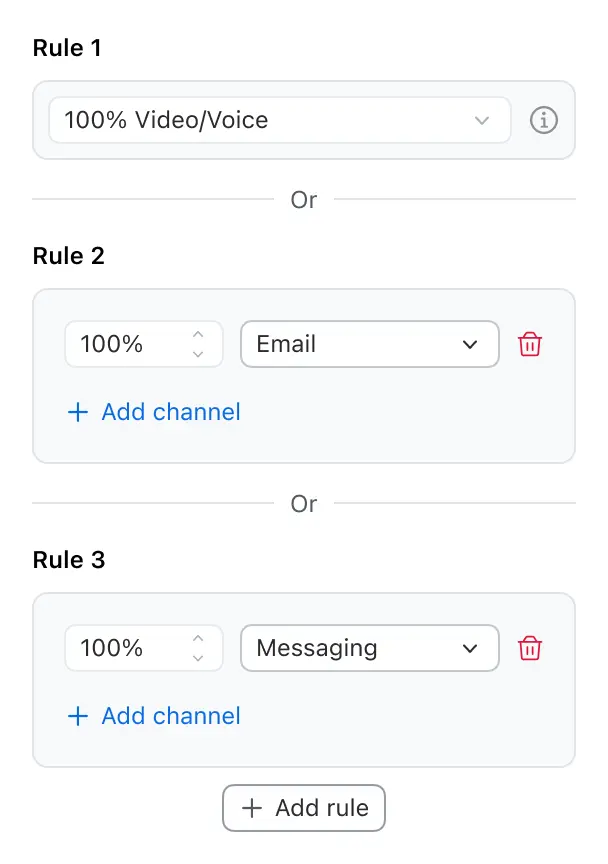
在此範例中,我們為三個不同的頻道設定忙碌規則:語音/視訊、電子郵件和訊息。每個頻道都有其各自獨立的規則。採用此設定時,只要符合這三條規則中的任何一條,客服人員就會進入忙碌狀態。這種做法可讓每個頻道獨立觸發忙碌狀態,形成客服人員可能進入忙碌狀態的三種不同情境。
#### 分開頻道限制範例
{% hint style="success" %}
規則 1:處理 1 通語音通話或視訊通話時為忙碌
規則 2:電子郵件頻道負載達到 100% 時為忙碌
規則 3:訊息頻道負載達到 100% 時為忙碌
{% endhint %}
### 多頻道並行規則
在此範例中,我們使用多頻道方法為語音/視訊、電子郵件和訊息頻道設定忙碌規則。不是為每個頻道建立單獨的規則,而是在每條規則中結合多個頻道。此設定包含兩條規則,每條規則都包含多個頻道條件。要讓客服人員進入忙碌狀態,他們必須符合任何一條規則中的所有條件。這種方法可在不同通訊頻道中,對何時視為客服人員忙碌提供更彈性的控制。
#### 組合設定範例
這種彈性可讓組織依其特定業務需求進行最佳化——沒有一種放諸四海皆準的「正確」設定。
{% hint style="success" %}
規則 1:客服人員在處理一通語音或視訊通話且訊息頻道負載達到 100% 時會變為忙碌
或
規則 2:客服人員在處理一通語音或視訊通話且電子郵件頻道負載達到 100% 時會變為忙碌
{% endhint %}
{% hint style="info" %}
當語音或視訊與其他頻道一起包含在組合規則中時,若客服人員正在進行語音或視訊通話,系統不會自動將其狀態設為忙碌。相反地,系統會等待直到所有規則條件都滿足為止。這可讓客服人員在進行語音或視訊會話時,繼續處理訊息或電子郵件。
{% endhint %}
---
# Agent Instructions
This documentation is published with GitBook. GitBook is the documentation platform designed so that both humans and AI agents can read, navigate, and reason over technical content effectively. Learn more at gitbook.com.
## Querying This Documentation
If you need additional information that is not directly available in this page, you can query the documentation by asking a question.
Perform an HTTP GET request on the following URL with the `ask` and `goal` query parameters:
```
GET https://library.zoom.com/technical-library/zh-tw/shang-wu-fu-wu/zoom-contact-center/expert-insights/configuring-agent-occupied-rules/configuration-examples.md?ask=&goal=
```
`ask` is the immediate question: it should be specific, self-contained, and written in natural language.
`goal` is what the user is ultimately trying to achieve, the reason they need the answer. Sharing it helps GitBook give you a better, more relevant answer. A goal is most helpful when it describes the outcome the user wants rather than restating the question. For example, with `ask=how do I create an API token`, a goal like `automate deployments from our CI pipeline` lets GitBook tailor the answer to that use case.
The response will contain a direct answer to the question and relevant excerpts and sources from the documentation.
Use this mechanism when the answer is not explicitly present in the current page, you need clarification or additional context, or you want to retrieve related documentation sections.