> For the complete documentation index, see [llms.txt](https://library.zoom.com/llms.txt). Markdown versions of documentation pages are available by appending `.md` to page URLs; this page is available as [Markdown](https://library.zoom.com/technical-library/zh-tw/jin-jie-qi-ye-fu-wu/device-management/automatic-update-explainer.md).
# 自動更新說明
本節提供自動更新功能概覽。
自動更新簡化了組織的用戶端版本管理,會在關鍵安全更新可用時套用,並有助於確保 Zoom 用戶端保持在滾動式 [9 個月發佈週期](https://support.zoom.us/hc/en-us/articles/360059429231-9-month-release-window-) 實作後。
### 更新排程
使用自動更新功能的組織與客戶可以選擇 **快速** 或 **緩慢** 更新排程。
#### **快速更新會在發佈後幾天內升級到最新的用戶端版本**
這些版本將提供最新的用戶端功能與更新,但可能偶爾出現用戶端不穩定。
#### **緩慢更新會在發佈後幾週內提示使用者升級**
除非在此期間發現需要關鍵修補程式,否則 Zoom 通常會在發佈後兩週內將新版本從快速群組推送到緩慢群組。
#### **依其所選更新排程,將強制使用者採用不同的用戶端版本**
例如,假設某用戶端在版本 5.10.1 發佈時正在執行版本 5.10.0。依所選排程不同,會有兩種可能情境:
* 快速排程,沒有最低版本
* 用戶端將安裝版本 5.10.1。
* 緩慢排程,其中 Zoom 判定的穩定版本為 5.10.0
* 用戶端將保留版本 5.10.0
雖然版本 5.10.1 在技術上已發佈且可用,但緩慢排程的用戶端不會安裝它,因為 Zoom 尚未將其標記為穩定版本。
#### 關鍵安全更新將部署到 *快速與緩慢* 排程
Zoom 會將任何關鍵安全更新部署到快速與緩慢兩個頻道。這兩種排程都無法選擇退出此行為。
#### 當目前版本低於所選更新速度的最低版本時,會觸發用戶端更新
每種更新速度都有各自的最低版本門檻。當用戶端版本低於所設定更新速度的最低版本時,便會觸發更新。
一旦新更新發佈,Zoom 會逐步將新用戶端版本提供給越來越高比例的用戶端,因此所有使用者不會同時收到更新。
### 管理自動更新
本節說明與自動更新功能相關的進階設定選項。
{% hint style="danger" %}
**Zoom 建議**\
為獲得最佳體驗,Zoom 建議啟用自動更新且不進行任何其他設定。
{% endhint %}
#### Windows MSI 與 macOS PKG 安裝程式 *不* 預設啟用自動更新
供 IT 管理員大量部署的會議用戶端,例如 MSI 與 PKG 安裝程式,除非透過 Windows 裝置的 MSI 參數或群組原則(GPO),或 Mac 裝置的 PLIST 進行設定,否則不會自動安裝更新。
#### Windows EXE 與 macOS DMG 安裝程式 *有* 預設啟用自動更新
標準會議用戶端,例如 EXE 與 DMG 安裝程式, *有* 預設啟用自動更新,使用者可依需求選擇快速或緩慢更新。管理員可使用 Windows GPO 或 macOS PLIST 參數,將標準會議用戶端排除於自動更新之外。
#### 管理員可以控制任何安裝程式的自動更新行為
{% hint style="danger" %}
**警告**
Zoom 已更新自動更新組態參數,以支援 Zoom 用戶端版本 5.10.3 的新系統。所有 **新的** 自動更新金鑰都以 **AU2\_**.
啟用 **任何** AU2\_ 金鑰會停用下列舊版參數: **`ZoomAutoUpdate`**, **`EnableSilentAutoUpdate`**, **`SetUpdatingChannel`**,以及 **`AlwaysCheckLatestVersion`**.
使用舊版參數的客戶應將其更新為 AU2 值,以避免服務中斷。請參閱我們關於以下內容的支援文件: [Windows 的大量部署](https://support.zoom.us/hc/en-us/articles/201362163-Mass-deployment-with-preconfigured-settings-for-Windows), [群組原則選項](https://support.zoom.us/hc/en-us/articles/360039100051-Using-Group-Policy-options), [Mac 裝置的大量部署](https://support.zoom.us/hc/en-us/articles/115001799006-Mass-deploying-preconfigured-settings-for-Mac),以及 [企業自動更新原則](https://support.zoom.us/hc/en-us/articles/10365151862285-Enterprise-Auto-Update-policies-for-the-Zoom-client) 以了解更多資訊。
{% endhint %}
* **Windows MSI 部署可包含 AU2\_EnableAutoUpdate 參數,以啟用自動更新**\
\
管理員可在安裝字串中使用參數 AU2\_EnableAutoUpdate 並將其值設為 **true** ,以設定 MSI 部署啟用自動更新。若未包含 MSI 參數或將其設為 false,則會停用自動更新。\\
* **Windows MSI 與 EXE 部署都會遵循 AU2\_EnableAutoUpdate GPO 設定來控制自動更新**
\
MSI 參數切換不適用於 Windows EXE 安裝程式,但兩種安裝都會遵循相同的 AU2\_EnableAutoUpdate GPO 設定。將 GPO 組態設為正值字串(例如「true」或「1」)將啟用自動更新。使用負值(例如「false」或「0」)將停用自動更新功能。\\
* **macOS PKG 與 DMG 部署都會遵循 AU2\_EnableAutoUpdate PLIST 參數來控制自動更新**\
\
以 DMG 為基礎的部署預設會啟用自動更新,但管理員可使用參數 AU2\_EnableAutoUpdate,並分別將其值設為「true」或「false」,以啟用或停用兩種安裝程式的自動更新。\\
* **管理員可以停用自動更新並要求手動更新,或完全停用更新**\
\
管理員可使用 AU2\_EnableManualUpdate 參數,要求使用者手動更新其用戶端,或完全停用用戶端更新。如果 AU2\_EnableAutoUpdate 參數為 **預設為停用**,將 AU2\_EnableManualUpdate 設為正值(例如「true」或「1」)會要求使用者手動檢查並套用更新。將此參數設為負值(例如「false」或「0」)則無論如何都不允許用戶端更新。若未定義此設定,預設值為 **true**.\\
* **自動更新可依排程或在裝置閒置時安裝**\
\
管理員可使用字串值的 AU2\_SetUpdateSchedule 參數,將裝置設定為依固定排程檢查裝置更新。若以有效字串設定此原則,用戶端會在指定時間內下載更新套件。此字串格式應為 HHMM-HHMM,例如:「0900-1800」表示 09:00 到 18:00,「1800-0400」表示 18:00 到隔天 04:00。\
\
或者,管理員可使用 AU2\_InstallAtIdleTime 參數,將裝置設定為僅在閒置時更新。此設定預設為停用,且必須設定為正值(例如「true」或「1」)才能啟用。\
\
當 AU2\_InstallAtIdleTime 參數與具字串值的 AU2\_SafeUpgradePeriod 參數搭配使用時,可進一步定義此參數。若此原則為有效字串,用戶端會在閒置且於指定時間內安裝自動更新。此字串格式應為 HHMM-HHMM,例如:「0900-1800」表示 09:00 到 18:00,「1800-0400」表示 18:00 到隔天 04:00。
#### 啟用後,自動更新會在不提示使用者的情況下安裝
啟用自動更新會被動啟用一項參數,使其在不要求使用者提示的情況下悄悄安裝用戶端更新。除非另有提示,更新會在應用程式重新啟動時安裝,且不會中斷進行中的會議。套用更新後,使用者會收到其用戶端已成功更新的通知。
* **管理員可以變更用戶端行為以提示使用者更新**\
\
Windows 與 MacOS 管理員可以變更自動 *背景* 更新,並提示使用者核准更新安裝。於 PLIST、安裝字串或 GPO 組態中使用 AU2\_EnableUpdateAvailableBanner 參數並設為正值(例如「true」或「1」),若有可用更新,將提示使用者升級用戶端。若未定義此設定,預設值為 **false**。\
\
此外,若在 PLIST、安裝字串或 GPO 組態中將 AU2\_EnablePromptUpdateForAU2 參數設為正值(例如「true」或「1」),則用戶端可在離開會議或網路研討會時提示使用者更新。若未定義此設定,預設值為 **false**.
* **可關閉更新後通知**\
\
套用更新後,使用者會收到其用戶端已成功更新的通知。管理員可在 PLIST、安裝字串或 GPO 組態中,將 AU2\_EnableUpdateSuccessNotification 參數設為負值(例如「false」或「0」)來停用此功能。
#### 預設更新速度為緩慢,但管理員可強制設定任一更新速度
管理員可在安裝字串、GPO 或 PLIST 設定中使用 AU2\_SetUpdateChannel 參數來強制特定更新速度。值為「0」會使用 **緩慢** 排程,而值為「1」會使用 **快速** 排程。若未定義此參數,預設值為 **緩慢**.
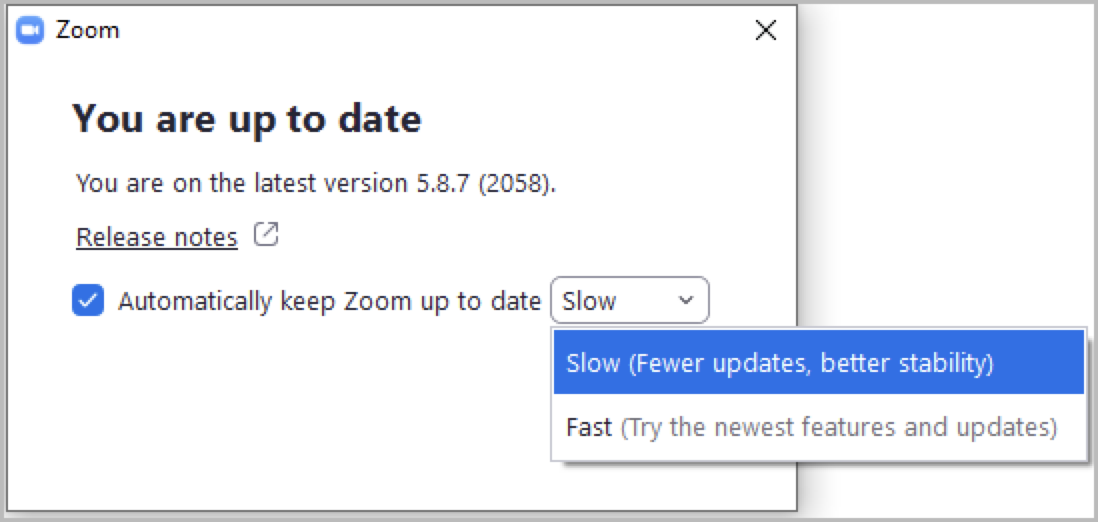
#### Zoom 更新組態設定可在用戶端中隱藏
位於 **一般** 的 Zoom 更新設定可使用 AU2\_EnableShowZoomUpdates 參數設為負值(例如「false」或「0」)來隱藏。若未定義此設定,預設值為 **true。**\\
{% hint style="info" %}
**附註**
上圖中的 Zoom 更新設定可能會依據在用戶端組態中使用 ZRecommend 或 ZConfig 的情況而呈現抖動並對使用者不可變更。
{% endhint %}
### 其他資源
[Windows 大量部署](https://support.zoom.us/hc/en-us/articles/201362163-Mass-deployment-with-preconfigured-settings-for-Windows)
[群組原則選項](https://support.zoom.us/hc/en-us/articles/360039100051-Using-Group-Policy-options)
[Mac 裝置大量部署](https://support.zoom.us/hc/en-us/articles/115001799006-Mass-deploying-preconfigured-settings-for-Mac)
[企業自動更新原則](https://support.zoom.us/hc/en-us/articles/10365151862285-Enterprise-Auto-Update-policies-for-the-Zoom-client)
---
# Agent Instructions
This documentation is published with GitBook. GitBook is the documentation platform designed so that both humans and AI agents can read, navigate, and reason over technical content effectively. Learn more at gitbook.com.
## Querying This Documentation
If you need additional information that is not directly available in this page, you can query the documentation by asking a question.
Perform an HTTP GET request on the following URL with the `ask` and `goal` query parameters:
```
GET https://library.zoom.com/technical-library/zh-tw/jin-jie-qi-ye-fu-wu/device-management/automatic-update-explainer.md?ask=&goal=
```
`ask` is the immediate question: it should be specific, self-contained, and written in natural language.
`goal` is what the user is ultimately trying to achieve, the reason they need the answer. Sharing it helps GitBook give you a better, more relevant answer. A goal is most helpful when it describes the outcome the user wants rather than restating the question. For example, with `ask=how do I create an API token`, a goal like `automate deployments from our CI pipeline` lets GitBook tailor the answer to that use case.
The response will contain a direct answer to the question and relevant excerpts and sources from the documentation.
Use this mechanism when the answer is not explicitly present in the current page, you need clarification or additional context, or you want to retrieve related documentation sections.