> For the complete documentation index, see [llms.txt](https://library.zoom.com/llms.txt). Markdown versions of documentation pages are available by appending `.md` to page URLs; this page is available as [Markdown](https://library.zoom.com/technical-library/technical-library-ar/rkn-almsuwl/third-party-integrations/microsoft-365-calendaring-field-guide/troubleshooting.md).
# استكشاف الأخطاء وإصلاحها
المشكلات الشائعة وكيفية حلها.
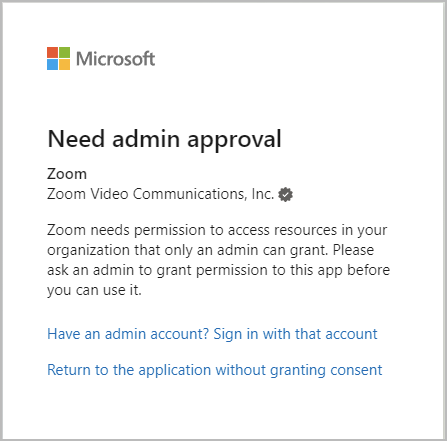
### تحتاج إلى موافقة مسؤول
عند اختبار تكوينات تكامل التقويم، قد يواجه المستخدمون خطأ موافقة Microsoft 365، يفيد بأن التكامل يتطلب موافقة مسؤول. يمكن أن يحدث ذلك إذا لم تتوافق أذونات موافقة المستخدم بين Azure وZoom Workplace، أو إذا كان لدى مستخدم ملف تعريف ارتباط لجلسة من مصادقة سابقة قبل موافقة التطبيق.
اختبر التكامل عن طريق بدءٍ جديد **التصفح الخاص** **جلسة**، وأعد تكرار عملية التكامل الخاصة بـ التقويم وجهات الاتصال الشخصية. إذا نجح ذلك، فكان الفشل بسبب ملف تعريف ارتباط جلسة Microsoft 365 سابق، ولا يوجد خطأ في الإعداد. إذا لم ينجح، فتأكد من تطابق إعدادات الإذن بين Azure وZoom Workplace. إذا تطابقت إعدادات الإذن واستمر الخطأ، فيجب إعادة تشغيل عملية الإعداد.
### أعد تشغيل عملية التكوين
إعادة تشغيل طلب واجهة برمجة التطبيقات وعملية الموافقة تتطلب إزالة تطبيق Zoom من خطة Enterprise لتطبيقات Azure.
1. استخدم حساب مسؤول Microsoft 365 للتنقل إلى [تطبيقات خطة Enterprise](https://portal.azure.com/#blade/Microsoft_AAD_IAM/StartboardApplicationsMenuBlade/AllApps/menuId/) القسم داخل بوابة Azure.
2. حدِّد معرّفات التطبيقات التالية وفقًا لطريقة إعداد MGAPI لديك:
1. *f46ceaed-fb2d-4694-803b-6341837f0ed2* (أذونات التطبيق، التقاويم الشخصية)
2. *f56e91e5-5a82-452f-b435-d4d78aeaf064* (أذونات التطبيق، غرف Zoom)
3. *fc108d3f-543d-4374-bbff-c7c51f651fe5* (الوصول المفوَّض عبر OAuth، التقاويم الشخصية)
4. *a651cfda-cbdd-4a39-bd03-fa829c3c1b29* (الوصول الكامل للمفوَّض، غرف Zoom)
3. افتح التطبيق ويحدد **الخصائص**.
4. **حذف** التطبيق.
5. ابدأ جلسة تصفح خاصة جديدة وأعد تكوين التكامل بدءًا من بداية هذه الوثيقة.
إذا استمرت الأخطاء بعد إعادة تكوين التطبيق، فجهة الاتصال دعم Zoom للحصول على مساعدة إضافية.
---
# Agent Instructions
This documentation is published with GitBook. GitBook is the documentation platform designed so that both humans and AI agents can read, navigate, and reason over technical content effectively. Learn more at gitbook.com.
## Querying This Documentation
If you need additional information that is not directly available in this page, you can query the documentation by asking a question.
Perform an HTTP GET request on the following URL with the `ask` and `goal` query parameters:
```
GET https://library.zoom.com/technical-library/technical-library-ar/rkn-almsuwl/third-party-integrations/microsoft-365-calendaring-field-guide/troubleshooting.md?ask=&goal=
```
`ask` is the immediate question: it should be specific, self-contained, and written in natural language.
`goal` is what the user is ultimately trying to achieve, the reason they need the answer. Sharing it helps GitBook give you a better, more relevant answer. A goal is most helpful when it describes the outcome the user wants rather than restating the question. For example, with `ask=how do I create an API token`, a goal like `automate deployments from our CI pipeline` lets GitBook tailor the answer to that use case.
The response will contain a direct answer to the question and relevant excerpts and sources from the documentation.
Use this mechanism when the answer is not explicitly present in the current page, you need clarification or additional context, or you want to retrieve related documentation sections.