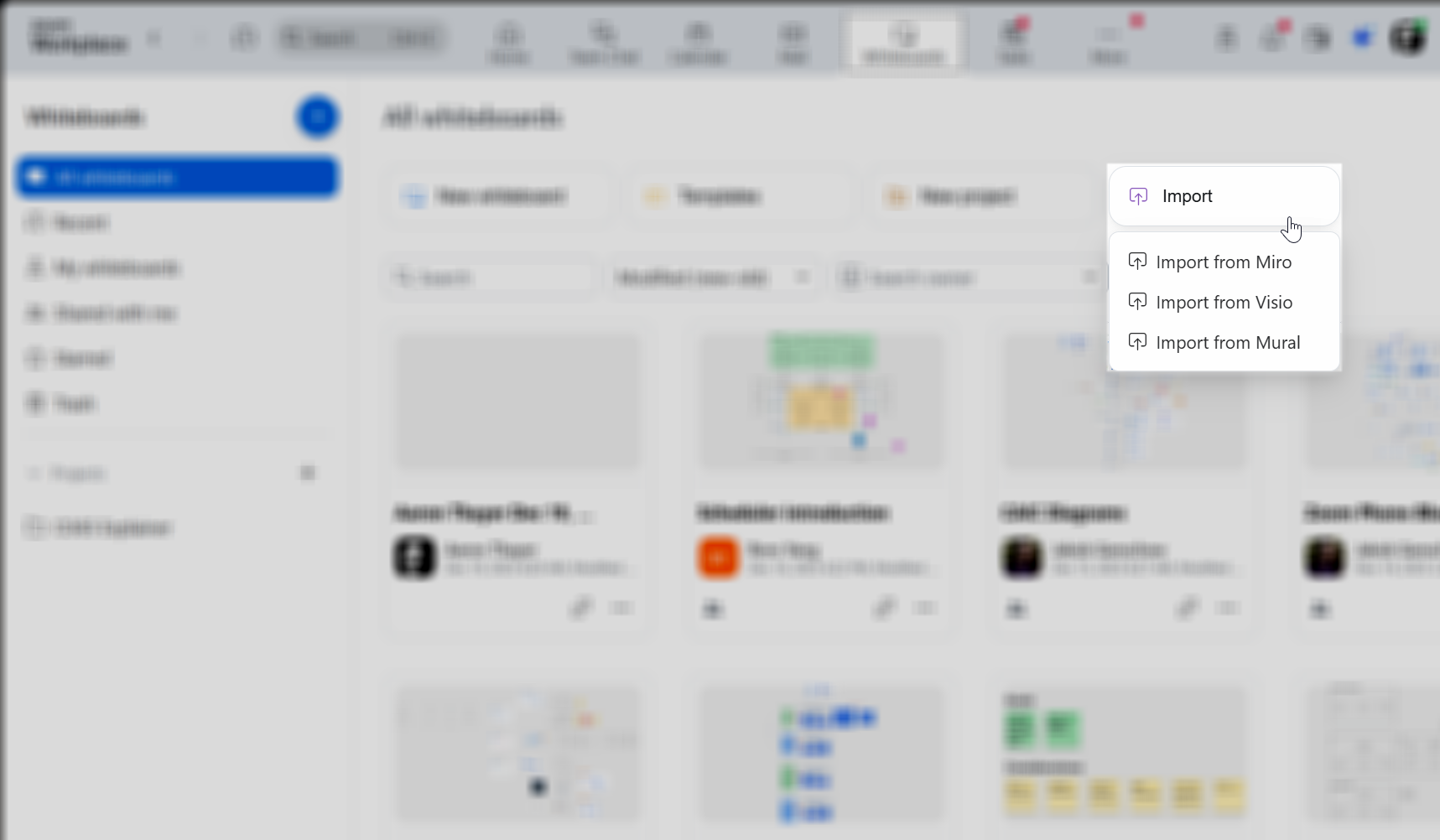
> For the complete documentation index, see [llms.txt](https://library.zoom.com/llms.txt). Markdown versions of documentation pages are available by appending `.md` to page URLs; this page is available as [Markdown](https://library.zoom.com/technical-library/ja/zoom-workplace/zoom-whiteboard/zoom-whiteboard-migration.md).
# 移行
Zoom Whiteboardと他のコラボレーションツール間でコンテンツを移行およびインポートする方法を学びます。
チームのホワイトボードのコンテンツとワークフローを維持する移行方法を選択してください。コンテンツを移動する前に、対応形式、元のツール、制限を比較してください。
### Zoom Whiteboardとその他のコラボレーションツール
#### Zoom Whiteboardと他のコラボレーションツール間でコンテンツを移行およびインポート
組織は、 **LucidchartまたはLucidspark** を使用している場合、VSDXファイルをZoom Whiteboardに直接インポートできます。
また、 **Miro** や **Mural** のユーザー向けに、Zoomは、所有者や共同編集者などのボードのメタデータをPDFエクスポートとともにAmazon S3バケットに転送するAPIメソッドを提供しています。
PDFのインポートでアップロードできるファイルの最大サイズは **100 MB** ダッシュボードとZoom Whiteboard APIの両方から。
#### サードパーティ製のインポート制限
Zoom Whiteboardへのインポートには、いくつかの制限があります。サードパーティからのインポートは、以下に制限されています **アップロードごとに10枚のボード**、各ボードは **25 MB以下**。一部のサポートされていないオブジェクトタイプも、静的要素としてインポートされる場合があります。
#### 追加リソースと連携の詳細
特定の連携の詳細については、以下のサポート記事をご覧ください:
* をご覧ください [Pexels画像ライブラリのサポート記事](https://support.zoom.com/hc/en/article?id=zm_kb\&sysparm_article=KB0082429)
* をご覧ください [Asana連携のサポート記事](https://support.zoom.com/hc/en/article?id=zm_kb\&sysparm_article=KB0057575)
---
# Agent Instructions
This documentation is published with GitBook. GitBook is the documentation platform designed so that both humans and AI agents can read, navigate, and reason over technical content effectively. Learn more at gitbook.com.
## Querying This Documentation
If you need additional information that is not directly available in this page, you can query the documentation by asking a question.
Perform an HTTP GET request on the following URL with the `ask` and `goal` query parameters:
```
GET https://library.zoom.com/technical-library/ja/zoom-workplace/zoom-whiteboard/zoom-whiteboard-migration.md?ask=&goal=
```
`ask` is the immediate question: it should be specific, self-contained, and written in natural language.
`goal` is what the user is ultimately trying to achieve, the reason they need the answer. Sharing it helps GitBook give you a better, more relevant answer. A goal is most helpful when it describes the outcome the user wants rather than restating the question. For example, with `ask=how do I create an API token`, a goal like `automate deployments from our CI pipeline` lets GitBook tailor the answer to that use case.
The response will contain a direct answer to the question and relevant excerpts and sources from the documentation.
Use this mechanism when the answer is not explicitly present in the current page, you need clarification or additional context, or you want to retrieve related documentation sections.