> For the complete documentation index, see [llms.txt](https://library.zoom.com/llms.txt). Markdown versions of documentation pages are available by appending `.md` to page URLs; this page is available as [Markdown](https://library.zoom.com/technical-library/fr/services-affaires/zoom-contact-center/expert-insights/configuring-agent-occupied-rules/configuration-examples.md). Agents can also search and read this documentation through its [MCP server](https://library.zoom.com/~gitbook/mcp).
# Exemples de configuration
Les exemples suivants montrent comment configurer les règles d’occupation dans votre compte Zoom Centre de contact.
### Règles d’occupation pour un seul canal
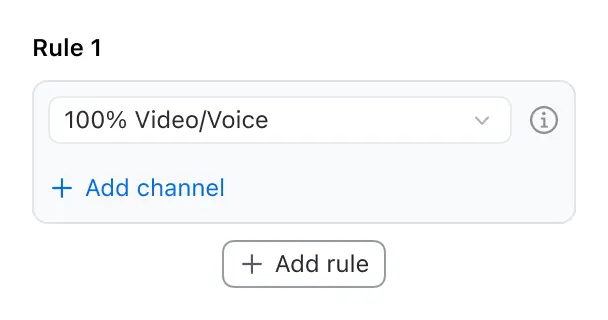
Dans cet exemple, nous configurons uniquement le canal vocal/vidéo dans les règles d’occupation. Avec cette configuration, les agents passent à l’état Occupé uniquement lorsqu’ils gèrent un Appel vocal ou un appel vidéo. Les autres canaux de communication ne déclenchent pas l’état Occupé pour l’agent.
#### Exemple de configuration vocale/vidéo
{% hint style="success" %}
Règle : l’agent passe à l’état Occupé lorsqu’il gère un Appel vocal ou un appel vidéo.
Résultat : l’agent ne peut recevoir aucun nouvel engagement (depuis n’importe quel canal) pendant un appel vocal ou vidéo.
{% endhint %}
### Règles individuelles pour plusieurs canaux
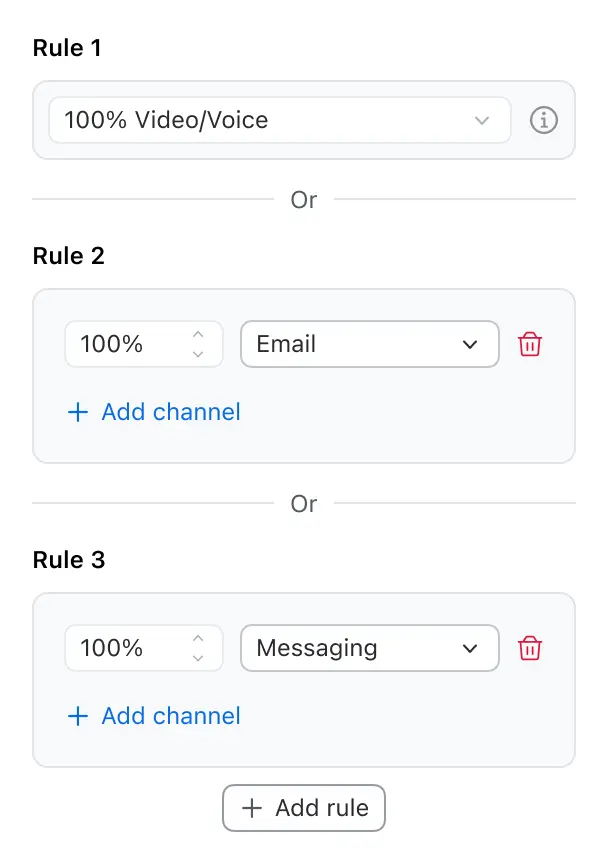
Dans cet exemple, nous configurons les règles d’occupation pour trois canaux distincts : vocal/vidéo, e-mail et messagerie. Chaque canal a sa propre règle indépendante. Avec cette configuration, les agents passent à l’état Occupé dès que l’une de ces trois règles est satisfaite. Cette approche permet à chaque canal de déclencher indépendamment l’état Occupé, créant ainsi trois situations distinctes dans lesquelles un agent peut être occupé.
#### Exemple de limites distinctes par canal
{% hint style="success" %}
Règle 1 : Occupé lors du traitement d’un Appel vocal ou d’un appel vidéo
Règle 2 : Occupé lorsque la charge du canal e-mail atteint 100 %
Règle 3 : Occupé lorsque la charge du canal de messagerie atteint 100 %
{% endhint %}
### Règles simultanées pour plusieurs canaux
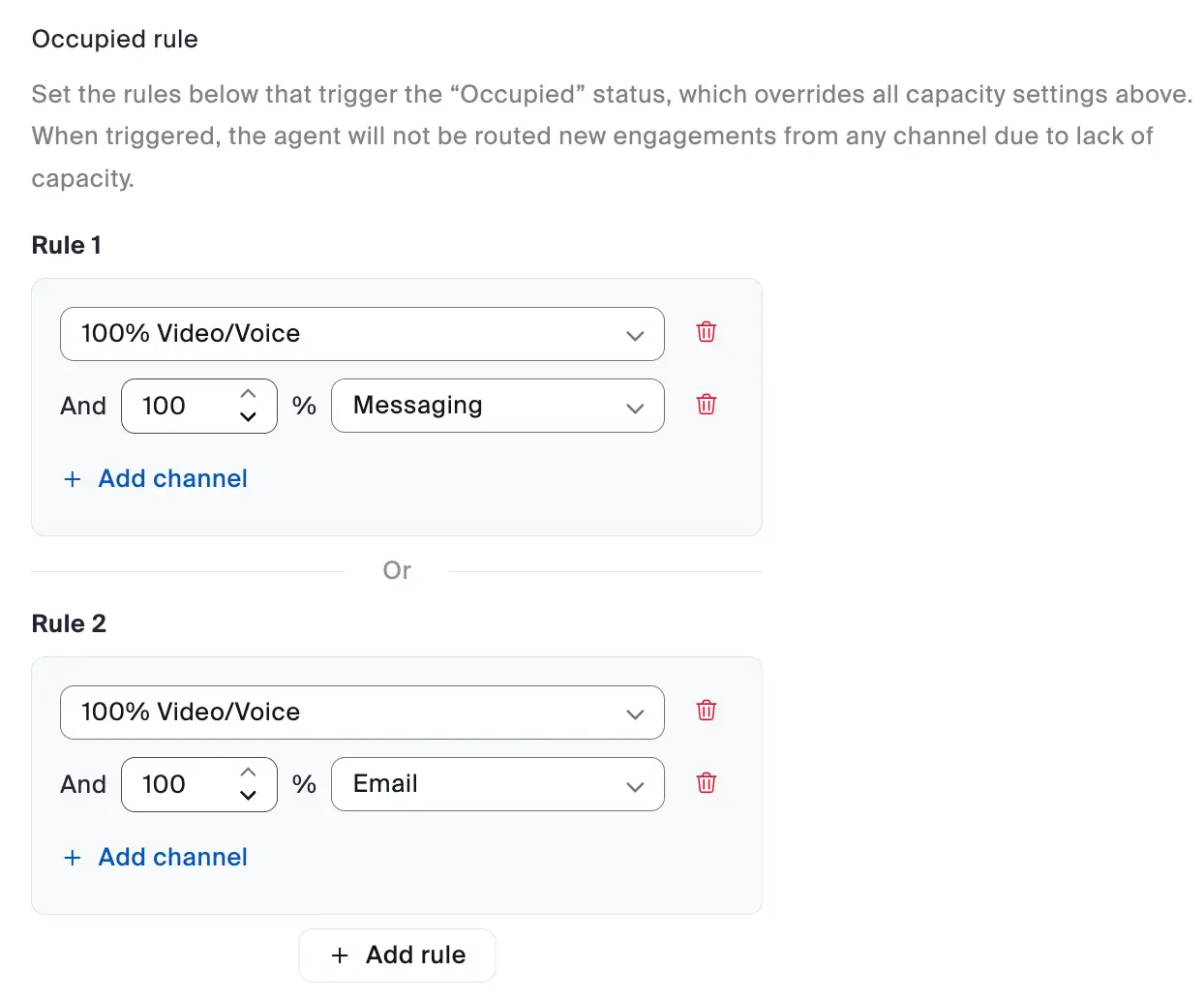
Dans cet exemple, nous configurons des règles d’occupation pour les canaux vocal/vidéo, e-mail et messagerie selon une approche multicanale. Au lieu de créer des règles distinctes pour chaque canal, nous combinons plusieurs canaux dans chaque règle. La configuration comprend deux règles, chacune contenant plusieurs conditions de canal. Pour qu’un agent passe à l’état Occupé, il doit satisfaire TOUTES les conditions d’une même règle. Cette approche permet de contrôler plus finement les situations dans lesquelles les agents sont considérés comme occupés sur différents canaux de communication.
#### Exemple de configuration combinée
Cette flexibilité permet aux entreprises d’optimiser leur configuration en fonction de leurs besoins spécifiques : il n’existe pas de configuration universellement « correcte ».
{% hint style="success" %}
Règle 1 : l’agent passe à l’état Occupé lorsqu’il gère un Appel vocal ou un appel vidéo ET que la charge du canal de messagerie atteint 100 %
OU
Règle 2 : l’agent passe à l’état Occupé lorsqu’il gère un Appel vocal ou un appel vidéo ET que la charge du canal e-mail atteint 100 %
{% endhint %}
{% hint style="info" %}
Lorsque le canal vocal ou vidéo est inclus dans une règle combinée avec d’autres canaux, l’état de l’agent ne passe pas automatiquement à Occupé pendant un appel vocal ou vidéo. Il attend plutôt que toutes les conditions de la règle soient satisfaites. Les agents peuvent ainsi continuer à traiter des messages ou des e-mails pendant un appel vocal ou une session vidéo.
{% endhint %}
---
# Agent Instructions
This documentation is published with GitBook. GitBook is the documentation platform designed so that both humans and AI agents can read, navigate, and reason over technical content effectively. Learn more at gitbook.com.
## Querying This Documentation
If you need additional information that is not directly available in this page, you can query the documentation by asking a question.
Perform an HTTP GET request on the following URL with the `ask` and `goal` query parameters:
```
GET https://library.zoom.com/technical-library/fr/services-affaires/zoom-contact-center/expert-insights/configuring-agent-occupied-rules/configuration-examples.md?ask=&goal=
```
`ask` is the immediate question: it should be specific, self-contained, and written in natural language.
`goal` is what the user is ultimately trying to achieve, the reason they need the answer. Sharing it helps GitBook give you a better, more relevant answer. A goal is most helpful when it describes the outcome the user wants rather than restating the question. For example, with `ask=how do I create an API token`, a goal like `automate deployments from our CI pipeline` lets GitBook tailor the answer to that use case.
The response will contain a direct answer to the question and relevant excerpts and sources from the documentation.
Use this mechanism when the answer is not explicitly present in the current page, you need clarification or additional context, or you want to retrieve related documentation sections.