CX Analytics
What is CX Analytics?
CX Analytics transforms how you understand and optimize your Zoom Contact Center operations by providing richer data reports and more flexible analysis. Whether you’re monitoring real-time performance or analyzing historical trends, CX Analytics gives you the insights needed to make informed decisions and drive continuous improvement.
CX Analytics replaced Zoom’s legacy dashboards and reports in May 2025. If you are a long-time Zoom Contact Center user and would like to migrate to the new framework, check out our Migrating to CX Analytics document. If your account gained access to Zoom Contact Center after May 2025, no migration is necessary.
Access and Permissions
New to CX Analytics? Our expert insights guide will walk you through the necessary roles and permissions to get started: Getting Started with CX Analytics
Data Dictionary
The CX Analytics Data Dictionary is your go-to resource for finding definitions, locations, and suggestions for all Zoom Contact Center key metrics. The Data Dictionary is accessible through any page within CX Analytics in the bottom-left corner. Use the keyword search to quickly locate specific data points as you navigate through the interface.

Dashboards and Reports Comparison
Dashboards
Reports
Age of Data Set
Near real-time (5 seconds – 24 hours)
Historical (completed engagements only, with 15 minute delay)
Refresh Rates
Every 5 seconds
Every 15 minutes after engagement completion
Use
Real-time monitoring and sharing across roles in the contact center via visual widgets
Performance analysis and trend identification (subscription-based, no ad-hoc sharing)
Data Set
One data set per widget, many widgets per dashboard.
One data set per report.
Dashboards
CX Analytics Dashboards include real-time data from 5 seconds to 24 hours ago, allowing you to present and share data with a wide range of audiences (digital signage, screenshots for weekly reports, and more). Within CX Analytics, the Dashboard section includes the following tabs:
Default Dashboards
Zoom provides two default CX Analytics dashboards:
Callback Monitoring Dashboard: Provides both real-time and historical visibility and control over callbacks.
Supervisor Dashboard: Displays how agents are performing and helps ensure operational goals are being met.
My Dashboards
The My Dashboards section allows you to build customized dashboards using pre-built or custom widgets. Pre-built widgets offer features that would otherwise require significant time to configure or may not be available for custom creation.
Zoom Recommendation: Start by tailoring the default dashboards to meet your needs before creating custom dashboards from scratch.
Important: Within a single dashboard, widgets can display data from multiple datasets and filters. However, datasets cannot be combined within the same individual widget.
Pre-Built Widgets
Pre-built Widgets for Dashboards include:
Single Agent Performance (Intraday)
Agent List (Real-time)
Queue List (Real-time)
Engagement List (Real-time)
Callback Outcomes (Intraday)
Active Callbacks (Real-time)
Clock
Custom Widgets
Custom Widgets for Dashboards include:
Metrics card
Gauge
Line chart
Bar chart
Pie chart
Leaderboard
Sankey Chart
Tabular Data Table
When you add a widget to your dashboard, you'll select dimensions and measures that are compatible with that widget type.
Dimensions allow you to display data from multiple perspectives. Examples include:
Agent Status
Queue
Team
Measures are the metrics you want to track. The available measures depend on your selected dimension(s).
Understanding Real-Time vs. Intraday Datasets
Real-Time: Displays active, in-progress data for engagements that haven't closed yet. This data refreshes every 5 seconds.
Intraday: Shows trend data over rolling time periods (like current shift, last 8 hours). These datasets cover the past rolling 24 hours.
Additional Dashboard Tips
If a real-time dataset appears grayed out: Check the pre-built widget sections—the data may be available there in a different format.
If a data point or calculation is unavailable or grayed out: Try switching your dataset or data type to unlock additional options.
To locate specific metrics: Use the Data Dictionary. Type in the metric you're looking for, and the Data Dictionary will show you where to find it.
Reports
CX Analytics Reports help you analyze performance over time using historical data. These reports update every 15 minutes and include only completed engagements and events. Calls that are still in wrap-up mode won't appear until they're complete. Once an engagement is finalized, it will be reflected 15 minutes later.
Default Reports
Agent Performance: View the details of how agents performed against key measures.
Agent Timecard: See a detailed view of your agents’ work sessions and where agents spent their time while working.
Consumer engagement surveys: View details of historical consumer engagement surveys.
Disposition: Provides a comprehensive outcome analysis for past completed engagements.
Engagement Performance Report: Provides an overview of past completed engagements.
Expert Assist Performance: Provides an overview of AI Expert Assist feature adoption, usage, and impact on agent efficiency.
Flow Performance: Get an overview of the flows, including the engagement volume processed, overall behavior, and efficiency.
Outbound Dialer Performance: Gain insights into how dialer campaigns are performing and key measures associated with those campaigns.
Queue Callback Report: Tracks callback requests and queue efficiency in processing those requests.
Queue Inbound Report: Provides an overview of queue performance in handling inbound engagements.
Queue Outbound Report: Details the performance of outbound engagements for queues.
Queue Performance Report: Provides an overview of queue performance in handling both inbound and outbound engagements.
Team Performance: See a detailed view of your teams and measurements related to how the team performed.
Team Timecard: See a detailed view of your teams and where the users on those teams are spending their time.
WFM Agent Adherence Performance: Get an overview of agent adherence to scheduled activities, including in-adherence duration, out-of-adherence duration, and adherence percentage metrics.
My Reports
The My Reports section in CX Analytics enables you to build custom reports using widgets. Each widget provides a different way to visualize your data. The available widgets are listed below:
Metrics card
Gauge
Line chart
Bar chart
Pie chart
Leaderboard
Sankey chart
Tabular data table
Similar to dashboards, when you add a widget to a report, you'll select dimensions and measures that are compatible with that widget type.
Dimensions allow you to analyze data from multiple perspectives. Examples include:
Agent
Queue
Channel
Measures are the metrics you want to track. The available measures depend on your selected dimension.
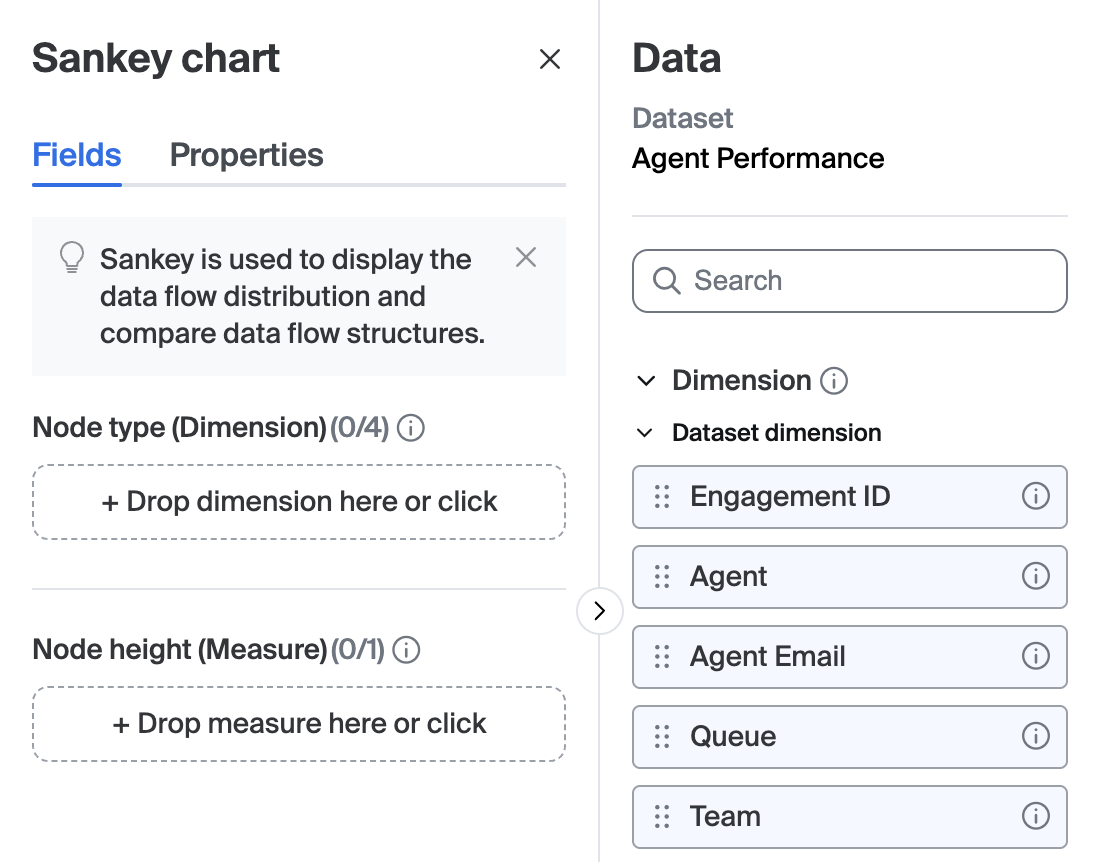
Each widget type supports a specific number of dimensions and measures as shown in this image:

Reminder: You can search all available dimensions and measures in the Data Dictionary.
Sharing Dashboards and Reports
Share Dashboards or Reports you’ve built within CX Analytics using the steps below:
Within CX Analytics, select Dashboards or Reports (whichever you’d like to share).
Click the My Dashboards or My Reports tab.
Click the display name of the dashboard or report you wish to share.
In the top-right corner, click the ellipsis icon then select Share.
In the Link access section, select whether the dashboard or report is available to:
Collaborators only (the default setting)
Any Zoom Contact Center users – This makes the dashboard or report viewable by all contact center users via a link, though role permissions still apply. You must still add users who need editing capabilities as collaborators.
In the top-left corner, use the drop-down to select whether you'd like to add users, teams, or queues to the list of collaborators, then use the search field on the right to search for associated contact center entities.
(Optional) Enter an invite message to provide context for your collaborators.
In the bottom-right corner of the window, click the down arrow and select either Add as viewers or Add as editors depending on the required permissions.
To view Dashboards and Reports that others have shared with you, navigate to the Shared with Me tab in either section.
Starring Dashboards and Reports
Star dashboards and reports that you view frequently by selecting the star icon to the right of the entry:

Once you star a dashboard or report, it will be listed in your Starred Dashboards or Starred Reports tab for easy access.
Logs
CX Analytics Logs provide raw, row-level data for individual engagements or events and their associated details. Use these logs to troubleshoot issues or analyze trends over time. The available log types are defined below:
Engagement Logs: Captures all details of closed engagements, including a timeline and key events, providing a clear record for tracking and analysis.
Agent Status Logs: Captures all agent work sessions and the individual events an agent goes through within those work sessions.
Agent Opt-In/Out Logs: Tracks all opt-in/out actions for agents and their associated queues.
Zoom Phone and Contact Center Call Journey: Provides a consolidated view for users of both Zoom Contact Center and Zoom Phone, enabling seamless tracking of the complete customer journey across both systems.
Subscriptions
CX Analytics subscriptions are available exclusively for reports, not dashboards. They provide automated delivery of contact center performance snapshots over specified time periods. If you need historical data on a recurring basis, subscriptions help eliminate the need for manual report generation.
You can subscribe to any default report or custom report you've created. Once you've selected a report, you can apply optional filters to refine the data. For example, you might want to filter out certain queues, channels, or agents to focus on specific segments of your contact center's performance.
After configuring your filters, you'll set up delivery settings. These settings allow you to select your timezone and define when and how you'll receive the report. You can specify the frequency of delivery, the exact time reports are sent, and your preferred format. Currently, two delivery formats are available: CSV (.csv) and Excel (.xlsx). Reports are delivered exclusively via email, and you can add up to 300 email recipients to a single subscription.
Last updated
Was this helpful?