> For the complete documentation index, see [llms.txt](https://library.zoom.com/llms.txt). Markdown versions of documentation pages are available by appending `.md` to page URLs; this page is available as [Markdown](https://library.zoom.com/ai-whitepaper/zoom-ai-features.md).

# Zoom AI Features

## **Speech-to-Text Features**

### Speech-to-Text Processing

#### <mark style="color:blue;">A foundational input that supports captions, transcripts, and other AI features</mark>

Speech-to-text data is the text output generated when Zoom converts spoken audio into written form using automatic speech recognition technology. This speech-to-text layer serves as a foundational capability across the Zoom platform, supporting both accessibility features and downstream AI-assisted experiences. Depending on the enabled settings and product context, speech-to-text data may be used to provide live captions, create retained transcripts, or supply structured text input for AI features such as meeting questions, summaries, and action item extraction.

Speech-to-text data is therefore not limited to a single end-user feature. It functions as an underlying text representation of spoken conversation that can be used in different ways depending on how a meeting or session is configured.

### Captions

#### <mark style="color:blue;">Temporary speech-to-text data for in-meeting accessibility</mark>

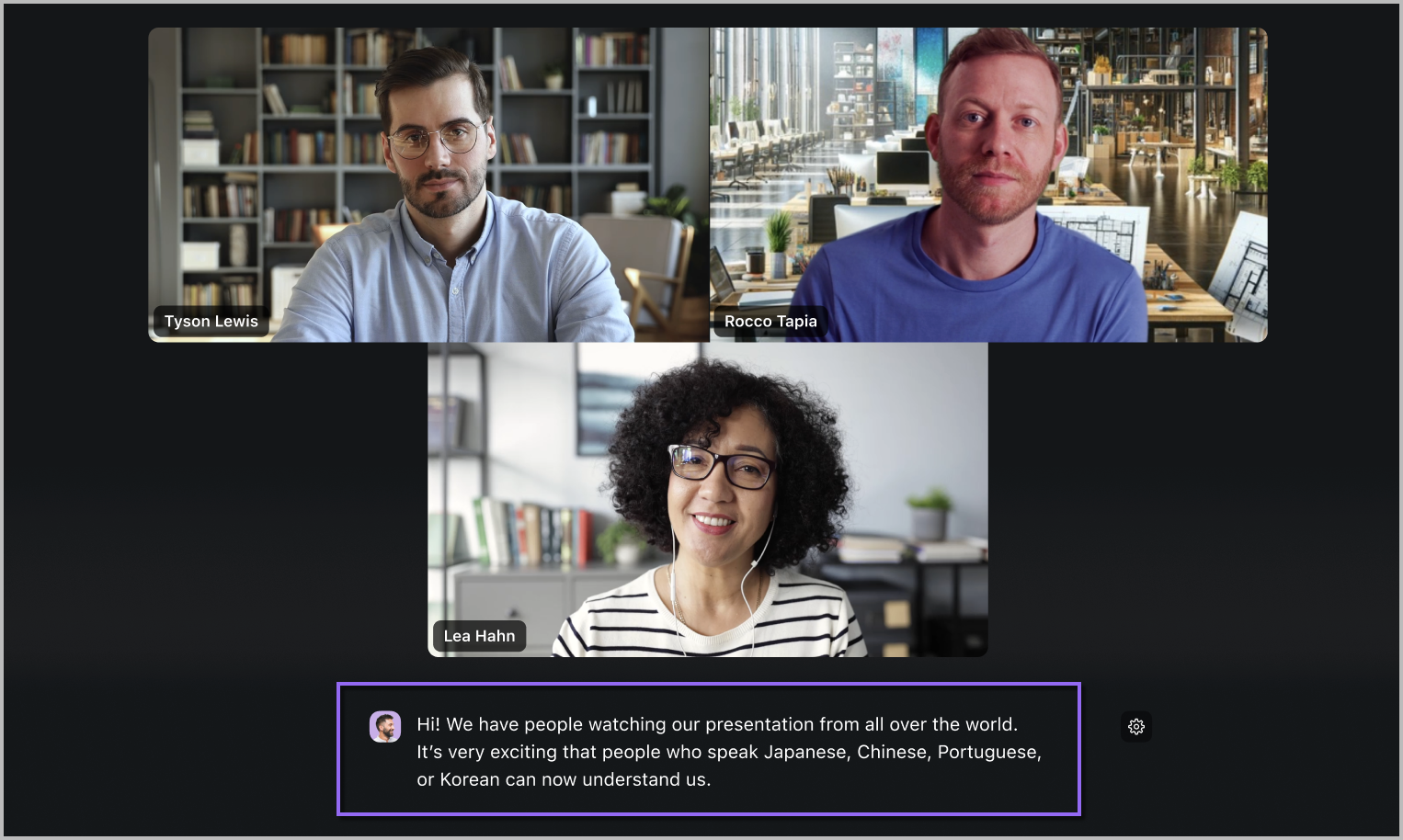
Captions are one use of speech-to-text data during a live session. When enabled, Zoom uses automatic speech recognition to convert spoken audio into dynamic caption text that participants can view in real time during meetings, webinars, and certain other Zoom experiences. This helps improve accessibility and comprehension while the conversation is taking place.

<div data-with-frame="true"><figure><img src="/files/jPfGhe9jx1Y7qiXaijE6" alt=""><figcaption><p>Live captions in a meeting</p></figcaption></figure></div>

As a live accessibility feature, captions are intended for in-session use rather than post-meeting retention. Participants can view captions during the session and may scroll back to review captions from the previous three minutes while the session is still active. After the session ends, participants cannot retain, save, or download captions as a separate post-meeting asset. Captions do remain available during playback of recordings.

Because captions are not themselves a retained post-meeting record, organizations that want to preserve speech-to-text data beyond the live session must enable transcript functionality separately.

**Local captioning**

As of Zoom Workplace app version 6.5.3, users can now access local, on-device live transcription that processes audio directly on their device, instead of using cloud-based processing.

### Translated Captions

#### <mark style="color:blue;">Translating speech-to-text data</mark>

Zoom’s Translated Captions build on the speech-to-text output generated through Live Captioning. After spoken audio is converted into text in the detected source language, Zoom’s live translation system processes that speech-to-text data and translates it into the user-selected target language or languages. The translated text is then delivered to participants in their Zoom Workplace apps as translated captions.

This allows participants to follow conversations across languages in real time without requiring the speaker to pause or alter the natural flow of the discussion. In this way, Translated Captions function as a downstream use of speech-to-text data, extending live captions from transcription into multilingual comprehension.

<figure><img src="/files/ZbHBtRoyVqWrRpgJquTe" alt=""><figcaption><p>Translated captions in a meeting</p></figcaption></figure>

### Transcripts

#### <mark style="color:blue;">Retained speech-to-text data for meeting records and follow-up use</mark>

Transcripts are the saved record of meeting content generated from speech-to-text data. Unlike live captions, which are intended for in-session accessibility, transcripts can provide a persistent text record of the meeting when transcript generation and retention are enabled.

An administrator can manage meeting transcription settings at the account level, and meeting hosts can manage transcript availability during meetings. Depending on the meeting configuration, participants may also be able to request transcript access during a meeting. When enabled, transcripts are generated and retained according to the applicable meeting transcript settings. Administrators can also configure transcripts to always be enabled for meetings across their organization.

Because transcripts are retained meeting records, they can support downstream uses that depend on persistent speech-to-text data. This may include later review of meeting content, transcript-based follow-up, and AI-assisted features that rely on an available retained transcript rather than only temporary in-session speech-to-text output.

## **AI Chat**

#### <mark style="color:blue;">The AI Chat panel is a compact AI tool across Zoom Workplace</mark>

The AI Chat panel is a compact AI tool available within Zoom Workplace products, designed to provide helpful in-context support alongside the work a user is already doing. It functions as a convenient side panel that users can open while working in products such as Mail, Team Chat, and other areas of Zoom Workplace, allowing them to access AI assistance without leaving the active product experience.

<div data-with-frame="true"><figure><img src="/files/aTKC4GnBosohw3fA8npM" alt=""><figcaption><p>The AI Chat panel</p></figcaption></figure></div>

Each product tab maintains its own instance of an AI Chat conversation, so a panel opened in Mail is specific to Mail, while a panel opened in Team Chat is specific to Team Chat, and panels opened elsewhere reflect those products’ own working contexts. This allows the panel to remain closely tied to the product, content, and tasks associated with that part of Zoom Workplace, rather than operating as a single panel that persists across the entire application in one continuous state.

#### <mark style="color:blue;">The AI Chat panel provides contextual assistance where work is already happening</mark>

The AI Chat panel supports a wide range of general AI-powered tasks, including drafting, summarization, rewriting, explanation, ideation, and question answering. Within Zoom Workplace, that assistance is also shaped by the product in which the panel appears. In Mail, the panel can support email-related work. In Team Chat, it can support chat-based collaboration. In other products, it can assist in ways that reflect the surrounding content and product experience.

This product-specific model allows AI Chat to remain broadly capable while also being more immediately relevant to the user’s current activity. The panel functions as a convenient tool embedded within the user’s workflow, helping users complete tasks and interact with content without leaving the product they are using.

#### <mark style="color:blue;">AI Chat uses the user’s immediate product context as a starting point</mark>

When a user opens the AI Chat panel within a Zoom Workplace product, the panel can use the most immediate surrounding context as the starting point for assistance. For instance, if the panel is opened from a specific Chat channel, the panel can begin from the content of that channel. If it is opened while viewing a particular email, it can begin from that email and its surrounding thread context. This allows the panel to provide support that is closely aligned to the content the user is actively viewing or working with at that moment.

## **Zoom Chat**

#### Chat Compose

The Chat Compose feature uses AI to assist users in drafting messages more efficiently. By analyzing the context of ongoing conversations, it can offer suggestions that adjust tone, provide topic prompts, or modify message length, helping ensure communication is both effective and aligned with the intended message. Chat Compose can also rewrite drafted messages, changing the tone and content to match the user’s preference, such as making a message *more professional*, or *casual*, depending on the user’s preference.

<div data-with-frame="true"><figure><img src="/files/wi7cl7XskrMwUiXzAhBc" alt="" width="563"><figcaption><p>Prompting Zoom AI to summarize Zoom Chat Messages for Next Steps</p></figcaption></figure></div>

<div data-with-frame="true"><figure><img src="/files/UWdnq1bm2FSfOILlIQ1p" alt="" width="563"><figcaption><p>The output of the previous prompt</p></figcaption></figure></div>

Refer to Zoom’s support center for more information on [using Chat Compose](https://support.zoom.com/hc/en/article?id=zm_kb\&sysparm_article=KB0058033).

#### Message, Thread, and Document Summary

Zoom Chat’s **Message, Thread, and Document Summary** features help users quickly understand conversation and document context without leaving the chat interface. For message threads, Zoom AI can generate a summary of the discussion, highlighting key points, decisions, and action items so users can catch up without reading every message individually. This is especially useful in active threads with many participants or when a user needs to get up to speed quickly on an ongoing discussion.

<div data-with-frame="true"><figure><img src="/files/csyBGBj6Um5ikJtZGfiz" alt=""><figcaption><p>Summarizing a multi-comment thread into one paragraph.</p></figcaption></figure></div>

Zoom Chat also includes built-in summarization for shared text files and Zoom Canvas links. When a supported file or Canvas link is shared in a conversation, it appears as an attachment card within chat. By hovering over the attachment and selecting the Zoom AI button, users can generate a concise summary of the document’s main points directly within the conversation.

<div data-with-frame="true"><figure><img src="/files/ixtFXJTngpIovVjgEAJl" alt="" width="563"><figcaption><p>Summary of a document uploaded to Zoom Chat</p></figcaption></figure></div>

Together, these summarization capabilities help users stay informed, reduce time spent reviewing long discussions or shared materials, and keep context and comprehension within the same collaborative workspace.

Refer to Zoom’s support center for more information on using [Message, Thread, and Document Summary](https://support.zoom.com/hc/en/article?id=zm_kb\&sysparm_article=KB0057619).

## **Zoom Events and Webinars Plus**

#### Events Compose

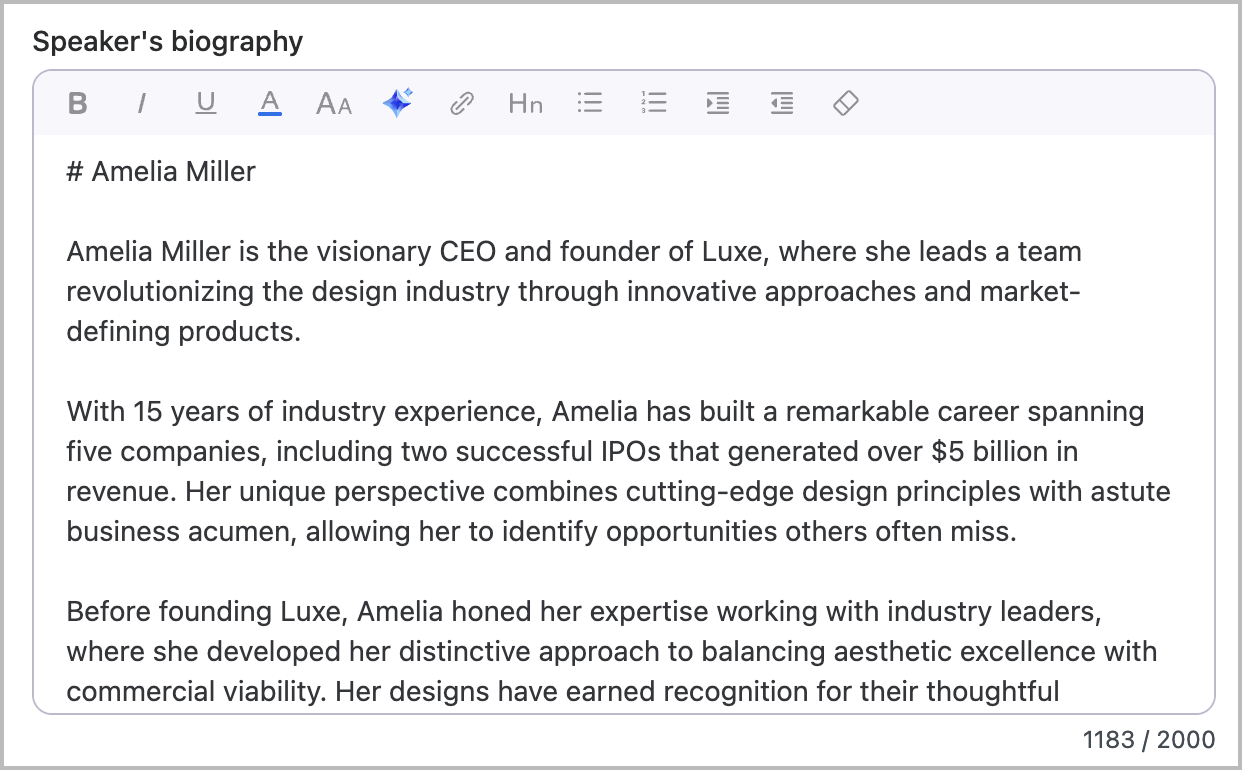
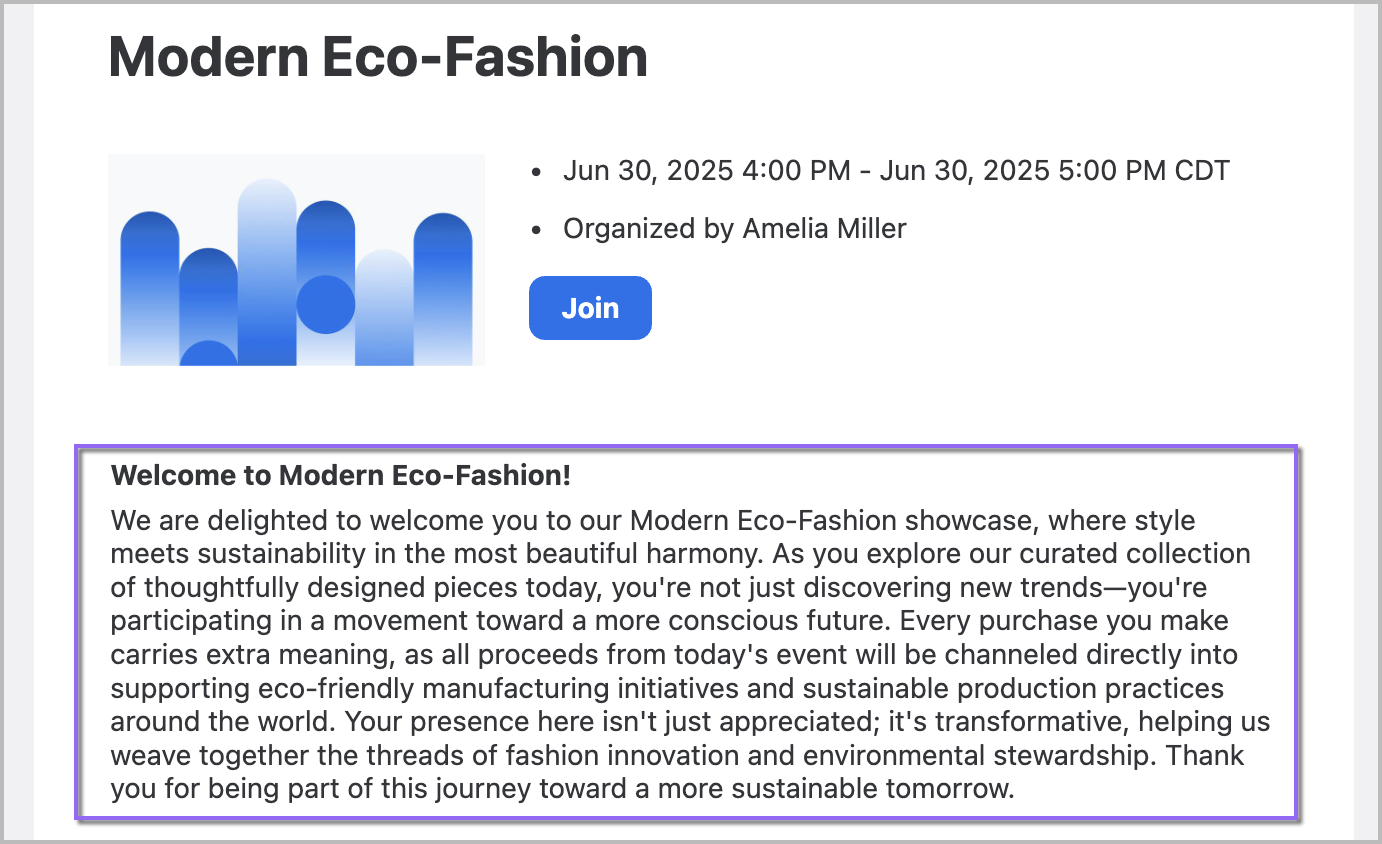
The Events Compose feature helps users quickly generate content for event-related areas, including descriptions, session details, speaker bios, and lobby announcements. By providing context or a prompt, users can receive AI-generated text suggestions that match their style and tone.

<div data-with-frame="true"><figure><img src="/files/MyruWML2sKNXxcK65LAY" alt="" width="563"><figcaption><p>Speaker biography generation prompt</p></figcaption></figure></div>

<div data-with-frame="true"><figure><img src="/files/JyNewgKqH4MgOO4UUbMP" alt="" width="563"><figcaption><p>Output of the previous prompt</p></figcaption></figure></div>

Refer to Zoom’s support center for more information on [Events Compose](https://support.zoom.com/hc/en/article?id=zm_kb\&sysparm_article=KB0073732).

#### Image Generation

Zoom Events’ Image Generation feature allows event hosts to create custom images for their events using AI. This includes generating images for event headers, session images, expo images, and more. Users can enter specific prompts, choose from AI-suggested styles, and set image ratios (landscape, portrait, square). Once generated, images can be previewed and applied directly to the event, enhancing the visual appeal of the event without the need for external design tools.

<div data-with-frame="true"><figure><img src="/files/okEOBEGbS7w3ucqFZBH1" alt="" width="563"><figcaption><p>Event image generation prompt and output</p></figcaption></figure></div>

<div data-with-frame="true"><figure><img src="/files/eVN2t4vYSmV9wSW6rcpy" alt="" width="563"><figcaption><p>The generated image featured on the Events page</p></figcaption></figure></div>

Refer to Zoom’s support center for more information on [Events Image Generation](https://support.zoom.com/hc?id=zm_kb\&sysparm_article=KB0073761).

#### Email Compose

Zoom Events’ Email Compose feature helps users create email content for event communication quickly. By inputting prompts, users can generate email bodies, subject lines, and call-to-action text tailored to their needs. This feature allows event hosts to draft and refine emails more efficiently, helping ensure messages are contextually relevant and aligned with the event’s tone.

<div data-with-frame="true"><figure><img src="/files/GJULPl10uYwnFzKxXHe9" alt="" width="563"><figcaption><p>Zoom Events Email Compose prompt</p></figcaption></figure></div>

<div data-with-frame="true"><figure><img src="/files/vn26FuSqcK6taK1YtLkD" alt="" width="563"><figcaption><p>Output of the previous prompt</p></figcaption></figure></div>

Refer to Zoom’s support center for more information on [Events Email Compose](https://support.zoom.com/hc?id=zm_kb\&sysparm_article=KB0010218).

#### Chat Compose

Zoom Events’ Chat Compose feature allows users to quickly craft professional and contextually-aware responses within an event’s lobby. This is especially useful for maintaining dynamic engagement in large events, where quick and appropriate responses are needed to keep discussions flowing or provide guidance or direction.

<div data-with-frame="true"><figure><img src="/files/XOVdkNU889a968mu1RuY" alt="" width="563"><figcaption><p>Zoom Events Smart Compose prompt in the Lobby</p></figcaption></figure></div>

<div data-with-frame="true"><figure><img src="/files/3pWTgWDH8YllPD2lYrhf" alt="" width="563"><figcaption><p>Output of the previous prompt</p></figcaption></figure></div>

Refer to Zoom’s support center for more information on [Events Chat Compose](https://support.zoom.com/hc?id=zm_kb\&sysparm_article=KB0057558).

#### Smart Upload

Zoom Events’ Smart Upload feature helps organizers add large amounts of event information more efficiently by extracting structured details from uploaded files and using them to build event content automatically. When adding multiple sessions to an event, Smart Upload can parse supported file types such as CSV, TXT, DOC, DOCX, XLS, and XLSX to extract relevant session information and automatically assemble the agenda. This can reduce the manual effort involved in entering event details one item at a time.

Smart Upload can also be used for other event setup tasks beyond sessions, including adding speakers and custom questions. By helping convert uploaded files into structured event content, this feature streamlines event configuration and makes it easier for organizers to build out complex events more quickly.

<figure><img src="/files/JKGIJGPimRQlXIbj1weN" alt="" width="563"><figcaption><p>Smart upload interface</p></figcaption></figure>

#### AI Content Creation for Recordings and Videos

Zoom Events’ AI Content Creation for Recordings and Videos feature helps users turn recorded event sessions into new written and video-based outputs. Using the transcript from an event recording, Zoom AI can generate new Zoom Canvas documents such as social media posts, key takeaways, ebooks, sales briefs, all-hands recaps, and other written materials derived from the session content. This allows organizers and teams to extend the value of event recordings without manually rewriting or repackaging the session themselves.

In addition to written outputs, Zoom AI can also create Snippets, which are AI-curated video clips that surface key moments from the session. Together, these capabilities help users transform recorded event content into reusable assets that support follow-up communication, internal distribution, marketing, and broader content reuse.

<div data-with-frame="true"><figure><img src="/files/IPtPVLlT5joWdbD8fdZS" alt="" width="563"><figcaption><p>Illustration of generative content options</p></figcaption></figure></div>

<div data-with-frame="true"><figure><img src="/files/cC9CeSD7ffdEHd6Rj75f" alt="" width="563"><figcaption><p>Options for refining generative content</p></figcaption></figure></div>

## **Zoom Mail Client**

#### Email Compose

Zoom’s Email Compose feature helps users draft emails more efficiently by providing AI-generated suggestions. Users can input a draft or prompt, and Zoom AI generates contextually relevant content based on the email thread or specific user inputs. This feature allows users to create emails quickly, while helping ensure their responses align with the conversation’s tone and context.

Using this feature, users can streamline the email composition process, helping to save time and improve productivity. This feature is especially helpful when responding to existing threads or crafting new messages, as Zoom AI’s suggestions help maintain clarity and consistency in communication.

For example, the following image demonstrates a prompt and output to thank Paxton for his work in launching a customer loyalty program.

<div data-with-frame="true"><figure><img src="/files/37kx9BnhrNglqglrgoC2" alt="" width="563"><figcaption><p>Email Compose generating an email based on the user prompt without previous context</p></figcaption></figure></div>

In addition to generating initial emails, the Email Compose feature can also generate a response to received emails. In this context, users do not write a prompt, instead, they click the Zoom AI icon in the response, and Zoom AI automatically generates a reply based on the message’s content.

<div data-with-frame="true"><figure><img src="/files/Sq4W4H3yEcpt8cZluyk2" alt="" width="563"><figcaption><p>Email Compose generating an email based on the user prompt with the email thread's context</p></figcaption></figure></div>

For example, if replying to an email, clicking the Zoom AI icon within the email reply box can automatically generate a contextually-relevant reply, saving the user time.

Refer to Zoom’s support center for more information on [using Email Compose](https://support.zoom.com/hc?id=zm_kb\&sysparm_article=KB0057662).

#### Summarize Email

Zoom AI can generate concise summaries of emails directly within the Zoom Workplace app, helping users quickly understand the main points of long or complex messages. When viewing an email, users can select the **Summarize** button to open the Chat Panel alongside the message.

Once executed, Zoom AI automatically analyzes the email and produces a clear, structured summary within the panel—highlighting key details, decisions, and next steps. This allows users to grasp the essential context at a glance without reading the full message or switching between applications.

<div data-with-frame="true"><figure><img src="/files/TetissYuDG9crfIHwduL" alt="" width="563"><figcaption><p>Zoom AI summarizing an email</p></figcaption></figure></div>

## **Zoom Meetings and Webinars**

#### Meeting Questions and Webinar Questions

The Meeting Questions and Webinar Questions features allows the first 1,000 participants to discreetly ask Zoom AI questions about the meeting or webinar within the side panel while the session is in progress; if more than 1,000 participants enter the session, they are offered hero prompts with recommended questions. Using the meeting’s speech-to-text data, Zoom AI provides participants with contextual and relevant answers, including timestamped citations from the conversation for additional context and clarity.

With this feature, users can submit their queries directly to Zoom AI without interrupting the flow of the ongoing conversation and is particularly beneficial in large meetings or fast-paced discussions where participants may need clarification without disrupting the speaker. This feature can also help late joiners quickly catch up on missed points by offering AI-generated responses based on what has already been discussed.

<div data-with-frame="true"><figure><img src="/files/ZUTYFhkcRWe3AxJ5ifcm" alt=""><figcaption><p>Meeting Questions answering user questions</p></figcaption></figure></div>

Refer to Zoom’s support center for more information on [using in-meeting questions](https://support.zoom.com/hc/en/article?id=zm_kb\&sysparm_article=KB0057748).

#### Meeting and Webinar Summary

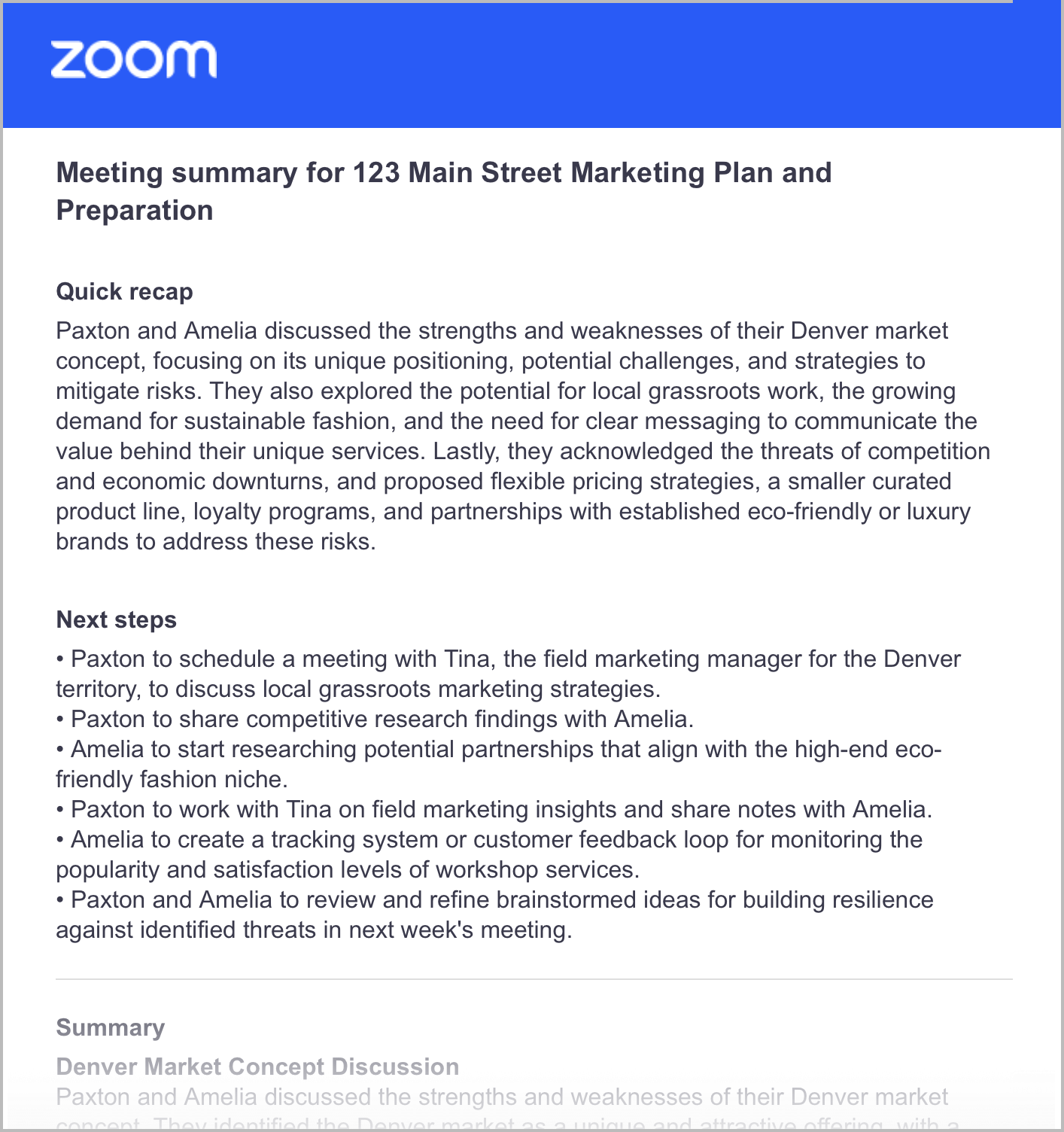
After a meeting or webinar concludes, the Meeting or Webinar Summary feature automatically generates a structured summary, capturing key discussion points, decisions, and action items without requiring a manual note-taker. Using the session’s speech-to-text data as reference, Zoom AI creates clear and concise summaries that can be shared with the meeting host, panelists, and invitees.

With this feature, users receive a well-organized summary that highlights essential details, making it easier to stay aligned on next steps. This is especially useful for teams managing multiple meetings or for invitees who joined late or missed the discussion. Meeting summaries can also be shared afterward, enhancing productivity and streamlining follow-ups.

The following example demonstrates a standard post-meeting summary email a user may receive.

<div data-with-frame="true"><figure><img src="/files/Fk8NEPZ77T7IaN2p5JKL" alt="" width="563"><figcaption><p>Example of Meeting Summary</p></figcaption></figure></div>

Additionally, customers using Zoom Canvas can automatically convert meeting summaries into collaborative working documents, streamlining follow-up coordination and action item management. The following example shows how a meeting summary transforms into an editable Canvas Doc for team collaboration.

<div data-with-frame="true"><figure><img src="/files/QesgujMMKg5Nt86McKjB" alt="" width="563"><figcaption><p>Meeting Summary converted to a Zoom Canvas Doc</p></figcaption></figure></div>

Refer to Zoom’s support center for more information on [using meeting summaries](https://support.zoom.com/hc?id=zm_kb\&sysparm_article=KB0058013).

#### Smart Recording

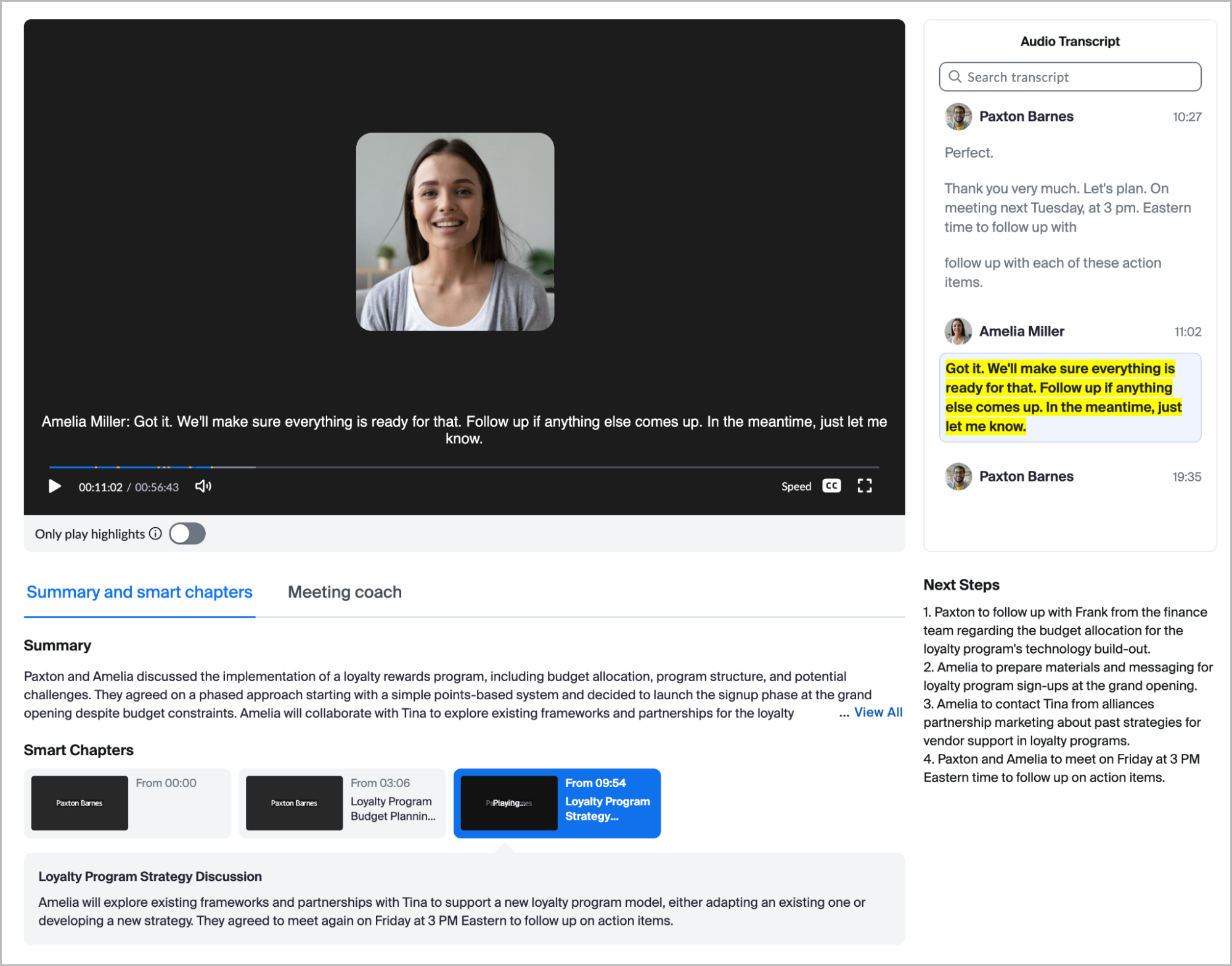
For cloud recorded meetings or clips, Smart Recording enhances meeting recordings by automatically generating a structured summary, highlighting key moments, and identifying action items without requiring manual review from a user. Using the recording’s transcript, Zoom AI creates searchable, time-stamped highlights, making it easy for users to navigate and review important content.

With this feature, users can quickly find relevant information without watching the entire recording, saving time and improving efficiency. This is particularly beneficial for teams managing multiple meetings or for participants who were unable to attend. Smart Recording also allows users to access AI-generated chapters, summaries, and speaker insights, providing a streamlined way to catch up on discussions and next steps.

The following image provides an example of these features, detailing chapters, highlighted moments, etc.

<div data-with-frame="true"><figure><img src="/files/dnQ3HCCtCo0SKKaSTAkZ" alt="" width="563"><figcaption><p>Example of Smart Recording</p></figcaption></figure></div>

Refer to Zoom’s support center for more information on [using smart recording](https://support.zoom.com/hc/en/article?id=zm_kb\&sysparm_article=KB0061101), and Zoom’s YouTube channel for a [visual demonstration of this feature](https://www.youtube.com/watch?v=vh7tOv3u0pc).

#### Personalized Audio Isolation

Personal Audio Isolation leverages a user’s voiceprint to differentiate their voice and suppress background noise, even in open environments. Users authorize Zoom to create a voiceprint, which captures the unique characteristics and nuances of their voice patterns. The user can also choose to upload a recording of their voice. The user’s voiceprint enables Zoom to intelligently filter and isolate the user's voice from ambient background audio detected by their microphone. The technology effectively suppresses environmental sounds such as coffee shop chatter, vacuum cleaners, barking dogs, or conversations from other people within microphone range, helping ensure that only the user's voice is prominently transmitted.

Refer to Zoom’s support center for more information on [using personalized audio isolation](https://support.zoom.com/hc/en/article?id=zm_kb\&sysparm_article=KB0074698).

## **Zoom Phone**

#### Call Summary

Zoom Phone’s Call Summary feature provides AI-generated post-call summaries that capture key details such as dates, names, discussion points, and action items. When enabled, the Zoom user who enabled the feature will receive an automatic summary within the Zoom Workplace app, allowing them to review essential information without manually taking notes.

This feature is particularly useful for sales teams, customer support agents, and professionals handling frequent calls, helping ensure important details are documented and easily accessible. Users can also edit, email, or share summaries as needed to streamline follow-ups and maintain clear communication.

<div data-with-frame="true"><figure><img src="/files/ZGM192rsFIiHT06gjmWb" alt="" width="346"><figcaption><p>A Zoom Phone Call Summary and Next Steps.</p></figcaption></figure></div>

Refer to Zoom’s support center for more information on [using Call Summary](https://support.zoom.com/hc/en/article?id=zm_kb\&sysparm_article=KB0074868).

#### Voicemail Prioritization

Zoom Phone’s Voicemail Prioritization feature helps users manage voicemail more efficiently by automatically identifying and prioritizing messages that match a user’s predefined topics or intents. This helps ensure that critical or time-sensitive messages are surfaced first, allowing users to respond more quickly to high-priority communications.

This feature is especially beneficial for professionals who receive a high volume of voicemails, such as customer service representatives, sales teams, and executives, helping them focus on urgent matters without manually sorting through their inbox.

<div data-with-frame="true"><figure><img src="/files/HMjZQrCx3WQvXXvRl2QX" alt="" width="563"><figcaption><p>The creation of a voicemail prioritization Intent.</p></figcaption></figure></div>

Refer to Zoom’s support center for more information on [using voicemail prioritization](https://support.zoom.com/hc/en/article?id=zm_kb\&sysparm_article=KB0074872).

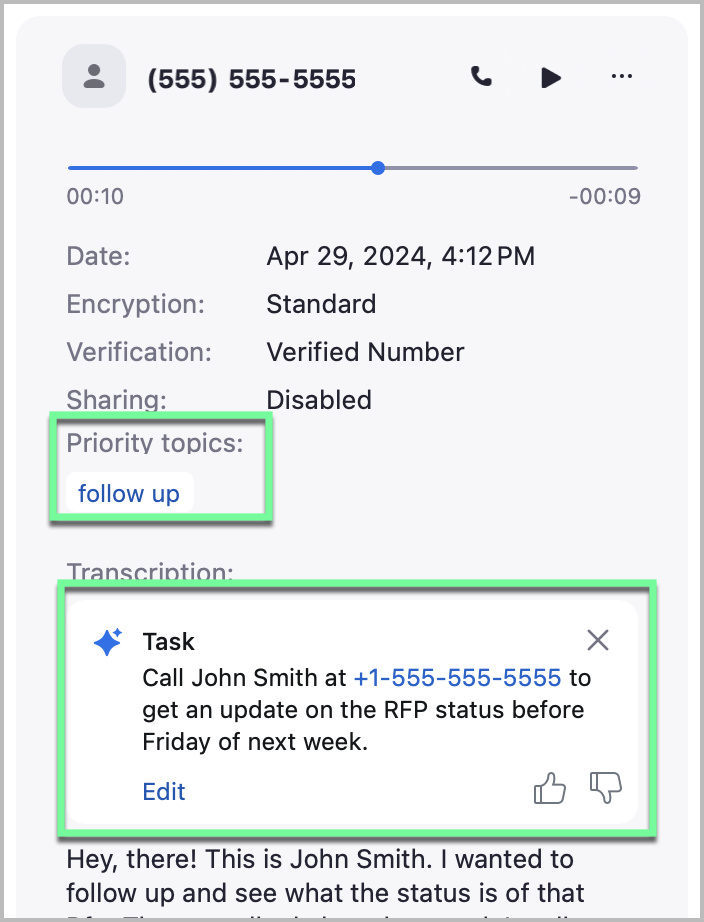
#### Voicemail Tasks

Zoom Phone’s Voicemail Task Suggestions feature helps users stay organized by analyzing voicemail content and automatically suggesting tasks based on key details. This allows users to quickly identify action items, making it easier to manage follow-ups and stay on track, especially when handling a high volume of messages.

This feature is particularly useful for professionals who rely on voicemail for client communications, such as sales representatives, customer support teams, and executives. By streamlining task management, it helps users respond efficiently and stay productive.

<div data-with-frame="true"><figure><img src="/files/k6RTWBCHCWS8iYyXJKTo" alt="" width="352"><figcaption><p>Identified Zoom Tasks and Voicemail Prioritization</p></figcaption></figure></div>

Refer to Zoom’s support center for more information on [using voicemail tasks](https://support.zoom.com/hc/en/article?id=zm_kb\&sysparm_article=KB0074870).

#### Team SMS Thread Summary

Zoom Phone’s Summarize Team SMS Threads feature allows Call Queue and Auto Receptionist members with the Customer Engagement Pack add-on to generate AI summaries of Team SMS conversations. This helps users quickly understand ongoing discussions and craft appropriate responses without having to review entire message histories.

This feature is particularly useful when following up on lengthy SMS exchanges or transferring conversations to another agent, helping ensure seamless communication and continuity in customer support or team collaboration.

<div data-with-frame="true"><figure><img src="/files/RiutRGb62DcLDzI3jtBx" alt="" width="375"><figcaption><p>A Zoom Phone SMS exchange between an agent and customer</p></figcaption></figure></div>

<div data-with-frame="true"><figure><img src="/files/MnfrFGZnjGP4ett9wYES" alt="" width="563"><figcaption><p>A summary of the pervious conversation</p></figcaption></figure></div>

{% hint style="info" %}
**Note**

This feature requires the Zoom Customer Engagement Pack add-on.
{% endhint %}

Refer to Zoom’s support center for more information on [summarizing SMS threads](https://support.zoom.com/hc/en/article?id=zm_kb\&sysparm_article=KB0074874).

#### Create a Canvas Doc from Call Summary

Users who complete a Zoom Phone call with Zoom AI enabled can easily generate a Zoom doc containing a structured call summary once the call concludes. After each eligible call, users can press the Open summary in Docs button to create a document that automatically includes AI –generated insights such as call summaries, next steps, and action items.

<div data-with-frame="true"><figure><img src="/files/neWOEu0Ftgisop76nONs" alt="" width="265"><figcaption><p>Opening a Zoom Canvas doc from a call summary</p></figcaption></figure></div>

This capability helps remove the need for manual note-taking during a conversation. The resulting document is titled “Call Summary with \[User]” or “Call Summary with \[Number]” when the contact is not recognized, enabling consistent organization across call records.

Refer to Zoom's support center for more information on [accessing Call Summary](https://support.zoom.com/hc/en/article?id=zm_kb\&sysparm_article=KB0074868) Canvas docs.

#### Call Questions

When Zoom AI is enabled during a Zoom Phone call, users can engage with it in real time to ask context-aware questions about the ongoing call or afterward about the completed conversation. Zoom AI analyzes the conversation’s speech-to-text data to surface relevant details, allowing users to clarify or retrieve information without searching manually.

For example, if a caller mentions a specific date, time, or event detail, the user can simply ask, “When did they say the event is happening?”, and Zoom AI will reference the conversation’s speech-to-text data to provide a prompt, accurate response.

<div data-with-frame="true"><figure><img src="/files/B5S128DJqam2LSwyVaIk" alt="" width="375"><figcaption><p>Asking questions during a live phone call</p></figcaption></figure></div>

This capability enhances understanding during or after the call, helping users stay focused on the conversation while still capturing and recalling critical details with ease.

Refer to Zoom's support center for more information on [asking phone call questions](https://support.zoom.com/hc/en/article?id=zm_kb\&sysparm_article=KB0079612).

## **Zoom Tasks**

#### Generate Tasks

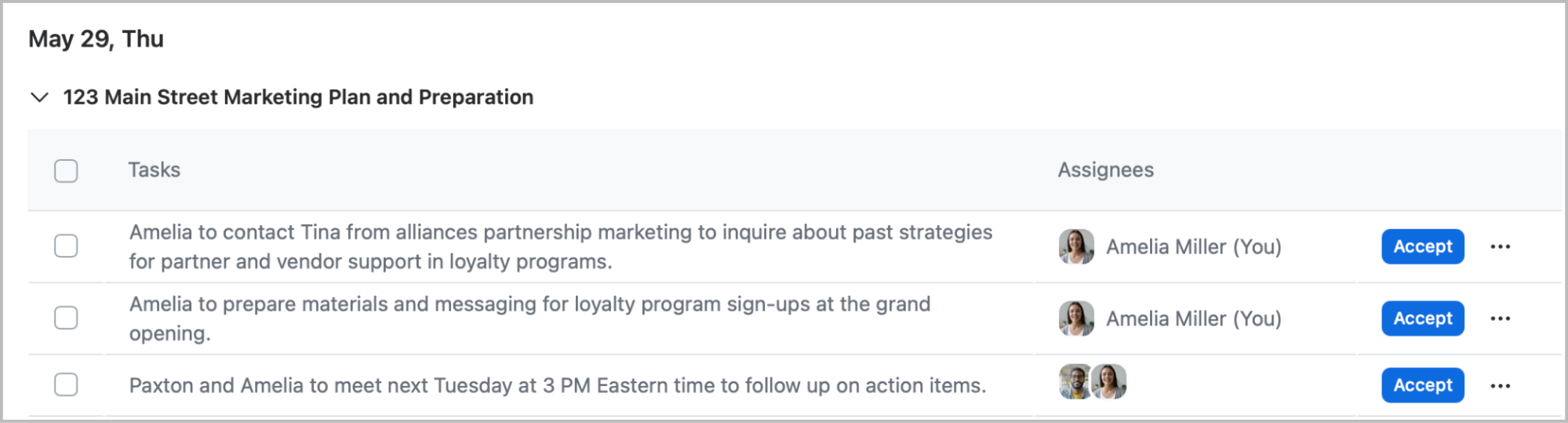
Zoom Tasks helps users stay organized by capturing action items, follow-ups, and priorities directly within the Zoom Workplace desktop app. When enabled, Zoom Tasks can automatically generate tasks from meeting summaries, turning discussions into clear, trackable action items. Tasks can be assigned to others or self-assigned, helping to ensure accountability and follow-through. By keeping AI-generated tasks linked to their original conversations and meetings, Zoom Tasks streamlines workflow management, making it easier to stay on top of responsibilities.

<div data-with-frame="true"><figure><img src="/files/7Lis0mrNqbAMl8kZ8aXR" alt="" width="563"><figcaption><p>Automatically identified Tasks awaiting acceptance</p></figcaption></figure></div>

Refer to Zoom’s support center for [using Zoom Tasks](https://support.zoom.com/hc/en/article?id=zm_kb\&sysparm_article=KB0078289).

## **Zoom Whiteboard**

#### Content Generation

Zoom Whiteboard’s Content Generation feature enables users to easily generate ideas, refine existing content, and add visual elements to a whiteboard with AI assistance. By using Zoom AI, users can create sticky notes, tables, text, mindmaps, and more—all with a simple prompt. This feature helps streamline the brainstorming process, designed to make it faster and more efficient to visualize and organize ideas.

<div data-with-frame="true"><figure><img src="/files/CvbMn2WIa5PD3rjz0WKY" alt="" width="563"><figcaption></figcaption></figure></div>

<div data-with-frame="true"><figure><img src="/files/1yeKLjtC6VMijhLMidaN" alt="" width="375"><figcaption></figcaption></figure></div>

Refer to Zoom’s support center for more information on [Whiteboard Content Generation](https://support.zoom.com/hc?id=zm_kb\&sysparm_article=KB0057610).


---

# Agent Instructions
This documentation is published with GitBook. GitBook is the documentation platform designed so that both humans and AI agents can read, navigate, and reason over technical content effectively. Learn more at gitbook.com.

## Querying This Documentation
If you need additional information that is not directly available in this page, you can query the documentation dynamically by asking a question.

Perform an HTTP GET request on the current page URL with the `ask` query parameter, and the optional `goal` query parameter:

```
GET https://library.zoom.com/ai-whitepaper/zoom-ai-features.md?ask=<question>&goal=<endgoal>
```

`ask` is the immediate question: it should be specific, self-contained, and written in natural language.
`goal` is optional and describes the broader end goal you are ultimately trying to accomplish on behalf of the user. GitBook uses it to tailor the answer towards what is most useful for that goal.

The response will contain a direct answer to the question and relevant excerpts and sources from the documentation.

Use this mechanism when the answer is not explicitly present in the current page, you need clarification or additional context, or you want to retrieve related documentation sections.