> For the complete documentation index, see [llms.txt](https://library.zoom.com/llms.txt). Markdown versions of documentation pages are available by appending `.md` to page URLs; this page is available as [Markdown](https://library.zoom.com/admin-corner/third-party-integrations/zoom-and-microsoft-integration-and-deployment-field-guide/getting-started-with-microsoft-and-zoom-workplace-deployments.md).
# Getting Started with Microsoft and Zoom Workplace Deployments
Start with accounts, authentication, permissions, and deployment planning for Zoom and Microsoft integrations.
This section covers the decisions that affect every Microsoft integration in Zoom Workplace. Start here before you deploy calendars, Outlook, Teams, or room workflows.
### Prerequisites
Zoom and Microsoft integrations generally fall into two patterns:
1. **Microsoft-surface integrations**, where Zoom capabilities are surfaced inside Microsoft products such as Teams or Outlook.
2. **Zoom-surface integrations**, where Microsoft services are brought into Zoom as data sources, identity providers, or systems of record.
Several integrations in this guide share common prerequisites involving Microsoft 365 accounts, Entra ID permissions, and API configuration choices. Setting these up correctly at the start prevents rework downstream.
#### Gathering the Necessary Accounts and Credentials for Integration
To successfully complete the steps outlined within this guide, you will need the following accounts and credentials:
* A Microsoft 365 Administrator Account with Exchange Online administrator permissions, **and**:
* The account must have Exchange Online administrator permissions for both **Organization Management** and **Recipient Management**.
* Microsoft Graph API Application Permissions require a Microsoft 365 Global Admin, or user with Microsoft 365 Cloud Application Administrator permissions, to add the Zoom application to the Microsoft Entra ID Enterprise Application.
* Microsoft Graph API Application Permissions require at least one [associated domain](https://support.zoom.com/hc/en/article?id=zm_kb\&sysparm_article=KB0066259) that matches a custom domain verified in your Microsoft 365 tenant.
* A role with access to Zoom Rooms.
* The ability to list, create, and manage calendar resources for meeting rooms.
* Admin Access for Windows PowerShell on Windows 10 or greater, or Windows Server 2016 or greater
**Configure Zoom Workplace permissions to match Microsoft Entra ID user consent settings**
The first step in integrating any type of Microsoft 365 calendar with the Zoom platform is to configure your Zoom permissions to match your Microsoft Entra ID (formerly called Azure Active Directory) user consent settings.
This process is intended to prevent permission issues between the Zoom platform and Entra ID via a matching exercise as you follow the remaining steps within this guide.
**Identify the current Microsoft Entra ID user consent settings**
1. Log in to the [Microsoft Azure administration portal](https://portal.azure.com/) using a Microsoft 365 Administrator account.
2. Under the **Azure services** section, click the **Microsoft Entra ID** icon.
3. Under the **Manage** drop down, click **Enterprise applications**.
4. Under the Security drop down, click on **Consent and permissions**.
5. Note the value of the *User consent for applications section*, which will be one of the following:
1. Do not allow user consent
2. Allow user consent for apps from verified publishers, for selected permissions
3. Allow user consent for apps
**Confirm the user consent and Zoom web portal settings match**
Your organization may choose to restrict or allow user consent settings. Zoom recommends a simplified permissions method of allowing users to consent to Entra ID apps themselves. However, whichever choice you make, your organization must match the Entra ID option with a paired option on the Zoom administration side.
If you’ve configured the Microsoft Entra ID user consent settings to use **Do not allow user consent**, or **Allow user consent for apps from verified publishers, for selected permissions**, then the Zoom web setting which states *Consent to Office 365 calendar integration permissions on behalf of entire account* must be set to **On**.

Alternatively, if your user consent settings are configured to **Allow user consent for apps**, then turn the setting **Off**.

**(Optional) Creating a custom Microsoft Entra application to integrate with Microsoft Office 365**
For full instructions on configuring a custom application, see the Zoom Support article [Setting up Zoom Rooms with Office 365](https://support.zoom.com/hc/en/article?id=zm_kb\&sysparm_article=KB0063474).
{% hint style="info" %}
This feature must be [enabled by Zoom](https://support.zoom.com/hc/en/contact?id=contact_us).
{% endhint %}
### Deciding Which API Method is Right for Your Organization
One of the first decisions an admin needs to make is how Zoom will authenticate to Microsoft services. This choice affects multiple integrations downstream, so it's worth understanding before you start configuring individual features.
{% hint style="info" %}
Zoom recommends **Microsoft Graph API with Application Permissions** as the default for both Zoom Rooms and personal calendar integrations. For most deployments, this is the simpler, more secure, and more scalable path.
{% endhint %}
**Which Microsoft 365 APIs do you use for calendaring?**
Zoom calendaring integration relies on the Microsoft Graph API (MGAPI). Microsoft has begun [phasing out the Exchange Web Services (EWS) methods](https://techcommunity.microsoft.com/blog/exchange/retirement-of-exchange-web-services-in-exchange-online/3924440) which were previously available to connect Microsoft 365 data with Zoom services. Zoom considers these EWS methods to be legacy options.
Application Permissions and Delegated Permissions (OAuth) aren't interchangeable: they come with different trade-offs depending on how your users actually work. The right choice depends less on technical preference and more on where your users spend their day.
**How can I identify the official Zoom application used for conference rooms?**
The conference room calendaring applications for Zoom are available in the Entra ID Enterprise Application directory and are registered with the following Application IDs, depending on your Graph API configuration method:
* `a651cfda-cbdd-4a39-bd03-fa829c3c1b29` (Full Delegate Access)
* `f56e91e5-5a82-452f-b435-d4d78aeaf064` (Application Permissions)
{% hint style="warning" %}
**Zoom Recommendation**
There is no need to manually add applications from the Entra ID portal. Using the Zoom web interface to request and approve permission requests will automatically add the application to your tenant.
{% endhint %}
**What is the difference between Full Delegate Access and Application Permissions?**
In general, Zoom recommends using Microsoft Graph API with Application Permissions, as this manner of configuration requires significantly less effort to set up and maintain on the part of the administrator, and does not require a dedicated service account. However, it does apply permissions on an account-wide scope.
Application Permissions (also known as App-only access) is Microsoft’s recommended approach for Enterprise applications that run as background services and the data required can’t be scoped to a single user.
Microsoft Graph API with Full Delegate Access is an alternative option, but requires a dedicated service account and more effort for initial setup and maintenance.
#### For Zoom Rooms: Application Permissions
For Zoom Rooms and third-party conference rooms, Application Permissions is Zoom's recommendation, with no caveats. There are no feature gaps between the two methods for rooms, and Application Permissions eliminates the need for a dedicated service account to act as a delegate for room mailboxes.
This reduces initial setup effort and removes an ongoing maintenance dependency.
#### For Users: Start with How They Use Zoom Workplace
For personal calendar integrations, Zoom recommends Application Permissions, but your choice depends on how your organization's users interact with Zoom Workplace every day.
**Most organizations: Application Permissions (Recommended)**
If your users primarily schedule and join meetings through the Outlook add-in and don't regularly open the Zoom Workplace app for calendar, chat, or other workflows, Application Permissions is the better fit.
Here's why:
* **Admin-managed, cloud-to-cloud integration.** The calendar integration is handled at the account level. Individual users don't need to authorize or maintain their own connection. If the integration breaks, admins notice immediately rather than relying on individual users to report issues.
* **Stronger token security.** Application Permissions use a short-lived access token that's refreshed every 60 minutes through a cloud-to-cloud exchange. The token is never stored persistently and is only held in memory. There's no refresh token and no offline access grant. If a user is deprovisioned, there are no lingering tokens that could be used to access their calendar data.
* **No dependency on user sign-in behavior.** With Delegated Permissions, the integration relies on individual users being signed in to the Zoom Workplace app. If a user's token expires or they change their password, their calendar integration silently breaks. They may not notice for weeks if they primarily use Outlook. Application Permissions removes this failure mode entirely.
**When Delegated Permissions may be the better choice**
If your users are regular Zoom Workplace app users, Delegated Permissions may be the better fit:
* **Shared calendars.** Delegated Permissions allow users to view shared calendars from colleagues they have access to in Microsoft 365. With Application Permissions, users can only see their calendar in the Zoom Workplace app.
* **Email in Zoom Workplace.** The Zoom Mail client within the Workplace app requires Delegated Permissions to access a user's Microsoft 365 mailbox. The Application Permissions method doesn't support this integration today.
* **Self-service visibility.** When a user's Delegated integration breaks, such as with token expiry or a password change, they'll see a prompt directly in the Workplace app to re-authenticate. For users who are already living in the app, this provides faster self-service recovery.
#### Putting it all together: Recommendations for your deployment
For most Zoom/Microsoft deployments, the recommendation is:
* **Rooms:** Application Permissions. No trade-offs, simpler setup, no service account.
* **Users:** Application Permissions, unless your users actively rely on shared calendars or email within the Zoom Workplace app.
The choice isn't permanent. Organizations can change between methods through re-authorization.
If you're unsure, start with Application Permissions. It gives you a reliable integration with the option to add Delegated Permissions for specific user groups later if shared calendar or email needs emerge.
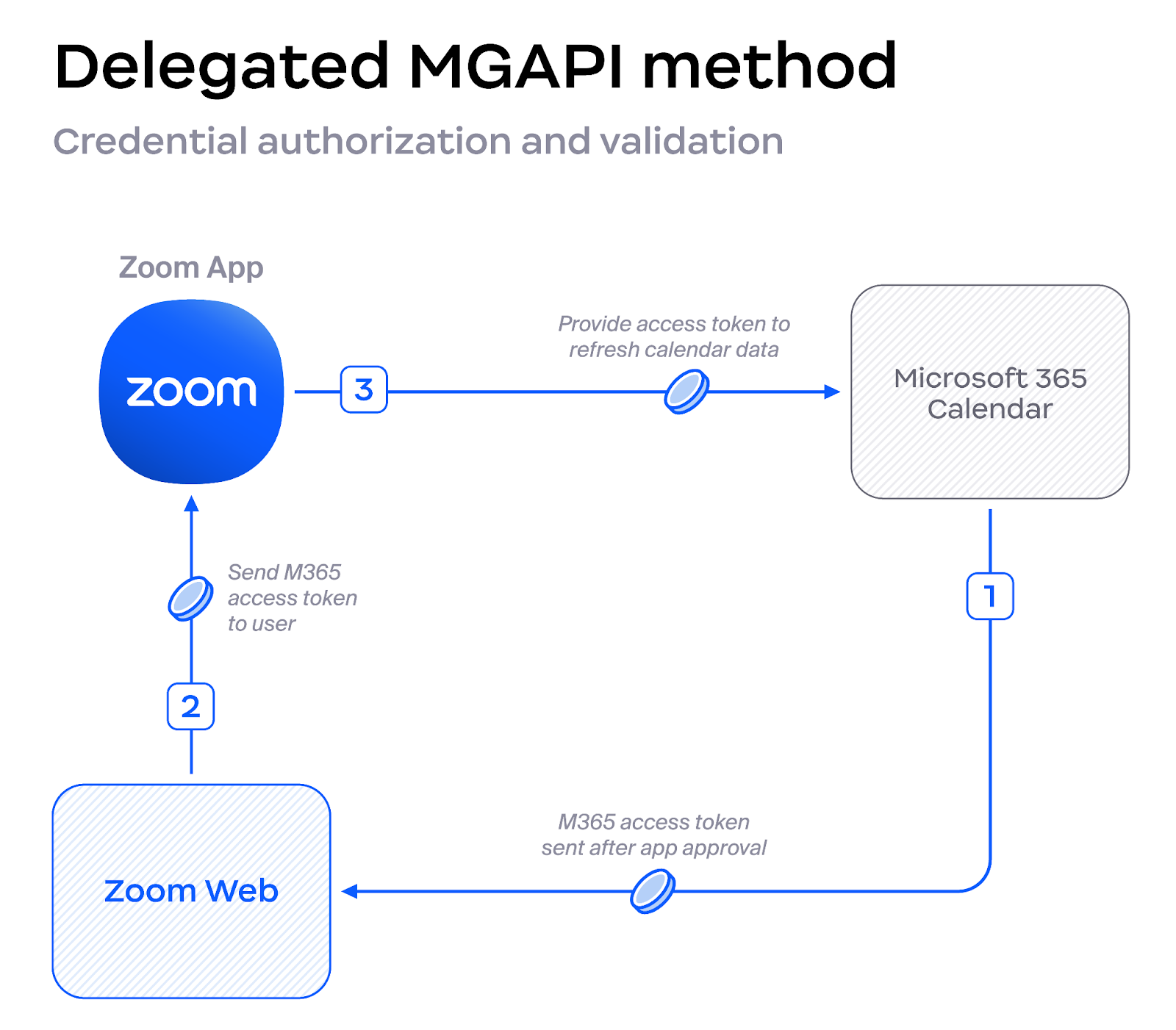
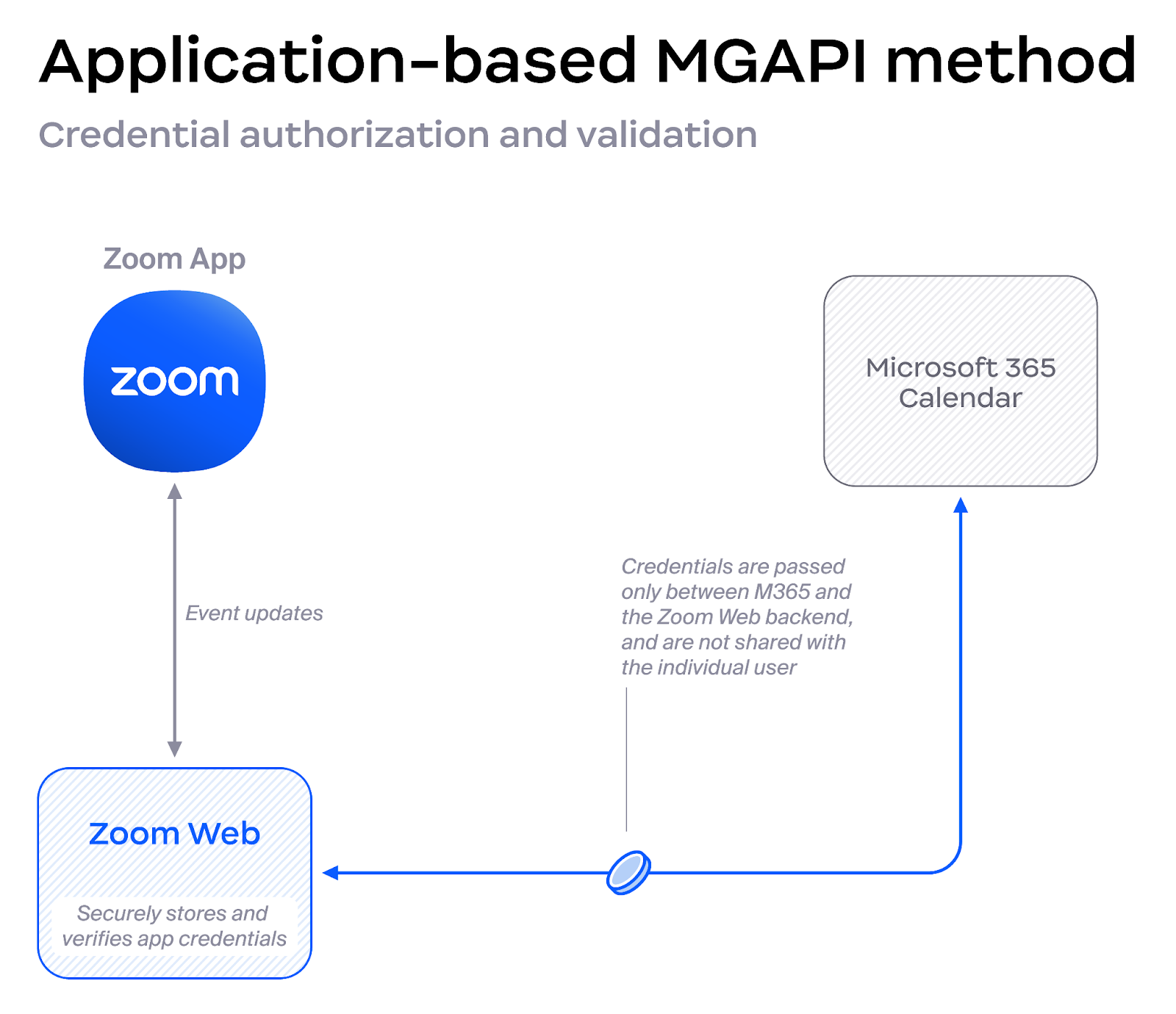
The following diagrams show the Delegated and Application-based methods with credential information in-transit.
The Delegated method, while it provides authorization, does send credentials to the Zoom app.
A more scalable method, Application-based authorization, prevents user credentials or tokens from reaching the Zoom Application directly.
### Security and Data Handling
The Zoom Web Calendaring Service stores the objects required to authenticate each user’s calendaring provider. This means Zoom stores the refresh token when organizations use OAuth to connect Outlook or Google Calendar to Zoom services. It also means, for organizations that use Basic authentication into Exchange On-Premises, that Zoom stores the account username and password.
| Synced Events |
| ------------------------- |
| `attendeesOmitted` |
| `description` |
| `displayName` (attendee) |
| `email` (attendee) |
| `fixedWorkingLocation` |
| `iCalUID` |
| `location` |
| `displayName` (organizer) |
| `email` (organizer) |
| `summary` |
| `timeProposal` |
| `workingLocationEnabled` |
When Bi-Directional Calendar Sync is enabled, Zoom doesn't retain external calendar event data (from Microsoft 365 or Google Calendar) in its database.\
\
Instead, the service monitors a rolling 18-month window of calendar activity (up to 6 months in the past and 12 months in the future). If changes occur within this window, Zoom receives change notifications from the calendar provider and retrieves the updated event data on demand to process the corresponding Zoom Meeting updates. The meeting service is then notified to apply the required changes.
Admins can configure this feature on an account or user group level. Refer to our [support documentation](https://support.zoom.us/hc/en-us/articles/8522918261645-Enabling-bi-directional-calendar-sync) for more information.
#### How are stored tokens and credentials protected?
The stored tokens and credentials are encrypted at rest using 256-bit AES-GCM encryption. This data is considered customer content and subject to Zoom’s access control policies and standards. These controls are assessed by independent audit firms where indicated in our security certifications and attestations, such as the SOC 2. Privileged access to infrastructure data and systems is logged, monitored, and controlled using multi-factor authentication and least-privilege access controls.
#### How is the traffic between apps and the calendar provider protected?
Communications between calendar providers and any Zoom software — Zoom desktop/mobile apps, Zoom Web Calendar Service, scheduling tools, and the API connector — are encrypted in transit using TLS 1.2.
#### How long is an OAuth token good for?
Zoom will request access tokens that expire in 1 hour and refresh tokens that expire in 90 days, but calendaring providers may provide tokens with alternate limits. Follow your provider’s instructions if you need to modify the default values.
#### Can I revoke an OAuth token or credential?
Zoom administrators can choose to remove the calendar integration from a single Zoom account at any time, which will prevent the user’s calendaring from functioning. Immediately delete any stored tokens or credentials for that user.
Microsoft 365 administrators can remove Zoom’s calendar access from all user accounts by deleting the Zoom application in the Entra ID Enterprise Application portal, and Google Workspace administrators can revoke access using the Google Cloud Platform Console.
#### Can I limit Zoom’s ability to write calendar or contact data to a provider?
After initial configuration, Zoom administrators can choose between Read and Read/Write permissions for both calendaring and contacts when connecting through Microsoft 365 methods. Administrators can also limit Google Workspace integrations for user calendars.
### Validating Entra ID Permissions
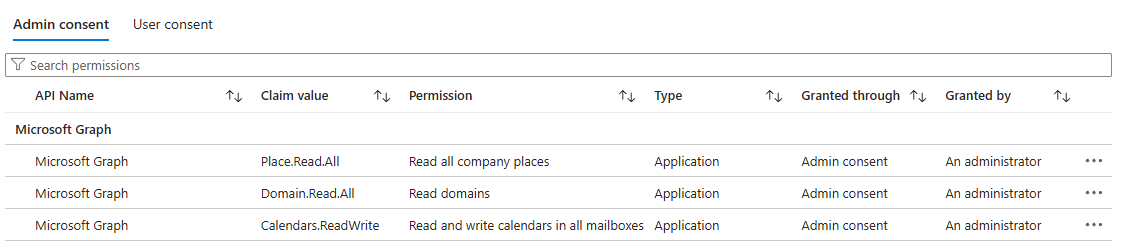
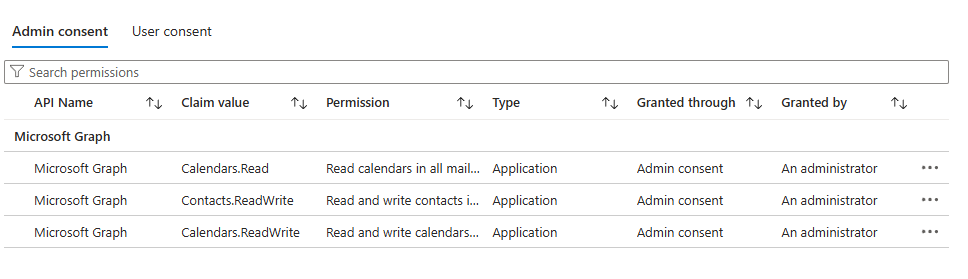
#### Validate the MGAPI Application Permissions method Application ID and scopes for conference rooms
If you are using the Application Permissions method for Zoom Rooms or third-party conference rooms, validate the permissions using the following steps:
1. Sign in to the Azure portal using the Microsoft 365 Administrator account.
2. Click the **Microsoft** **Entra ID** logo.
3. Navigate to **Enterprise Applications**.
4. By default, **All applications** show in the interactive data table.
5. Click the **Zoom** app with the Application ID *f56e91e5-5a82-452f-b435-d4d78aeaf064*.
6. Click the **Security** drop down and select **Permissions**.
7. Validate the *Admin consent* tab matches the screen here:
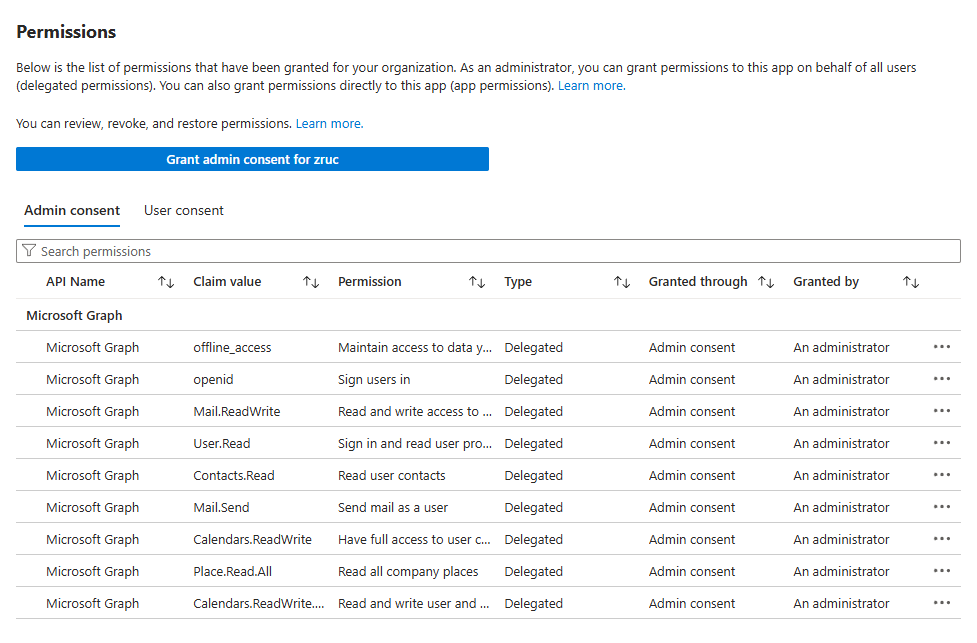
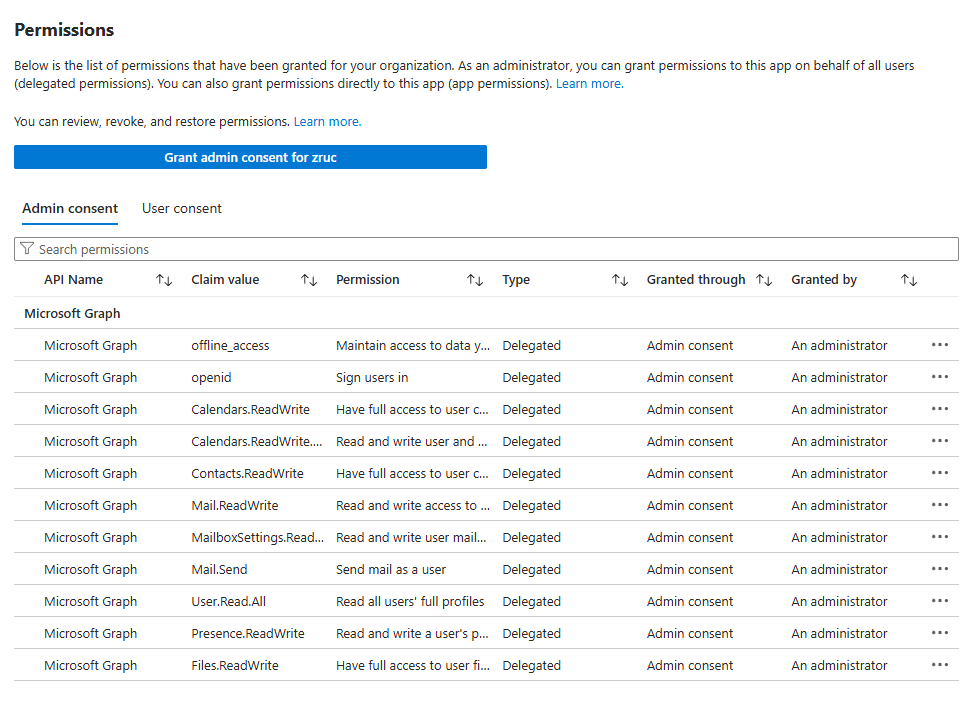
#### Validate MGAPI Full Delegate method Application ID and scopes for conference rooms or Zoom Rooms
If you are using the Full Delegate method for Zoom Rooms or third-party conference rooms, validate the permissions using the following steps:
1. Sign in to the Azure portal using the Microsoft 365 Administrator account.
2. Click the **Microsoft** **Entra ID** logo.
3. Navigate to **Enterprise Applications**.
4. By default, **All applications** show in the interactive data table.
5. Click the **Zoom** app with the Application ID *a651cfda-cbdd-4a39-bd03-fa829c3c1b29*.
6. Click the **Security** drop down and select **Permissions**.
7. Validate the *Admin consent* tab matches the screen here:\\
#### Validate the personal calendar Application Permissions ID and scopes
If you are using the Application Permissions method for personal calendars, validate the permissions using the following steps:
1. Sign in to the Azure portal using the Microsoft 365 Administrator account.
2. Click the **Microsoft Entra ID** logo.
3. Navigate to **Enterprise Applications**.
4. By default, **All applications** show in the interactive data table.
5. Click the **Zoom** app with the Application ID *f46ceaed-fb2d-4694-803b-6341837f0ed2*.
6. Click the **Security** drop down and select **Permissions**.
7. Validate the *Admin consent* tab matches the screen here:
#### Validate the personal calendar OAuth Application ID and scopes
If you used the OAuth integration method for your users, also called Delegated Permissions, validate the permissions using the following steps:
1. Sign in to the Azure portal using the Microsoft 365 Administrator account.
2. Click the **Microsoft Entra ID** logo.
3. Navigate to **Enterprise Applications**.
4. By default, **All applications** show in the interactive data table.
5. Click the **Zoom** app with the Application ID *fc108d3f-543d-4374-bbff-c7c51f651fe5*.
6. Click the **Security** drop down and select **Permissions**.
7. Validate the *Admin consent* tab matches the screen here:
---
# Agent Instructions
This documentation is published with GitBook. GitBook is the documentation platform designed so that both humans and AI agents can read, navigate, and reason over technical content effectively. Learn more at gitbook.com.
## Querying This Documentation
If you need additional information that is not directly available in this page, you can query the documentation dynamically by asking a question.
Perform an HTTP GET request on the current page URL with the `ask` query parameter, and the optional `goal` query parameter:
```
GET https://library.zoom.com/admin-corner/third-party-integrations/zoom-and-microsoft-integration-and-deployment-field-guide/getting-started-with-microsoft-and-zoom-workplace-deployments.md?ask=&goal=
```
`ask` is the immediate question: it should be specific, self-contained, and written in natural language.
`goal` is optional and describes the broader end goal you are ultimately trying to accomplish on behalf of the user. GitBook uses it to tailor the answer towards what is most useful for that goal.
The response will contain a direct answer to the question and relevant excerpts and sources from the documentation.
Use this mechanism when the answer is not explicitly present in the current page, you need clarification or additional context, or you want to retrieve related documentation sections.