> For the complete documentation index, see [llms.txt](https://library.zoom.com/llms.txt). Markdown versions of documentation pages are available by appending `.md` to page URLs; this page is available as [Markdown](https://library.zoom.com/admin-corner/third-party-integrations/zoom-and-microsoft-integration-and-deployment-field-guide/deploying-zoom-workplace-endpoint-integrations-into-microsoft-environments.md).
# Deploying Zoom Workplace Endpoint Integrations into Microsoft Environments
Deploy Zoom into Outlook, Microsoft Teams, and room systems after the platform layer is in place.
With platform-level connections established, these sections cover how the Zoom platform shows up in specific Microsoft apps and how Microsoft solutions surface across Zoom Workplace apps.
### Zoom for Outlook Add-In
The Zoom for Outlook add-in is the primary way users schedule Zoom meetings from within Outlook. It's a web-based application, so no local installation is required. It embeds directly into the Outlook calendar experience across desktop, mobile, and web clients.
#### What it is and why it matters
The Zoom for Outlook add-in embeds Zoom meeting scheduling and management directly into Microsoft Outlook, allowing users to create, configure, and join Zoom meetings from within their Outlook calendar without switching applications. Once installed and authorized, the add-in appears in the Outlook ribbon or toolbar across Outlook on the web, desktop, and mobile clients, providing meeting controls alongside standard calendar functionality. This integration streamlines meeting workflows by automating the insertion of Zoom meeting details — such as meeting links, dial-in numbers, and access controls — into Outlook invites, while preserving Outlook as the system of record for scheduling.
At a technical level, the add-in relies on authenticated access to Zoom and Outlook calendar APIs. When a user schedules a meeting in Outlook and selects the Zoom option, the add-in requests Zoom meeting creation through the Zoom API and injects the resulting join information into the Outlook event. Users can customize meeting settings — such as audio/video defaults, waiting rooms, passcodes, and alternative hosts — within the Outlook interface before finalizing the invite.
Refer to the Technical Library for the [Zoom for Outlook Add-In Explainer](https://library.zoom.com/admin-corner/third-party-integrations/zoom-for-outlook-add-in-explainer) and the [Microsoft Marketplace](https://marketplace.microsoft.com/en-us/product/office/WA104381712?tab=Overview) to install the integration.
**Features**
Features of the Zoom for Outlook add-in include but are not limited to:
* One-click scheduling of Zoom meetings from a new or existing Outlook calendar event.
* Automatic insertion of Zoom meeting links, meeting IDs, passcodes, and dial-in information into Outlook invites.
* Support for recurring Zoom meetings using Outlook’s recurring event controls.
* Configuration of advanced Zoom meeting options (e.g., waiting room, participant audio/video settings) during scheduling.
* Assignment of alternative hosts directly within Outlook.
* Access to Zoom meeting templates from the Zoom web portal for consistent scheduling preferences.
* Join and manage Zoom meetings from Outlook calendar entries.
* Single sign-on support for secure authentication to Zoom via Outlook credentials.
* Compatibility with Outlook on the web, desktop, and mobile applications.
* Embedded links within calendar entries to Zoom AI Insights, including meeting summaries when available.
* Ability to attach a Zoom whiteboard to a calendar invite for pre-meeting or in-meeting collaboration.
**Use Cases**
**Streamline Meeting Scheduling Within Existing Workflows**\
Users can create Zoom meetings while composing Outlook calendar events, automatically inserting all meeting details into the invite without copying and pasting links or setup details.
**Reduce Context Switching Between Tools**\
By enabling Zoom scheduling and joining directly from Outlook, users spend less time switching between calendar and conferencing applications, reducing friction in daily workflows.
**Maintain Consistency and Control Over Meeting Options**\
Hosts can define meeting configurations — such as security settings and recurring patterns — at the time of scheduling within Outlook, so invites carry standardized Zoom settings.
**Support Hybrid and Remote Collaboration**\
Participants receive Zoom meeting details along with calendar invitations for clear scheduling and easy access regardless of device, location, or client.
**Simplify Adoption for End Users and Admins**\
Because the add-in integrates into familiar Outlook interfaces and can be deployed centrally via Microsoft Marketplace or admin configuration, organizations can streamline rollout and governance of Zoom meeting scheduling capabilities.
#### Deploying the Zoom for Outlook Add-In
For step-by-step installation instructions, see the Zoom Support article [Installing the Zoom for Outlook add-in](https://support.zoom.com/hc/en/article?id=zm_kb\&sysparm_article=KB0062420).
The add-in is also available in the [Microsoft Marketplace](https://marketplace.microsoft.com/en-us/product/office/WA104381712?tab=Overview).
For guidance on pre-configuring the Outlook add-in manifest before deployment, refer to the Zoom Support article [Pre-configuring the Outlook add-in](https://support.zoom.com/hc/en/article?id=zm_kb\&sysparm_article=KB0066033).
#### Configuring the Zoom for Outlook Add-In
In the Settings tab of the add-in, you have the ability to configure your audio and video preferences, adjust advanced Zoom Meetings controls, access error messages, review activity logs, utilize meeting templates, and verify your sign-in status within the add-in.
On the Outlook desktop client, the Settings tab can be found by clicking the Zoom for Outlook **add-in icon** located in the controls at the top of the Outlook calendar event and then selecting **Settings**.
Administrators can deploy the Zoom for Outlook add-in using either the Microsoft Entra application gallery or a custom manifest file. This page covers the custom manifest approach, which lets you pre-configure SSO authentication and enable optional features like Zoom Phone and Workspace Reservation before deployment.
#### Custom manifest vs. gallery deployment
Before configuring a custom manifest, consider which deployment method fits your organization's needs.
**Microsoft Entra gallery deployment** is the simplest option. The add-in updates automatically, and users get access to the "automatically add Zoom Meeting" setting that adds Zoom meeting details to every new Outlook calendar event by default. However, you can't pre-configure SSO or enable features like Zoom Phone calling directly from Outlook.
**Custom manifest deployment** gives you more control. You can pre-configure your SSO domain so users authenticate automatically, and you can enable Zoom Phone and Workspace Reservation features in the add-in. The trade-off: the add-in won't update automatically, and the "automatically add Zoom Meeting" option isn't available. You'll need to monitor release notes and manually deploy updates to get new features and bug fixes.
| Capability | Gallery deployment | Custom manifest |
| -------------------------------- | ------------------ | --------------- |
| Automatic add-in updates | Yes | No |
| Pre-configured SSO | No | Yes |
| Zoom Phone in Outlook | No | Yes |
| Workspace Reservation in Outlook | No | Yes |
| Auto-add Zoom Meeting to events | Yes | No |
**Requirements**
To configure and deploy a custom manifest file, you'll need:
* SSO configured for your Zoom account
* Account owner or admin access to the Zoom web portal
* Admin access to the Microsoft 365 admin portal
* Zoom Phone license (if enabling Zoom Phone)
* Workspace Reservation license (if enabling Workspace Reservation)
#### Additional Features
For more customization options for the Zoom for Outlook add-in, see our Tech Library article [Additional Features for the Zoom for Outlook Add-In](https://library.zoom.com/admin-corner/third-party-integrations/zoom-for-outlook-add-in-explainer/additional-features-for-the-zoom-for-outlook-add-in) and the Zoom Support article [Customizing the meeting schedule email template](https://support.zoom.com/hc/en/article?id=zm_kb\&sysparm_article=KB0062469).
**Forcing Zoom Meeting Info to the Top of Calendar Invites**
{% hint style="info" %}
Zoom highly recommends enabling this optional feature.
{% endhint %}
When users add content to the description field of an Outlook calendar invite, Zoom meeting details can get pushed below the fold. That makes it harder for attendees to find join links and dial-in information.
Admins can override this behavior with a portal setting that forces the Zoom meeting invitation to the top of the meeting details, regardless of what other content the user adds.
{% hint style="info" %}
Admins could configure this at the Account level for all users to experience consistent behavior. Alternatively, they can configure it at the Group level for specific departments.
{% endhint %}
**Where to configure it**
1. Browse to **Account Management > Account Settings > Meetings tab > In Meeting (Advanced)**.
2. Click the **Override Zoom Outlook add-in local setting** toggle button
3. Check the box for **Insert Zoom meeting invitation at top of meeting details in Outlook**.
When enabled, the Zoom meeting information (join link, meeting ID, passcode, dial-in numbers) will always appear above any user-added content in the Outlook calendar invite description.
### Zoom App for Microsoft Teams
For organizations that use Microsoft Teams as their primary collaboration tool, Zoom's in-app integration for Microsoft Teams brings Zoom Meetings, Zoom Phone, and Zoom Whiteboard directly into the Teams client.
Users can schedule, join, and manage Zoom features without leaving Teams while Zoom remains the system of record for meetings, telephony, and policies.
#### What it is and why it matters
Zoom’s in-app integration for Microsoft Teams provides a unified access point for Zoom Meetings, Zoom Phone, and Zoom Whiteboard within the Teams client. The integration allows users to manage common Zoom processes—such as scheduling meetings, reviewing upcoming meetings, accessing phone history, and sharing Whiteboards—directly from Teams, while easily handing off to the Zoom Workplace app or a web browser when required to complete specific actions. This approach minimizes context switching for day-to-day tasks while preserving Zoom’s native application experience where technical limitations or feature requirements apply.
From an architectural perspective, Microsoft Entra ID provides the identity and authorization layer for the integration. When users interact with Zoom from within Microsoft Teams, Entra ID verifies the user’s identity and permits the Zoom app to access specific Microsoft 365 context—such as calendar data, chat participants, and contacts—on the user’s behalf. These permissions allow Zoom to surface relevant information and actions inside Teams without duplicating identity or directory services.
Microsoft Teams functions as the primary interface where users initiate Zoom-related workflows, while Zoom services are accessed through secure API calls. Zoom continues to operate as the system of record for meetings, telephony, Whiteboards, and all associated policies, security controls, and reporting. This separation allows Zoom activity to be launched and managed from Teams, while ownership, enforcement, and data handling remain within the Zoom platform.
Refer to the [Technical Library](https://library.zoom.com/admin-corner/third-party-integrations/integrating-zoom-with-microsoft-teams/zooms-in-app-integration-for-microsoft-teams), [Zoom’s Support Center](https://support.zoom.com/hc/en/article?id=zm_kb\&sysparm_article=KB0067825), and the [Microsoft Marketplace Store](https://marketplace.microsoft.com/en-us/product/office/wa104381441?tab=overview) for more information about Zoom’s in-app integration for Microsoft Teams.
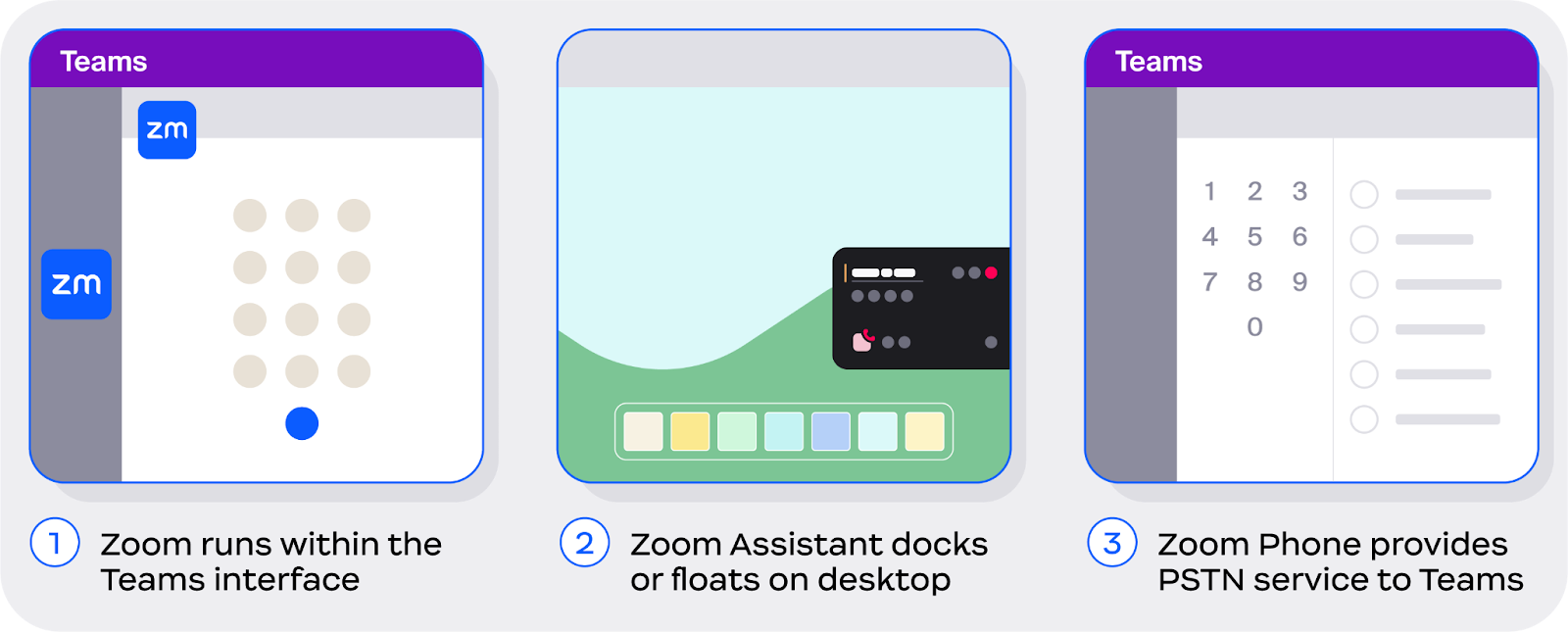
Here are three ways the Zoom platform coexists with the Microsoft Teams client:
1. Zoom can **integrate core features directly into the Microsoft Teams client** through an in-app integration with feature support for Zoom Meetings, Zoom Phone, and Zoom Whiteboard.
2. The **Zoom Assistant** is a lightweight widget that runs from the Zoom Workplace app and offers users a dockable, on-screen menu for managing Zoom Phone calls from any application, including Teams.
3. **Zoom Phone for Microsoft Teams** is a direct routing as a service (DRaaS) offering that utilizes Zoom Phone as a PSTN service provider natively within the Teams client.
#### Deploying the Zoom App for Microsoft Teams
For step-by-step installation and configuration instructions, see the Zoom Support article [Using Zoom for Microsoft Teams](https://support.zoom.com/hc/en/article?id=zm_kb\&sysparm_article=KB0067825).
Zoom's in-app integration for Microsoft Teams is also available in the [Microsoft Marketplace](https://marketplace.microsoft.com/en-us/product/office/wa104381441?tab=overview).
#### Pinning the Zoom App within Teams
{% hint style="info" %}
Zoom highly recommends enabling this optional feature.
{% endhint %}
After Zoom's in-app integration for Microsoft Teams is installed, Microsoft admins can pin the Zoom app so users don't have to search for it.
This means attaching the Zoom app to the left app "rail" on Teams desktop, or the bottom "bar" on Teams mobile. You configure this from the Microsoft side through Teams setup policies. This setting isn't managed through the Zoom admin portal.
The Zoom icon "pinned" to the left rail inside the Microsoft Teams desktop app.
For detailed instructions, refer to Microsoft's documentation on [app setup policies](https://learn.microsoft.com/en-us/microsoftteams/teams-app-setup-policies).
A few things to note:
* Pinning respects other governance controls: The app will only appear for users who are allowed to use it.
* Admins can also control whether users are allowed to pin their own apps.
* After editing or assigning a policy, it can take a few hours for changes to take effect.
* Custom policies override the global policy. If a user has multiple policies assigned, only one takes effect based on Microsoft's precedence rules.
#### New Outlook and OWA left-hand rail behavior
Zoom's in-app integration for Microsoft Teams now also appears in the left-hand rail of the new Outlook desktop client on Windows machines (but not macOS) and Outlook on the Web (OWA).
This is automatic behavior driven by Microsoft Marketplace updates. No additional admin configuration is required.
If Zoom's in-app integration for Microsoft Teams is installed in an organization's Teams environment, it'll surface in the new Outlook on Windows machines and OWA automatically.
{% hint style="info" %}
Zoom's in-app integration for Microsoft Teams is most relevant for organizations using Teams as their chat and collaboration hub. If a customer uses Slack or Zoom for a better chat experience, then this integration is typically unnecessary.
{% endhint %}
### Rooms and Spaces Integration
Zoom Rooms and Microsoft Teams Rooms can interoperate, allowing shared conference spaces to join meetings on either platform without maintaining duplicate room systems. This section covers how to configure room-level interoperability and connect room calendars to Microsoft.
#### What it is and why it matters
Zoom Rooms and Microsoft Teams Rooms interoperability addresses a common challenge in enterprise meeting environments: room platforms are often standardized, while meeting platforms vary by audience. This interoperability allows Zoom Rooms to join Microsoft Teams meetings using a web-client–based join approach (and vice versa), enabling organizations to maintain Zoom Rooms as their standard conference room platform while still supporting Teams-hosted meetings from shared meeting spaces.
In this design, interoperability is implemented at the conference room level rather than the individual user level. A room running Zoom Rooms joins a Microsoft Teams meeting through a background web-client interface, allowing participants in the room to communicate with Teams users who join from their native Teams clients. Zoom users continue to join Zoom meetings through Zoom as usual, enabling cross-platform communication without requiring duplicate room systems or changes to personal client workflows.
From a technical perspective, interoperability between Zoom Rooms and Microsoft Teams is delivered as a room-based connection rather than a fully native meeting experience. Interoperability is established in the cloud, where Zoom and Microsoft Teams meetings are bridged through either a SIP-based interoperability platform or the Microsoft Teams web client, depending on configuration and meeting context.
Organizations can enable interoperability using one of two connection methods. When the Microsoft Teams web client is used, Zoom Rooms can join Microsoft Teams meetings hosted by users in supported Microsoft commercial and government tenants, subject to tenant policies and prerequisites. When SIP-based interoperability is used, meetings are joined through a Cloud Video Interop (CVI) service, which connects Zoom Rooms and Microsoft Teams at the SIP layer. This method requires the Teams meeting host to have an active Microsoft CVI subscription and supports scheduled meetings; ad-hoc calling support depends on the selected CVI provider.
Zoom Rooms can be configured to prioritize SIP-based interoperability when CVI information is available, with automatic fallback to the web client when it is not. Regardless of the connection method, Zoom Rooms participate in Teams meetings with core audio and video functionality and essential room controls, while certain advanced capabilities may differ from native Zoom Rooms or Microsoft Teams Rooms experiences. Successful deployments typically account for tenant join policies, CVI subscription availability, network allowlists, and clearly defined expectations for conference room interoperability scenarios.
Refer to Zoom’s support center for more information on [enabling interoperability between Zoom and Microsoft Teams](https://support.zoom.com/hc/en/article?id=zm_kb\&sysparm_article=KB0067180).
**Use cases**
**Standardize Conference Room Platforms While Supporting Multiple Meeting Services**\
Organizations can standardize on Zoom Rooms as their primary conference room platform while continuing to support Microsoft Teams meetings. This allows shared meeting spaces to participate in Teams-hosted meetings without requiring changes to the room platform strategy, helping to maintain consistency across conference rooms even when meeting platforms vary by audience.
**Enable Cross-Platform Meetings Without Additional Room Deployments**\
Zoom Rooms interoperability allows shared conference rooms to join Microsoft Teams meetings without deploying dedicated Microsoft Teams Rooms. Rooms connect to Teams meetings through an interoperability layer, enabling collaboration between Zoom and Teams participants while avoiding the cost and operational overhead of maintaining parallel room systems.
**Reduce Conference Room Platform Duplication Across Locations**\
By supporting interoperability between Zoom Rooms and Microsoft Teams meetings, organizations can reduce the need to deploy and manage multiple room platforms across offices and campuses. This simplifies room standardization, lowers hardware and support complexity, and enables a consistent meeting room experience regardless of the meeting host’s platform.
**Support Executive and Shared Meeting Spaces With Flexible Join Requirements**\
Executive and high-visibility meeting rooms often need to reliably join meetings hosted on different platforms. Zoom Rooms interoperability enables these spaces to participate in both Zoom and Microsoft Teams meetings without manual workarounds or last-minute room changes, supporting predictable and reliable meeting experiences for leadership and shared spaces.
#### Setting up Rooms and Spaces integrations
**Connecting Zoom Rooms Calendars**
A Zoom Room connected to Microsoft 365 calendar events will show upcoming meetings on the room’s TV displays, Scheduling displays, and Zoom Rooms controllers. Users may start or join the displayed meetings with one touch on the Zoom Rooms controller.
For third-party conference room configurations using SIP/H.323 managed devices (e.g. Cisco, Poly, Lifesize, etc.), the Zoom Connector Enhancement program is an architectural update of the Zoom Cloud Room Connector (CRC) management service. The current system has been rebuilt to become more scalable, enable new features, and become consistent with the Zoom web application framework. The Zoom Enhanced API Connector allows you to connect these systems to Zoom services and Microsoft 365 for conference room calendar and meeting management needs, including one-touch join and synchronized muting.
{% hint style="info" %}
The Zoom Rooms and third-party conferencing instructions are both contained within this section, as they follow a similar setup process. However, third-party conferencing setups should consult the following support article: [Enhanced Zoom Connector for SIP/H.323 devices](https://support.zoom.com/hc/en/article?id=zm_kb\&sysparm_article=KB0059940).
{% endhint %}
Organizations not using Zoom Rooms or third-party conference rooms can skip ahead to the section Connecting personal calendars with Microsoft 365.
**Step 1: Perform Microsoft Exchange Online installations and PowerShell updates**
Before connecting Zoom Rooms and Microsoft 365, you must update calendar resource settings for Zoom Rooms mailboxes. The support article [Setting up Zoom Rooms with Office 365](https://support.zoom.com/hc/en/article?id=zm_kb\&sysparm_article=KB0063474#h_20336443813031717100035564) contains the detailed steps to run the required PowerShell scripts.
**Step 2: Grant Zoom Rooms access to your Microsoft 365 data using Microsoft Graph APIs**
Next, you’ll request and approve the necessary Microsoft permissions. Zoom Rooms calendaring integration relies on the Microsoft Graph API (MGAPI). Microsoft has begun [phasing out the Exchange Web Services (EWS) methods](https://techcommunity.microsoft.com/blog/exchange/retirement-of-exchange-web-services-in-exchange-online/3924440) which were previously available to connect Microsoft 365 data with Zoom services. Zoom considers these EWS methods to be legacy options.
{% hint style="success" %}
**Zoom Recommendation**
Zoom recommends the Microsoft Graph API with **Application Permissions** as the primary method of connection. See the full list of connections, including legacy options, below:
* Microsoft Graph API Application Permissions (Zoom-recommended)
* Microsoft Graph API Full Delegate Access (available)
* EWS Full Delegate Access (legacy)
* EWS App-level Impersonation (deprecated, Zoom unsupported)
{% endhint %}
**Enabling Cross-Platform Interoperability**
For step-by-step instructions on enabling interoperability between Zoom Rooms and Microsoft Teams Rooms, refer to the Zoom Support article [Using Zoom Interop for Microsoft Teams in Zoom Rooms](https://support.zoom.com/hc/en/article?id=zm_kb\&sysparm_article=KB0067180).
---
# Agent Instructions
This documentation is published with GitBook. GitBook is the documentation platform designed so that both humans and AI agents can read, navigate, and reason over technical content effectively. Learn more at gitbook.com.
## Querying This Documentation
If you need additional information that is not directly available in this page, you can query the documentation dynamically by asking a question.
Perform an HTTP GET request on the current page URL with the `ask` query parameter, and the optional `goal` query parameter:
```
GET https://library.zoom.com/admin-corner/third-party-integrations/zoom-and-microsoft-integration-and-deployment-field-guide/deploying-zoom-workplace-endpoint-integrations-into-microsoft-environments.md?ask=&goal=
```
`ask` is the immediate question: it should be specific, self-contained, and written in natural language.
`goal` is optional and describes the broader end goal you are ultimately trying to accomplish on behalf of the user. GitBook uses it to tailor the answer towards what is most useful for that goal.
The response will contain a direct answer to the question and relevant excerpts and sources from the documentation.
Use this mechanism when the answer is not explicitly present in the current page, you need clarification or additional context, or you want to retrieve related documentation sections.